Problem
Most SQL bulk insert and SQL Server openrowset tutorials skip file access issues that can stop imports cold. Both the bulk insert statement and openrowset function rely on the SQL Server service account to read a source file. The SQL Server service account must have read permission on the file or its folder. It is also convenient to have read & execute as well as list folder content permissions. Also, non-standard source file locations (e.g., C:\Users\Public\Downloads) may not grant default read access to the SQL Server service account – always verify before use.
Solution
Importing data from a source file into a SQL Server table is a common requirement – baffling to many beginners and occasionally tricky even for seasoned developers in edge scenarios. This tip drills down on importing csv files into SQL Server tables with either a bulk insert statement or the openrowset function in a select statement.
Import a CSV File with Bulk Insert
Before you can invoke a bulk insert statement, you need a source text file, such as the csv file (orders.csv) that appears below in Notepad++. The file is for a set of three orders with column names of order_id, product_id, quantity, and price. A carriage return(CR) followed by a linefeed(LF) is the Windows new line indicator to start a new line.
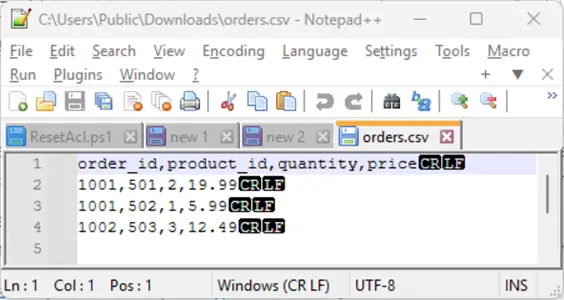
Notice from the Notepad++ window border that the source file resides in the C:\Users\Public\Downloads folder. Beginning administrators may be attracted to deposit source files for the bulk insert statement in this folder because it is easy to access for all local users. However, the SQL Server service account is not a local user account, and it lacks default access to the folder.
From any account with admin rights, you can remedy this access permission deficit for the SQL Server service account in the File Explorer interface for the folder’s Access Control List (ACL).
- Retrieve the name of the service account for the current SQL Server instance with this script (
select servicename, service_account from sys.dm_server_services;). - Then, open in File Explorer the Security tab for the C:\Users\Public\Downloads folder.
- If the service account name is not listed among the group or user names for the folder, then update the name box to include the service account name.
- After adding the name, select the name and allow these permissions so the bulk insert statement will function:
- Read & execute,
- List folder contents, and
- Read
PowerShell Script
Instead of using the File Explorer interface, some readers may prefer running the following PowerShell script from an account with admin rights. You can update $SqlServiceAccount with the name returned from the select statement from sys.dm_server_services.
# ==========================================
# Grant Read Access to SQL Server Service Account
# (BULK INSERT / OPENROWSET prep)
# ==========================================

# 1. Define the folder path to grant access
$FolderPath = "C:\Users\Public\Downloads"

# 2. Get SQL Server service account name via T‑SQL
# Requires: SqlServer PowerShell module + appropriate permissions
$SqlServiceAccount = Invoke-Sqlcmd -Query "
    SELECT service_account
    FROM sys.dm_server_services
    WHERE servicename LIKE 'SQL Server (%'
" | Select-Object -ExpandProperty service_account

# 3. Build the access rule
$Rights      = [System.Security.AccessControl.FileSystemRights]"ReadAndExecute"
$Inheritance = [System.Security.AccessControl.InheritanceFlags]"ContainerInherit, ObjectInherit"
$Propagation = [System.Security.AccessControl.PropagationFlags]"None"
$AccessType  = [System.Security.AccessControl.AccessControlType]::Allow

$Rule = New-Object System.Security.AccessControl.FileSystemAccessRule(
    $SqlServiceAccount, $Rights, $Inheritance, $Propagation, $AccessType
)

# 4. Get current ACL, add rule, and apply
$Acl = Get-Acl -Path $FolderPath
$Acl.AddAccessRule($Rule)
Set-Acl -Path $FolderPath -AclObject $Acl

Write-Host "Granted READ access on '$FolderPath' to '$SqlServiceAccount'."

# Optional safety tip:
#   Backup ACL before changes: Get-Acl $FolderPath | Export-Clixml ".\ACL_Backup.xml"
After giving the SQL Server service account the appropriate access permissions by either approach, you can run the following T-SQL script to transfer the rows from the orders.csv file to the dbo.orders table in whatever database your application requires. The use statement at the top of the script establishes T-SQLDemos as the default database for the script. The script has three steps. Step 1 creates a fresh version of the dbo.orders table in the T-SQLDemos database. For step 2, this invokes a bulk insert statement to populate the dbo.orders table from the C:\Users\Public\Downloads\orders.csv file. Step 3 echoes the contents copied to the table and runs a couple of select statements to perform typical data processing operations for an orders table.
use [T-SQLDemos]

-- Step 1
-- conditionally drop dbo.orders
-- then create a fresh version of orders table
-- in the [T-SQLDemos] database
if exists (
    select 1
    from sys.objects
    where object_id = object_id('dbo.orders')
      and type = 'U'
)
drop table dbo.orders;

create table orders (
    order_id int,
    product_id int,
    quantity int,
    price decimal(10,2)
);

-- Step 2
-- run the bulk insert statement
-- to populate the dbo.orders table
-- from a csv file in the
-- C:\Users\Public\Downloads path
bulk insert dbo.orders
from 'C:\Users\Public\Downloads\orders.csv'
with (
    firstrow = 2,
    fieldterminator = ',',
    rowterminator = '\n'
);

-- Step 3
-- list copied data
select order_id, product_id, quantity, price
from dbo.orders

-- compute total items and order amount by order
select order_id, sum(quantity) [total items], sum([line total]) [order amount]
from
(
select order_id, product_id, quantity, price, price*quantity [line total]
from dbo.orders
) for_order_total
group by  order_id
Import CSV File with Openrowset
Just as the bulk insert statement script example requires the file system to recognize and interact with the SQL Server service account so does openrowset approach illustrated in this section. The happy news is that you can use exactly the same steps for interfacing the Windows file system with the service account for a SQL Server instance.
Like the prior section covering the bulk insert statement, this tip section illustrates a three-step framework to create and populate SQL Server tables with the openrowset function from csv files. However, the steps are different and one of the steps runs in a cmd window. The T-SQL script below reveals the code for implementing the steps, including the one step that runs in a cmd window.
The use keyword at the top of the script designates the default database. The SQL Server table populated by the csv file is stored in this database. Change the database name to specify an alternate database that conforms to your project’s requirements.
T-SQL Code
use [T-SQLDemos]

-- Step 1: Drop target table if it already exists

-- conditionally drop dbo.orders_openrowset
if exists (
    select 1
    from sys.objects
    where object_id = object_id('dbo.orders_openrowset')
      and type = 'U'
)
drop table dbo.orders_openrowset;

-- Step 2: Generate a Format File with bcp from a command window
/*
bcp "[T-SQLDemos].[dbo].[orders_openrowset]" format nul -c -t, -r\n
-f "C:\CSVsForSQLServer\orders.fmt" -S localhost -T
*/

-- STEP 3: Generate a table named dbo.orders_openrowset
-- in the default database specified by the use keyword
-- based on the orders.csv file in the C:\CSVsForSQLServer path
-- with the openrowset function and the orders.fmt format file
-- in a select statement
select *
into dbo.orders_openrowset
from openrowset(
  bulk 'C:\CSVsForSQLServer\orders.csv',
  formatfile = 'C:\CSVsForSQLServer\orders.fmt',
  firstrow = 2
) as data;

select * from dbo.orders_openrowset
Additional Resources
Here are some prior articles from MSSQLTips.com and the Microsoft site that you may find helpful as you explore how to benefit from bulk insert statement and openrowset function in the applications that you develop.
- Different Options for Importing Data into SQL Server
- Bulk Insert Data into SQL Server
- Using SQL Servers OPENROWSET to break the rules
- Using a Simple SQL Server Bulk Insert to View and Validate Data
- Read Excel File in SQL Server with OPENROWSET or OPENDATASOURCE
- Importing JSON formatted data into SQL Server
- SQL Server Bulk Insert for Multiple CSV Files from a Single Folder
- Use BULK INSERT or OPENROWSET(BULK…) to import data to SQL Server
- OPENROWSET BULK (Transact-SQL)
Next Steps
This tip presents T-SQL code examples for the bulk insert statement as well as a select statement referencing the openrowset function. File access permissions receive special attention. You also receive abbreviated highlights for creating format files with the bcp.exe command line utility along with a reference to a source with more detailed instructions. Additionally, a PowerShell script illustrates how to discover the SQL Server service account for the current SQL Server instance and assign file access permissions to the service.
This tip also presents a PowerShell script for discovering the SQL Server service account and assigning file access permissions to it. See these sources for additional information on this topic:
Those who learn best from hands-on experience should run the code samples from this tip as is. Also, try modifying the examples to work with data files that you manage at your organization.
Finally, consider leaving a comment with requests for extensions of the techniques illustrated in this tip.

Rick Dobson is a SQL Server professional with decades of T-SQL experience that includes authoring books, running a national seminar practice, working for businesses on finance and healthcare development projects, and serving as a regular contributor to MSSQLTips.com. He has been a practicing Python developer for more than the past half decade – with a special emphasis for data visualization and ETL tasks with JSON and CSV files. His most recent professional passions include financial time series data and analyses, AI models, and statistics. If you are interested in growing your skills in any of these areas especially as they relate to financial securities, consider visiting his blog at https://securitytradinganalytics.blogspot.com/2023/12/.
- MSSQLTips Awards: Leadership (200+ tips) – 2025 | Author of the Year Contender – 2017-2024


With MSSQL SSMS you can also set up a Linked server ….
EXEC master.dbo.sp_addlinkedserver @server = N’EXCELLINK’, @srvproduct=N’Excel’, @provider=N’Microsoft.ACE.OLEDB.12.0′, @datasrc=N’\\\\’, @provstr=N’Excel 12.0′
You can also used FastTransfer to import csv file(s) . it use DuckDB under the hood and with that a great
From bash shell :
rootdir=”C:\CSVsForSQLServer\”
sourcefileprefix=”orders”
query=”SELECT * FROM read_csv(‘${rootdir}/${sourcefileprefix}*.csv’,sample_size=300000)”
/opt/software/FastTransfer/FastTransfer \
–sourceconnectiontype “duckdbstream” \
–sourceserver “:memory:” \
–query “${query}” \
–targetconnectiontype “msbulk” \
–targetserver “mysqlserver.domain.com,41433” \
–targetuser “TPCHUSER” \
–targetpassword “TPCHPASSWORD” \
–targetdatabase “TPCH” \
–targetschema “dbo” \
–targettable “${sourcefileprefix}” \
–method “None” \
–mapmethod “Name” \
–loadmode “Truncate”
Or even from TSQL using the free CLR procedure xp_RunFastTransfer_secure : https://github.com/aetperf/FastWrappers-TSQL
This extended store procedure wrap FastTransfer.
Parallel import is possible from several files (csv, json or parquet) or even from a single file.