Problem
SQL Server splits your physical transaction log file into logical chucks, called virtual log files (VLF). While your transaction log file may look like one file, logically it is fragmented and the level of fragmentation can result in performance degradation. You can take action to correct the situation, but first you need to know if the situation exists In this tip I will walk you through how to identify this issue.
Solution
You can use Policy Based Management (PBM) to determine which databases currently have extensive VLF fragmentation. The creation of a policy will allow for you to quickly and easily scan all databases in your enterprise.
Inside of SSMS, navigate to the policies folder, right-click, and select ‘New Policy…’.

In the name field enter in ‘T-Log VLF Check Policy’, then click on the arrow in the Check condition dropdown and select ‘New condition…’:

In the name field enter ‘T-Log VLF Check Condition’. For the Facet select ‘Database’, then click on the ellipses next to the ‘Field’ dropdown.
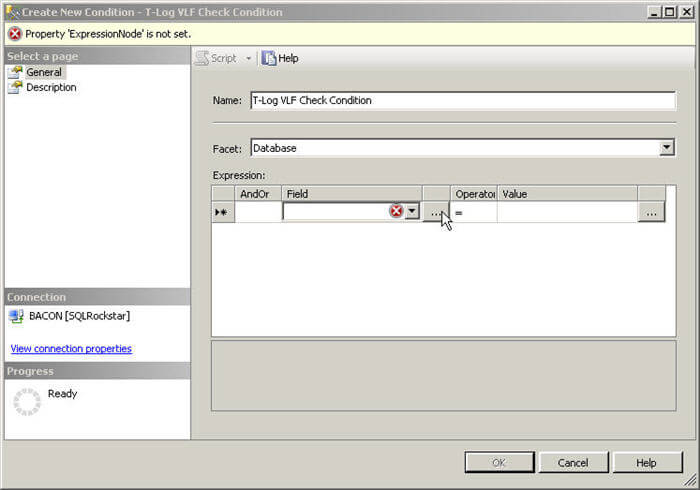
Here is where the magic will happen. Cut and paste the following code into the ‘Cell value’:
ExecuteSql('Numeric', ' |
Click ‘OK’

Then set the Value field to be 50, the Operator to be less than or equal to, and click OK again.

Make certain the check box for every database is enabled, and click OK again.

Your policy is created, next up is to evaluate, right click on the policy and select Evaluate:


Click Evaluate, then Run if you get prompted (again) about your policy containing a script. Any databases with more than 50 VLF’s will be flagged.
Result
Here is a screenshot of a sample result set returned by the policy.

Next Steps
- Navigate to an instance of SQL 2008 and create the policy as outlined above.
- If you find a database with more than 50 VLF’s, you should take action as outlined here.

Thomas LaRock is a Head Geek at SolarWinds and a Microsoft Certified Master, Microsoft Data Platform MVP, VMware vExpert, and former Microsoft Certified Trainer. He has over 20 years’ experience in the IT industry in roles including programmer, developer, analyst, and database administrator.
LaRock has spent much of his career focused on data and database administration, which led to his being chosen as a Technical Evangelist for Confio Software in 2010. While at Confio, his research and experience helped to create the initial versions of the software now known as SolarWinds Database Performance Analyzer. LaRock joined the SolarWinds family through the acquisition of Confio in 2013.
LaRock is also the Immediate Past President of the Professional Association for SQL Server (PASS) and is an avid blogger, author, and technical reviewer for numerous books about SQL Server management. He now focuses his time working with customers to help resolve problems and answer questions regarding database performance tuning and virtualization for SQL Server, Oracle, MySQL, SAP, and DB2, making it his mission to give IT and data professionals longer weekends.