Problem
Auditing your instances of SQL has become more of a concern these days. SQL 2008 introduced a new feature named SQL Server Audit. In this tip I will cover how to setup auditing.
Solution
Enabling this feature can be done in just a few simple steps.
The first step is to create a new audit by right-clicking on the Audit folder inside of the Security folder found in SSMS.

You should see a screen as follows:

You need to input a file path in order to proceed. You can also set parameters for the file size and reserve disk space for the files. However, you cannot reserve disk space if your file size is set to unlimited.
After you click OK, you will have created a server audit. At this point you have created an audit for the instance, but have not specified what to audit. You will do that in the next step, first by right-clicking on the ‘Server Audit Specifications’ as follows:

Note that here we are creating an audit for the server, or instance level. In order to create a database audit you would navigate in SSMS to the database you want to audit and expand the security folder as follows:
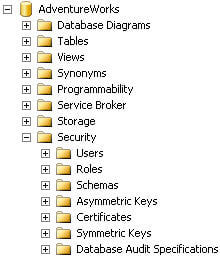
You can right-click on the Database Audit Specifications folder to create a new database audit. Each type of audit specification has a distinct set of options to select from. For this example we will continue with a database specification:

Select the server audit by clicking in the dropdown window. Then select an audit action type. In the example above I have selected a handful of action types and associated object classes, object names, and principal names. Click OK and the audit specification is created.
At this point we have created a server audit and a database audit that is associated with the server audit. Neither of these audits are enabled. You can enable them by right-clicking on each and selecting ‘enable’.
Once enabled, SQL Server Audit is now collecting information. You can review the details by right-clicking on the server audit and selecting ‘View Audit Logs’.

And the viewer should resemble the following:

Next Steps
- Configure SQL Server 2008 Audit by following the steps outlined above.
- Note that this is an Enterprise edition feature
- Read these other tips:

Thomas LaRock is a Head Geek at SolarWinds and a Microsoft Certified Master, Microsoft Data Platform MVP, VMware vExpert, and former Microsoft Certified Trainer. He has over 20 years’ experience in the IT industry in roles including programmer, developer, analyst, and database administrator.
LaRock has spent much of his career focused on data and database administration, which led to his being chosen as a Technical Evangelist for Confio Software in 2010. While at Confio, his research and experience helped to create the initial versions of the software now known as SolarWinds Database Performance Analyzer. LaRock joined the SolarWinds family through the acquisition of Confio in 2013.
LaRock is also the Immediate Past President of the Professional Association for SQL Server (PASS) and is an avid blogger, author, and technical reviewer for numerous books about SQL Server management. He now focuses his time working with customers to help resolve problems and answer questions regarding database performance tuning and virtualization for SQL Server, Oracle, MySQL, SAP, and DB2, making it his mission to give IT and data professionals longer weekends.