Problem
My developers often ask me to create a database backup before any critical deployment or to restore a database to one of the test environments. They often ping me during the process to know the progress and estimated completion. Sometimes the backup or restore is running through a SQL Server Agent Job which looks hung and I want to know if it’s actually doing something. In this tip I have tried to put forth a solution to monitor your backup percentage complete in SQL Server.
Solution
Normally we take a backup or restore a database either through SSMS or using a script. We might also schedule it using a SQL Agent job. Now let’s see how to monitor progress in all the three cases.
Backup Percentage Complete in SQL Server
There are several ways to get information about the percentage complete for a backup.
Backup Percentage Complete in SQL Server using SSMS GUI
Open SSMS, right click on a database then select Tasks > Back Up. A screen similar to the below image will open. After you select all of the backup options and click OK, you can monitor the progress on the lower left side of the GUI as shown in the below image. This will give you an idea of the status of the backup.

SQL Backup Completion Percentage using T-SQL Script
T-SQL scripts can execute database backups. Specify the STATS keyword to monitor progress. In the code below we are reporting progress every 10 percent.
BACKUP DATABASE [backup_restore_progress] TO
DISK = N'E:\backup_restore_progress_backup_full.bak'
WITH NOFORMAT, NOINTI, NAME = N'backup_restore_progress_backup_Full Database Backup',
STATS = 10
When using STATS, the number equals the total processing into parts equal to the number. So, if you use STATS = 1, this will give you percent completion from 1 to 100%.
Backup Completion Percentage showing every 10% of progress
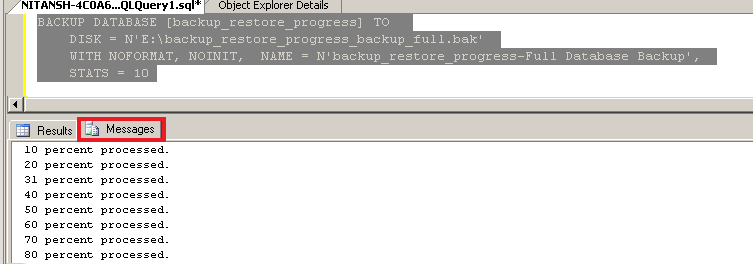
Backup Completion Percentage showing every 1% of progress

Restore Percentage Complete in SQL Server
There are also multiple ways to get restore percentage complete.
SQL Restore Percentage Complete using SSMS GUI
Open SSMS, right click on a database then select Tasks > Restore. A screen similar to the below image will open. After you select all of the restore options and click OK, you can monitor the progress on the lower left side of the GUI as shown in the below image. This will give you an idea of the status of the restore.

SQL Restore Percentage Complete using T-SQL Script
The following screens shows how we can get restore percentage complete using scripts.
RESTORE DATABASE [backup_restore_progress]
FROM DISK = N'E:\backup_restore_progress_backup_full.bak'
WITH FILE = 1
MOVE N'backup_restore_progress' to N'E:\Data\backup_restore_progress_backup_Full.mdf',
MOVE N'backup_restore_progress_log' to N'E:\Log\backup_restore_progress_backup_Full.ldf',
STATS = 10
Restore showing every 10% of progress
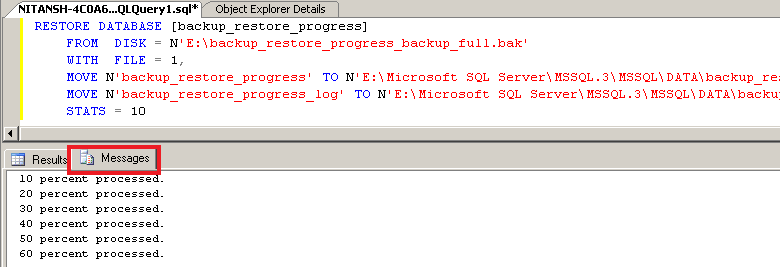
Restore showing every 1% of progress

Getting SQL Backup or SQL Restore Percentage Complete Using DMVs
If the backup or restore is running from a SQL Agent job or maybe someone kicked off the process from another machine, you can use DMV sys.dm_exec_requests to find the progress. I really thank Microsoft for introducing DMV’s and making a DBA’s life a lot easier.
You can run this script, which will give you output similar to the screenshot below. Here we can see the percent complete and estimated completion time. This script will work for any backup or restore that is currently running.
SELECT
   session_id as SPID, command, a.text AS Query, start_time, percent_complete,
   dateadd(second,estimated_completion_time/1000, getdate()) as estimated_completion_time
FROM sys.dm_exec_requests r
   CROSS APPLY sys.dm_exec_sql_text(r.sql_handle) a
WHERE r.command in ('BACKUP DATABASE','RESTORE DATABASE') 
If you wanted someone who is not a member of sysadmin role to check the backup or restore progress using this script, you can provide permission to them using the below command:
GRANT VIEW SERVER STATE TO [Login_name] Note About Permissions
Backup database permissions default to members of the sysadmin fixed server role and the db_owner and db_backupoperator fixed database roles. For restore, the user needs CREATE DATABASE permissions to execute the RESTORE if the database does not exist. If the database exists, RESTORE permissions default to members of the sysadmin and dbcreator fixed server roles and the owner (dbo) of the database.
SQL Restore Stuck at 100%
I would like to touch base upon one aspect of SQL Server which you will encounter while restoring databases. Sometimes the restore appears stuck at 100% or around 99.99%. For very large databases, (i.e. TB size), it may even take several hours for the recovery to complete. To understand the restore completion percentage, we need to understand the different phases that a restore goes through.
The three phases are Data Copy phase, Redo phase and Undo phase.
- While you may see the restore is 100% complete it’s actually only the Data Copy phase that is complete and then SQL proceeds to subsequent phases before the recovery is totally complete.
- In the Redo phase, all the committed transactions present in the transaction log when the database was being backed up are rolled forward.
- In the Undo phase, all the uncommitted transactions in the transaction log while the database was being backed up are rolled back.
If the database is being restored with NORECOVERY, the Undo phase is skipped.
Unfortunately, SQL Server does not show the progress during the Redo and Undo phases as it does in the Data Copy phase. So, depending upon the activity in the database at the time it was getting backed up will decide the overall total recovery time.
Key Takeaways
- Monitor the backup percentage in SQL Server using SSMS or T-SQL scripts for better tracking.
- Use the ‘STATS’ keyword in T-SQL to report progress at specified intervals.
- Track the restore percentage in SQL Server similarly through SSMS or T-SQL scripts.
- Leverage DMVs like ‘sys.dm_exec_requests’ to check progress of backup and restore processes, even when initiated from SQL Agent jobs.
- Understand the phases of restore, as completion may appear stuck at 100% due to ongoing recovery processes.
Next Steps
- The same DMV can be used to monitor DBCC shrink commands progress as well.
- Efficient backup strategy is the backbone of disaster recovery and no other high availability solution can replace it.
- Backups and restores take considerable amount of resources, so you need to plan the backup strategy and timings accordingly.
- A backup file retention policy should also be created depending on the industry you are in, you made need to retain particular data for numerous years.
- Keep critical database backups safe using data encryption which was first introduced in SQL Server 2008.

Technical lead with 4+ years of extensive experience in database administration. Nitansh has worked on SQL Server 2000, 2005, 2008, 2008 R2 and more. He holds the following Microsoft certifications: MCTS 2005, 2008 and MCITP 2008. In his current assignment he is handling large critical databases. His expertise is in database security, performance tuning and implementing high availability solutions.


This is the query I use for several processes:
SELECT
R.session_id,
R.command AS Ds_Operacao,
B.name AS Nm_Banco,
R.start_time AS Dt_Inicio,
CONVERT(VARCHAR(20), DATEADD(MS, R.estimated_completion_time, GETDATE()), 20) AS Dt_Previsao_Fim,
CONVERT(NUMERIC(6, 2), R.percent_complete) AS Vl_Percentual_Concluido,
CONVERT(NUMERIC(6, 2), R.total_elapsed_time / 1000.0 / 60.0) AS Qt_Minutos_Execucao,
CONVERT(NUMERIC(6, 2), R.estimated_completion_time / 1000.0 / 60.0) AS Qt_Minutos_Restantes,
CONVERT(NUMERIC(6, 2), R.estimated_completion_time / 1000.0 / 60.0 / 60.0) AS Qt_Horas_Restantes,
CONVERT(VARCHAR(MAX), ( SELECT
SUBSTRING(text, R.statement_start_offset / 2, CASE WHEN R.statement_end_offset = -1 THEN 1000 ELSE ( R.statement_end_offset – R.statement_start_offset ) / 2 END)
FROM
sys.dm_exec_sql_text(sql_handle)
)) AS Ds_Comando
FROM
sys.dm_exec_requests R WITH(NOLOCK)
JOIN sys.databases B WITH(NOLOCK) ON R.database_id = B.database_id
WHERE
R.command IN (
‘BACKUP DATABASE’,
‘RESTORE DATABASE’,
‘ALTER INDEX REORGANIZE’,
‘AUTO_SHRINK option with ALTER DATABASE’,
‘CREATE INDEX’,
‘DBCC CHECKDB’,
‘DBCC CHECKFILEGROUP’,
‘DBCC CHECKTABLE’,
‘DBCC INDEXDEFRAG’,
‘DBCC SHRINKDATABASE’,
‘DBCC SHRINKFILE’,
‘DbccFilesCompact’,
‘KILL’,
‘UPDATE STATISTICS’,
‘DBCC’
)
AND R.estimated_completion_time > 0
This is the query I use to get Pct complete for either backup or restores:
SELECT
session_id as SPID,
command,
a.text AS Query,
start_time,
percent_complete,
CAST(((DATEDIFF(s,start_time,GETDATE()))/3600) AS VARCHAR) + ‘ hour(s), ‘
+ CAST((DATEDIFF(s,start_time,GETDATE())%3600)/60 AS VARCHAR) + ‘min, ‘
+ CAST((DATEDIFF(s,start_time,GETDATE())%60) AS VARCHAR) + ‘ sec’ AS running_time,
CAST((estimated_completion_time/3600000) AS VARCHAR) + ‘ hour(s), ‘
+ CAST((estimated_completion_time %3600000)/60000 AS VARCHAR) + ‘min, ‘
+ CAST((estimated_completion_time %60000)/1000 as VARCHAR) + ‘ sec’ AS est_time_to_go,
DATEADD(SECOND,estimated_completion_time/1000, GETDATE()) AS estimated_completion_time
FROM sys.dm_exec_requests r
CROSS APPLY sys.dm_exec_sql_text(r.sql_handle) a
WHERE r.command IN (‘BACKUP DATABASE’,’RESTORE DATABASE’, ‘BACKUP LOG’,’RESTORE LOG’)
Thanks for the info about the three phases of restores. Exactly the info I was looking to learn about!