Problem
Expressions are a very powerful feature of SQL Server Reporting Services (SSRS). They enable us to handle various things dynamically at run-time. In this tip, we will take a look at few Tips and Tricks on SSRS Expressions.
Solution
In this tip, we will take a look at the following Tips and Tricks on SSRS Expressions:
- Adding Comments in Expressions
- Displaying Columns Dynamically
- Referring to Textbox Contents
- Referring to Contents within Textboxes
- Adding a Line Break in Expressions
- Using Visual Basic (VB) Functions
Note: This tip assumes that you have experience building a simple to medium complexity SSRS Report.
Adding Comments in SSRS Expressions
Comments are a very useful feature in any kind of coding/programming as they have various benefits like they act as a self-documentation, make it easy to understand and maintain the code. Fortunately, SSRS also allows us to add comments as part of the expressions.
For the purpose of this tip, add a textbox to report header with the following expression in it and preview the report.
="Report Executed By: " + User!UserID
The report output should contain the following text: “Report Executed By: <<User Running the Report>>”
Now let’s add a comment towards the end of the expression and also on the next line as shown below.

Again preview the report and the output should contain the same text as before: “Report Executed By: <<User Running the Report>>”
Following are the highlights of the Comments in SSRS Expressions:
- Comments in SSRS Expressions are implemented with a single quote.
- Comments can be added either on the same line as the expression or on the next line.
- Comments cannot be added in the beginning or middle of the expression.
- There is no concept of multi-line comments. All comments are single line comments. However, when a comment is added on the same line or next line of an expression, any text added on the subsequent lines is ignored by SSRS and hence is treated as a part of the comment.
Displaying Columns Dynamically in SQL Server Reporting Services Expressions
For the purpose of this demonstration, let’s build a simple report. Create a new project, add a new report, and create a data source pointing to AdventureWorksDW database. Then create a dataset with the following query.
SELECT
    DPC.EnglishProductCategoryName AS Category
    , DPS.EnglishProductSubcategoryName AS Subcategory
    , DP.EnglishProductName AS Product
    , FIS.SalesAmount
    , FIS.Freight AS FreightAmount
    , FIS.TaxAmt AS TaxAmount
FROM
    dbo.FactInternetSales AS FIS
    INNER JOIN dbo.DimProduct AS DP
        ON FIS.ProductKey = DP.ProductKey
    INNER JOIN dbo.DimProductSubcategory AS DPS
        ON DP.ProductSubcategoryKey = DPS.ProductSubcategoryKey
    INNER JOIN dbo.DimProductCategory AS DPC
        ON DPS.ProductCategoryKey = DPC.ProductCategoryKey
Next, add a Table report item to the designer with four columns as Category, Subcategory, Product, and SalesAmount in the same sequence. The completed report, with some basic formatting, should look as shown below.

Next let’s add a single-select parameter “DisplayField”, of “Text” type, with the following set of values.

Add the following expression in the “Sales Amount” column header.
=Parameters!DisplayField.Label
Add the following expression in the “Sales Amount” column value/detail.
=Fields(Parameters!DisplayField.Value).Value
Next render the report with parameter set to “Sales Amount”, followed by setting it to “Freight Amount” and finally setting it to “Tax Amount”. The output with each of the 3 parameter selections will be as shown below respectively.


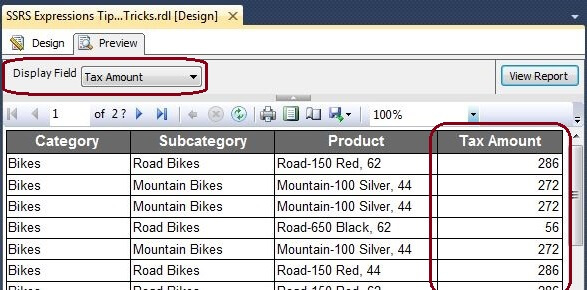
Notice that both the value and the label of the last column changed based on the value selected in the “DisplayField” parameter, thereby making the field display dynamicly. Also, note that we have not used any IIF(), SWITCH() or any other conditional statements in this expression. The same technique can be applied for other features within SSRS like the following:
- Dynamic Parameters
- Dynamic Grouping
Referring to Textbox Contents in SSRS Expressions
SSRS has a collection called “ReportItems” which allows us to reference values from a Textbox in other places within the report. For the purpose of this demonstration, add two textboxes to report and name them as “tbxSource” and “tbxTarget” respectively.
Add the sample text “This is the source textbox. The contents of this textbox can be referred anywhere within the same scope using ReportItems collection.” in the first textbox “tbxSource”. And add the following expression in the second textbox “tbxTarget”.
=ReportItems!tbxSource.Value
The report designer should look like the image shown below.

Now preview the report and see that the contents displayed in second textbox “tbxTarget” are exactly the same as that of the contents of the first textbox “tbxSource”.

SSRS ReportItems Collection is a great feature and can be used in different scenarios. However, the Textbox being referred to should be in the same scope as that of the item from which it is being referred.
Referring to Contents within Textboxes with SSRS Expressions
SSRS has interesting syntax to refer to values within the textbox without actually using the expression, field, or parameter present within the textbox. For the purpose of this demonstration, let’s add a textbox in the report and put a value 5 in it. Select the properties window and set the “BackgroundColor” property to the following expression.
=SWITCH(
    Me.Value >= 0 AND Me.Value <= 3, "Red"
    , Me.Value >= 4 AND Me.Value <= 7, "Yellow"
    , Me.Value >= 8 AND Me.Value <= 10, "Green"
)
Your designer window should look as shown below.

Now preview the report and notice that the textbox background color is “Yellow”. Next set the value to “2” and preview it, and notice that the background color is “Red”. Finally, set the value to “8” and preview it, and notice that the background color is “Green”. The output in each of the scenarios looks like the image as shown below.

In the above textbox, we can put any valid expression instead of a hardcoded number. This feature can be really handy especially at design time when the value in the textbox is a result of an expression.
Adding a Line Break in SQL Server Reporting Services Expressions
Often developers use multiple textboxes to display data, which otherwise can be combined into a single textbox by just adding a Line Break. Visual Basic Carriage Return Line Feed (VbCrLf) can be used to add a Line Break in expressions. For the purpose of this demonstration, add a textbox to the designer and then enter the following expression in the textbox.
="Executed By: " & User!UserID & VbCrLf & "Execution Time: " & Globals!ExecutionTime
Preview the report and notice that the “Report Executed By” and “Report Execution Time” are on two different lines as shown below.

Line Breaks can be used to combine contents of multiple textboxes placed one after the other and hence make it easy to manage and reduce the effort required for formatting, alignment, etc.
Using Visual Basic (VB) Functions in SQL Server Reporting Services
Another interesting feature of SSRS is the ability to use Visual Basic Functions in expressions. There are various categories of functions available in SSRS as shown in the this screenshot.

Basically, any valid VB function can be used in SSRS Expressions.
As we can see in this tip, expressions are a very powerful feature of SSRS. Expressions can be used to address many complex problems and reporting requirements.
Next Steps
- Try the tips and tricks demonstrated above and explore more possibilities.
- Take a look at the following tips:
- Check out my previous tips

Dattatrey Sindol (aka Datta) is a Business Intelligence enthusiast, passionate developer, and blogger. He started his career in November 2006 and since then has worked on various technologies including SQL Server BI, Power BI, Microsoft Azure, & Azure HDInsight within Microsoft Stack and other Cloud & Big Data technologies outside Microsoft Stack. Currently, he is working as an Associate BI Architect at a leading IT Services company in India (Bangalore). Datta also is a Microsoft Certified IT Professional (MCITP) in SQL Server Business Intelligence 2008.
- MSSQLTips Awards: Trendsetter (25+ tips) – 2014 | Author Contender – 2014

Is there any way to access to the function Miscellaneous Lookup via VB Embedded Code?
I am trying to find any documentation related to it, but i have no luck