Problem
In this article, we walk through the steps to install SQL Server 2022 Express edition so you know what is involved when doing an install.
Solution
This article covers how to download, install, and configure the SQL Server Express Edition. For this article, we will use SQL Server 2022, but these steps should be similar for other versions of SQL Server Express.
What is SQL Server Express Edition?
There are multiple editions of SQL Server, the most complete is Enterprise. Additionally, there are Standard, Web, Developer, and Express editions.
SQL Server Express is free, but it is limited to resources that can be used and also the size of the databases. This version is good for learning or for small applications with low hardware requirements. It has limited support for sockets or cores (1 socket or 4 cores) and limited memory for the buffer pool (1410 MB). In addition, databases cannot exceed 10GB in size. Also, it does not support failover, Log Shipping, Always On, and other features.
For more information about the features supported by the Express Edition, refer to the Next Steps section at the end of this article.
Download the SQL Server Installer
You can download the installer from the following link: SQL Server Download.
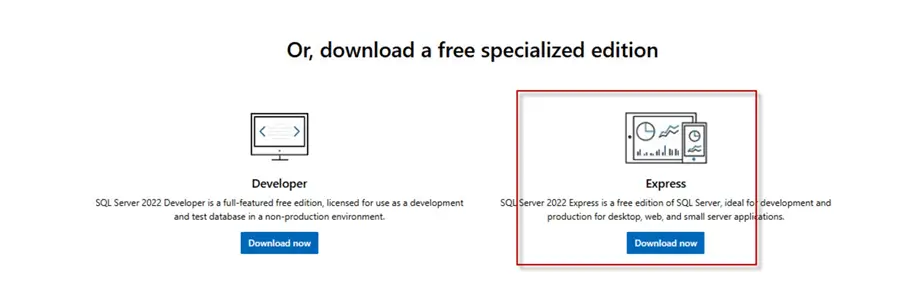
Scroll down to the free specialized edition downloads (below) and click Download now.
Run the SQL Server Installer
After download, run the executable to do the install on the machine where you want to install SQL Server.

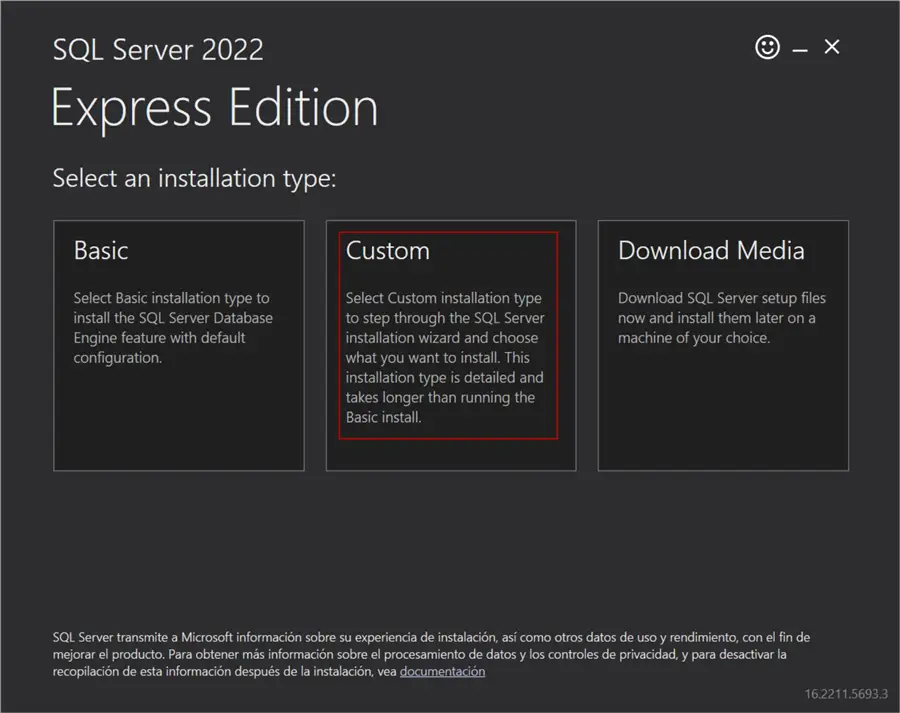
Once launched, there are three options:
- Basic: Installs only the main components and is the easiest way to install it.
- Custom: Select the components that you want to install. This option is required when you need to install components not included in the basic configuration. In this tip, we will select this option.
- Download Media: Allows you to download the installer and run the installation later.
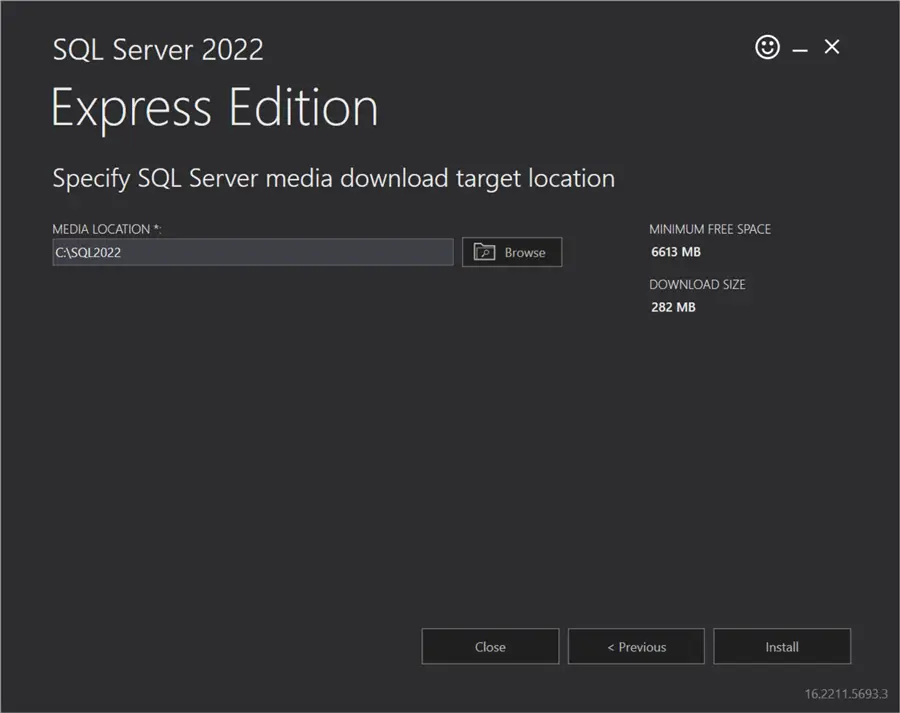
The wizard will ask where to download the installer. Once identified, click Install.
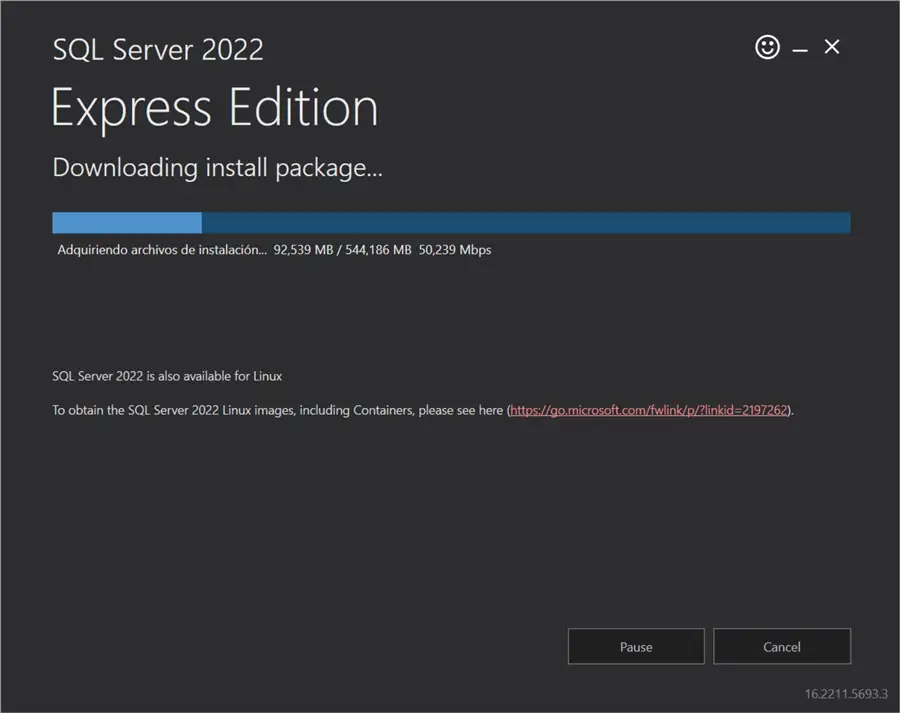
Wait until the installer is downloaded.
SQL Server Installation Center
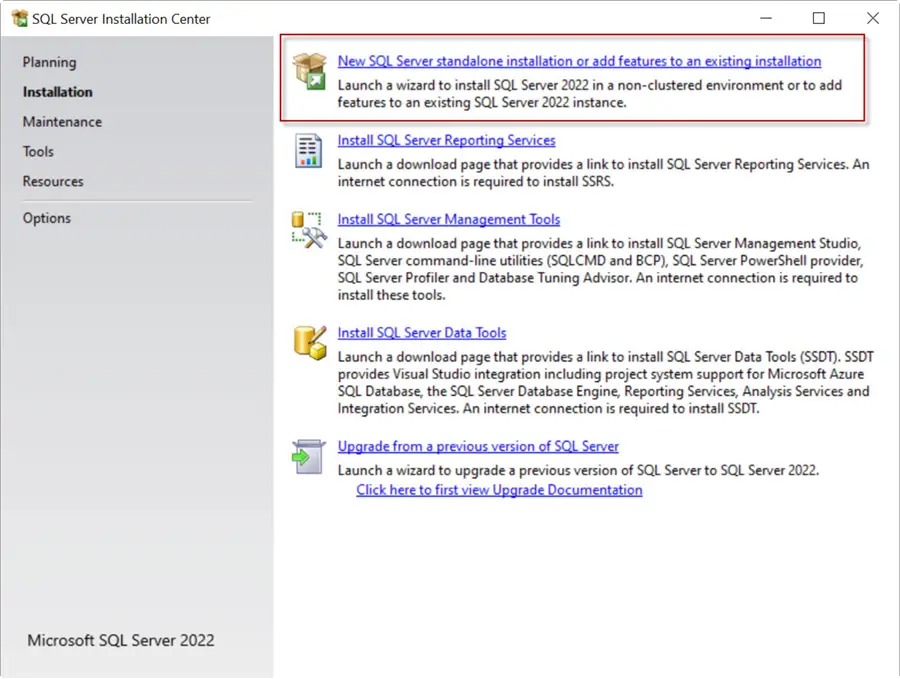
The installer will open the SQL Server Installation Center with numerous options available:
- Standalone Installation: You can install the SQL Server Engine or add new features.
- SQL Server Reporting Services: Install SSRS to generate reports based on the database data.
- SQL Server Management Tools: Install tools like the SQL Server Management Studio (SSMS) to administer the SQL Server database or the SQLCMD to configure and administer the database using the command line.
- SQL Server Data Tools: Add Data Tools to handle SQL Database projects, SSIS projects, or SSAS projects.
- Upgrade SQL Server: It’s possible to upgrade your SQL from a previous SQL Server version. For more information about these options, refer to the following links:
For this install we will select “New SQL Server standalone installation or add features to an existing installation.”
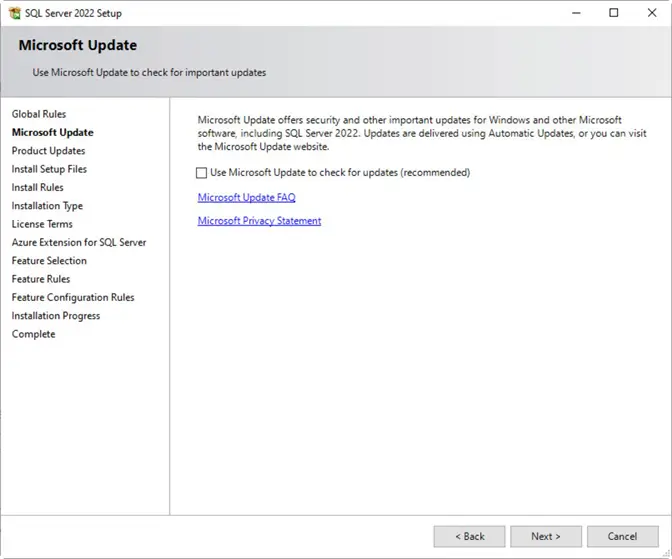
Microsoft Update
The Microsoft Update section will check for the latest updates. This is useful if you are not sure if the installer has the last updates. Checking for updates will get the latest versions with the latest security patches.
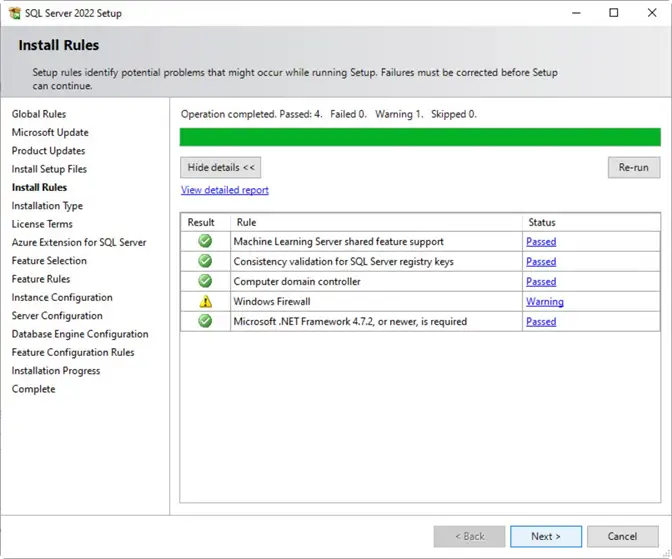
Install Rules
The Install Rules window will check if you have all the requirements to install SQL Server, like the required version of the .NET framework, firewalls, if the machine is not a domain controller, etc.
Installation Type
This option asks if you want to install a new instance or add features to existing instances. An instance of SQL Server contains several databases, logins, tables, and views. It is like a server in SQL Server. You can have multiple independent SQL instances on a single machine.
We will select “Perform a new installation of SQL Server 2022.”
The additional features can be Machine Learning, Replication, Full-text Search, PolyBase, etc. For more information about these topics, refer to the following links:
- Machine Learning Services – Installation and Configuration
- Add Full Text Search on SQL Server
- Troubleshoot SQL Server Transactional Replication Step By Step
- Introduction to PolyBase in SQL Server – Part 1

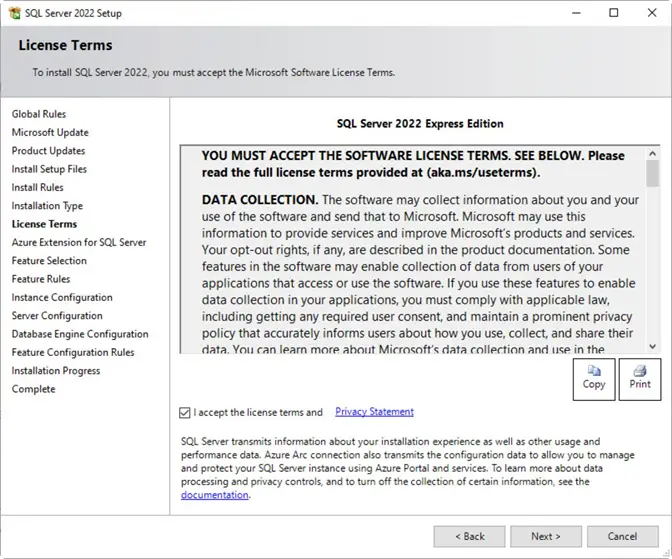
License Terms
Next, you must accept the license terms.
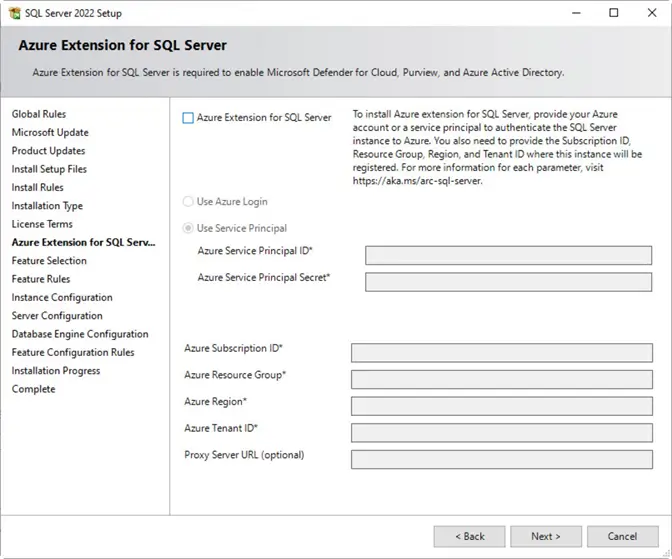
Azure Extension for SQL Server
Azure is the Microsoft cloud platform. With this option, you can provide credentials to connect to Azure.
Feature Selection
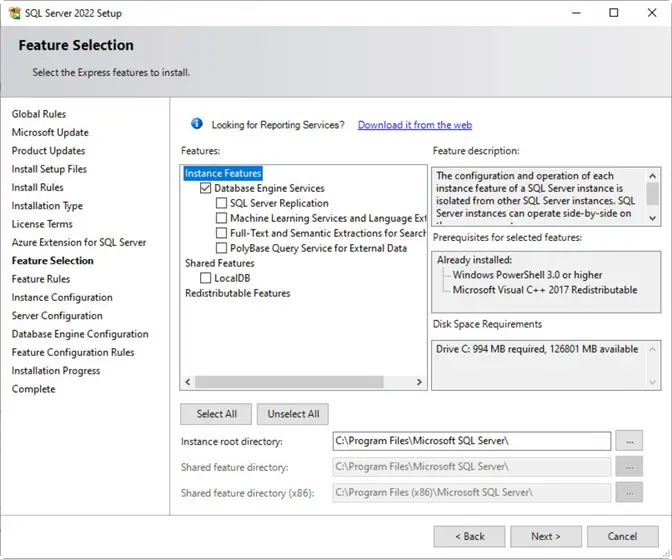
Here, select the features that you want to install.
- Database Engine Service: Provides the storage of your data. It processes your queries and provides the features to secure your data. This engine processes the transactions.
- SQL Server Replication allows replication of data to or from other servers in multiple ways.
- Machine learning is used for predictive analysis.
- Full-Text and Semantic Extractions for Search allows queries against character or binary column data.
- PolyBase is used to query Big Data and Hadoop solutions.
- LocalDB provides a local environment that is easier to install and manage.
Instance Configuration
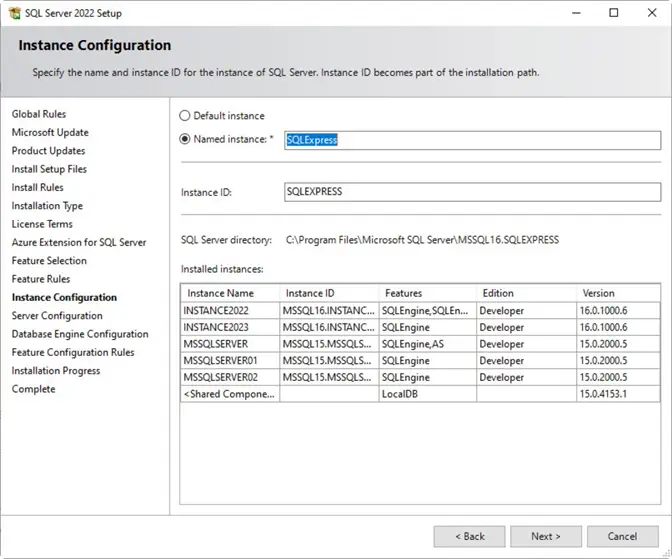
The next window will ask for the instance name. Type a name or use the default and click Next.
Server Configuration
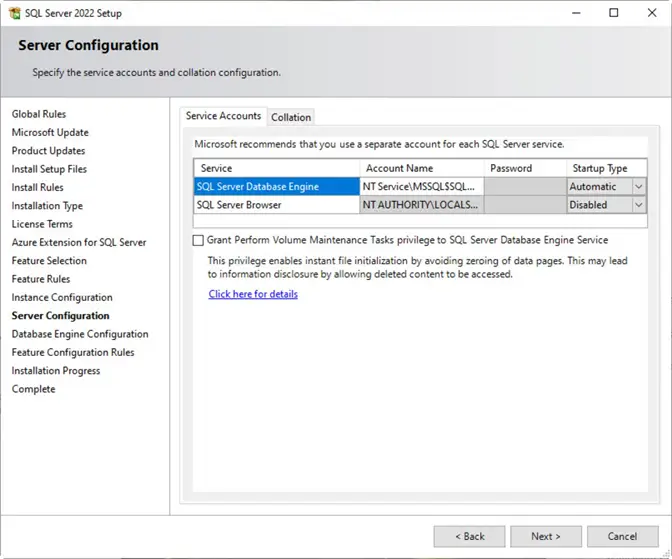
Here, we configure the accounts used for the SQL Server services. You can keep the defaults and click Next or select different accounts.
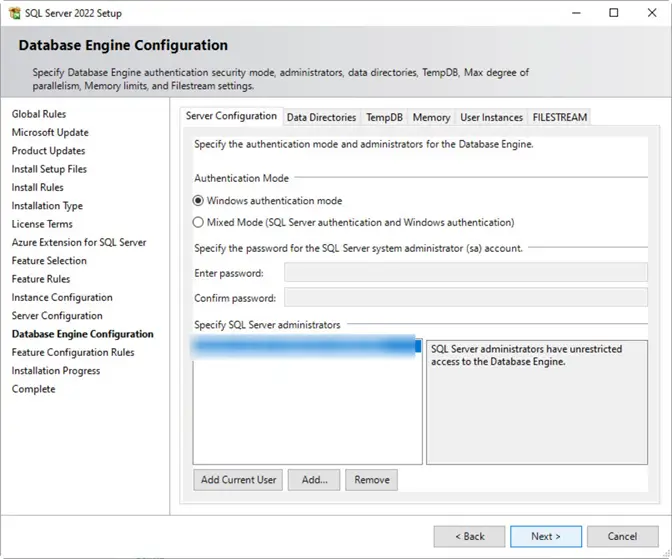
Database Engine Configuration
Next, choose an authentication mode: Windows Authentication or Mixed Mode.
Windows authentication allows you to log into SQL Server with Windows accounts. The Mixed mode includes Windows authentication, but also allows for internal SQL Server logins. Windows authentication is the best option because it provides more security.
You also have the option to add Windows administrators to SQL Server.
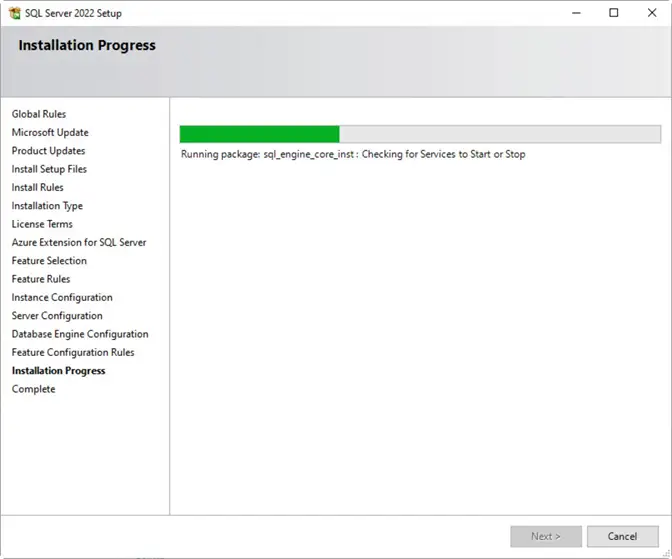
Installation Progress
Finally, installation of SQL Server with all the options selected will begin and this screen shows what is being installed.
After the installation finishes, there will be a Complete screen that shows what was installed.
If you already know how to use SQL Server Express Edition, congratulations on your new installation!
Testing SQL Server Express Edition
Once installed, open SQL Server Management Studio (SSMS). If you do not have SSMS, refer to this article: SSMS 21 – Download, Install and Configure.
Connecting to SQL Server
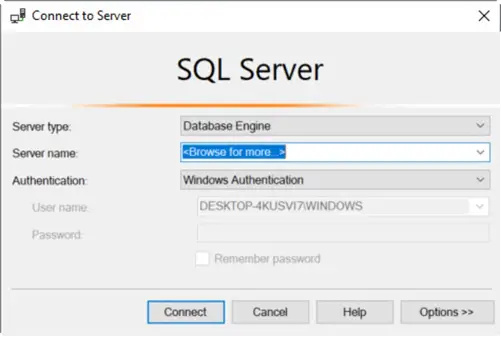
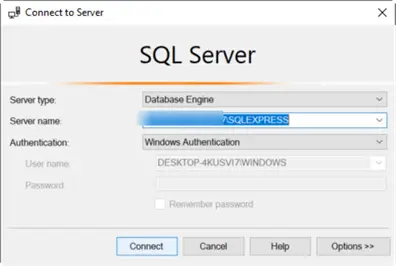
In the Server name, click Browse for more to locate the SQL Express instance.
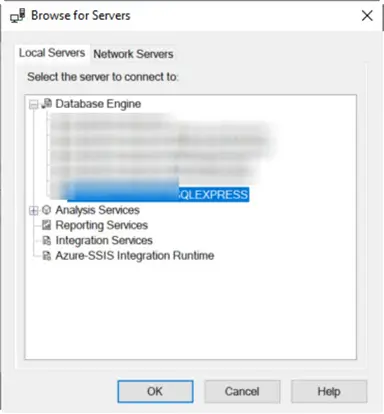
Under Database Engine, look for the SQLExpress instance. Select it and click OK.
Once selected, click Connect.
The Certificate Chain Issued by an Authority Error
A typical error in the latest versions of SQL Server is this:
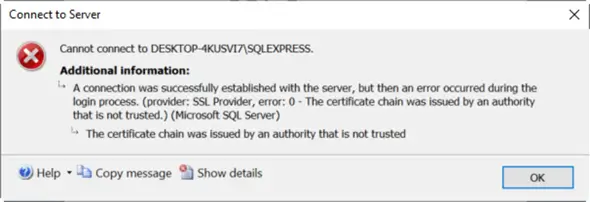
This error means that the certificate to connect is not trusted.
To fix this issue, go to Options.
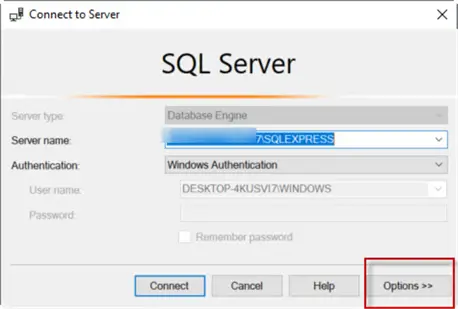
In Options, check the Trust Server Certificate option and click Connect and this should allow you to connect.

Key Takeaways
- This article guides you through downloading, installing, and configuring SQL Server Express edition.
- SQL Server Express is free but limited in capabilities, making it suitable for small applications or learning purposes.
- To install, download the SQL Server installer and choose either Basic, Custom, or Download Media options.
- Follow the installation center prompts for configuring instance, features, and server settings.
- After installation, use SQL Server Management Studio to connect to your SQL Express instance and troubleshoot any connection errors.
Next Steps
For more information about SQL Server features, visit the following links:
- Editions and supported features of SQL Server 2022
- Add Full Text Search on SQL Server
- Troubleshoot SQL Server Transactional Replication Step By Step
- Introduction to PolyBase in SQL Server – Part 1

Daniel Calbimonte is a Microsoft Most Valuable Professional, Microsoft Certified Trainer and Microsoft Certified IT Professional for SQL Server. He is an accomplished SSIS author, teacher at IT Academies and has over 10 years of experience as a QE and developer for SQL Server related software. He has worked for the government, oil companies, web sites, magazines and universities around the world. Daniel also regularly speaks at SQL Servers conferences and blogs.
- MSSQLTips Awards: Author of the Year Contender – 2015-2018, 2022, 2023 | Champion (100+ tips) – 2018

Merci Daniel !!