Problem
SSMS 21 is a version of SQL Server Management Studio. In this article, we look at how to download SSMS, install, and see what was added to SSMS 21.
Solution
This article will explain how to download, install, and configure SSMS 21 and explain what’s new in this version. We will explain different features like Git and GitHub integration, new installation and updates features, Visual Studio integration, the Always encrypted options, and more.
Key Takeaways
- SSMS 21 introduces features like Git and GitHub integration, Visual Studio integration, and enhanced Always Encrypted options.
- It supports Windows 10 and 11, requires a minimum of 4 GB RAM, and .NET framework 4.7.2 or higher.
- Download SSMS 21 from official Microsoft links and follow a simple installation process.
- New features include a dark theme, improved performance, and an updated Always Encrypted wizard.
- You can easily check for updates through the Visual Studio Installer and explore additional improvements in this version.
OS Requirements
The following OSs are supported for SSMS 21:
- Windows 11 (Home, Pro, Pro Education, Pro for Workstation, Enterprise, and Education).
- Windows 10 (Home, Professional, Education, and Enterprise).
- Windows Server 2022, 2019, and 2016 Standard and Datacenter.
Hardware Requirements
Below is a list of the hardware necessary to run SSMS 21:
- X64 processor.
- At least 4 GB of RAM (16 recommended).
- At least 4 GB of disk space (SSD recommended).
- Minimal 1366 x 768 video card display resolution but 1920 x 1080 is recommended.
Additional Requirements
It is also necessary to have the following:
- Administration rights to install.
- .NET framework 4.7.2 installed or higher.
How to Download SSMS 21
Use the following link to download the latest version of SSMS: Download and Install SQL Server Management Studio.
To get SSMS 21 go to this page and there is a download link.
Download the installer and run it from your local machine.
How to Install SSMS 21
Step 1: Run the installer.
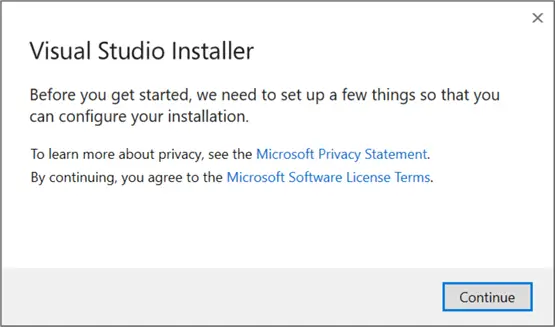
Step 2: You will receive an agreement message. Read the Microsoft Privacy Statement and the Microsoft Software License Terms and click Continue.
Step 3: Click Install.
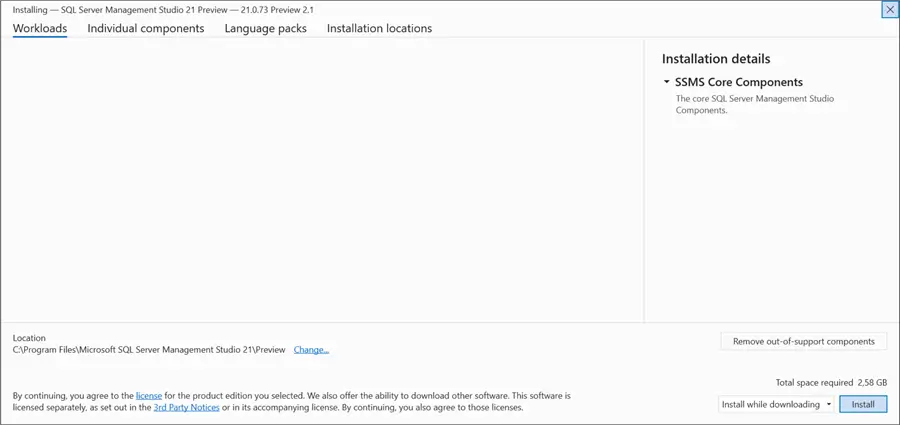
As you can see, SSMS 21 is integrated with Visual Studio now:

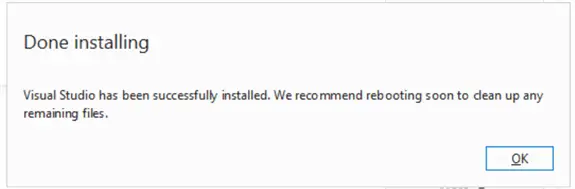
Step 4: When the installation is complete, click OK. Then, reboot your system.
Getting Started with SSMS 21
Once installed, open SSMS 21. Note: It now has a blue icon; the yellow icon is no longer available.

The popup window is blue as well.

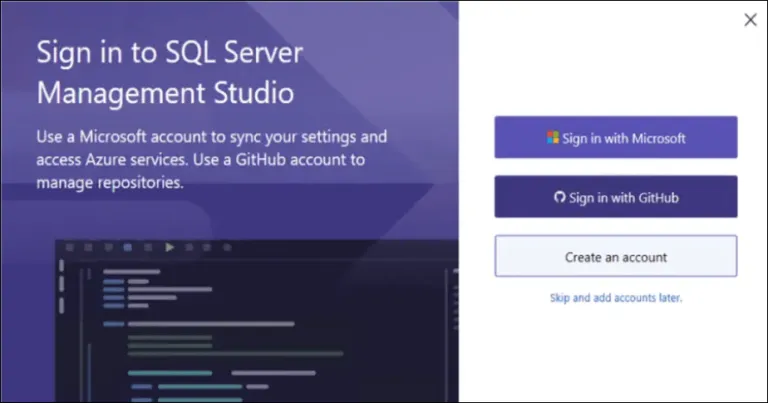
You can optionally sign in with your Microsoft Windows account or use your GitHub account.

We can import the settings from different SSMS versions or skip this option. There are three options to import data from earlier SSMS versions (if any).

New Login Encryption Options
Now available are these connection security options when you try to connect to SQL Server:
- Optional allows you to connect with secure encryption if the server supports encryption. Otherwise, it will not work with an encrypted connection.
- Mandatory forces to encrypt all the connections. You can trust a server certificate, if necessary.
- Strict is available for SQL Server 2022 and Azure only. This option requires a trusted certificate authority. A trust server certificate is not allowed.

What’s New in SSMS 21?
New Version Updates
First of all, you can easily update and check new versions of SSMS using the Visual Studio Installer. The new SSMS uses the VS Shell now.
Open the Visual Studio Installer. If a new version is available, click Update to update your SSMS to the last version available.

Git and GitHub Integration
With Git and GitHub, you can have a local repository or a Web repository to store versions of your code. For example, if you have several SQL files with code, you can track historical changes with Git or GitHub.
With Git, you can have a local repository plus store and recover your code from the repository. GitHub is a nice platform to share your code with a community and work with DevOps.
For more information:
- Git: SQL Server Data Tools in Visual Studio with GIT Source Control
- GitHub: Getting Started with GitHub for SQL Server Developers
- DevOps: Getting Started with DevOps and SQL Server
To use Git, make sure to have it installed.
Once installed, in SSMS, go to Git > Create a Git Repository.

You can create a Git or GitHub repository or work with the Azure DevOps reps. In this example, we will create a Local Git Repository and a GitHub connection.
You can keep the Git Repository default options or change the local path. To create a new repository in GitHub, click the Sign In… option in the Account drop box.
You will be asked to authorize the connection from SSMS to GitHub. You may also receive an email to validate the connection. This step may depend on your GitHub security settings.
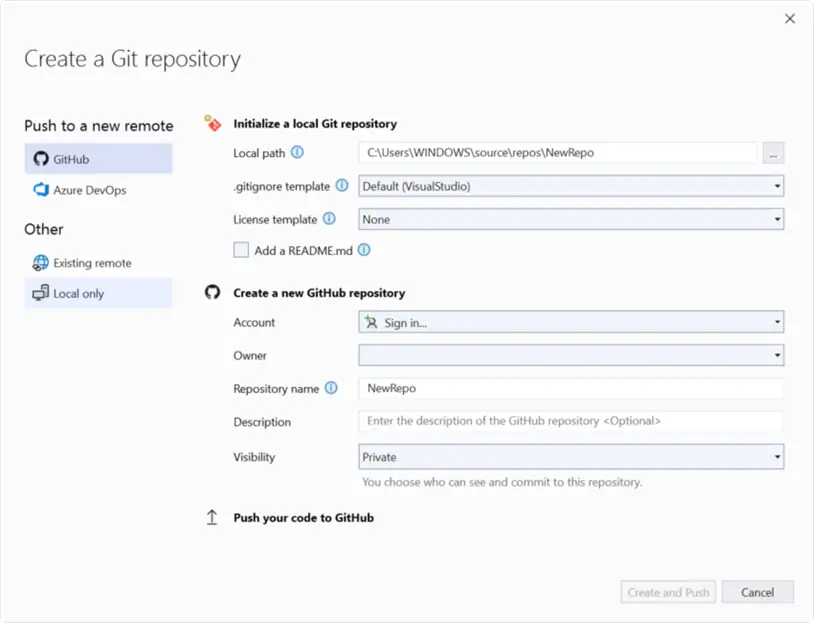
If everything is OK, you will have a new repository in GitHub:

Also, you have access to different views. In the menu, go to View and select Git Repository or press Ctrl+O or Ctrl+R.
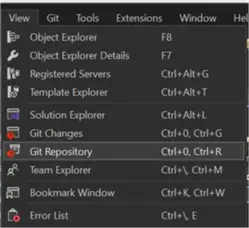
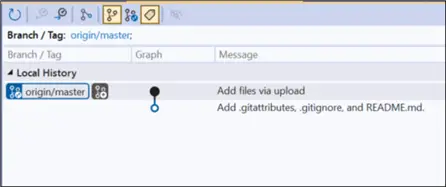
You will be able to see the Git Repository with all the branches.
In addition, you have the Git Changes option to check the changes applied in Git.
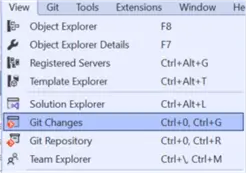
You can visualize the Git Changes here:

SSMS Dark Theme
Another famous request is the dark theme. SSMS now supports the dark theme:

To configure the dark theme, go to the menu and select Tools > Options.
In the Options window, go to General and select the Dark color theme.

Always Encrypted Wizard
SSMS 21 includes a wizard to configure the Always Encrypted feature.
You can use the wizard at different levels. At the database level, you need to select the database, right-click, and select Tasks > Always Encrypted Wizard.

The wizard is user-friendly and guides you through encrypting your data.

It is also possible to use the Always Encrypted Wizard at table level.
In SSMS, in the Object Explorer, right-click a table and select Always Encrypted Wizard.

For more information about Always Encrypted, refer to SQL Server 2016 Always Encrypted.
Additional New Features
- SSMS 21 supports 64-bit, ultimately improving the performance of the tool.
- You can now create logins and database users for Azure SQL.
- In the database properties, you now have a new Configurations page with database-scoped options.

- The drivers for the Microsoft.Data.SqlClient (MDS) is 5.1.6.
- The SMO version was updated to version 17.100.52.
- The System.Text.Json was updated to version 8.0.4.
Next Steps
For more information about SSMS 21, visit:
- Copilot in SSMS is Kinda Like IE in SSMS
- Configure column encryption using Always Encrypted Wizard
- Release notes for SQL Server Management Studio 21 Preview
- SQL Server 2016 Always Encrypted

Daniel Calbimonte is a Microsoft Most Valuable Professional, Microsoft Certified Trainer and Microsoft Certified IT Professional for SQL Server. He is an accomplished SSIS author, teacher at IT Academies and has over 10 years of experience as a QE and developer for SQL Server related software. He has worked for the government, oil companies, web sites, magazines and universities around the world. Daniel also regularly speaks at SQL Servers conferences and blogs.
- MSSQLTips Awards: Author of the Year Contender – 2015-2018, 2022, 2023 | Champion (100+ tips) – 2018


On Microsoft page https://learn.microsoft.com/en-us/ssms/install/create-offline they state “Sometimes online access is problematic. For example, you might have an unreliable internet connection or your internet connection might have low bandwidth.”
I believe they forgot the third option: “We have no frikkin’ internet on this server, and never will.” ?
Anybody managed to install SSMS21 on a completely offline server?
For offline installations, please refer to this link:
https://learn.microsoft.com/en-us/ssms/install/create-offline
I am having trouble installing SSMS 21 in a server that doesn’t have internet. Do you know the process to install SSMS 21 offline
I am having the same trouble.
it’s not possible to open a ssmssln from SSMS19 in SSMS21.
SSMS21 missed some features which SSMS20 have: for example import data from Excel file. It does not work, when I switched to SSMS 20 it works fine.
SSMS v20 and earlier are 32-bit applications. SSMS v21 is 64-bit (finally!). I suspect OLEG, that you have a 32-bit version of Office installed. It can natively talk to the 32-bit SSMS v20.
Your option if you want to use SSMS v21 is to reinstall Office using a 64-bit installer .iso or other source, then install SSMS v21.