Problem
SQL Server Management Studio keeps adding features, but unless you look you probably don’t notice. In this article, we look at the new Query Hint Recommendation Tool in SSMS 2022 and how this can be used.
Solution
The Query Hint Recommendation Tool is a new feature in SSMS used to recommend query hints. This option is used to help you improve query performance.
Let’s walk through how to install, use, and configure the Query Hint Recommendation Tool. If you are not familiar with Query Hints, we will briefly discuss this too.
At the time this article was written, this tool was only available in SQL Server Management Studio 22 in a preview version.
Key Takeaways
- SQL Server Management Studio introduces the query hint recommendation tool to improve query performance.
- This tool analyzes queries using various hints and provides recommendations for optimization.
- To use the tool, install SSMS 22, modify the installation in Visual Studio, and access the tool under Tools in SSMS.
- Results show that using recommended hints may not always yield better performance, as some queries perform best without hints.
What are Query Hints
A query hint is an option in your query to force the query to change the execution plan. It is used to improve query performance.
If you are not familiar with query hints, please review the following:
- SQL Server Queries with Hints
- Optimize Parameter Driven Queries with SQL Server OPTIMIZE FOR Hint
- How to Force a Parallel Execution Plan in SQL Server 2016
- Why the SQL Server FORCESCAN hint exists
- SQL Server UPDATE lock and UPDLOCK Table Hints
- Using Hints to Test SQL Server Indexes
- Find All SQL Server Index Hints in Stored Procedures or Queries
- Understanding the SQL Server NOLOCK hint
Installing Query Hint Recommendation Tool for SSMS
First make sure you have SSMS 22 installed on your machine.
Then open the Visual Studio Installer on your Windows machine. This will exist if you have Visual Studio installed.
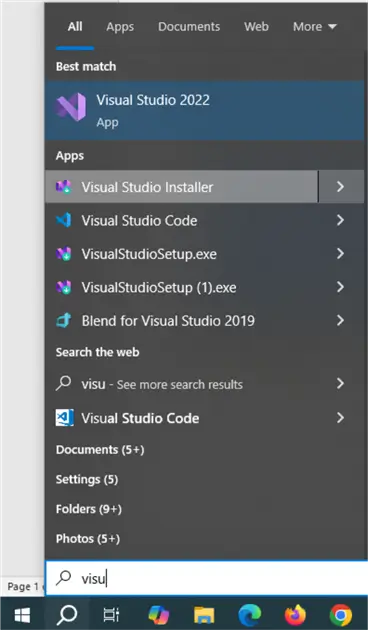
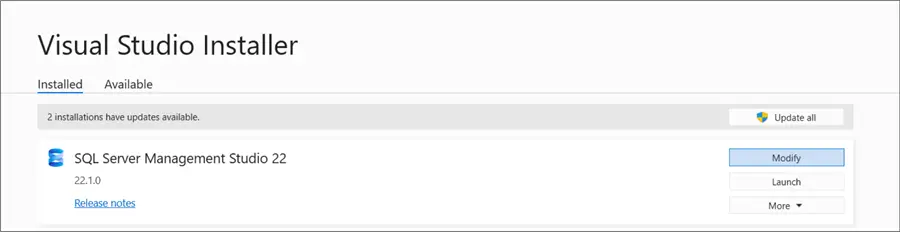
In the Visual Studio Installer you should see SSMS 22 as shown below. Select Modify for this install.
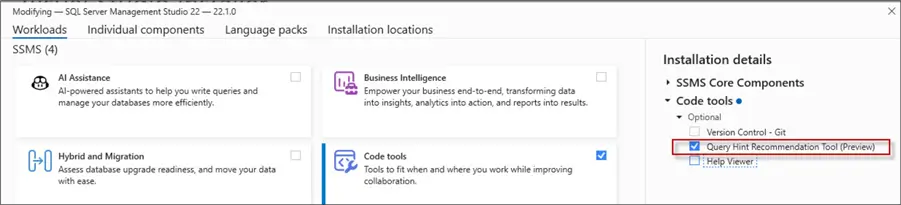
In the Modifying window, in the Code tools section click Query Hint Recommendation Tool and then press the Install button.
Using the Query Hint Recommendation Tool in SSMS
In SSMS go to Tools > Query Hint Recommendation Tool.

This tool will then be visible on the right side of the SSMS interface.
Parts of the Query Hint Recommendation Tool
Here is the interface:
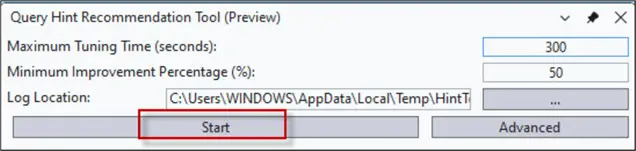
- The Maximum Tuning Time (seconds) option specifies the time used in seconds to analyze the query. The more time used, the analysis also improves.
- The Minimum Improvement Percentage, forces the query hints that improve the query in a specific percentage range. For example, with a minimum improvement percentage of 30 % only query hints yielding an improvement greater than 30% will be displayed. Otherwise, the tool will show no hints.
- The Log Location lets the user specify the path where the results of the analysis and the log with the debug information are displayed.
- The Start button starts the analysis.
Advanced Options
The Advanced button let’s you select which hints to consider or skip.
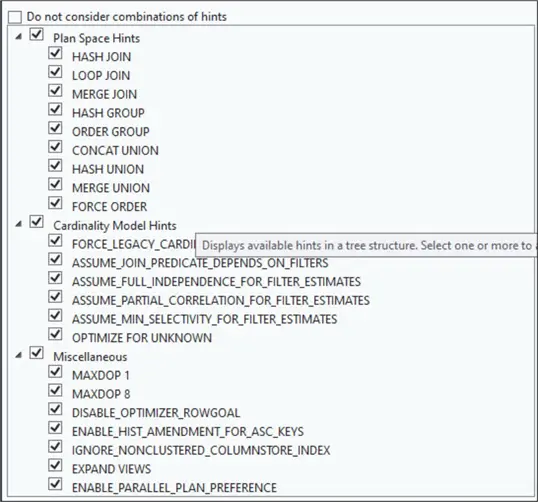
There 3 categories are:
- The plan space hints optimize a query by changing the order of joins and checking different types of joins (hash, merge, loop, etc.).
- The cardinality model hints will manually calculate the number of rows returned in each operator of the plan and optimize it.
- The miscellaneous option covers the number of cores used in the query, and the DISABLE_OPTIMIZER_ROWGOAL disables some clauses like TOP, EXISTS, FAST N to optimize the query. Other options include timestamps, identities, non-clustered indexes, and handling views, among others.
SSMS 22 Query Hint Recommendation Example
Now, let’s see show how this tool works.
First, we will use the following T-SQL query in SSMS:
USE AdventureWorks2022;
GO

SELECT
    sod.SalesOrderID,
    sod.ProductID,
    p.Name,
    sod.LineTotal
FROM Sales.SalesOrderDetail sod
JOIN Production.Product p
    ON p.ProductID = sod.ProductID
WHERE sod.LineTotal > 10
In SSMS, select all the code and press the start button.
You may receive the following error message:
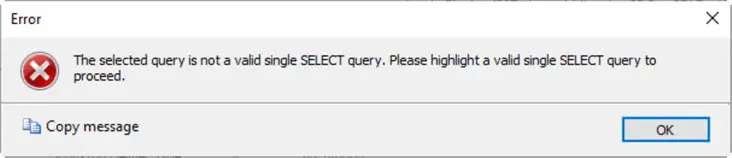
Currently, this tool only works with a single SELECT queries. If the query does not start with the SELECT statement, it will display this message. To solve this problem, highlight only use the SELECT statement as follows:
SELECT
    sod.SalesOrderID,
    sod.ProductID,
    p.Name,
    sod.LineTotal
FROM Sales.SalesOrderDetail sod
JOIN Production.Product p
    ON p.ProductID = sod.ProductID
WHERE sod.LineTotal > 10
The results displayed by the tool are the following:
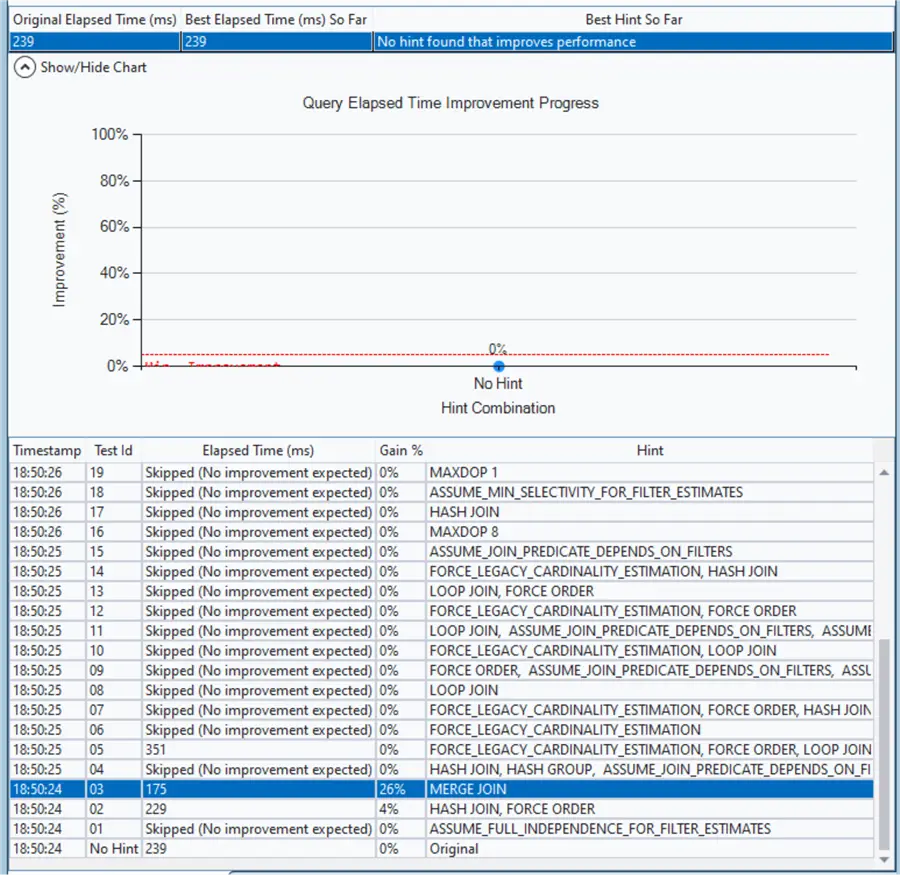
The tool tests different SQL Server query hints and displays the percentage Gain with the Hint used.
For example, the MAXDOP 1, does not provide a better performance (0%); however, the MERGE JOIN hint may offer a better performance of 26%. It also shows the elapsed time of the run.
Let’s test two hint options to see the results.
Test Recommended Hints
In the following section, we will test the MERGE JOIN hint and the HASH JOIN, FORCE ORDER hint.
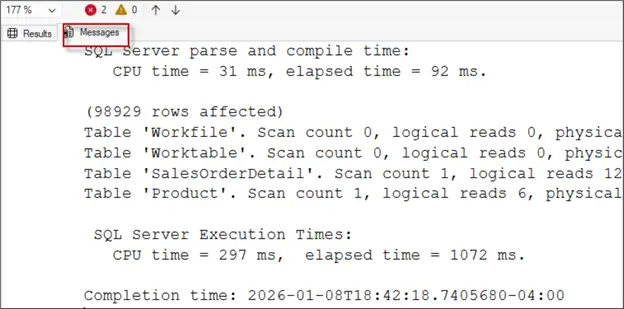
Let’s capture statistics info for the query runs for comparisons.
SET STATISTICS IO, TIME ON
GO
We ran the original query 5 times. Here is the output we get.
We added the hint OPTION (MERGE JOIN) and ran this 5 times.
SELECT
    sod.SalesOrderID,
    sod.ProductID,
    p.Name,
    sod.LineTotal
FROM Sales.SalesOrderDetail sod
JOIN Production.Product p
    ON p.ProductID = sod.ProductID
WHERE sod.LineTotal > 10
OPTION (MERGE JOIN)
GO
We added the hint OPTION (HASH JOIN, FORCE ORDER) and ran this 5 times.
SELECT
    sod.SalesOrderID,
    sod.ProductID,
    p.Name,
    sod.LineTotal
FROM Sales.SalesOrderDetail sod
JOIN Production.Product p
    ON p.ProductID = sod.ProductID
WHERE sod.LineTotal > 10
OPTION (HASH JOIN, FORCE ORDER);
Results for original query
| Execution # | CPU execution time (ms) | Elapsed time (ms) |
|---|---|---|
| 1 | 297 | 1072 |
| 2 | 375 | 1175 |
| 3 | 343 | 1178 |
| 4 | 438 | 1047 |
| 5 | 390 | 1093 |
| Average | 368.6 | 1113.0 |
Merge Join hint results
| Execution # | CPU execution time (ms) | Elapsed time (ms) |
|---|---|---|
| 1 | 468 | 1159 |
| 2 | 575 | 1349 |
| 3 | 468 | 1158 |
| 4 | 624 | 2136 |
| 5 | 532 | 1183 |
| Average | 533.4 | 1397.0 |
Results with HASH JOIN and FORCE ORDER hints
| Execution # | CPU execution time (ms) | Elapsed time (ms) |
|---|---|---|
| 1 | 203 | 1006 |
| 2 | 235 | 1050 |
| 3 | 328 | 1267 |
| 4 | 250 | 1302 |
| 5 | 328 | 1444 |
| Average | 268.8 | 1213.8 |
Summarized Results
These are the final results.
| Variant | Avg CPU execution time (ms) | Average elapsed time (ms) |
|---|---|---|
| Original query | 368.6 | 1113.0 |
| With merge join hint | 533.4 | 1397.0 |
| With hash join and force order hints | 268.8 | 1213.8 |
- The best elapsed time was obtained without using any HINTS.
- The best CPU execution time occurs when the Hash Join and Force Order hints are applied.
As you can see, the recommended hints might not always be the best option so you will need to look at the recommendations and do some testing.
Next Steps
For more information about query hints and SSMS, refer to these links:
- SQL Server Management Studio 22 Download, Install and Configure
- SQL Server OPTION RECOMPILE for Simple Queries
- Avoid using NOLOCK on SQL Server UPDATE and DELETE statements

Daniel Calbimonte is a Microsoft Most Valuable Professional, Microsoft Certified Trainer and Microsoft Certified IT Professional for SQL Server. He is an accomplished SSIS author, teacher at IT Academies and has over 10 years of experience as a QE and developer for SQL Server related software. He has worked for the government, oil companies, web sites, magazines and universities around the world. Daniel also regularly speaks at SQL Servers conferences and blogs.
- MSSQLTips Awards: Author of the Year Contender – 2015-2018, 2022, 2023 | Champion (100+ tips) – 2018