Problem
I heard that SQL Server Management Studio (SSMS) 22 is generally available. What’s new in this version? Is it worth installing? How do you download and configure SQL Server Management Studio 22?
Solution
In this tip, we will install and explain what is new in SSMS. Let’s dive in.
What is SQL Server Management Studio?
SQL Server Management Studio (SSMS) is a graphical user interface tool used to manage and develop SQL Server databases. SSMS is used to configure, monitor, and administer the SQL Server database engine on-premises and Azure. Also, you can use this tool to connect to SSAS, SSIS, SSRS, Azure Storage and Azure-SSIS Integration Runtime.
In addition, you can create tables, views, stored procedures, and functions. Moreover, SSMS can be used to administer Azure SQL databases and Azure SQL Managed Instances.
How to download SSMS 22
First, download SSMS from the following URL: Download SSMS 22

How to install SSMS 22
After reviewing the Microsoft privacy statement and the license terms, press Continue.

The installer will install it as part of Visual Studio.

Secondly, if you have previous versions of SSMS, you can copy the workloads, components, and settings to the new version. Also, you can select your vsconf file. This file is in JSON format and shows the components to install.

If you have a previous version installed, you may receive a message that some packages are not available.

After this, press the Install button as shown below.

Finally, the installer may ask you to restart the machine.

After restarting, press the Launch button to start SSMS.

Configure SQL Server Management Studio 22
Once installed, go to the Start button in Windows and look for Microsoft SQL Server Tools 22 > SQL Server Management Studio 22.
There are other tools installed as well:
- Database Engine Tuning Advisor 22 which helps with improving performance. For more information about this tool, refer to this Database Engine Tuning Advisor article.
- SQL Server Profiler 22 is used to monitor database activity. It is mainly used to monitor performance and security of the databases. For more information about SQL Server Profiler, refer to these related articles.

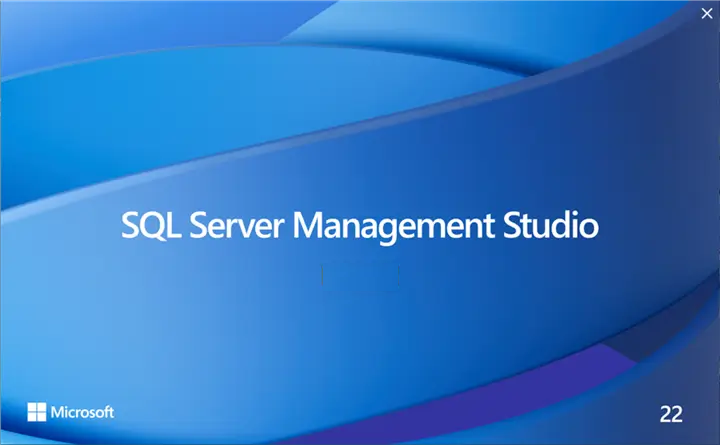
Open SQL Server Management Studio 22.
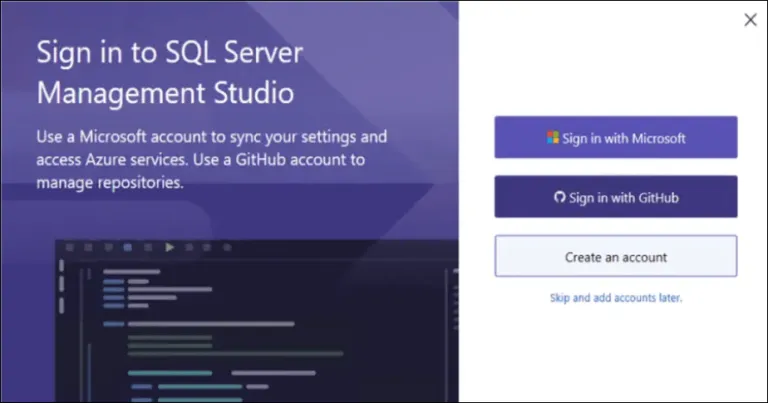
Also, you can sign in with a Microsoft Account or a GitHub account to SSMS. The GitHub account will let you manage versions of your code. If something is broken, you can restore earlier versions and keep track of your changes.

In addition, SSMS will ask you if you want to import settings from earlier versions.

Finally, in the Connect window, enter your instance name and select the Encrypt option. If you do not have a certificate, use the optional Encrypt setting.

New in SSMS 22
SSMS includes the GitHub Copilot Chat feature where you can ask questions about the SQL instance.

In addition, the Connection window now includes a Reset button to reset the configurations.

Additionally, we can create Vector and JSON indexes in SQL Server 2025.

In addition, SSMS 22 supports JSON and Vector index operations in the query plans.
Bugs Fixed
The new version fixed some problems related to:
- Expensive queries in Activity Monitor
- Entra ID Token Cache
- Parse errors
- Connection Dialog errors
- Scripts wizard
- Problems with GitHub Copilot chat
- Query editor
- Status bar
Conclusion
SSMS 22 includes several features to support JSON and vector indexes as well as providing better integration with Copilot.
Next Steps
- To learn more about SSMS, check our links related:

Daniel Calbimonte is a Microsoft Most Valuable Professional, Microsoft Certified Trainer and Microsoft Certified IT Professional for SQL Server. He is an accomplished SSIS author, teacher at IT Academies and has over 10 years of experience as a QE and developer for SQL Server related software. He has worked for the government, oil companies, web sites, magazines and universities around the world. Daniel also regularly speaks at SQL Servers conferences and blogs.
- MSSQLTips Awards: Author of the Year Contender – 2015-2018, 2022, 2023 | Champion (100+ tips) – 2018


I am actually pleased to glance at this webpage posts which contains tons of valuable data, thanks for providing such statistics.
Just to note … I’m on V22.4.1
It might pay to keep up to date with the latest release.
Yeah, a never-ending task.
I am on SSMS v22 for a while now but still can’t get fully used to it.
– I think server list got worse compared to SSMS v20. It just feels bad.
– Also when you close window, it checks for open transactions, and that window doesn’t close automatically, you have to press Close button.
– Database selection list on top (where you can switch context) has bugs when working with Azure SQL Database server.
– the whole app SSMS v22 for some reason slow on my PC, and it is powerful enough. SSMS v20 did not have this slowness
Thanks for breaking down the new features in SQL Server Management Studio 22—particularly the enhanced query performance tools and improved debugging capabilities. As someone working with large datasets, these updates could significantly streamline my development workflow. The article clearly highlights how these enhancements support both beginner and advanced users in optimizing their SQL practices.
It is true that the above performs the installation on an operating system with connections to the internet. Unfortunately, most database servers do not. *If* your workplace typically installs SSMS on the SQL hosts this will be an issue. The installer that is downloaded per these instructions only sets up for ANOTHER download of the software, and has a number of certificates that must be installed prior to the installer running correctly.
Pay particular attention to these references for further details :
1) https://learn.microsoft.com/en-us/ssms/install/create-offline
2) https://learn.microsoft.com/en-us/ssms/install/install-certificates
The AI helper has already been less than helpful. I was editing a table and looking for the Query Designer toolbar that normally pops up, but it couldn’t help me find or enable it.