Problem
Beginning with SQL Server Management Studio 21, Microsoft stopped providing the direct download package/binaries to install SSMS, instead it just downloads the SSMS installer. This installer then starts the installation of SSMS and downloads what is needed to install SSMS. Sometimes there may be a need to do an offline installation where you do not have access to the internet. In this article, we walk through the steps to do an offline install of SSMS.
Solution
Microsoft allows you to download the SSMS package files/binaries for offline installation, Microsoft calls it ‘Local layout’. Here is the step-by-step guide to download SSMS 22 layout for offline installations.
Before we start, I want to show the difference between the install files for SSMS 22 versus SSMS 20. You can see that SSMS 20 (SSMS-Setup-ENU.exe) is a lot larger and contains all that is needed to do an install. Where SSMS 22 (vs_SSMS.exe) only downloads the installer file.

Requirements
- Internet connected server/computer
- SSMS 22 installer file
- Admin account on server/computer where we are creating the offline installation package
Step-1: Download the SSMS 22 installer
Download the SSMS 22 installer on an internet connected server or laptop. You will then use this installer to create an offline SSMS tool (local layout).
Here is a link: Download SQL Server Management Studio 22 installer
Step-2: Create an offline SSMS installation package (Local layout)
Now that we have the downloaded installer file, we will start to create the offline installation layout.
Open a Windows command prompt as an administrator on the computer where the SSMS 22 installer file is downloaded. Right-click on command prompt and click on ‘Run as administrator’

Go to the folder where you downloaded the installer package vs_SSMS.exe.

Before going ahead and creating the package, here are some parameters to create the package:
| Parameter | Description |
|---|---|
| –layout <dir> | Required — Specifies the directory where the offline install layout will be created or updated. |
| –lang <language(s)> | Optional — Specifies one or more locale language packs to include in the layout. |
| –add <workload/component IDs> | Optional — Adds specified workloads or components to the layout; can be repeated for multiple items. |
| –includeRecommended | Optional — Includes recommended components for added workloads (but not optional). |
| –includeOptional | Optional — Includes recommended and optional components for added workloads. |
For example, to create a full installation package for SQL Server Management Studio 22 with all languages, run the below command in the command prompt.
C:\> vs_SSMS.exe -–layout C:\SSMS_Layout --all Another example, if you want to limit the components of SSMS 22, like integration services or reporting services.
C:\> vs_SSMS.exe –-layout C:\SSMS_Layout --add Microsoft.SSMS.Component.ISFor this demo, we will use all components and languages.
C:\> vs_SSMS.exe –-layout C:\SSMS_Layout --allThe package creation will start, and you will see the progress in the command prompt.

Once it is finished, you should see this message.

Step-3: Installation of SSMS 22 on offline server
Now, go to the location where the layout was created, in our case “C:\SSMS_Layout”:

Copy all the contents of this folder to your target computer where you want to install SSMS 22.

Start Install
On the computer where you want to do the install, go into the folder you copied and click on vs_SSMS.exe to initiate the installation, click Continue.
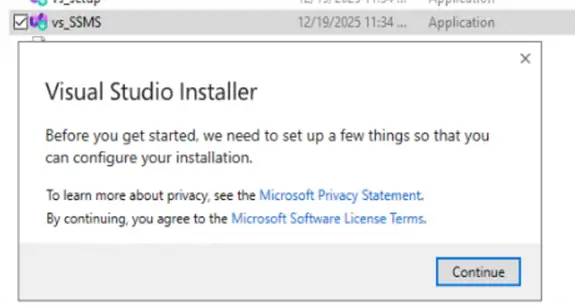
Visual Studio Installer starts the installation. As you can see below it shows “Downloaded” but this is just using the files locally for the install.

When installation starts it will be just like any other installation. It will ask you for options like workloads, components, language, and locations.
Workloads
On the Workloads tab, it will ask about workloads, we are doing a standard installation hence we are not selecting anything specific here.

Individual components
On the Individual components tab we can select which parts of SSMS to install.

Language packs
On the Language packs tab you can select thelanguage.
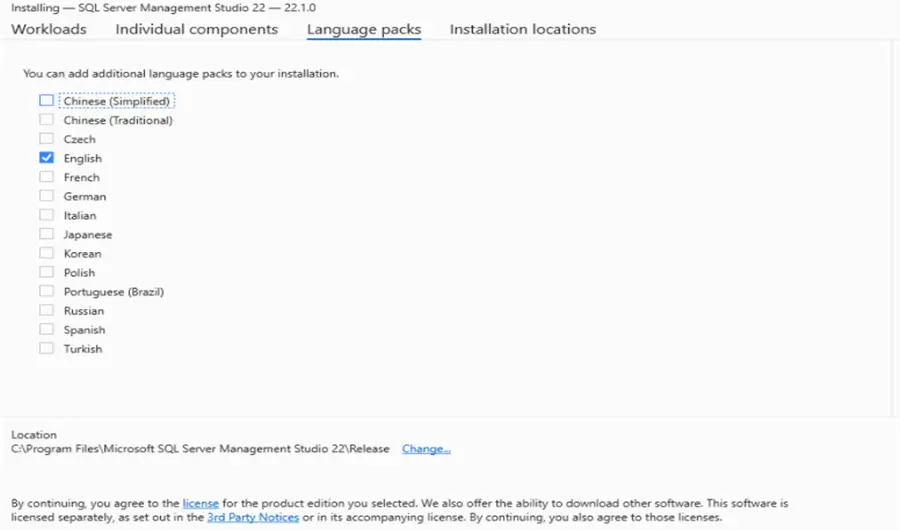
Installation locations
And on the Installation locations tab select where you want the files to be installed.
Once done with all of the settings, click on Install in the right-hand bottom corner.

Install Progress
The SQL Server Management Studio 22 installation started.

That’s it, now you have your latest SSMS 22 on your offline server.
Launch and Test SSMS 22
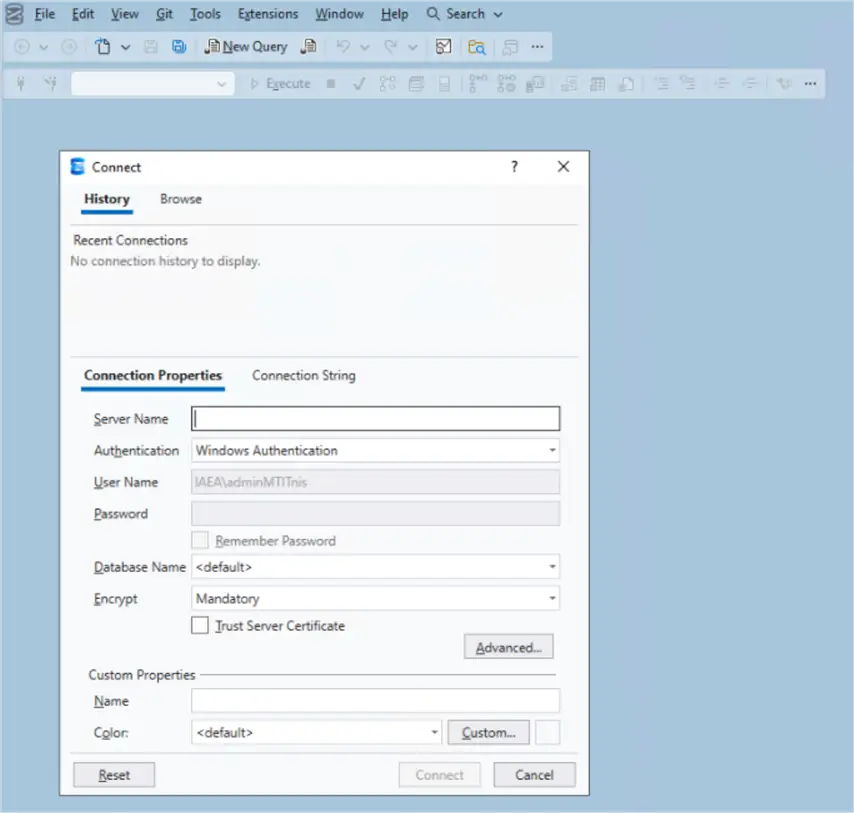
At this point, we can start SSMS to test it using the Launch button.

After launching SSMS you can login with your Microsoft account, you can create an account, or you can skip and add the account later.

Now connect to a SQL Server and test it out.
Install Issue Due to Certificates
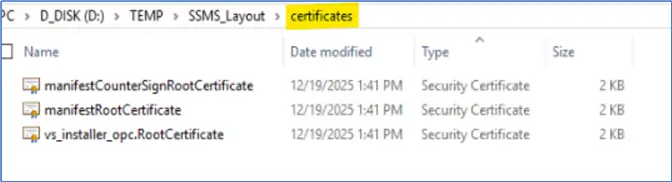
If installation fails because of certificate issues, to resolve, go to the main folder ‘SSMS_Layout’. In this main folder there is a folder ‘Certificates’, please install the certificates and re-initiate the SSMS installation.
For more information check out link below:
Conclusion
By following above steps, you can create SSMS 22 local layout to install it on your offline VM servers.
Next Steps
- To learn more about SSMS and SQL Server 2022, check our links related:

Nivritti Suste is a seasoned SQL Server Database Administrator with over 9 years of experience designing, implementing, and optimizing complex database environments for the industry. With a strong foundation in T-SQL, SSIS, SSRS, and SSAS, he has successfully delivered high-performance solutions. Passionate about sharing knowledge, he is dedicated to helping the SQL community grow by contributing to forums, and blogs. He specializes in performance tuning, database design, and cloud migration to Azure SQL Database. When not diving into SQL, Nivritti enjoys traveling and spending time with family.


–noWeb works
Vadim, I had the same issue. To get by it I had to:
First install the certificate required per https://learn.microsoft.com/en-us/ssms/install/install-certificates#validate-a-certificate-for-offline-installations
And then run the install with the nonweb option:
C:\SSMS_Layout\vs_SSMS.exe –noWeb
Thank you Tim!
It is working.
Not working anymore. The installer is ignoring the command line options.
Microsoft loves to waste our time.
I’m agree with the Tim Kehoe, please first install the required certificate and ensure admin privileges.
Certificate location: SSMS_Layout\Certificates
Big help, thanks!
Hello!
Thank you very much for the article.
I did everything up to the “Start Install” and Continue stage. It does Verifying stage and then disappears without any further action.
What could be the problem and how to solve it?
Windows Server 2025 Standard
I didn’t faced this issue yet but you can try below options to resolve your issue:
Option 1: Install ALL certs from layout folder
Option 2: Install Microsoft Windows Code Signing PCA 2024 (critical)
Option 3: Re-run install with:
vs_SSMS.exe –noWeb –all
If still failing → check %TEMP% logs
If needed → rebuild layout.
I hope this helps you to resolve the issue.
Option 2 is help.
Thank you Nivritti!
I made me two batch files
_1_refresh_SSMS_Layout_folder_on_local.bat
@echo off
rem run this command from your local PC (ideally when in office) to update the SSMS_Layout folder to the most current version
rem optional parameter for Reporting Services: -add Microsoft.SSMS.Component.RS
vs_ssms.exe –layout .\SSMS_Layout –addProductLang en-us –add Microsoft.SSMS.Component.IS
and
_2_install_on_server.bat
@echo off
rem Installation on the server (execute with local adin permissions)
“\\united.domain\shares\Server\CoRe_SQL\Install\SSMS_22\SSMS_Layout\vs_SSMS.exe” –noWeb
Hello, good day, thank you very much for your collaboration. I was following the step-by-step instructions and I found that you forgot to copy a minus sign (-) in the instruction: vs_SSMS.exe –layout C:\SSMS_Layout –all
Thanks. I think this has been updated correctly now.