Problem
SSMS 22 has several new features. Is there a compilation list of the new features? How will these features help me as a SQL Server professional?
Solution
In this article, we will explain what’s new in SSMS 22. We will explain each of the new features and how to use them.
Requirements
You will need SQL Server 2025 and SSMS 22 installed.
Renaming Tabs in SSMS
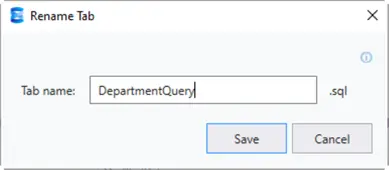
With SSMS 22, it is now possible to rename tabs. If you right-click on the Tab, there is an option to rename the tab.

Here is the interface to rename the tab.
DataGrid Zoom In and Zoom Out
If you press CTRL and move your mouse wheel, you can zoom in and zoom out the DataGrid results.

Git Copilot Improvements
One of the best features of SSMS is the integration with Copilot.
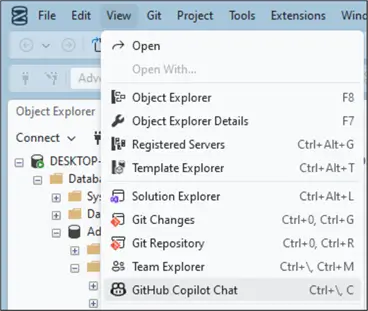
You can now use it by clicking View > GitHub Copilot Chat on the menu.
I will ask Copilot to detect my SQL Server version and the memory usage of the AdventureWorks database, and then press the Send button. You will need a Tab with a connection to the instance to detect the information.
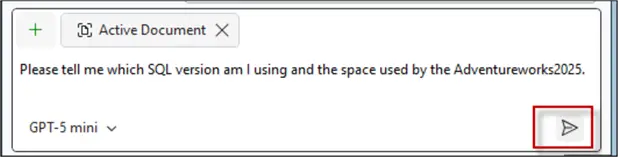
Here is the answer.

Copilot can help you to:
- Improve queries
- Detect indexes and statistics
- Retrieve database information
- Generate queries
- Etc.
The main advantage is that it connects directly and natively with your SQL Server. Internet access is required to connect to the Copilot.
Connect Window and Options
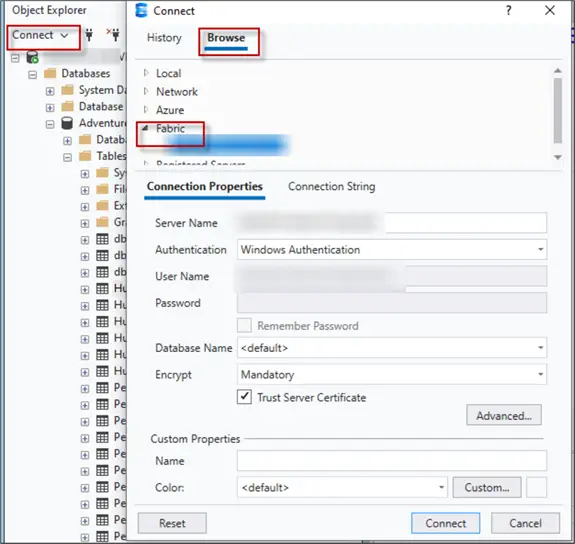
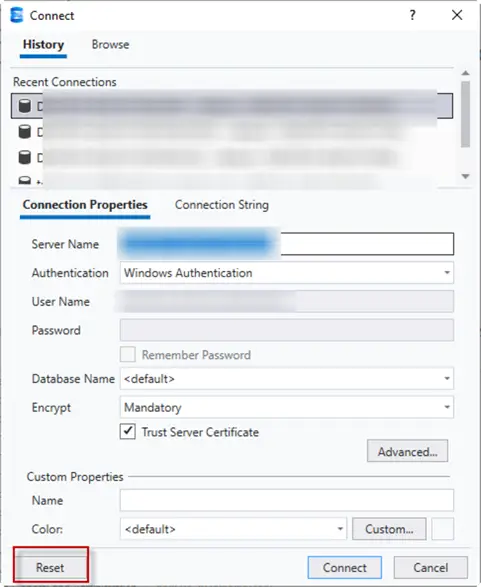
In SSMS 22, the new Connect window is displayed by default. It includes more options to connect and encrypt the communication. It also shows the Connection Properties and Connection String.

SSMS 22 Integration with Fabric
When connecting, you now have the option to connect to Microsoft Fabric. Microsoft Fabric is an analytical platform used to store Big Data, including data lakes, data factories and data warehouses to analyze and process information with Business Intelligence and AI tools.
Connection Reset Button
There is a new Reset button to clear the connection information in the Connect window.
SSMS 22 Themes
SSMS 22 has several new themes – Spicy Red, Juicy Plum, etc.
To change the theme, go to Tools > Options in the menu. In Options, go to All Settings > Environment > Visual Experience.

Enhanced Linked Server Options in SSMS 22
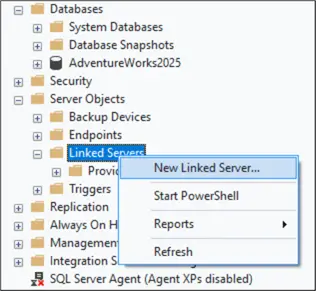
The Linked Server wizard is now enhanced and includes new security options.
Encryption options are now available in Linked Servers.
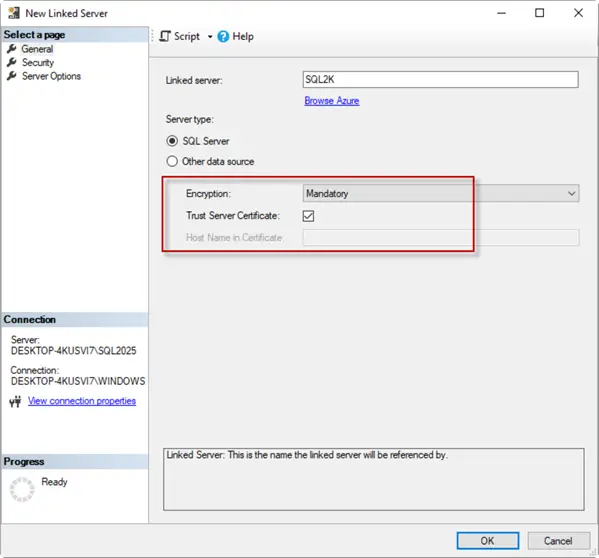
This option allows encrypting the data with a certificate if the encryption is set to the mandatory option. If there is no certificate, you can set the option to Optional.
The strict encryption, on the other hand, forces us to have an encrypted communication all the time. This option is strongly recommended in Azure or Fabric because anyone can connect using the internet.
The Host Name in the Certificate is used to increase security. It will ask for the Server name in the textbox, and it should match the host name in the certificate.
Query Hint Recommendation Tool
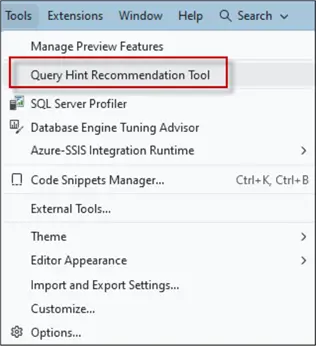
The Query Hint Recommendation Tool will recommend query hints and we will have another in-depth article on this topic soon. To enable this feature, go to Tools > Query Hint Recommendation Tool.
ARM64 Support
SSMS 22 now supports ARM64 which is an architecture based on the ARM processor family. It is a 64-bit instruction set architecture.
Edit Vectors
In SSMS 22, you now have an option to visualize vector data and save it in a JSON file.
Let’s create a table with a vector data type to demonstrate, the Embedding vector column contains vectors.
CREATE TABLE dbo.Productos_IA_Demo
(
ID int IDENTITY(1,1) NOT NULL PRIMARY KEY,
Nombre nvarchar(100) NOT NULL,
Embedding vector(3, float32) NULL
);
GO
Next, we will add some data.
INSERT INTO dbo.Productos_IA_Demo (Nombre, Embedding)
VALUES
(N'Laptop', CAST(N'[0.10, 0.20, 0.30]' AS vector(3, float32))),
(N'Teclado', CAST(N'[0.05, 0.90, -0.12]' AS vector(3, float32))),
(N'Monitor', CAST(N'[1.25, -0.33, 0.44]' AS vector(3, float32))),
(N'Mouse', CAST(N'[0.00, 0.01, 0.99]' AS vector(3, float32))),
(N'Impresora',NULL);
GO
Next we will try to visualize the data.
SELECT TOP (1000) [ID]
,[Nombre]
,[Embedding]
FROM [AdventureWorks2025].[dbo].[Productos_IA]
Now, click on the vector data in the grids.

The data is now visible in a JSON file that can be modified or saved (in the JSON file only).
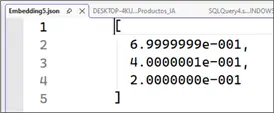
SSMS 22 Enables Editing JSON
JSON data can be saved in a JSON file and edited.
Let’s walk through a simple example. The following table has a JSON column.
CREATE TABLE dbo.CustomerJson
(
Id INT IDENTITY(1,1) PRIMARY KEY,
JsonData NVARCHAR(MAX) NOT NULL,
CONSTRAINT CK_CustomerJson_IsJson CHECK (ISJSON(JsonData) = 1)
);
GO
Let’s add some data to the table.
INSERT INTO dbo.CustomerJson (JsonData)
VALUES
(N'{"customerId":11000, "name":"Daniel", "city":"La Paz"}'),
(N'{"customerId":11001, "name":"Sofia", "city":"Seattle"}');
GO
When we select from the table, we will see the following information in the grid.

If we click the JSON data, a JSON file with the data will be created.
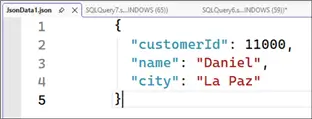
Execution Plan in a New Tab
Sometimes we need to analyze and compare execution plans. But it is not easy to save it. SSMS 22 now allows us to save the execution plan in a new tab.
If you need to check the execution plan later, right-click on your execution plan and select the Show Execution Plan in a New Tab for later analysis.

Next Steps
For more information about SSMS and features, refer to these links:
- SQL Server Management Studio 22 Download, Install and Configure
- Release notes for SQL Server Management Studio (SSMS)
- SQL Server 2025 Vector Search
- SSMS 22 Productivity Tips Video

Daniel Calbimonte is a Microsoft Most Valuable Professional, Microsoft Certified Trainer and Microsoft Certified IT Professional for SQL Server. He is an accomplished SSIS author, teacher at IT Academies and has over 10 years of experience as a QE and developer for SQL Server related software. He has worked for the government, oil companies, web sites, magazines and universities around the world. Daniel also regularly speaks at SQL Servers conferences and blogs.
- MSSQLTips Awards: Author of the Year Contender – 2015-2018, 2022, 2023 | Champion (100+ tips) – 2018


Your article states, “I will ask Copilot to detect my SQL Server version and the memory usage of the AdventureWorks database…” However, you actually asked Copilot for the space used (not memory) and Copilot returned the Size MB (storage used). Your prompt and result both relate to storage usage, not memory usage. Did you intend to show Memory or Storage usage?
Hello Salam, please confirm your SSMS version.
Also, make sure that in the Menu, it is set to Query > Results to grid.
Hi Daniel, when IO do “select * from CustomerJson”, I get the json as text with no possibility to click. Thanks for your help