Problem
One issue that you may be faced with is determining the version of the database engine installed on SQL Server. In this tip we look at how to check the SQL Server version that is running the workload and also what service pack, hotfix, security update or cumulative update is installed. We look at how to do this using the GUI as well as how to check the SQL Server version from a script.
Solution
There are a few ways to determine the version of SQL Server that is installed on Windows or Linux which we will cover in this tutorial.
How to tell what version of Microsoft SQL Server you are running?
- One simple way to do this is to run SELECT @@version
- Another option is to right click on the SQL Server instance name in SSMS and select Properties
- You can also use the SERVERPROPERTY function to get details about the version of SQL Server
- Check out all of the methods in this tip.
Method 1 – Find SQL Version with SSMS
The first is by using the functionality in SQL Server Management Studio and right clicking on the instance name and selecting Properties. In the general section you will see information such as on the following screenshots. The “Product version” or “Version” gives you a number of the version that is installed. This would apply regardless of the edition such as Enterprise, Standard, Web, Express or Developer. As you can see with the SQL Server 2000 screenshot it also shows you the service pack that is installed, this is similar for SQL Server 6.5 and SQL Server 7.0 in Enterprise Manager.
SQL Server 2000

SQL Server 2005
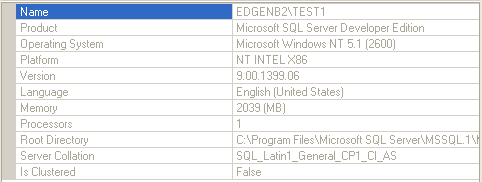
SQL Server 2008 / 2008 R2 / 2012 / 2014 / 2016 / 2017 / 2019 / 2022 / 2025
This will look similar for all of these versions of SQL Server.

Method 2 – Find Microsoft SQL Server Version with T-SQL
Another option is to check the SQL Server version from a script by running the T-SQL command to give you this information. As you can see the output from the different versions of SQL Server and Windows Server is pretty much the same. The one thing that you do not get when you do this is the Service Pack name like you do in SQL Server Management Studio (SSMS).
SELECT @@VERSIONWhen this is T-SQL code or a stored procedure with this command is run it will give you information such as the build number and Windows Server operating system:
SQL Server 2000
Microsoft SQL Server 2000 – 8.00.760 (Intel X86)
Dec 17 2002 14:22:05
Copyright (c) 1988-2003 Microsoft Corporation
Developer Edition on Windows NT 5.1 (Build 2600: Service Pack 2)
SQL Server 2005
Microsoft SQL Server 2005 – 9.00.1399.06 (Intel X86)
Oct 14 2005 00:33:37
Copyright (c) 1988-2005 Microsoft Corporation
Developer Edition on Windows NT 5.1 (Build 2600: Service Pack 2)
SQL Server 2008
Microsoft SQL Server 2008 (SP1) – 10.0.2573.0 (X64)
Feb 4 2011 11:27:06
Copyright (c) 1988-2008 Microsoft Corporation
Developer Edition (64-bit) on Windows NT 6.1 (Build 7601: Service Pack 1)
SQL Server 2008 R2
Microsoft SQL Server 2008 R2 (RTM) – 10.50.1600.1 (X64)
Apr 2 2010 15:48:46
Copyright (c) Microsoft Corporation
Enterprise Edition (64-bit) on Windows NT 6.0 <X64> (Build 6002: Service Pack 2)
SQL Server 2012
Microsoft SQL Server 2012 – 11.0.2100.60 (X64)
Feb 10 2012 19:39:15
Copyright (c) Microsoft Corporation
Web Edition (64-bit) on Windows NT 6.1 <X64> (Build 7601: Service Pack 1) (Hypervisor)
SQL Server 2014
Microsoft SQL Server 2014 – 12.0.2254.0 (X64)
Jul 25 2014 18:52:51
Copyright (c) Microsoft Corporation
Developer Edition (64-bit) on Windows NT 6.1 <x64> (Build 7601: Service Pack 1) (Hypervisor)
SQL Server 2016
Microsoft SQL Server 2016 (RTM) – 13.0.1601.5 (X64)
Apr 29 2016 23:23:58
Copyright (c) Microsoft Corporation
Developer Edition (64-bit) on Windows 10 Pro 6.3 <x64> (Build 14393: )
SQL Server 2017
Microsoft SQL Server 2017 (RTM) – 14.0.1000.169 (X64)
Aug 22 2017 17:04:49
Copyright (C) 2017 Microsoft Corporation
Developer Edition (64-bit) on Windows 10 Pro 10.0 <X64> (Build 16299: )
SQL Server 2019
Microsoft SQL Server 2019 (RTM) – 15.0.2000.5 (X64)
Sep 24 2019 13:48:23
Copyright (C) 2019 Microsoft Corporation
Developer Edition (64-bit) on Windows 10 Pro 10.0 <X64> (Build 17763: )
SQL Server 2022
Microsoft SQL Server 2022 (CTP2.0) – 16.0.600.9 (X64)
May 20 2022 13:29:42
Copyright (C) 2022 Microsoft Corporation
Enterprise Evaluation Edition (64-bit) on Windows Server 2019 Standard 10.0 <X64> (Build 17763: ) (Hypervisor)
SQL Server 2025
Microsoft SQL Server 2025 (RTM) – 17.0.1000.7 (X64)
Oct 21 2025 12:05:57
Copyright (C) 2022 Microsoft Corporation
Express Edition (64-bit) on Windows 10 Pro 10.0 (Build 26200: ) (Hypervisor)
Method 3 – Find SQL version by exe file details
Another option to determine the version of the SQL Server database install is to look at the version of the SQL Server files. This is an option if SQL Server is not running and you need to find the version.
Open Windows Explorer and navigate to the folder where SQL Server is installed such as “C:\Program Files\Microsoft SQL Server\MSSQL10.SQL2008\MSSQL\Binn”, for SQL Server 2008.
Find file sqlservr.exe and right click and select properties and a window will open like the one below. Here we can see that this file is version 10.0.2573.0.

Method 4 – Find version with SERVERPROPERTY
One of our readers, Ben Pomicter, also suggested that DBAs could use the SERVERPROPERTY function to check the SQL Server version from a script.
SELECT
  CASE
     WHEN CONVERT(VARCHAR(128), SERVERPROPERTY ('productversion')) like '8%' THEN 'SQL2000'
     WHEN CONVERT(VARCHAR(128), SERVERPROPERTY ('productversion')) like '9%' THEN 'SQL2005'
     WHEN CONVERT(VARCHAR(128), SERVERPROPERTY ('productversion')) like '10.0%' THEN 'SQL2008'
     WHEN CONVERT(VARCHAR(128), SERVERPROPERTY ('productversion')) like '10.5%' THEN 'SQL2008 R2'
     WHEN CONVERT(VARCHAR(128), SERVERPROPERTY ('productversion')) like '11%' THEN 'SQL2012'
     WHEN CONVERT(VARCHAR(128), SERVERPROPERTY ('productversion')) like '12%' THEN 'SQL2014'
     WHEN CONVERT(VARCHAR(128), SERVERPROPERTY ('productversion')) like '13%' THEN 'SQL2016'
     WHEN CONVERT(VARCHAR(128), SERVERPROPERTY ('productversion')) like '14%' THEN 'SQL2017'
     WHEN CONVERT(VARCHAR(128), SERVERPROPERTY ('productversion')) like '15%' THEN 'SQL2019'
     WHEN CONVERT(VARCHAR(128), SERVERPROPERTY ('productversion')) like '16%' THEN 'SQL2022'
     WHEN CONVERT(VARCHAR(128), SERVERPROPERTY ('productversion')) like '17%' THEN 'SQL2025'
     ELSE 'unknown'
  END AS MajorVersion,
  SERVERPROPERTY('ProductLevel') AS ProductLevel,
  SERVERPROPERTY('Edition') AS Edition,
  SERVERPROPERTY('ProductVersion') AS ProductVersion
When run it returns results similar to the following:

Here is another version with more details from Dave H:
Select
Upper(Cast(serverproperty('ServerName') as varchar(128))) as 'SQLInstance',
Upper(Cast(serverproperty('MachineName') as varchar(128))) as 'MachineName',
Upper(Cast(coalesce(serverproperty('instanceName'), '') as varchar(128))) as 'InstanceName',
Case Coalesce(serverproperty('ProductMajorVersion'),
left(cast(serverproperty('ProductVersion') as varchar(20)),2))
When '10' then 'SQL Server 2008'
When '10.5' then 'SQL Server 2008 R2'
When '11' then 'SQL Server 2012'
When '12' then 'SQL Server 2014'
When '13' then 'SQL Server 2016'
When '14' then 'SQL Server 2017'
When '15' then 'SQL Server 2019'
When '16' then 'SQL Server 2022'
When '17' then 'SQL Server 2025'
end as 'ProductMajorVersion',
serverproperty('Edition') as 'Edition',
serverproperty('ProductLevel') as 'ProductLevel',
coalesce(serverproperty('ProductUpdateLevel'), '') as 'ProductUpdateLevel',
case when left(cast(coalesce(serverproperty('ProductUpdateReference'), '') as varchar(100)), 2) = 'KB'
then stuff(cast(serverproperty('ProductUpdateReference') as varchar(100)), 1, 2, '')
else coalesce(serverproperty('ProductUpdateReference'), '')
end as 'ProductUpdateReference',
serverproperty('ProductVersion') as 'ProductVersion',
serverproperty('ResourceLastUpdateDateTime') as 'ResourceLastUpdateDateTime',
case serverproperty('EngineEdition')
when 1 then 'Personal'
when 2 then 'Standard'
when 3 then 'Enterprise'
when 4 then 'Express'
when 5 then 'SQL Database (Azure SQL DB)'
when 6 then 'SQL Data Warehouse (Azure Synapse Analytics)'
when 8 then 'Managed Instance (Azure Managed Instance)'
else 'Other – EngineEdition: ' + cast(serverproperty('EngineEdition') as varchar(5))
end as 'EngineEdition',
coalesce(serverproperty('ProductBuildType'), '') as 'ProductBuildType',
coalesce(serverproperty('ProductMajorVersion'), '') as 'ProductMajorVersion',
left(cast(serverproperty('ProductVersion') as varchar(20)),2) as 'ProductMajorVersion',
serverproperty('ProductMinorVersion') as 'ProductMinorVersion',
coalesce(serverproperty('ProductUpdateType'), '') as 'ProductUpdateType',
serverproperty('ProductBuild') as 'ProductBuild'
What do these SQL Server Build Numbers Mean?
So now that you have this number such as 9.00.1399.06 or 8.00.760 what do these build numbers even mean? The first digits refer to the version of SQL Server such as:
- 8.0 for SQL Server 2000
- 9.0 for SQL Server 2005
- 10.0 for SQL Server 2008
- 10.5 for SQL Server 2008 R2
- 11.0 for SQL Server 2012
- 12.0 for SQL Server 2014
- 13.0 for SQL Server 2016
- 14.0 for SQL Server 2017
- 15.0 for SQL Server 2019
- 16.0 for SQL Server 2022
- 17.0 for SQL Server 2025
Here are a couple of links to other articles that give you the details of what is installed for SQL Server 6.0, 6.5, 7.0, 2000, 2005, 2008, 2008 R2, 2012, 2014, 2016, 2017, 2019, 2022 and 2025 based on the version number that is returned.
- SQL Server Builds and Service Pack Information (this is the most complete list)
- How to identify your SQL Server version and edition (microsoft.com)
Next Steps
- Keep these links handy to determine what version of SQL Server you are running
- In addition to the SQL Server relational database engine, the version also applies to SQL Server Integration Services (SSIS), Analysis Services (SSAS) and Reporting Services (SSRS).
- Microsoft continues to rollout new versions of SQL Server with new features. There is a lifecycle for each version of SQL Server and older versions are no longer covered under mainstream support. Although, Microsoft does offer Extended Support in some circumstances at an additional cost. Therefore, it is important to know which version you are running, so you are on a supported version.

Greg Robidoux has been working with databases for 35+ years with extensive hands on SQL Server experience from version 6.5 to 2025. He has authored over 250 technical articles and delivered several presentations online and at various conventions. Greg is also the President and founder of Edgewood Solutions, a technology services company delivering services and solutions for Microsoft SQL Server.
Great Article. Thank You.
I use the following script to give me everything I need to know, and then some. Probably more than you need, but it works for me.
select Upper(Cast(serverproperty(‘ServerName’) as varchar(128))) as ‘SQLInstance’,
Upper(Cast(serverproperty(‘MachineName’) as varchar(128))) as ‘MachineName’,
Upper(Cast(coalesce(serverproperty(‘instanceName’), ”) as varchar(128))) as ‘InstanceName’,
Case Coalesce(serverproperty(‘ProductMajorVersion’),
left(cast(serverproperty(‘ProductVersion’) as varchar(20)),2))
When ’10’ then ‘SQL Server 2008’
When ‘10.5’ then ‘SQL Server 2008 R2′
When ’11’ then ‘SQL Server 2012′
When ’12’ then ‘SQL Server 2014′
When ’13’ then ‘SQL Server 2016′
When ’14’ then ‘SQL Server 2017′
When ’15’ then ‘SQL Server 2019′
When ’16’ then ‘SQL Server 2022′
When ’17’ then ‘SQL Server 2025’
end as ‘ProductMajorVersion’,
serverproperty(‘Edition’) as ‘Edition’,
serverproperty(‘ProductLevel’) as ‘ProductLevel’,
coalesce(serverproperty(‘ProductUpdateLevel’), ”) as ‘ProductUpdateLevel’,
case when left(cast(coalesce(serverproperty(‘ProductUpdateReference’), ”) as varchar(100)), 2) = ‘KB’
then stuff(cast(serverproperty(‘ProductUpdateReference’) as varchar(100)), 1, 2, ”)
else coalesce(serverproperty(‘ProductUpdateReference’), ”)
end as ‘ProductUpdateReference’,
serverproperty(‘ProductVersion’) as ‘ProductVersion’,
serverproperty(‘ResourceLastUpdateDateTime’) as ‘ResourceLastUpdateDateTime’,
case serverproperty(‘EngineEdition’)
when 1 then ‘Personal’
when 2 then ‘Standard’
when 3 then ‘Enterprise’
when 4 then ‘Express’
when 5 then ‘SQL Database (Azure SQL DB)’
when 6 then ‘SQL Data Warehouse (Azure Synapse Analytics)’
when 8 then ‘Managed Instance (Azure Managed Instance)’
else ‘Other – EngineEdition: ‘ + cast(serverproperty(‘EngineEdition’) as varchar(5))
end as ‘EngineEdition’,
coalesce(serverproperty(‘ProductBuildType’), ”) as ‘ProductBuildType’,
coalesce(serverproperty(‘ProductMajorVersion’), ”) as ‘ProductMajorVersion’,
left(cast(serverproperty(‘ProductVersion’) as varchar(20)),2) as ‘ProductMajorVersion’,
serverproperty(‘ProductMinorVersion’) as ‘ProductMinorVersion’,
coalesce(serverproperty(‘ProductUpdateType’), ”) as ‘ProductUpdateType’,
serverproperty(‘ProductBuild’) as ‘ProductBuild’
Thanks C Little. Using @@VERSION is one of the options listed above.
Why not just run this?
SELECT @@SERVERNAME AS ServerName, @@VERSION AS SQLVersion
Thank you!!
Thank you. Great Article!!
Thank you. Great article and it helped me quickly find the version of SQL we are running on multiple servers.