Problem
We use GROUP BY a lot in aggregating reports. We’re frustrated when we want an aggregation of certain rows that group by isn’t able to accommodate based on our requirements. What other options are there for aggregating data with a SQL query.
Solution
SQL Server’s PARTITION BY clause allows you to present results that apply an aggregate function, such as AVG and SUM, to a column’s data that is broken up into smaller segments (grouped) called partitions. For example, if you have a column with widget information for stores, you could apply an average function to it with the traditional GROUP BY clause and get the overall average of how many widgets are available. With the PARTITION BY clause, you get an average of the column subdivided by the regions.
Prepare a Test Environment
Use this code in a non-production database to create a table with data for us to work with:
/** MSSQLTips.com – setting up a test table to work with **/
use tempdb;
go
drop table if exists WidgetStoreInventory;
create table WidgetStoreInventory
(StoreName nvarchar(100),
StoreCity nvarchar(100),
StoreRegion nvarchar(100),
WidgetsInStock int)

DECLARE @Locations TABLE (Location NVARCHAR(100))
INSERT INTO @Locations (Location) VALUES
    ('Boston, MA'),
    ('Worcester, MA'),
    ('Chicago, IL'),
    ('San Diego, CA'),
    ('Ann Arbor, MI'),
    ('Novato, CA')
INSERT INTO WidgetStoreInventory (StoreName, StoreCity, WidgetsInStock)
SELECT TOP 40
    'Store ' + CAST(ROW_NUMBER() OVER (ORDER BY NEWID()) AS NVARCHAR(10)),
    Location,
    FLOOR(RAND(CHECKSUM(NEWID())) * 50) + 1
FROM @Locations
CROSS JOIN (SELECT TOP 8 NEWID() AS RandomID FROM sys.all_objects) AS RandomID;

/***  Adding Region info ***/
UPDATE WidgetStoreInventory set StoreRegion =
   (CASE
      WHEN StoreCity = 'Worcester, MA' THEN 'Northeast'
      WHEN StoreCity = 'Boston, MA' THEN 'Northeast'
      WHEN StoreCity = 'Ann Arbor, MI' THEN 'Midwest'
      WHEN StoreCity = 'Chicago, IL' THEN 'Midwest'
      WHEN StoreCity = 'San Diego, CA' THEN 'West Coast'
      WHEN StoreCity = 'Novato, CA' THEN 'West Coast'
   END
)
If we look at the results of a simple SELECT statement, we see that the table is populated with store names, cities, and widgets in stock for each store – we will get back to StoreRegion.
/**  MSSQLTips.com **/
select StoreName, StoreCity, WidgetsInStock from WidgetStoreInventory;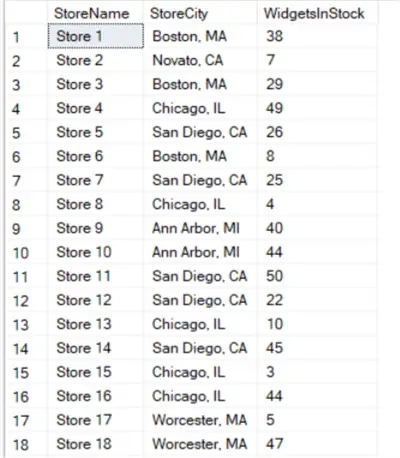
How to Commonly Use GROUP BY for a Report
A common report that is run looks at the aggregate of widgets in stock based on the StoreCity:
/*** MSSQLTips.com ****/
select StoreCity, sum(WidgetsInStock) as SumWidgetsInStock from WidgetStoreInventory
group by StoreCity
order by StoreCity;
Results:
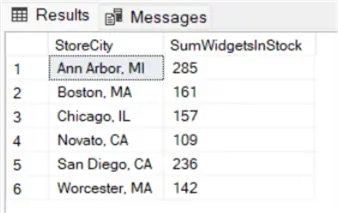
The group by clause easily handled that task. If we wanted to add a column for the number of widgets in each store and include the SUM grouped by town, the group by clause can’t help us.
We might try to write it as:
/** MSSQLTips.com **/
Select StoreCity, WidgetsInStock, sum(WidgetsInStock)
from WidgetStoreInventory
group by StoreCity;
But would receive an error:

Using Partition By Clause to Drill into the Data
In the following example, we slice into the data by city and provide the SUM value grouped by the city.
/** MSSQLTips.com **/
Select StoreName, StoreCity, WidgetsInStock,
sum(WidgetsInStock) over (partition by StoreCity) as CityTotalWidgetsStock
from WidgetStoreInventory;
Results:
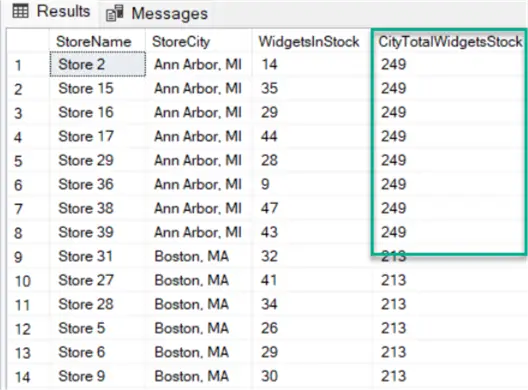
Unlike a GROUP BY clause, we can provide an aggregation on a single column and filter (partitioned) by the city while also showing other relevant columns.
The syntax is straightforward and can partition the data by more than function.
/** MSSQLTips.com **/
Select Column1, [Column2]…,
Function(Column) over (partition by Column),
[Function(Column) over (partition by Column),]
from table_name;
How Does It Work? Take this example:
SUM(columnName) OVER (partition by columnName)SUM(column) is applied to the data retrieved in the OVER statement.
Use PARTITION BY with More than One Function to See More Information
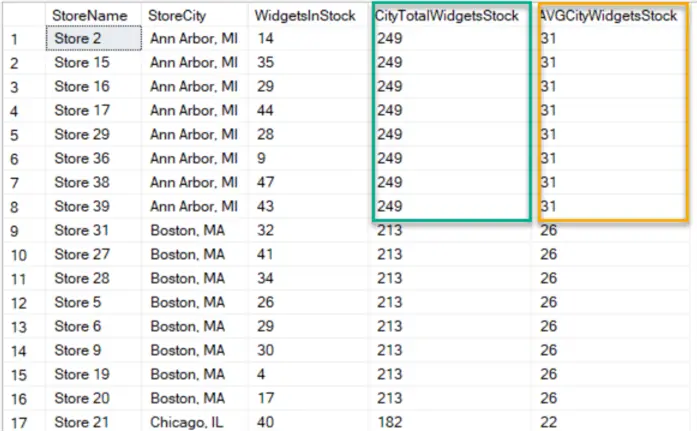
In the following example, we expand on the first query, partition by StoreCity again, and retrieve the average as well as the sum.
/** MSSQLTips.com **/
Select StoreName, StoreCity, WidgetsInStock,
sum(WidgetsInStock) over (partition by StoreCity) as CityTotalWidgetsStock,
avg(WidgetsInStock) over (partition by StoreCity) as AVGCityWidgetsStock
from WidgetStoreInventory;
Results with two partitioned results:
Add ROW_NUMBER() to See Results Sliced by City to Provide a Ranking
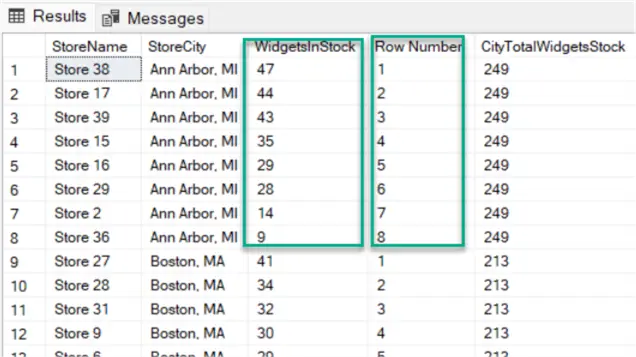
Since PARTITION BY accepts functions, we can use additional functions, such as ROW_NUMBER(), to provide insight into our data. In the following example, we illustrate the number of widgets in each city, identifying stores from the most to least, and provide a ranking for them.
/** MSSQLTips.com **/
Select StoreName, StoreCity,WidgetsInStock,
ROW_NUMBER() OVER(PARTITION BY StoreCity ORDER BY WidgetsInStock ) AS "Row Number",
sum(WidgetsInStock) over (partition by StoreCity) as CityTotalWidgetsStock
from WidgetStoreInventory;
Results:
Use ORDER BY to Apply the Function Row by Row
Additionally, you can provide an ORDER BY command with the partition request, which dictates the order the aggregation is performed and shows the results as the ORDER BY is applied. In the following example, we provide an “order by” to the WidgetsInStock for each StoreCity, which helps illustrate the effect of each store on the computed average.
/** MSSQLTips.com **/
Select StoreName, StoreCity, WidgetsInStock,
avg(WidgetsInStock) over (partition by StoreCity order by WidgetsInStock DESC) as ComputedAVGWidgetsStock
from WidgetStoreInventory
Results:
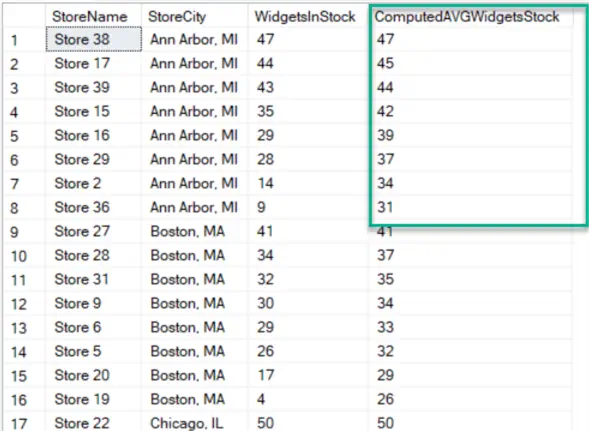
In the example above, we see that the computed average after the first row for Ann Arbor, MI, is 47. After the second row, the average is now 45, then it drops to 44, and so forth.
Use GROUP BY in the Query to Further Provide Insights to the Data
We understand we can use the PARTITION BY statement to slice the data and provide aggregation, but there may also be a need to use the GROUP BY statement to provide that broader view of the data.
Look at the following SQL statements and review the results:
/** MSSQLTips.com **/
/**Results by city **/
select StoreCity, sum(WidgetsInStock) as x
from WidgetStoreInventory
group by StoreCity;

/** Results by Region **/
select
StoreRegion, sum(WidgetsInStock) as x
from WidgetStoreInventory
group by StoreRegion;
Results:
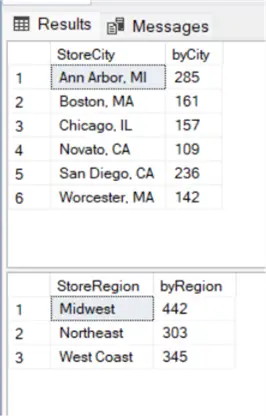
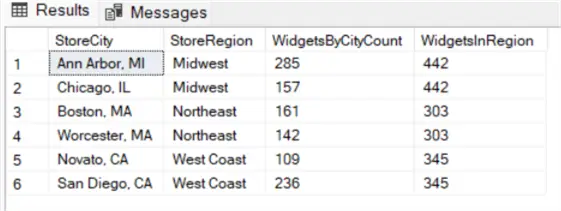
As separate queries, this is a simple group by, but in a single query, the group by cannot provide both. To accomplish this, we gather the results by city with a GROUP BY clause, and then we run a PARTITION BY statement over those results to create the summary region data. The important thing to note is that the GROUP BY is applied first, and then the PARTITION BY statement is applied to those results to further sum the city results into the region results.
/** MSSQLTips.com – summary of region and city results **/
select
StoreCity, StoreRegion, sum(WidgetsInStock) as WidgetsByCityCount,
sum(sum(WidgetsInStock)) over (partition by StoreRegion) as WidgetsInRegion
from WidgetStoreInventory
group by StoreRegion, StoreCity;
Results:
Key Points
- PARTITION BY fills in a gap in the GROUP BY clause, allowing different control over how to aggregate a single column.
- SUM(), AVG(), COUNT(), MIN(), MAX(), and ROW_NUMBER() are all available and can be used in the same query to provide different aggregations as necessary for the same rows.
- GROUP BY is also available, but it must be considered that the GROUP BY results are applied, and then the PARTITION BY statement is applied to that GROUP BY.
Next Steps
- Review Microsoft documentation on the OVER …. PARTITION BY syntax.
- Using the scripts provided to experiment with different aggregations. Rewrite the queries to gather information such as MAX(), AVG(), COUNT().
- Also check out this MSSQLTips.com article on GROUP BY querying: GROUP BY SQL Queries to Summarize and Rollup Sets of Records.

Burt King is an independent SQL Server consultant from Boston, Massachusetts. He has worked with SQL Server since 1997 and supported every version since SQL 6.5. Burt’s favorite projects are related to clustering, availability groups and performance tuning.


