Problem
I have a SQL Server table in the default filegroup and I want to move it to another filegroup. By default, SQL Server places new tables and their indexes on the default filegroup. The table has grown and now I want to split the data to another filegroup.
Solution
Moving the data and indexes to another filegroup is a straightforward process for most tables. For tables with a clustered index the process involves dropping (or disabling) the existing index and then building it on a new filegroup. After that the non-clustered indexes can also be moved, if desired.
Setting up a test environment
This demonstration creates a test database and adds a filegroup to move the data. Since the table is first created without specifying a filegroup SQL Server places it on the default filegroup.
/** MSSQLTips.com -- Create a test database **/
CREATE DATABASE TABLEMOVETEST;

--Add a filegroup we will use for moving a table
ALTER DATABASE TABLEMOVETEST ADD FILEGROUP FGTESTING;

--Add a file to that filegroup
/** Edit for the path on your machine.**/
ALTER DATABASE TABLEMOVETEST
   ADD FILE (NAME=FGTESTING, FILENAME='C:\MSSQL\FGTESTING.ndf', SIZE=5MB)
   TO FILEGROUP FGTESTING;

/** Create a table and add indexes **/
use TABLEMOVETEST;
go
drop table if exists WidgetStoreInventory;
create table WidgetStoreInventory
(StoreName nvarchar(100),
StoreCity nvarchar(100),
WidgetsInStock int)

CREATE CLUSTERED INDEX IDX_WSI ON WidgetStoreInventory (StoreName, StoreCity) on [PRIMARY]

CREATE NONCLUSTERED INDEX IDX_NONCLUST_STORECITY_WIDGETS ON WidgetStoreInventory (StoreCity, WidgetsInStock) on [PRIMARY]

/** Populate with data **/
DECLARE @Locations TABLE (Location NVARCHAR(100))
INSERT INTO @Locations (Location) VALUES
    ('Boston, MA'),
    ('Worcester, MA'),
    ('Chicago, IL'),
    ('San Diego, CA'),
    ('Ann Arbor, MI'),
    ('Novato, CA')
INSERT INTO WidgetStoreInventory (StoreName, StoreCity, WidgetsInStock)
SELECT TOP 500
    'Store ' + CAST(ROW_NUMBER() OVER (ORDER BY NEWID()) AS NVARCHAR(10)),
    Location,
    FLOOR(RAND(CHECKSUM(NEWID())) * 50) + 1
FROM @Locations
CROSS JOIN (SELECT TOP 100 NEWID() AS RandomID FROM sys.all_objects) AS RandomID;
Now that we have a database let’s verify the data is currently residing on the default filegroup – this query will be referred to multiple times throughout this tip.
/** MSSQLTips.com – Determine which filegroup the table is on ***/
SELECT
    s.name AS SchemaName, t.name AS TableName, i.name AS IndexName, i.type_desc AS IndexType, i.is_disabled,
    fg.name AS FileGroupName
FROM
    sys.indexes i
INNER JOIN
    sys.tables t ON i.object_id = t.object_id
INNER JOIN
    sys.schemas s ON t.schema_id = s.schema_id
INNER JOIN
    sys.filegroups fg ON i.data_space_id = fg.data_space_id
WHERE t.name = 'WidgetStoreInventory'
ORDER BY
    FileGroupName, SchemaName, TableName, IndexName;
Results:

Methods to Move a SQL Server Table to Another Filegroup
Following are four options to move data from one file group to another filegroup in SQL Server.
Option 1 – Drop the Clustered Index and then Build the Clustered Index in the new Filegroup
Run the following to disable the index and then build it on the new filegroup.
/** MSSQLTips.com – drop the index and then build it on the new filegroup **/
DROP INDEX IDX_WSI ON WidgetStoreInventory

CREATE CLUSTERED INDEX IDX_WSI ON WidgetStoreInventory (StoreName, StoreCity) on [FGTESTING]
After running the above query, the location of the index has been moved to the new filegroup, but the non-clustered index remains on the primary filegroup.

That index can also be moved to the new filegroup, if desired.
/** MSSQLTips.com – create the non-clustered index on the new filegroup **/
CREATE INDEX IDX_NONCLUST_STORECITY_WIDGETS ON WidgetStoreInventory (StoreCity, WidgetsInStock)
   WITH (DROP_EXISTING = ON) ON [FGTESTING];
We now see both indexes on the new filegroup:

Reset Table
If you ran the code for Option 1 you need to reset things. The code below will drop the indexes and create them back on the primary filegroup.
/** MSSQLTips.com --Reset -- drop the indexes and create them on the primary file group **/
DROP INDEX IDX_WSI ON WidgetStoreInventory
DROP INDEX IDX_NONCLUST_STORECITY_WIDGETS ON WidgetStoreInventory

CREATE CLUSTERED INDEX IDX_WSI ON WidgetStoreInventory (StoreName, StoreCity) on [PRIMARY]
CREATE NONCLUSTERED INDEX IDX_NONCLUST_STORECITY_WIDGETS ON WidgetStoreInventory (StoreCity, WidgetsInStock) on [PRIMARY]
Option 2 – Disable the Clustered Index and then Build it on the new Filegroup
Now we will disable the clustered index.
/** MSSQLTips.com – Disable the clustered index **/
ALTER INDEX IDX_WSI ON WidgetStoreInventory DISABLE;
A side effect of disabling the clustered index is that all non-clustered indexes are also disabled. A non-critical warning is generated in SSMS alerting you to this.

When we run the query previously mentioned we see the ‘is_disabled’ column value set to 1 for all indexes.

Since we disabled the index, we need to build it on the new file group with ‘drop_existing’. We can also do this for the non-clustered index as well.
/** MSSQLTips.com – build the index on a different file group  **/
CREATE CLUSTERED INDEX IDX_WSI ON WidgetStoreInventory (StoreName, StoreCity) WITH (DROP_EXISTING = ON) ON [FGTESTING];
CREATE INDEX IDX_NONCLUST_STORECITY_WIDGETS ON WidgetStoreInventory (StoreCity, WidgetsInStock) WITH (DROP_EXISTING = ON) ON [FGTESTING];
The indexes now are on the new file group.

Option 3 – Select the Data into a New Table and Specify the Filegroup
Note – This option also works for HEAP tables, which are tables without a clustered index.
/** MSSQLTips.com – select into a new table on the filegroup **/
SELECT * INTO NewWidgetStoreInventory ON [FGTESTING] FROM WidgetStoreInventory
Modify the verify query to look at the new table.
SELECT
    s.name AS SchemaName, t.name AS TableName, i.name AS IndexName, i.type_desc AS IndexType, i.is_disabled,
    fg.name AS FileGroupName
FROM
    sys.indexes i
INNER JOIN
    sys.tables t ON i.object_id = t.object_id
INNER JOIN
    sys.schemas s ON t.schema_id = s.schema_id
INNER JOIN
    sys.filegroups fg ON i.data_space_id = fg.data_space_id
WHERE t.name = 'NewWidgetStoreInventory'
ORDER BY
    FileGroupName, SchemaName, TableName, IndexName;
Results of the query

Notice in this action a couple of points that differ from previous examples:
- First, the original table and all of its data including the clustered index still exist on the primary filegroup.
- Secondly, the new table has a new name. The DBA will need to manage when to delete the old table and then rename the new table.
- Finally, the new table is a heap. The DBA also needs to manage creating the indexes on the new table.
Option 4 – Export Data into a New Table and Specify the Filegroup
The export tool in SQL Server Management Studio has been a staple for quick exports for many years. This tip (Simple Way to Export Data from SQL Server) covers the tool, but to accomplish our goal we will have to make an adjustment to the process.
When you get to the step to identify the destination table you will edit it in the GUI and then select the “Edit Mappings…” button.
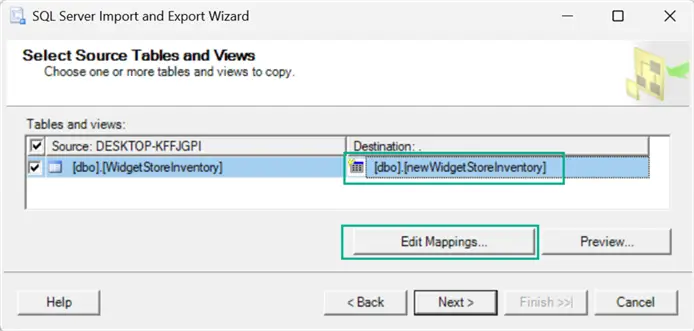
In the “Column Mappings” page select the “Edit SQL…” button to open the interface which allows you to edit the generated SQL.

Edit the auto generated SQL to include the statement to put the table in the new filegroup.

After finishing the edit and following the procedure to run the task SQL Server creates the new table as a HEAP. As with option 3, the DBA will need to manage the process of dropping the original table and renaming this new table. The DBA must also determine if the indexes need to be created on the table that has been created in the new filegroup.
Next Steps
- Get started by finding a test system with small tables to work through each option. Even if you don’t use each option, it’s helpful to practice.
- Useful articles on the topic
- Microsoft support official documentation here.
- MSSQLTips tutorial on indexes.

Burt King is an independent SQL Server consultant from Boston, Massachusetts. He has worked with SQL Server since 1997 and supported every version since SQL 6.5. Burt’s favorite projects are related to clustering, availability groups and performance tuning.


Well done! Thank you.
There are exceptions, as this does not apply to data stored in LOB columns such as varchar(max), varbinary(max), text, image and e.t.