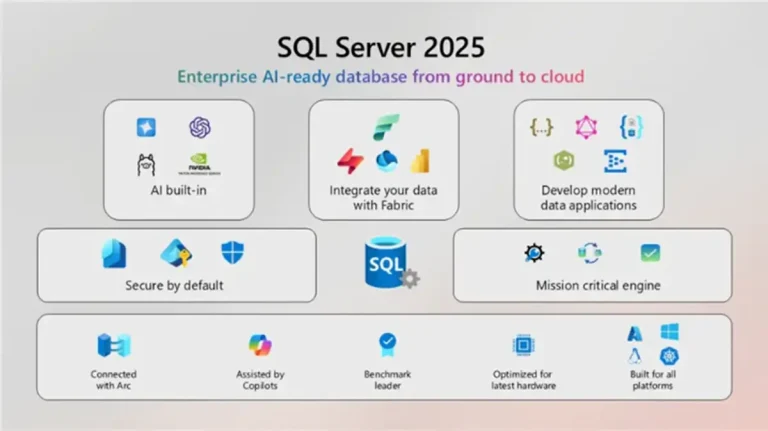
Problem
When using SQL Server 2025 with Docker, Windows Server 2025 or an earlier version is not supported out of the box. This is because the Docker Desktop can’t be installed on Windows Server by default. Moreover, the SQL Server Docker images based on Windows are not actively maintained. Let’s see how this can be done.
Solution
We can enable the nested virtualization advanced setting when we launch a Windows Server 2025 instance on Amazon EC2. Then, we install the Docker Desktop. Further, nested virtualization is the support for second level virtualization on an EC2 instance, which itself is a virtual machine.
In this article I explain how to run SQL Server 2025 on Docker in Windows Server 2025 running on Amazon EC2. Further, we can use the Linux based Docker image for SQL Server 2025 even on Windows Server.
Setting the Environment
We need to set up the following environment:
- Create an Amazon AWS account, if not already registered.
- Create an Docker account if you do not already have one.
- Download and install SQL Server Management Studio (SSMS) on the local machine, if not already installed.
- Download the AdventureWorks.bat Backup File (OLTP) for SQL Server 2025 to a folder on your local machine; C:/sqlserver-2025 for example.
Launching a Windows Server 2025 on Amazon EC2
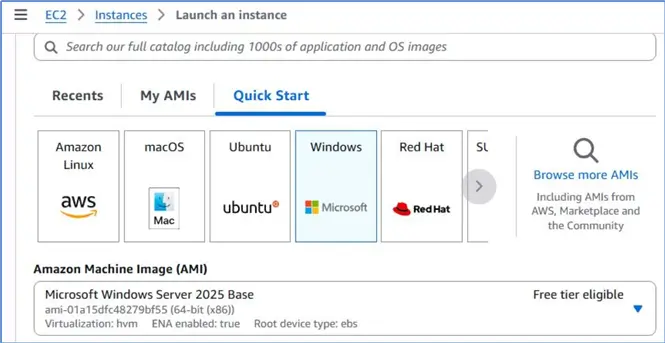
Login to Amazon Web Services (AWS) Management Console and select the EC2 service link. Navigate to Instances table and click Launch Instances. Provide an instance name and click on Windows under Quick Start to launch a Windows Server. Select the Microsoft Windows Server 2025 Base AMI.
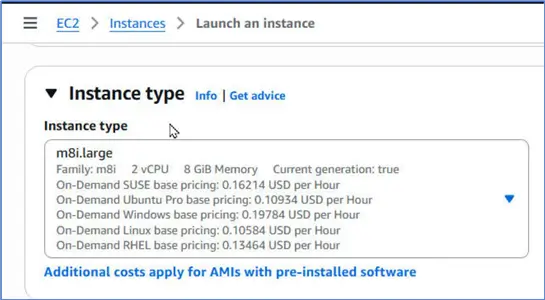
Select Instance Type as m8i.large, a general-purpose 8th generation Intel-based EC2 instance that supports nested virtualization, allowing users to run hypervisors like Hyper-V directly.
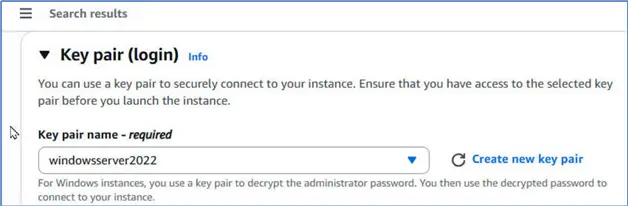
Next, select a Key pair for login or create a new one. We’ll need this to connect to the Windows Server from a local machine.
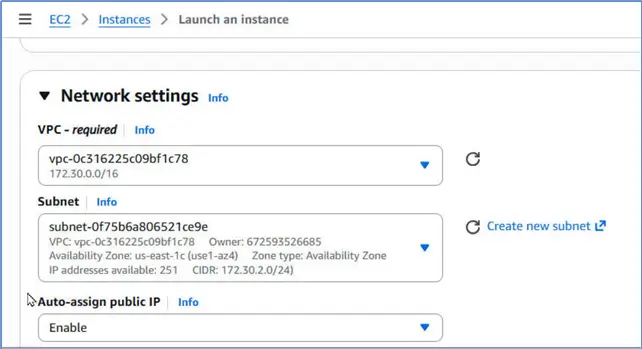
Click Edit for Network settings. Select a VPC, and a Subnet; you may need to create a new VPC/Subnet if not already. Set Auto-assign public IP to Enable so that a public IP address is automatically assigned to the instance for connecting directly from a local machine.
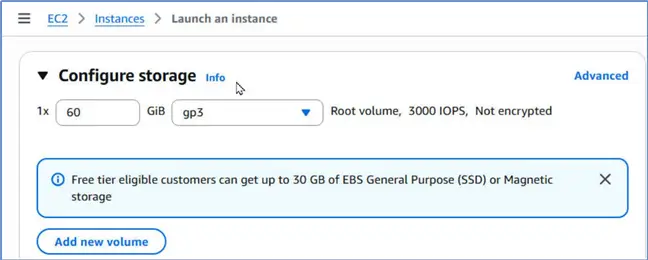
Select an existing security group or create a new one; it should allow Inbound/Outbound traffic to be able to connect to an SQL Server running on the Windows Server. Configure 60 GB of storage.
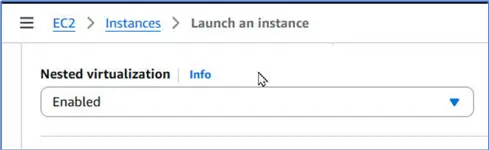
Expand Advanced details, and select Enabled for Nested virtualization.
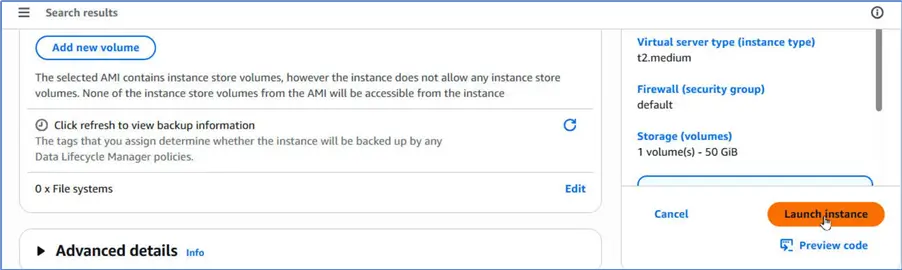
Scroll down and click Launch Instance.
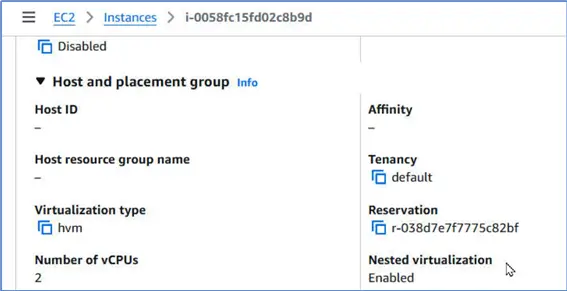
A new instance should be provisioned shortly thereafter. Verify that Nested virtualization is Enabled for the new instance because without it we can’t run Docker on it.
Connecting to the Windows Server 2025
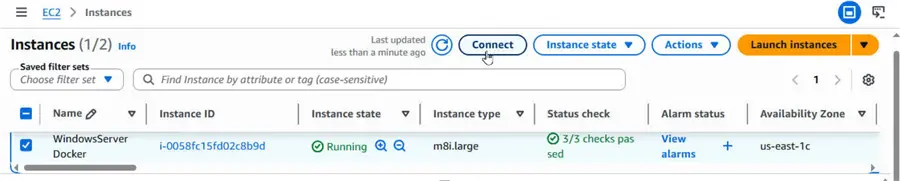
To connect to the Windows Server, click Connect in the Instances table with the checkbox for the instance selected. However, the Status check should be 3/3 checks passed, and not Initializing or other. This is because even though the Instance state may be Running, we can’t connect to it until it has initialized completely.
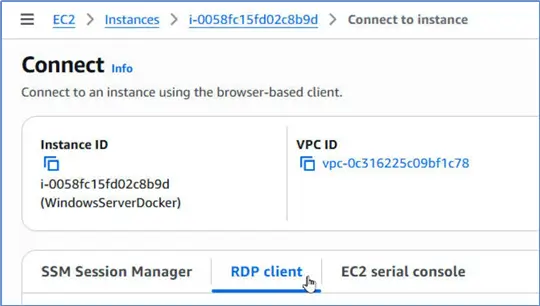
Select RDP Client as the connection method.
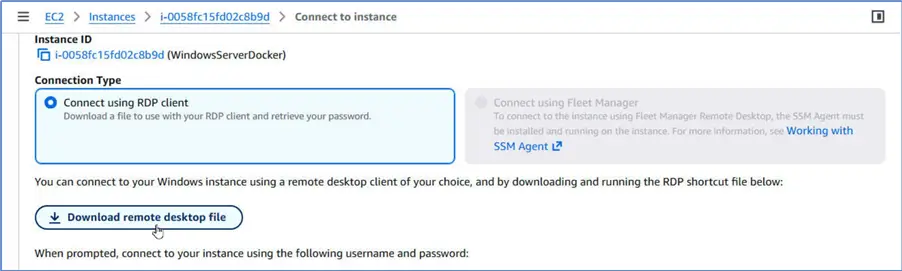
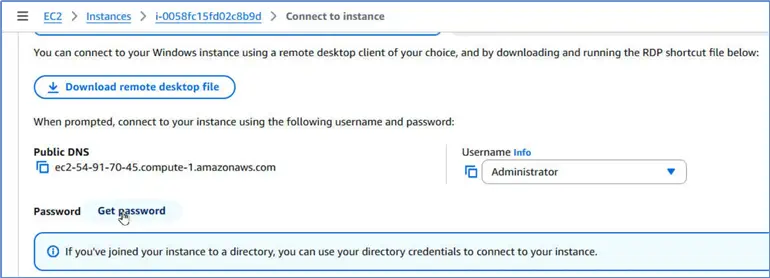
With Connection Type as Connect using RDP client, click Download remote desktop file. This downloads a Remote Desktop Connection (.rdp) file that we use to connect to Windows Server.
However, before we can connect, we need to obtain the password for connecting. For this, click Get password.
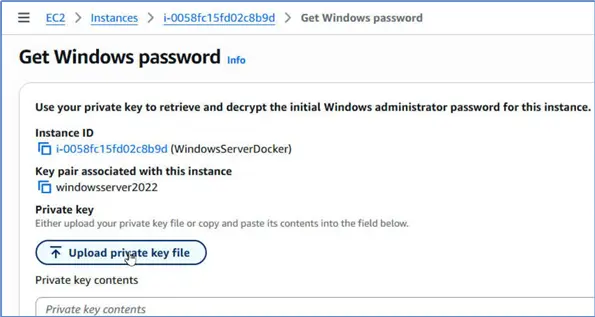
Click Upload private key file.
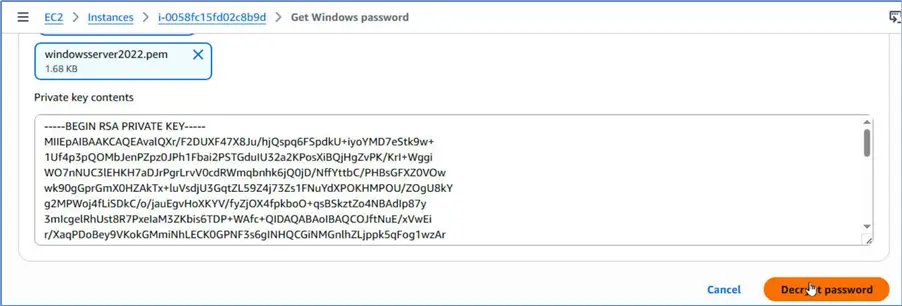
Upload the Key pair .pem file that you configured before launching the instance from your local machine. Then, click Decrypt password.
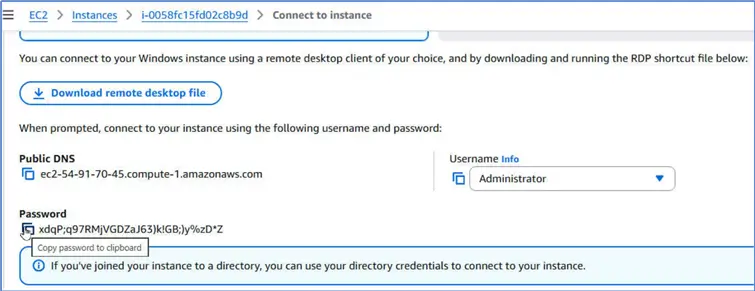
Copy the password it decrypts and lists.
Right-click the RDP file, and select Connect.

Click Connect in the Remote Desktop Connection dialog. For authentication, the user is Administrator. Copy and paste the password in the Password field and click OK. Click Yes in the dialog regarding overlooking a security certificate warning in order to connect. It starts to configure a remote session.
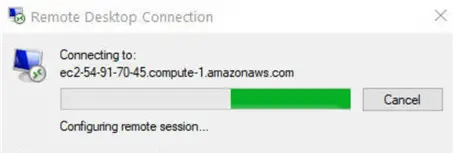
Once connected, it displays a PowerShell prompt to the Windows Server.
Verifying Hyper-V Virtual Machine Management Service
We can enable the Hyper-V role and run Windows Subsystem Linux (WSL2) on the Windows Server EC2 instance owing to the nested virtualization we enabled. Let’s ensure that the Hyper-V Virtual Machine Management Service is running with the following command.
--MSSQLTips.com (PowerShell)
PS C:\Windows\system32> Get-Service vmms
Status Name DisplayName
------ ---- -----------
Running vmms Hyper-V Virtual Machine Management
Indeed, it is Running.
Installing Docker Desktop on Windows Server 2025
Run the following command to download the Docker Desktop installer.
--MSSQLTips.com (PowerShell)
PS C:\Windows\system32> Invoke-WebRequest -Uri "https://desktop.docker.com/win/main/amd64/Docker%20Desktop%20Installer.exe" -OutFile "$env:TEMP\DockerInstaller.exe"
Thereafter, let’s run the installer with the following command:
--MSSQLTips.com (PowerShell)
PS C:\Windows\system32> Start-Process "$env:TEMP\DockerInstaller.exe" -ArgumentList "install", "--quiet", "--accept-license" -Wait
Installing Windows Subsystem for Linux (WSL) Core Components
We need to set up the core components for Windows Subsystem for Linux (WSL). To do this, run this command.
--MSSQLTips.com (PowerShell)
PS C:\Windows\system32> wsl --install --no-distribution
Downloading: Windows Subsystem for Linux 2.6.3
Installing: Windows Subsystem for Linux 2.6.3
Windows Subsystem for Linux 2.6.3 has been installed.
The operation completed successfully.
The operation completed successfully.
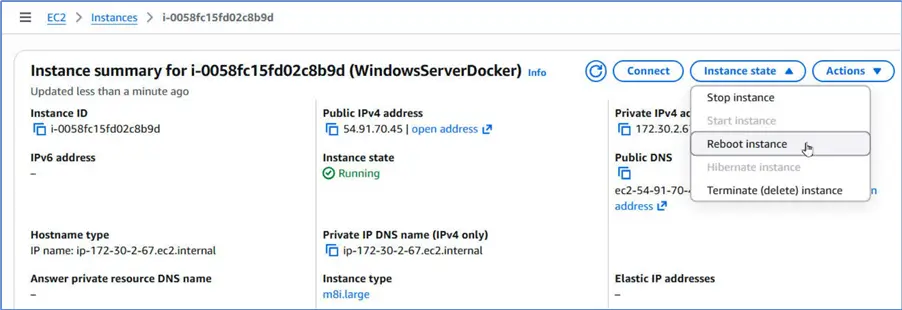
Then, we need to restart the Windows Server instance. Navigate to the AWS Management Console, select the Windows Server EC2 instance, and click Reboot instance.
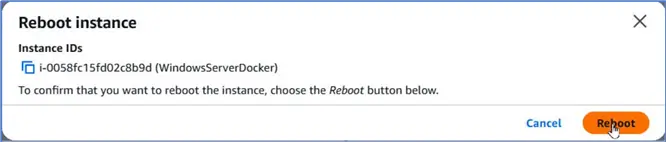
Click Reboot in the dialog shown.
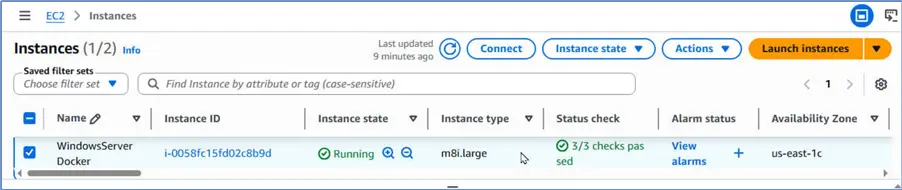
When the Status check shows all 3/3 checks passed, the Windows Server has been rebooted successfully.
This command and the subsequent restart do three things:
- Turns on the Microsoft-Windows-Subsystem-Linux and VirtualMachinePlatform features in Windows.
- Downloads and installs the latest version of the Linux kernel.
- Configures your system to use the WSL 2 architecture as default.
We have completed the setup we need to run Linux based Docker containers on Windows Server 2025.
Verifying Docker
Let’s verify the Docker version.
--MSSQLTips.com (CMD)
PS C:\Windows\system32> docker version
Client:
Version: 29.3.1
API version: 1.54
Go version: go1.25.8
Git commit: c2be9cc
Built: Wed Mar 25 16:16:33 2026
OS/Arch: windows/amd64
Context: desktop-linux
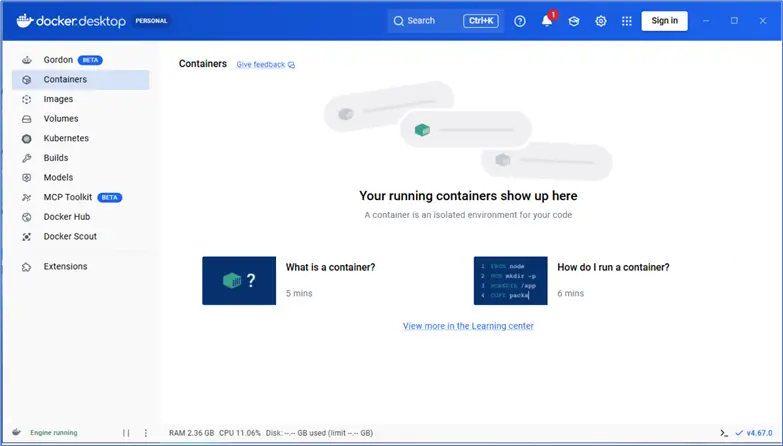
At this point we should be able to launch Docker Desktop.
Running a Docker Container for SQL Server 2025
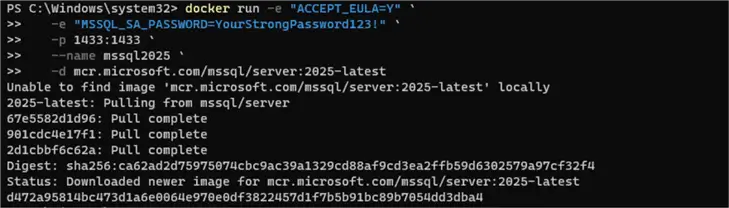
Let’s run a Docker container for SQL Server 2025. To do this, run the following docker run command in PowerShell.
--MSSQLTips.com (CMD)
docker run -e "ACCEPT_EULA=Y" `
    -e "MSSQL_SA_PASSWORD=YourStrongPassword123!" `
    -p 1433:1433 `
    --name mssql2025 `
    -d mcr.microsoft.com/mssql/server:2025-latest
This downloads the latest Docker image for SQL Server and runs a Docker container created from this image.
--MSSQLTips.com (PowerShell)
PS C:\Windows\system32> docker run -e "ACCEPT_EULA=Y" `
>> -e "MSSQL_SA_PASSWORD=YourStrongPassword123!" `
>> -p 1433:1433 `
>> --name mssql2025 `
>> -d mcr.microsoft.com/mssql/server:2025-latest
Unable to find image 'mcr.microsoft.com/mssql/server:2025-latest' locally
2025-latest: Pulling from mssql/server
67e5582d1d96: Pull complete
901cdc4e17f1: Pull complete
2d1cbbf6c62a: Pull complete
Digest: sha256:ca62ad2d75975074cbc9ac39a1329cd88af9cd3ea2ffb59d6302579a97cf32f4
Status: Downloaded newer image for mcr.microsoft.com/mssql/server:2025-latest
D472a95814bc473d1a6e0064e970e0df3822457d1f7b5b91bc89b7054dd3dba4
It’s best to run this command in PowerShell because it provides color highlighting and formatting.
Listing Docker Container
Then, we can list the running Docker containers with the docker ps command:
--MSSQLTips.com (CMD)
PS C:\Windows\system32> docker ps
CONTAINER ID IMAGE COMMAND CREATED STATUS PORTS NAMES
d472a95814bc mcr.microsoft.com/mssql/server:2025-latest "/opt/mssql/bin/laun…" 12 seconds ago Up 9 seconds 0.0.0.0:1433->1433/tcp, [::]:1433->1433/tcp mssql2025Again, it’s best to run this command in PowerShell.

Verifying SQL Server within Docker Container
Furthermore, we should run a docker exec command to ensure we can connect to the SQL Server within the container.
--MSSQLTips.com (CMD)
PS C:\Windows\system32> docker exec -it mssql2025 /opt/mssql-tools18/bin/sqlcmd `
>> -S localhost -U sa -P "YourStrongPassword123!" -C -Q "SELECT @@VERSION"
------------------------------------------------------------------------------------------------------------------------------------------------------------------------------------------------------------------------------------------------------------------------------------------------------------
Microsoft SQL Server 2025 (RTM-CU3) (KB5077896) - 17.0.4025.3 (X64)
Feb 25 2026 20:54:27
Copyright (C) 2025 Microsoft Corporation
Enterprise Developer Edition (64-bit) on Linux (Ubuntu 24.04.4 LTS) <X64>
(1 rows affected)
Exploring Docker Desktop
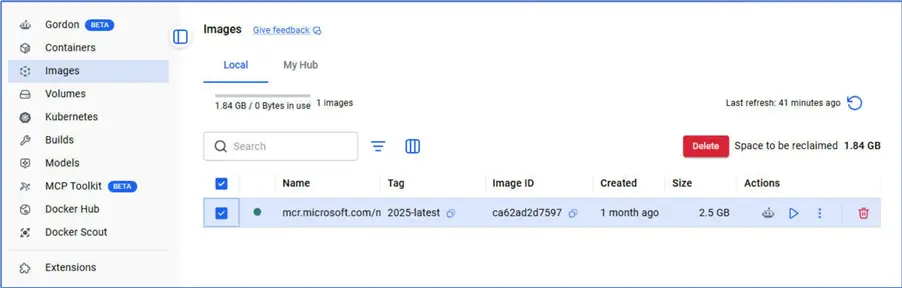
We can use Docker Desktop to run a Kubernetes cluster for SQL Server as well. The Images tab lists the latest Docker image for SQL Server.
Turning Off Windows Firewall
Turn off the Windows firewall on the Windows Server with this command.
--MSSQLTips.com (PowerShell)
PS C:\Windows\system32> Set-NetFirewallProfile -Profile Domain,Public,Private -Enabled False
Then, we can connect to the Windows Server and the SQL Server running in Docker on it.
Obtaining Connection Parameters for SQL Server
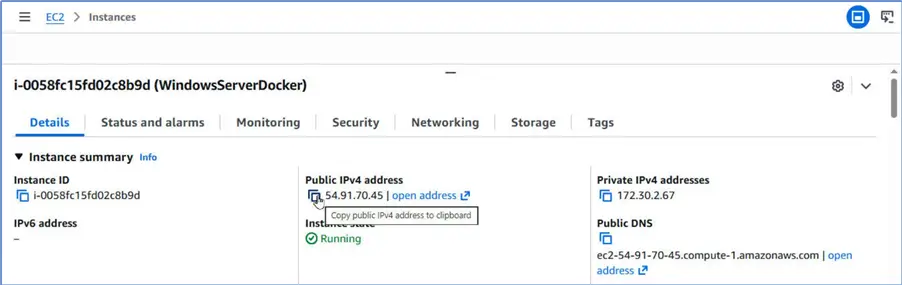
We need the connection parameters to connect to SQL Server. Use the sa password, and port 1433 that we set in the docker run command. We need one more connection parameter, the public IP address, or the public DNS of the Windows Server instance. Navigate to the Details tab for the Windows Server instance and copy the Public DNS.
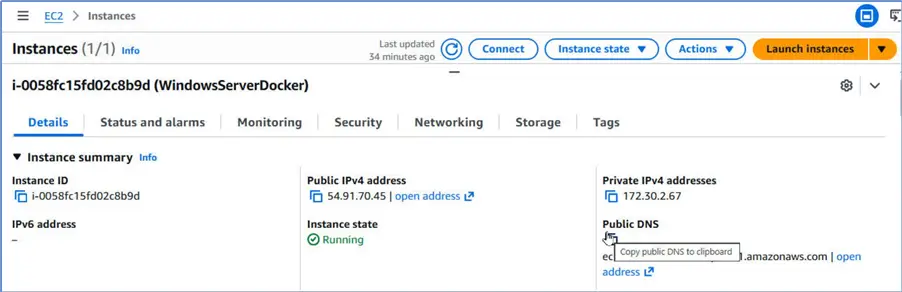
Alternatively, we can copy the Public Ipv4 address.
Connecting to SQL Server with SQL Server Management Studio
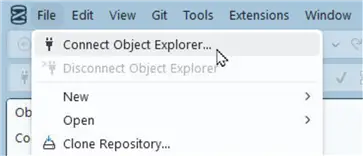
Launch SQL Server Management Studio, and select File > Connect Object Explorer …
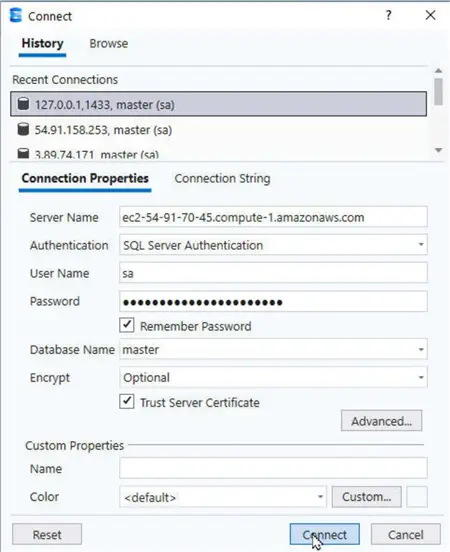
Provide/select the connection details in the Connect window:
- Server Name: The Public DNS, or Public IPv4 address
- Authentication: SQL Server Authentication
- User Name: sa
- Password:
- Database Name: master
- Encrypt: Optional
- Trust Server Certificate
Click Connect.
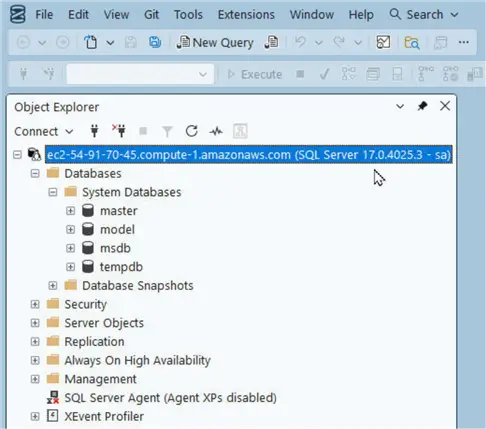
It adds a connection to the SQL Server running on Docker.
Running an Example Query
Let’s run an example SQL query on the SQL Server.
Right-click tempdb, and click New Query.
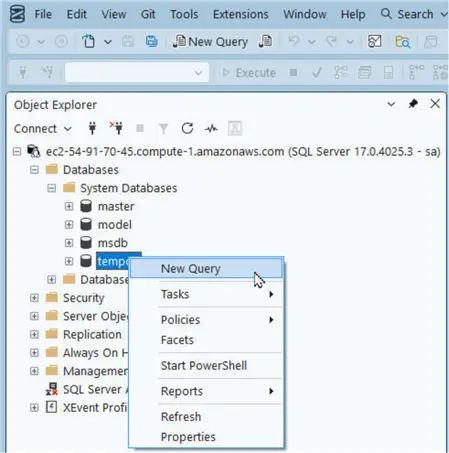
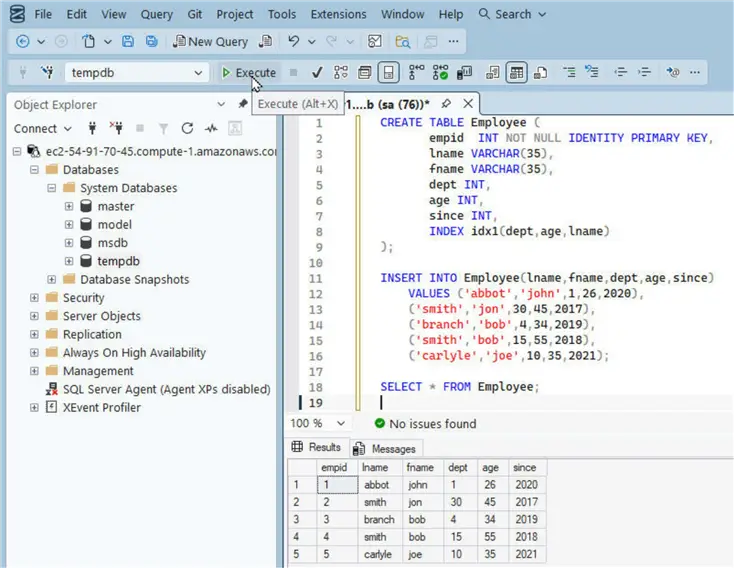
Copy and paste the following script in the query editor:
--MSSQLTips.com (T-SQL)
CREATE TABLE Employee (empid INT NOT NULL IDENTITY PRIMARY KEY, lname VARCHAR(35), fname VARCHAR(35), dept INT, age INT, since INT, INDEX idx1(dept,age,lname) );
INSERT INTO Employee(lname,fname,dept,age,since) VALUES ('abbot','john',1,26,2020), ('smith','jon',30,45,2017), ('branch','bob',4,34,2019), ('smith','bob',15,55,2018), ('carlyle','joe',10,35,2021);
SELECT * FROM Employee;
Click Execute to run the query.
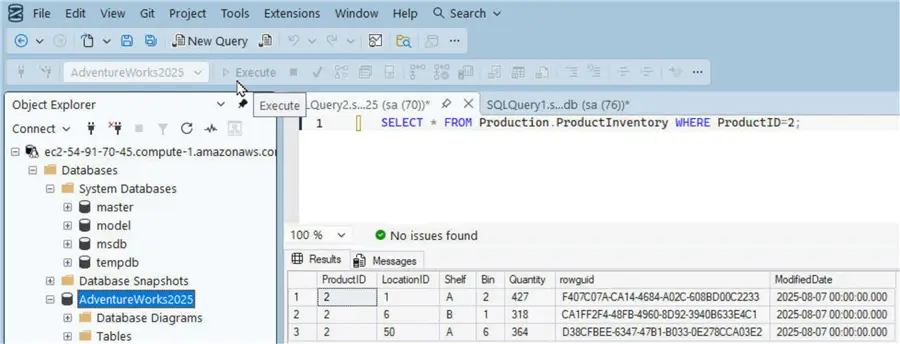
We can install AdventureWorks sample databases with the procedure in article Install SQL Server AdventureWorks Database in Docker or Kubernetes. Run a query on an AdventureWorks table.
--MSSQLTips.com (T-SQL)
SELECT * FROM Production.ProductInventory WHERE ProductId=2;
It lists the results.
Stopping and Restarting Docker Container
We can stop the Docker container when we are not using it. We do this with the docker stop command.
--MSSQLTips.com (CMD)
PS C:\Windows\system32> docker stop mssql2025
Mssql2025
Then, it lists the container as Exited with the docker ps –a command.
--MSSQLTips.com (CMD)
PS C:\Windows\system32> docker ps -a
--MSSQLTips.com (CMD)
PS C:\Windows\system32> docker ps -a
CONTAINER ID IMAGE COMMAND CREATED STATUS
PORTS NAMES
d472a95814bc mcr.microsoft.com/mssql/server:2025-latest "/opt/mssql/bin/laun…" 33 minutes ago Exited (137) 8 seconds ago mssql2025
We can start a stopped container with the docker start command and relist running containers:
--MSSQLTips.com (CMD)
PS C:\Windows\system32> docker start mssql2025
mssql2025
PS C:\Windows\system32> docker ps
CONTAINER ID   IMAGE                                        COMMAND                  CREATED          STATUS         PORTS                                         NAMES
d472a95814bc   mcr.microsoft.com/mssql/server:2025-latest   "/opt/mssql/bin/laun…"   33 minutes ago   Up 5 seconds   0.0.0.0:1433->1433/tcp, [::]:1433->1433/tcp   mssql2025
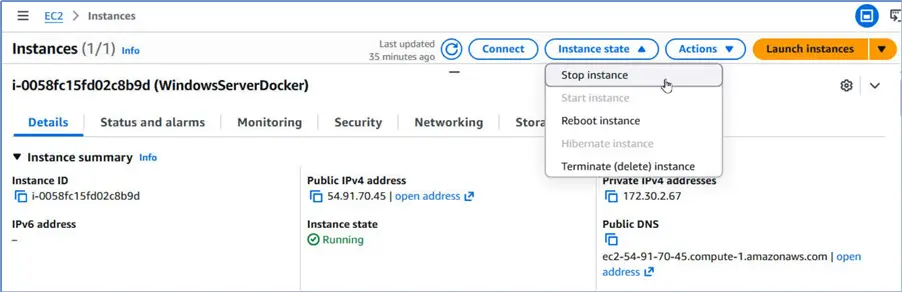
Stopping Windows Server Instance
To stop the Windows Server instance, select Stop Instance.
Summary
In this article, we showed how to run SQL Server 2025 on Docker Desktop that is installed on a Windows Server 2025 instance running on AWS EC2. Notably, running Docker Desktop on Windows Server is not supported by default. However, we enable one nested virtualization feature on a Windows Server EC2 instance. Nested virtualization is available on 8th-generation Intel-based instances (C8i, M8i, and R8i and their Flex variants). Then, we install Docker Desktop on the Windows Server, and run a Docker container for SQL Server 2025. We connect to the SQL Server with SQL Server Management Studio from a local machine.
Next Steps
- Explore the SQL Server Docker images
- Read up on related articles and documentation:
- Best Practices for Docker to run SQL Server on a Mac
- Setup SQL Server and Docker on a MacBook
- Create SQL Server on Windows Docker Container
- Docker Commands with Examples for SQL Server DBAs
- Docker Container Names, Internals and Storage for SQL Server
- Create SQL Server on Linux Docker Container using Dockerfile

Deepak Vohra is an Oracle Certified Data Science Professional, and an author of more than 20 books. Hobbies include philately, golf, and cricket.