Problem
I plan to install several SQL Server instances across different servers. On all servers, I would like to use the same accounts for the SQL Server services for easier management. I’ve heard there are Group Managed Service Accounts (gMSA) that can be used as SQL Server service accounts, for example for the database engine service and SQL Agent service. How can I configure gMSAs?
Solution
Group Managed Service Accounts can be configured in Active Directory. In this article, we will go through the steps required to create Group Managed Service Accounts, assign necessary privileges and configure SQL Server services to use those accounts.
Process Overview
Here is the high-level overview of the process:
- Group Managed Service Accounts
- SQL Server and gMSAs
- Requirements and Prerequisites
- Environment Requirements
- Update PowerShell
- PowerShell Module for Active Directory
- Key Distribution Service Running
- Creating Group Managed Service Accounts
- Create the KDS Root Key
- Create a security group for servers allowed to use the gMSA
- Add members to the group
- Create gMSA
- Install the gMSA on each server
- Configure SQL Services to Run Using the gMSA
Group Managed Service Accounts
A Group Managed Service Account (gMSA) is an Active Directory-managed account designed for services running on multiple servers. Active Directory automatically rotates its password, securely distributes it to authorized hosts, and eliminates the need for manual password management.
Main points regarding gMSA:
- A special type of AD account used by services, tasks, and applications
- Automatically managed by Active Directory (passwords, rotation, distribution)
- Designed for multiple servers (unlike standalone MSAs, which are single‑server only)
- Able to authenticate to domain resources just like normal service account
- Non-interactive (cannot be used to log in normally)
This way, you never know the password, never rotate it, and never store it anywhere (AD handles all of that).
SQL Server and gMSAs:
For SQL Server, gMSAs simplify service account management, improve security, and reduce administrative overhead. SQL Server can use a gMSA for:
- SQL Server Database Engine service
- SQL Server Agent
- SSIS and SSAS (depending on the configuration)
- SQL Server Failover Cluster Instances (FCI)
- SQL Server Always On Availability Groups (AG)
Requirements and Prerequisites
This article assumes that we are operating within Active Directory environment. If you do not have Active Directory and a domain but wish to create it, here is the step-by-step guide – Install Active Directory on Windows Server 2025.
Make sure your environment supports gMSAs, as well as update your PowerShell, get the ActiveDirectory PowerShell module (if it’s not already installed), and make sure the Key Distribution Service is running.
Environment Requirements:
- Domain functional level: Windows Server 2012 or later
- At least one KDS root key in the domain
- SQL Server must run on a domain-joined Windows Server
- SQL Server 2014 or later
PowerShell
Easy way to determine version of PowerShell is to run below PS command:
--MSSQLTips.com (PowerShell)
$PSVersionTable.PSVersion
Use this link to install PowerShell 7 – Install PowerShell 7 on Windows.
PowerShell Module for Active Directory
Here is the list of cmdlets that we are going to use for gMSA creation:
- New-ADGroup
- Add-ADGroupMember
- New-ADServiceAccount
- Install-ADServiceAccount
- Test-ADServiceAccount
Those cmdlets come from the ActiveDirectory PowerShell module, which is not installed automatically when you add the Active Directory Domain Services (AD DS) role – unless you (or sysadmin) also included “Role Administration Tools” during the Active Directory role installation, as shown on the screenshot below.
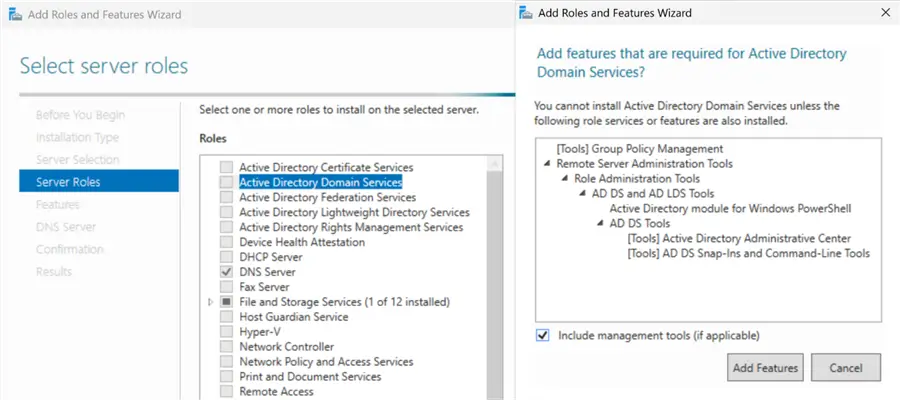
When you install AD DS and choose to install the AD DS management tools, the ActiveDirectory module is included. If you installed AD DS without management tools, the module could be missing.
To check if you have ActiveDirectory module installed, run below command:
--MSSQLTips.com (PowerShell)
Get-Module ActiveDirectory -ListAvailable
If you have it installed already, that is great. And no need to do anything, we can go to next section. If not – this can be fixed by installing RSAT:
--MSSQLTips.com (PowerShell)
Install-WindowsFeature -Name RSAT-AD-PowerShell
After RSAT is installed, ActiveDirectory module will be installed, too.
--MSSQLTips.com (PowerShell)
Import-Module ActiveDirectory
Key Distribution Service Running
The Key Distribution Service (KDS) is a built‑in Active Directory service used to generate and manage cryptographic keys for Group Managed Service Accounts (gMSAs). It is automatically installed and running on any domain controller, including Windows Server 2025, when you install the Active Directory Domain Services (AD DS).
The KDS is responsible for generating and distributing the secret keys used by gMSAs, which allows Windows services to run with automatically managed, rotating passwords.
Main points:
- KDS runs on domain controllers.
- It generates and stores root keys in Active Directory.
- It supports gMSA password generation and retrieval.
- It is required for gMSAs and dMSAs (new in Windows Server 2025).
When you install the AD DS role and promote the server to a domain controller, the Key Distribution Service is automatically:
- Installed
- Registered
- Running as a domain controller service
This is because KDS is a core component of domain controller functionality for managed service accounts.
Creating Group-Managed Service Accounts
Now to the main part steps.
- Create the KDS Root Key
- Create a security group for servers allowed to use the gMSA
- Add members to the group
- Create the gMSA with New-ADServiceAccount
- Install the gMSA on each server
Important: PowerShell must be launched with “Run as Administrator”.
Create the KDS Root Key
Key creation is a one-time per domain operation. Although KDS itself is installed automatically, you must create a KDS Root Key before you can create your first gMSA.
To create a KDS Root Key, run below PowerShell:
--MSSQLTips.com (PowerShell)
Add-KdsRootKey -EffectiveImmediately
Create a Security Group for Servers Allowed to Use the gMSA
Next, we need to create a security group:
--MSSQLTips.com (PowerShell)
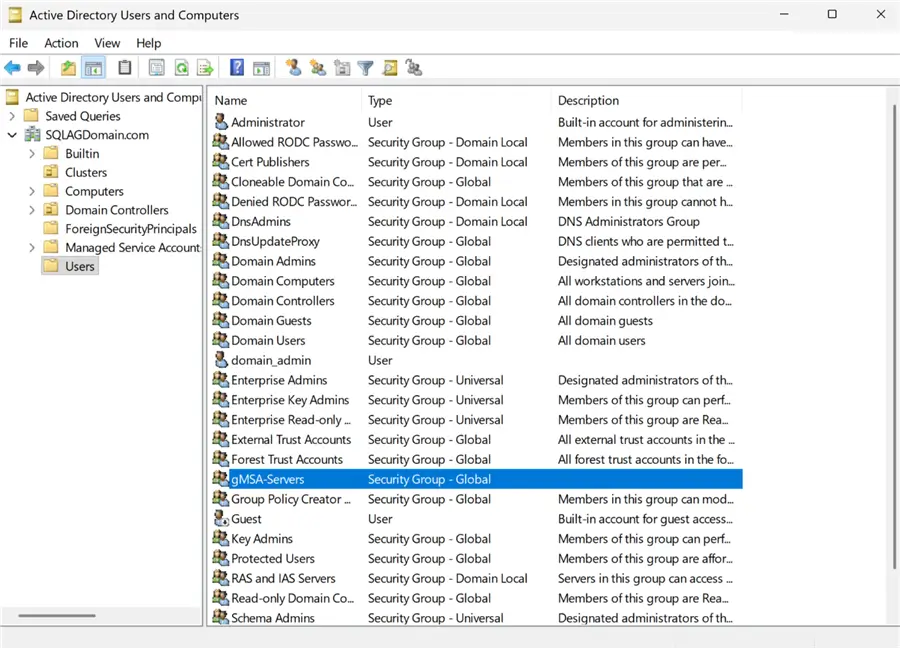
New-ADGroup -Name "gMSA-Servers" -GroupScope Global -GroupCategory Security
The group will show up in default folder “Users” in AD Users and Computers, if -Path has not been specified.
Add Members to the Group
After group has been created, add servers (that need to be able to use the gMSAs) to the group.
--MSSQLTips.com (PowerShell)
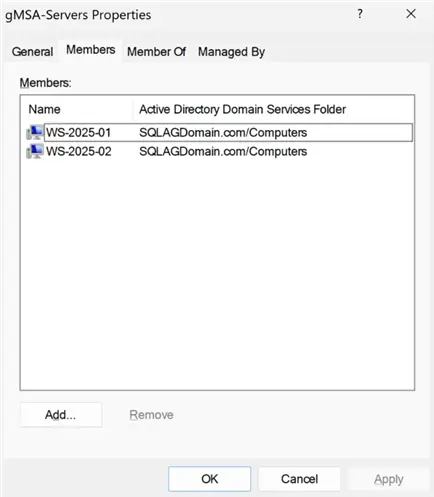
Add-ADGroupMember -Identity "gMSA-Servers" -Members "WS-2025-01$", "WS-2025-02$"
In my case, these are two servers named WS-2025-01 and WS-2025-02. Don’t forget to add the $ symbol to the server names as shown above.
Create the gMSA
Create the gMSA with New-ADServiceAccount:
--MSSQLTips.com (PowerShell)
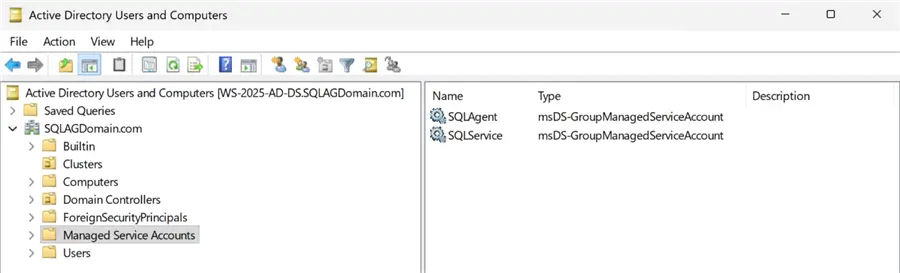
New-ADServiceAccount -Name "SQLService" -DNSHostName "SQLAGDomain.com" -PrincipalsAllowedToRetrieveManagedPassword "gMSA-Servers" -ManagedPasswordIntervalInDays 30 -Enabled $true
New-ADServiceAccount -Name "SQLAgent" -DNSHostName "SQLAGDomain.com" -PrincipalsAllowedToRetrieveManagedPassword "gMSA-Servers" -ManagedPasswordIntervalInDays 30 -Enabled $true
Note created accounts will show up in Managed Service Accounts folder in AD Users and Computers.
A few notes regarding the names of the gMSAs: For service accounts – including group Managed Service Accounts (gMSAs) – security does not come from the account name. Security of gMSAs comes from:
- Kerberos authentication
- Automatic password rotation (gMSA feature)
- Least-privilege permissions
- Proper delegation
- AD protections (e.g., Protected Users, tiering)
Because gMSAs rotate their passwords automatically and cannot be logged into interactively, obscurity of names adds no real security value. So, it’s totally fine to name accounts SQLService and SQLAgent.
Install the gMSA on Each Server
On each server that will use the gMSA:
--MSSQLTips.com (PowerShell)
Install-ADServiceAccount -Identity SQLService
Install-ADServiceAccount -Identity SQLAgent
Computer restart may be required in some cases before running Install-ADServiceAccount commands.
Configure SQL Services to Run Using the gMSA
When installing SQL Servers, on the screen where you specify service accounts for the Database Engine, SQL Agent, etc., specify the gMSA’s name with domain at the beginning and a $ symbol at the end (domain\accountname$). In my example, it is SQLAGDomain\SQLService$ and SQLAGDomain\SQLAgent$. No need to enter a password.
SQL Server installation will grant necessary permissions and privileges to accounts you picked for the database services. If you are curious about which Windows privileges are granted, you can view them here.
If you have existing SQL Servers running already and want to replace the service accounts, you should do it with SQL Server Configuration Manager. SSCM will grant the new accounts with Windows privileges required to manage services. You might need to grant some file system permissions (for example backup fileshares, etc.) that previous accounts had, to new accounts.
Summary
In this article, we reviewed the process of creating Group Managed Service Accounts in Active Directory environment. Created gMSAs can be used as service accounts for the group of SQL Servers – for example, in the Availability Group deployment.
Next Steps
- High Availability and Disaster Recovery Options for SQL Server and Azure SQL
- Using Group Managed Service Accounts with SQL Server
- Using Managed Service Accounts with SQL Server

Aleksey Vitsko is SQL Server DBA with several years of experience including production database administration, database development, performance tuning, security, high availability and disaster recovery, migrations, and more – both on-premises and in Azure SQL. He has earned these certifications: Microsoft Certified Solutions Associate (MCSA, 2020) and Microsoft Certified: Azure Database Administrator Associate (MCADAA, 2025). He can be reached at voodoosh2@gmail.com for any questions or help.