Problem
I have an older version of SQL Server Developer Edition on my computer and want to upgrade to SQL Server 2025. Because I have SQL Server already installed, the SQL Server Installer gives me the option to install a second instance of SQL Server, but how do I upgrade my existing SQL Server to the latest version?
Solution
In this article, I will explain how to upgrade an older version of SQL Server to SQL Server 2025. In my case, I am currently running SQL Server 2022 Developer Edition and plan on upgrading to SQL Server 2025 Enterprise Developer.
Upgrading other editions of SQL Server would be done in a similar way so you can follow these steps for upgrading other SQL Server editions. Just be sure to download the appropriate version of SQL Server from the Microsoft Download site. In a previous article “SQL Server 2025 Enterprise Developer Edition Download, Install and Configure” I wrote about downloading and installing SQL Server 2025 Enterprise Developer Edition.
Supported Version and Edition Upgrades for SQL Server 2025
I recommend reviewing the Microsoft site on supported version and edition upgrades (SQL Server 2025) to get full details of upgrading or migrating to SQL Server 2025. The oldest version of SQL Server that can be upgraded to SQL Server 2025 is SQL Server 2014 (12.x) SP3. Though, according to Microsoft, you can migrate databases from older versions of SQL Server to SQL Server 2025 (17.x), as long as the source database compatibility level is 90 or higher. That means you can actually upgrade a very old, obsolete version like SQL Server 2005!
Download SQL Server 2025 Enterprise Developer
Note, several of the beginning steps are in this article “SQL Server 2025 Enterprise Developer Edition Download, Install and Configure”.
You can use Microsoft’s Download Site from which you can download SQL Server 2025 Enterprise Developer or the desired edition of SQL Server: https://www.microsoft.com/en-us/sql-server/sql-server-downloads.
On this site, I will use “Download Enterprise Developer Edition” to download the install file.

Launch the Installer
Go to your Download folder and find file: SQL2025-SSEI-EntDev.exe

- Double click the file to launch the installation.
- When prompted: “Do you want to allow this app to make changes to your device?” Press YES.
- A splash screen will load and then a screen that shows Enterprise Developer Edition. Choose a Basic or Custom install. For our example, we will choose Custom installation.

Choose the Media location or take the default. Click Install.

SQL Server Installation Center
The SQL Server Installation Center window will open.

Installation
Click the Installation tab to see the different custom install options. We will select the option: “Upgrade from a previous version of SQL Server”.

Edition
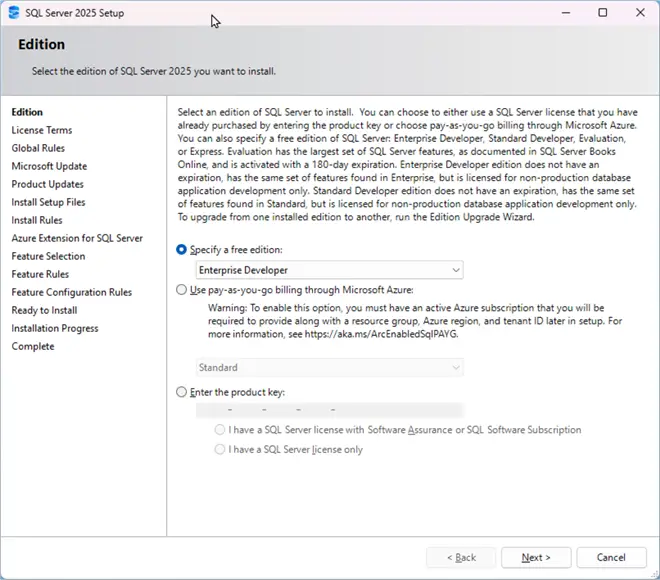
Now we need to select the edition of SQL Server we want to install.
- The next screen that pops up gives the following options:
- Specify a Free Edition
- Use pay-as-you-go billing through Microsoft Azure
- Enter a product key
- Select the “specify a free edition”
- In the dropdown box select – Enterprise Developer or the edition you need and then press Next to continue.
License Terms
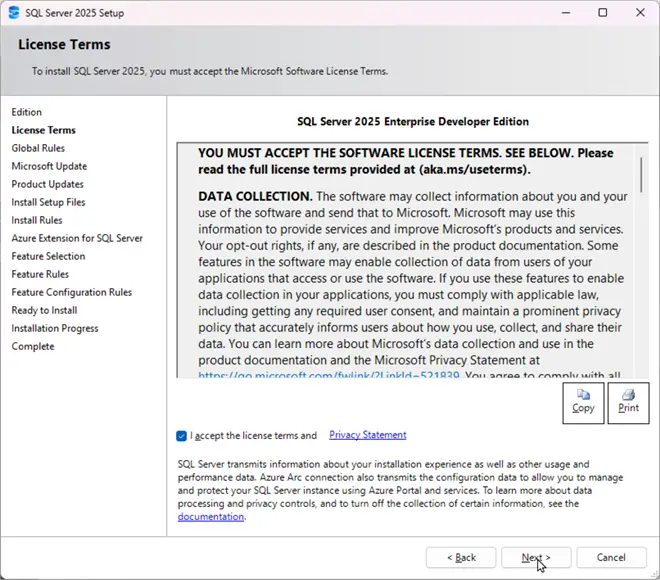
Agree to the Licensing Terms by checking the box and press next. Note the list on the left includes all of the installation steps with the current step bolded.
Microsoft Update
Select the checkbox to have Microsoft Update check for updates. This is a best practice to ensure the server is patched and security updates are applied.

Upgrade Rules
Next are the Upgrade Rules. If any of these rules are red they will need to be resolved to continue the install. You may have to cancel the install to resolve those issues and then start from scratch again.

Select Instance
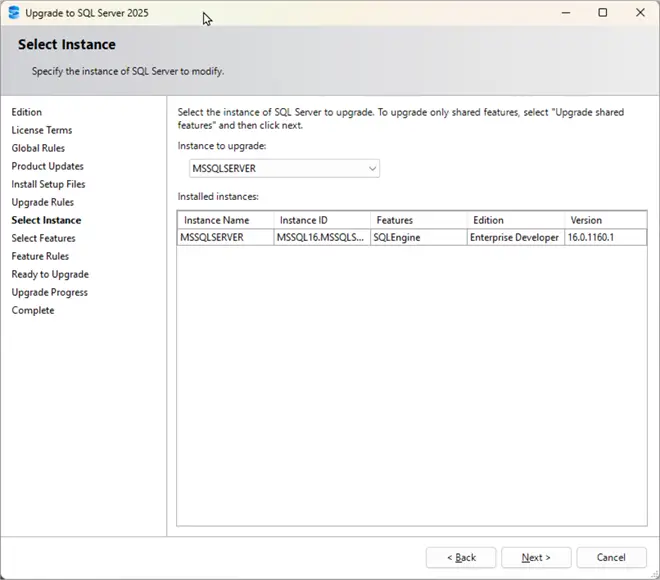
The next screen is for selecting the instance. Note: if you only have the “default” instance installed you will see MSSQLSERVER as the instance name.
Select the instance you want to upgrade and press the Next button to continue.
Select Features
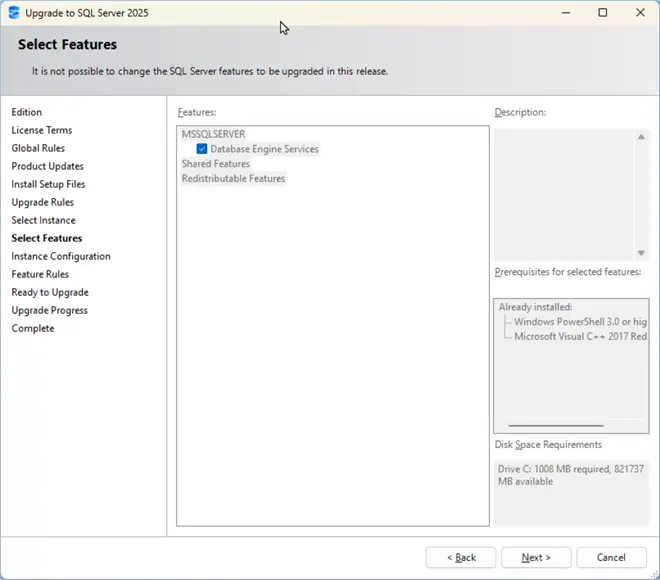
The Select Features is the next screen where only the current features will be upgraded. At the end of this article, we cover how to add additional features if needed.
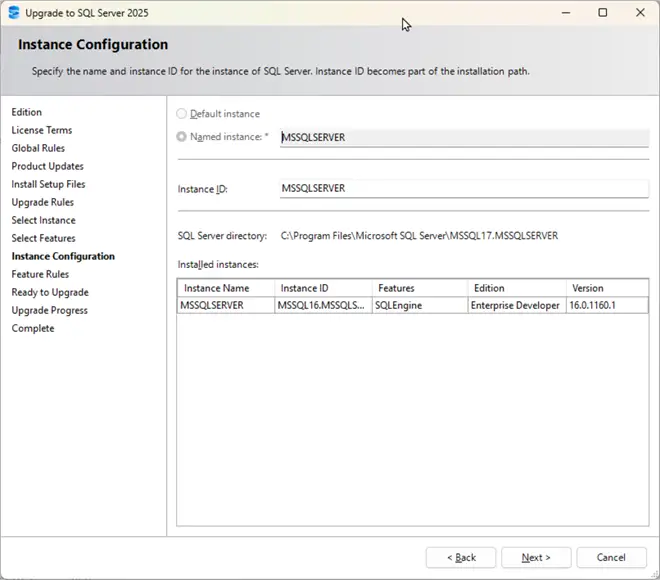
Instance Configuration
The Instance Configuration screen is next. There should not be anything that needs be changed here. Hit next.
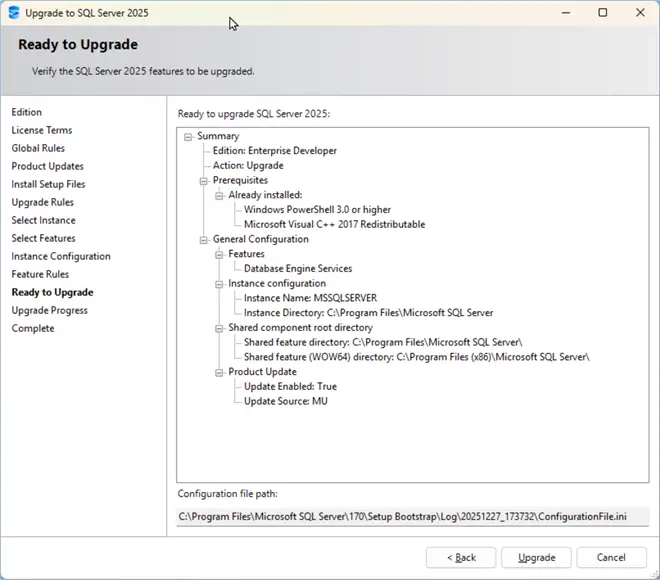
Ready to Upgrade
Next skips the Feature Rules screen and goes to the Ready to Upgrade screen showing the Summary of what will be upgraded.
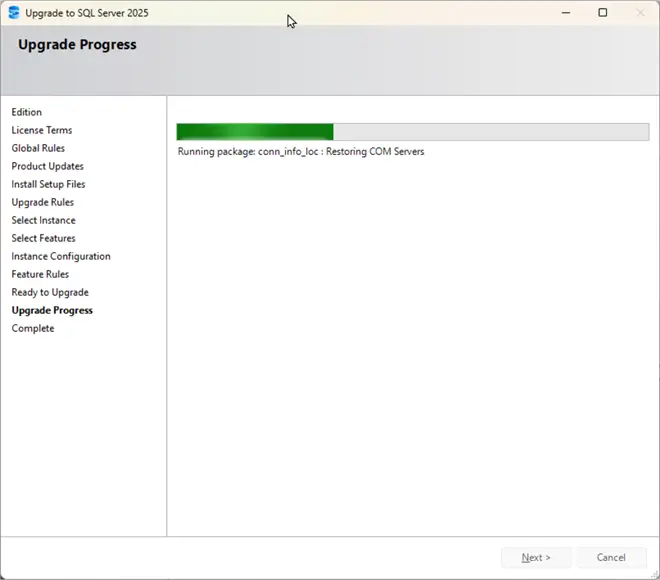
Upgrade Progress
Click Upgrade. The Upgrade will begin showing the Upgrade Progress. This step may take around 10 minutes or so.
Complete
Once the upgrade completes you land on the Complete screen. This screen shows Information about the Setup operation or possible next steps. In my case both the Database Engine Services and Setup Support Files both show Succeeded. Note the link to the Summary Log file save location. It is a good Idea to Click the file link and review the details and note the location.

Hit Close to complete the install process.
Check Version with SSMS
This concludes upgrading your current version of SQL Server to SQL Server 2025 Enterprise Developer Edition. Launch SQL Server Management Studio, connect to the SQL Server and verify the upgraded version of SQL Server is 17.0.

New Install or Add Features
A couple of additional options that you can do from the Install are a “New SQL Install of a Secondary instance or to add feature to an existing installation”.

Add Features
On this screen, we have the option to add a new SQL Server instance or add features to an existing SQL Server instance.
On the Installation Type screen select the option: Add features to an existing instance of SQL Server 2025.

Next is the Azure setup. I will uncheck the Azure Extension for SQL Server to skip this for now. Hit next.
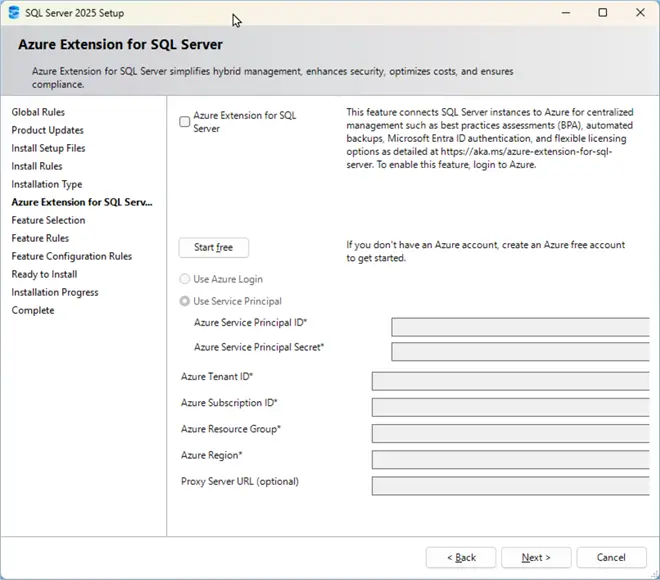
Here I will add the AI Services and Language Extensions and Full-Text Semantic Extensions for Search. This is just an example of adding features. You can select what works for you and then hit Next.

The next screen is Server Configuration. Hit next.
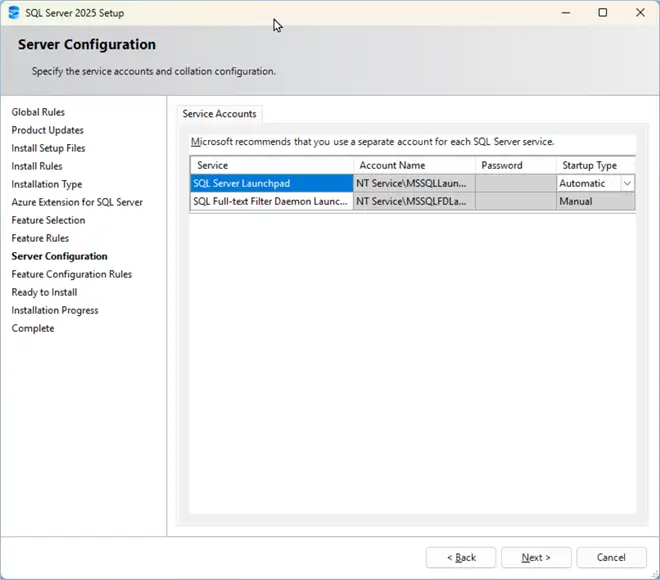
Next the Install Summary. Review and if good, hit Install.

The Installer will again go through the install progress and then end show the Complete screen. You can hit Close and then open SSMS and check out the added features.
Edition Upgrade
Another option I want to point out is the Edition Upgrade which can be used for example: if you want to upgrade a Developer Edition of SQL to Standard or Enterprise or from SQL Server 2025 Standard Developer Edition to SQL Server 2025 Enterprise Developer Edition.
I will not walk through the steps, but wanted to show this is another option you can explore.

Wrap Up and Notes
Now we covered the upgrade of an older version of SQL Server to newly released SQL 2025 Enterprise Developer Edition. This process is similar for other SQL editions. Keep in mind that you must upgrade prior to adding new features released in the new edition of SQL Server. This article also touched on edition upgrades and adding features to SQL Server.
Be sure to Install the latest version of SQL Server Management Studio which may be more compatible to this new Version of SQL Server and has many new features.
Here is a note from the Microsoft site regarding SQL Agent configuration prior to upgrading:
- Make sure you are using a Windows account for the SQL Server Agent service. You can use SQL Server Configuration Manager to check this.
- Make sure the SQL Server login used for the SQL Server Agent service account is a member of the SQL Server “sysadmin” server roles. You can check this using SSMS.
Next Steps
Review other MSSQLTips articles and learn more about SQL Server 2025. /p>
- Install SQL Server 2025 Enterprise Developer (Link to be added once this article is published.)
- Install SQL Server 2025 Standard Developer Edition
- Install SQL Server 2025 Demo Environment in Azure
- SQL Server 2025 New Features
- SQL Server Management Studio 22 Download, Install and Configure
- Review other articles author Jim Evans has written
- Microsoft Learn – Upgrade SQL Server guide
- SQL Server technical documentation

Jim Evans is an IT professional who has worked with SQL Server since 1995. He has a passion for SQL Servers and working with the people who utilize it. As a C++ programmer early in his career he was mentored to learn T-SQL with optimizing for performance always a goal. He has supported many corporate business units and application, taken part in designing many databases, managed DBAs, BI Developer and Data Management teams. He is always up for a challenge, embraces new features and functionalities as they are rolled out and enjoys sharing his knowledge. When not working on SQL Server he has spends time coaching youth sports, coaching in a disability softball league and volunteering with Black Dagger Military Hunt Club providing outdoor activities for veterans.
- MSSQLTips Awards: Trendsetter (25+ tips) – 2022 | Author Contender – 2021 | Rookie Contender – 2019


Hello,
Please, have you tried Upgrade from SQL Server 2022 Developer into SQL Server 2025 Standard Developer?
In documentation is this Upgrade path supported, but in fact (in SQL Server 2025 Standard Developer installer) its unsuppoertat scenario :(
Thanks
D
Hey Dan,
Thanks for the question. I have not tried to go from SQL 2022 Developer (which has Enterprise features) to SQL 2025 Standard Develper edition. Thought I believe you can first upgrade to SQL 2025 Enterprise Develperedition and then downgrade to SQL 2025 Standard Developer edition. However, only if no Enterprise feature are present. Use this to check features: select * from sys.dm_db_persisted_sku_features;