Problem
You may find that you need to connect remotely to a SQL Server that is in another domain via SSMS. Since I work from home, I face this challenge all the time. Almost every SQL Server I connect to is in another domain. It is usually behind a VPN, a stingy firewall, and a stingier network team. This is a problem when SQL authentication is not an option because my Windows machine is in its own domain. SQL Server Management Studio cannot directly override the local Windows credentials and pass the credentials for a remote domain user.
The easy answer is to simply establish a remote desktop session to the machine in question. Then use Management Studio and other tools locally, but there are several challenges with that. Many corporations have policies in place that prevent tools like SSMS from being installed on the server. Some companies even resort to Server Core at least in part as a means to enforce this policy. They may not have a dedicated “jump” box to support remote desktop connections to the SQL Server machine. Or they may have such a box, but without all of the tools you require.
Solution
Aside from pushing for SQL Authentication, adding your machine to the remote domain, or making your local domain trusted, there are two approaches commonly used to get around this problem. Both work equally well for Management Studio, Visual Studio, SSDT, Excel, and many other applications that support passing Windows credentials. To keep things simple, I’m going to stick to the most common use case, Management Studio.
runas /netonly
The method I use is the Windows built-in runas command. This allows you to run an application with Windows credentials you provide on the command line. The syntax is relatively simple:
runas /netonly /noprofile /user:domain\username "c:\path\ssms.exe"At this point, you are prompted for the password for the remote user. Once provided, you are told that it is attempting to run the program as that user:

With this instance of the application, when you attempt to connect to the remote server using Windows Authentication. The New Query window will *look* like it is using your local Windows credentials in the connection dialog:

But in reality – behind the scenes – you are impersonating the login you passed on the command line. You can confirm this by querying SUSER_SNAME(). In modern versions of Management Studio, confirm this with the username next to the server you’ve connected to in Object Explorer:

If you are connecting to the same remote domain many times, you may want to set up a shortcut. This will allow you to bypass entering all this information on the command line every time. Right-click the desktop and choose New > Shortcut. Then enter the same information as above in the command line:
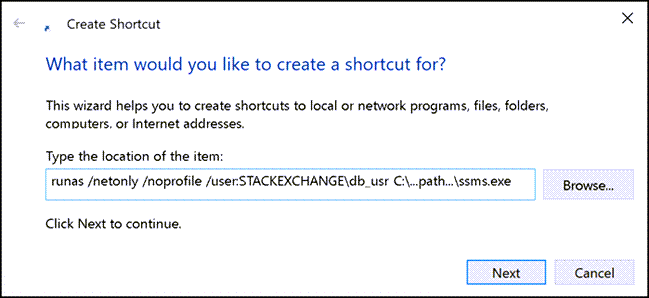
And give the shortcut a label that will make it easy to identify:

Now, double-click the shortcut. After providing the remote password, it will launch an instance of Management Studio. The remote credentials will be used every time you use Windows Authentication:

(You can achieve similar results using Microsoft’s SysInternals tool, ShellRunas.)
Credential Manager
Another method to connect to remote domains using Windows Authentication is to use the Credential Manager built into Windows. This can be a little tricky to setup, especially if you are connecting over a VPN. An added complication in my environment is that I am using a Mac host. This is connected by VPN to a remote domain in a data center. From there, I am connecting from Management Studio inside a Windows virtual machine.
The part that is tricky is ensuring that name resolution matches exactly. The Windows machine needs to identify the remote server by IP or fully-qualified domain name (FQDN), and may need to explicitly specify the port. I was finally able to make this work once I added the remote server names to my hosts file, and then ran ipconfig /dnsflush. I am not sure if the complication here is due to the VPN on its own, or the fact that I have an extra network translation layer due to the interaction with an additional operating system. Or maybe both.
Once you are sure you have the right FQDN (make sure you can ping it by name, or better yet, telnet to the server name on the SQL Server port (usually 1433)), go to Control Panel > Credential Manager, choose Windows Credentials, and Add a Windows Credential:

Then specify the specific server name (potentially you may need server:port notation), the domain user (including the domain name), the password, and click OK:

Connect via SSMS
Now, when you connect from Management Studio, make sure you use the exact same server name as the one you entered in the credential, including the port number (only now, use a comma instead of colon if specifying the port number: server,port). Like with the runas /netonly solution, it will *look* like you are connecting using your local Windows credentials, but – as long as the credential store doesn’t have any issues in matching the server name – those really are the remote credentials that are being passed under the covers.
You will know quite quickly if the credentials are not matched – if you do not establish connectivity immediately, you will receive one of these errors:
Login failed for user ”. The user is not associated with a trusted SQL Server connection.
These could be because the local credentials were passed, or because the username didn’t include the domain name (or user the wrong one). Double-check all of the properties of the stored credential and recreate it if you need to – you can modify the username and password, but if the server name is wrong, you’ll need to re-create it.
Once it is working, the difference in behavior here is that the credential is looked up every time you try to connect, based on the IP or server name entered, rather than when you launch the application. You will need to create a separate Windows Credential for every server you need to connect to; it does not work across all servers in a domain.
Conclusion
Those are two ways you can connect to SQL Servers in a remote domain and continue using Windows Authentication. In my opinion, the runas option is better if you only use SSMS to connect to a couple of remote domains (or a lot of different servers within one remote domain), since it is much quicker to set up and manage, and because the same Windows credentials will be passed for all of the servers you connect to from that instance of SSMS. The Credential Manager solution – while a little more cumbersome to set up, and a little trickier to troubleshoot – is better if you use the same instance of Management Studio to connect to many different servers, especially if they are in different environments, since it will automatically pick the right domain credentials based on server name, not based on the application’s startup arguments.
Additional Considerations
Of course, some of the reasons that prevent you from being able to connect to SQL Server inside the domain may also prevent you from using it outside, regardless of what application or credential passing mechanism you are using; for example, the port you need to connect to may not be open, or you may need to experiment with both IP address and FQDN to establish connectivity. In some cases, obtaining access to the SQL Server may still need further action by the network operations team in charge of the domain you’re trying to access. Note that this is not really any different from connectivity issues when using SQL Authentication or connecting from inside the domain or on the same network.
Next Steps
- Consolidate your remote connections using runas shortcuts or Windows Credentials.
- Review the following tips:

Aaron Bertrand (@AaronBertrand) is a passionate technologist with industry experience dating back to Classic ASP and SQL Server 6.5. He also blogs at sqlblog.org.
- MSSQLTips Awards: Author of the Year – 2016, 2023 | Leadership (200+ tips) – 2022



If i am not wrong, this method uses NTLM and not Kerberos. So this method is not a security problem?
Jeff, I started using this shortcut method a few months ago to connect to SQL Server via SSMS with different “admin” credentials. It has worked out very well. I also recently came across an article stating that NTLM is being removed from Windows in 2027 and all authentication will have to be done via Kerberos.
Can you briefly explain why/how this shortcut method uses NTLM over Kerberos?
My God… what a great time. Great for automation. I don’t know why it is not more clearly explained by Microsoft. Works like a charm. Thanks Aaron!
Thanks, that worked. Great tip, better than anyone came up with from my company’s MSSQL support team.
Thanks a lot, worked like a charm :)
Hello . I am newbie … how can someone do it from a pc with domain to a pc that is out of domain?
thanks in advance
Thank you for your useful article.
I had a question:
In availability group, we can connect two nodes that are in the workgroup network. The communication method is Windows authentication and this communication is established through the FQDN and same SID of Windows logins in both nodes. So why can’t we use Windows login in the same way to be remote to the engine server?
Thanks!
Searched the whole Internet for two days, thank you Aaron! Using Credential Manager is painless and effort-saving!
If you are trying to connect to a named instance then it’s likely that it’s not port 1433, so make sure to find out which port is used. Also, you don’t need the instance name in the Credential Manager.
You know you have come across a great tip when it has glowing comments spanning across 7 years. I have been using the runas method for quite a while but I ran into an issue where I needed to connect to two databases, each in a different domain, in the same interface.
For that, the credential manager was exactly what I needed. Thank you!
For those having latency issues, we had issues when connecting to a SQL server in a domain that we were not in. For some it might take 3-5 seconds just to expand a node (ex. get list of tables), and the issues were even more pronounced for others. What resolved it for us was realizing that if we used a hostname (ex. sql.myserver.com) it was fast and it we used the IP it was slow. It must be doing a reverse DNS lookup on the IP and failing (slowly) for every single request. We originally used the IP since we were outside of the domain. If you can’t resolve the hostname for this reason maybe add it to the windows hosts file as a workaround.
Great Tip, i have been using this for about 6 months. I see the same thing that reaver mentioned. Not just latency, it takes less then a second to run a query, but any SSMS action takes a very long time. For example in object explorer expanding the table list in a database will take about 30 seconds. Using the database drop down to change when database my query will run in takes about 30 seconds (though typing ‘use myDatabase’ is instant). Right clicking a stored procedure, it takes about 30 seconds to get my context menu to show up.
it also takes about 30 seconds to open a new query window. Presumably all these things must be triggering me to log in again and logging in with these methods takes about 30 seconds. Its Painful, but much less painful then alternatives. If anybody solves it, please let me know.