Problem
When a SQL Database is in Microsoft Fabric, you can develop it locally in a database project. As part of the development process, you want to deploy this project to the online Fabric SQL Database. The database project also contains pre- and/or post-deployment scripts that need to be executed as part of the deployment process. How can this goal be achieved?
Solution
The SQL Database has recently (Fall 2024) been introduced into Microsoft Fabric as a new data storage option, mainly for smaller datasets or transactional data. You can find an introduction to this feature in the tip What is SQL Database in Microsoft Fabric? You can develop the SQL Database locally in a database project, as explained in the tip Create SQL Database in Microsoft Fabric and Integrate into Project. This is similar to how you would develop a SQL Server database or Azure SQL Database using SQL Server Data Tools in Visual Studio.
Tools to Work with Database Projects
There are several tools you can use to work with database projects on your machine:
- Visual Studio. The full version of Visual Studio (VS) is beneficial, but if you only use it to create database projects (with SQL Server Data Tools) or BI projects, you can use the community edition. You can use VS to develop databases for SQL Server, Azure SQL Database, or Azure SQL Server Managed Instance without issues. However, you will need the latest preview version to develop for the Fabric SQL Database. Additionally, you would need the new SDK-style of SSDT and this project type is not backward-compatible with the old-style database projects. Since there are only a limited number of installations of Visual Studio 2022 you can have on your machine, VS might not be the best option right now to develop SQL Databases.
- Visual Studio Code. Here you need to use the Database Projects extension as well as the new SDK-style project. Unfortunately, due to some bugs, I was unable to publish a local database project to a Fabric SQL Database.
- Azure Data Studio. This product comes bundled with SQL Server Management Studio (SSMS) but can be downloaded separately. It’s an open-source cross-database platform management and data analysis tool. You can use it to work with SQL Server and PostgreSQL. Here you also need the Database Projects extension and the new SDK-style projects.
Since Azure Data Studio (ADS) is the only tool that successfully publishes a database to Fabric from my machine, we will use it for the remainder of this tip. Both Fabric SQL Databases and the SDK-style projects are in preview at the time of writing, so it is assumed that most of the bugs or missing features will be solved eventually.
Publish a SQL Database from ADS to Microsoft Fabric
When working with database projects, several methods are available to get your database code into Fabric. You can use source control integration or create your own CI/CD pipelines using the SQLPackage command line tool. In this tip, I want to investigate if we can manually publish a database project to Fabric, mainly to test if pre- and post-deployment scripts also work for the Fabric SQL Database. You might have an existing database project that you want to migrate to Fabric or have deployment scripts that insert metadata or reference data into some tables.
Create Fabric SQL Database and the Database Project
In your Fabric-enabled workspace, choose to create a new item.

Search for “sql” and select the SQL database option.

Give the database a name:

In ADS, make sure to install the Database Projects extension. Go to the Connections tab and add a new connection:

In the Fabric SQL Database, you can find the connection information of the new database when you click on Open in and then on Visual Studio Code.

This will display the server and database name:
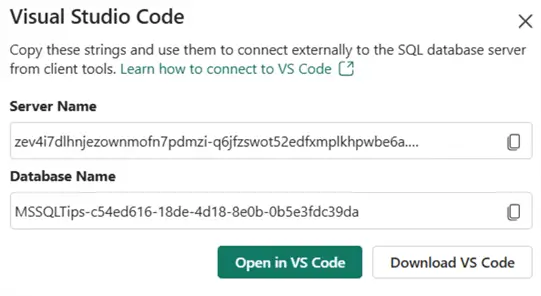
Copy both and return to ADS to fill in the connection info:

When the connection is successful, you’ll see the database in the explorer:

Add New Project
In the Database Projects extension, add a new project.

Choose the Azure SQL Database option, give the project a name and location, and don’t forget to enable the SDK-style project type.

Add Folder
Once the project is created, we can add folders to organize the objects.

Let’s add a folder for the dbo schema and a subfolder called “Tables.”

In that last folder, we can add a new table:

Let’s name it “HelloWorld.”

The following DDL script will create a simple table to test the pre-and post-deployment scripts.
--MSSQLTips.com
CREATE TABLE dbo.HelloWorld
(
   Id INT IDENTITY(1,1) NOT NULL PRIMARY KEY
  ,MessageText VARCHAR(500) NOT NULL
);
Publish Profile
Before we add our deployment scripts, let’s publish the database project so the table exists on the server first. Right-click on the project and add a publish profile.

You’ll be asked to provide a name for the profile:

A publish profile is basically an XML file telling how the project should be deployed:

Change Target Platform
Right-click on the project again and choose Change Target Platform. Here you can configure which type of Azure SQL Database or SQL Server you want to deploy the project.
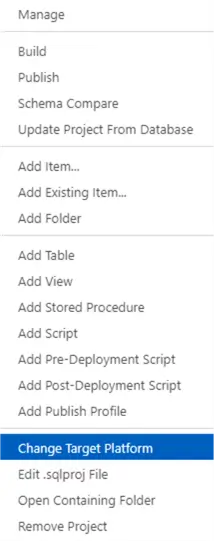
Out of the available options, choose Fabric Mirrored SQL Database.

This will add a line to the project definition:

Publish
Right-click the project and select Publish.

For the target, select to publish to an existing SQL Server. Select the Publish project profile we created earlier from the file system and choose the connection to the Fabric SQL Database.

If needed, you can change the Publish project’s profile (additional and more advanced settings) by clicking the Advanced button. There’s also an option to exclude certain database objects.
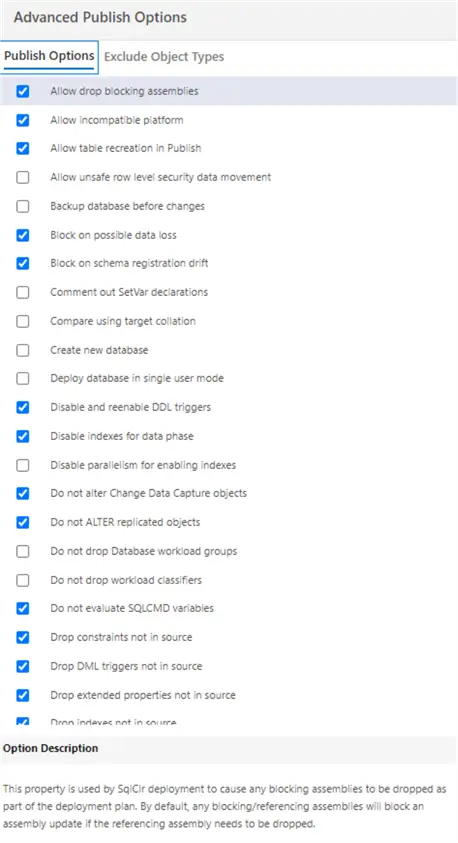
Once you’ve configured everything, click Publish at the bottom of the screen. The project will first be built, to make sure it is consistent.

When the build is successful, a .dacpac file will be created that will contain the contents of the project. This will then be deployed to the Fabric SQL DB and create the HelloWorld table.

Add Pre- and Post-Deployment Scripts to the Database Project
Now we can add our scripts. Right-click the project and choose Add Pre-Deployment Script.

As usual, you need to provide a name for the new file:

Add the following T-SQL code to the script:
--MSSQLTips.com
INSERT INTO dbo.HelloWorld(MessageText)
VALUES('This is from the predeployment!');
Similarly, we can add a post-deployment script to the project. Add the following lines to that script:
--MSSQLTips.com
INSERT INTO dbo.HelloWorld(MessageText)
VALUES('This is from the postdeployment!');
When we publish the project this time, the two scripts will be executed during deployment. We can verify this by checking the contents of the table after the deployment is finished:

Now, you can add extra logic to your deployments, such as environment-dependent business logic like obfuscating data in a development environment. If you don’t want overly complicated and long deployment scripts, you can split up the logic into different .sql files and reference them from the main script.
Let’s illustrate this with an example. Right-click the project and add a regular script:

Name this script InsertHelloWorld.

Add the following T-SQL:
--MSSQLTips.com
INSERT INTO dbo.HelloWorld(MessageText)
VALUES('This is an extra insert from the postdeployment!');
In the post-deployment script, add the following SQLCMD reference:
:r .\InsertHelloWorld.sqlSince SQLCMD is used, this is no longer valid T-SQL.

Tools like ADS or SSMS can interpret the SQLCMD and produce valid T-SQL. The project will still build successfully even though a syntax violation is flagged. The actual deployment script generated by sqlpackage also uses SQLCMD. You can view the script by selecting Generate Script instead of publishing the project.

This is a good way to inspect what will be deployed. As you can see, the script uses many SQLCMD variables:

Further down the script, we can find the contents of the pre- and post-deployment scripts:

When the project is published again, we can see that all scripts have been executed:

This tip has demonstrated how you can incorporate pre- and post-deployment scripts in your database projects. These can be used in any dacpac-based deployment.
Next Steps
- You can learn more about sqlpackage and dacpac deployments in the documentation.
- There’s also information about how to integrate Fabric SQL DB into source control. Don’t miss the tip Create SQL Database in Microsoft Fabric and Integrate into Project either!
- You can find more Fabric tips in this overview.

Koen Verbeeck is a seasoned business intelligence consultant with over a decade of experience with the Microsoft Data Platform. He holds several certifications, including Azure Data Engineer. He’s a prolific writer, with over 375 articles on technologies such as Microsoft Fabric, SSIS, ADF, SSAS, SSRS, MDS, Power BI, Snowflake and Azure services. He has spoken at various events such as PASS, SQLBits, dataMinds Connect and many others. He frequently delivers educational webinars on MSSQLTips.com. For his efforts, Koen has been awarded the Microsoft MVP data platform award for many years.
- MSSQLTips Awards:
- Leadership Award (200+ Tips) – 2021
- Author of the Year – 2014/2020/2022
- Author Contender – 2024/2025


Thank you for this! I followed some of your steps to publish from VS Code to an Azure SQL database using a modified Publish Profile as there are not many help pages about it. I managed to get it to work using the SQL Database Projects extension version 1.4.6, but I can relate to VS Code extensions still being a little ‘buggy’.
Dawn.