Problem
As the world begins to adopt a more event-driven architecture, having a system that can handle different types of events is of high importance for most software and system engineers.
Solution
This is a continuation of our previous series of Microservice Architecture using Azure Functions. Today, industries are moving to Microservices, which break down applications into small, independent services, each responsible for a specific function.
This article is broken down into two main sections, each section aimed at a crucial function in Azure function:
- Section 1: Trigger Azure Function with Event Grid
- Section 2: Trigger Azure Function with HTTP Post Request
Note: To benefit the most from this article, please read our previous article, Microservice Architecture using Azure Functions, which discussed the fundamentals of Azure Functions and other use cases.
Section 1: Event Grid Trigger with Azure Function
What is Azure Event Grid?
Azure Event Grid is a fully managed event-routing service that enables users to create event-driven architectures. By offering a dependable and highly scalable platform for delivering events from multiple sources to multiple destinations, it streamlines event-driven systems.
By using the MQTT and HTTP protocols, Azure Event Grid is a fully managed, highly scalable Pub Sub message distribution solution that provides customizable message consumption patterns.
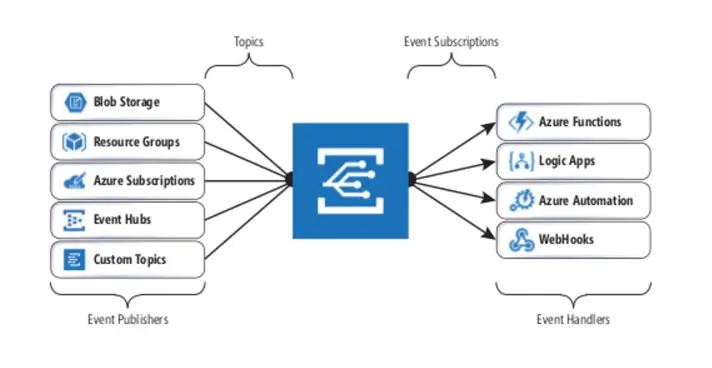
Microsoft Event Grid Architecture | Microsoft Learn
Event Grid Major Components
Event Publishers
Any entity that submits events to Azure Event Grid is referred to as an event publisher. This could be a custom application or an Azure service, such as Event Hubs, Blob Storage, etc.
The task of creating events and forwarding them to an Event Grid subject falls to event publishers.
Topics
Events are logically contained within a topic. Think of it as a publication channel for events.
Events are sent to a subject by publishers, and subscribers subscribe to a topic to receive events. Events are categorized and arranged according to topics, making it easier for subscribers to locate the events they are interested in.
There are two types of topics in Azure Event Grid:
- System Topics: System topics are pre-defined by Azure and represent events emitted by specific Azure services. These topics automatically receive events from services like Azure Storage, Event Hubs, Service Bus, etc.
- Custom Topics: You create and manage custom topics yourself. These topics are designed to handle events generated by your applications or third-party services.
Event Subscription
The events that a subscriber wishes to receive from a topic are specified in an event subscription. To indicate the kinds of events they are interested in, subscribers form subscriptions.
Event Handlers
The events are directed to an event handler. This is where the event is processed. Event handlers can be custom apps, Azure services (Logic Apps and Azure Functions), or any endpoint that can receive events.
All the subscribing event handlers receive the event when it is published to a topic via Event Grid.
Activate Azure Event Grid
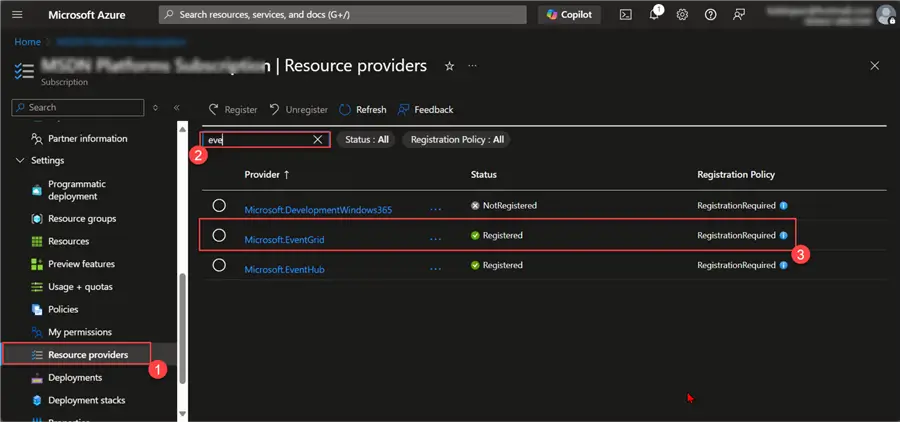
Before we get started with Azure Event Grid, we need to activate it in our Azure Subscription.
In the Azure Portal, click the Azure Subscription you want to use for your Event Grid. In your Azure Subscription, select Resource Providers, which will open a new window. In the new window, search for events and ensure Microsoft.EventGrid is registered. If not, please register before we get started.
Mini Project with Azure Event Grid
Let’s create an event-driven architecture that sends information using Azure Function to an Administrator via Slack Channel when a particular type of file format is deleted from a storage account. The purpose is to observe different possibilities of how an Azure Function can be utilized, not just when items are created but also when items are deleted.

EventGrid Project Architecture
Step 1: Create Azure Function App with ARM Template
In VSCode, create a new file called eventgrid_template.json and paste the JSON file ARM Template into it. Ensure you save the file before running the command below.
az deployment group create --resource-group docker_rg --template-file eventgrid_template.json --parameters functionAppName=mssqltips-eventgrid location=uksouth
In our Azure Portal resource group, we can confirm the Eventgrid function app has been created.

Step 2: Create EventGrid Template Script
In VSCode, click the Azure widget and create a new Function. Search for an event grid trigger and follow the process of creating a Function. This should take a couple of minutes to provide all the information and library necessary.

After successfully creating the Event Grid Template, start debugging by clicking on the RUN button. This should take a couple of minutes to set up the Python virtual environment and install all necessary libraries.
With the Azure Function for EventGrid trigger working as expected, we can stop the process using Ctrl + C.
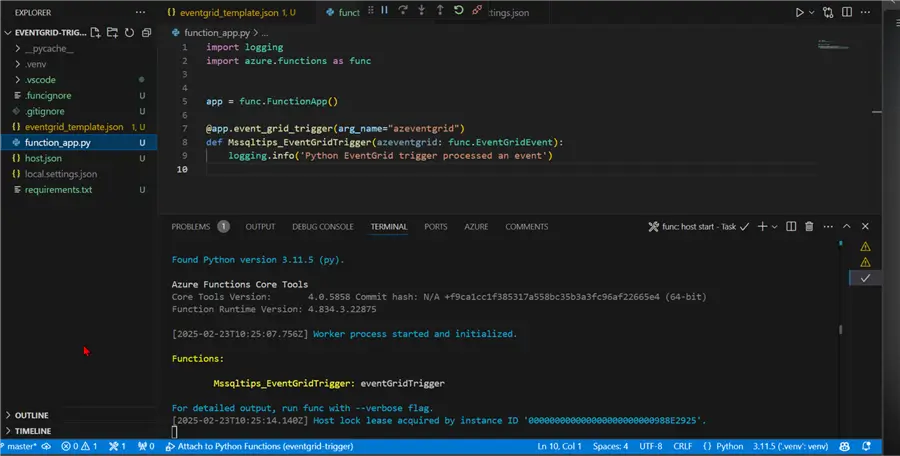
With the Function working as expected, let’s deploy the template function to the Azure Function App we created earlier.

Confirm Azure Function uploaded successfully to the Function App in Azure Portal.
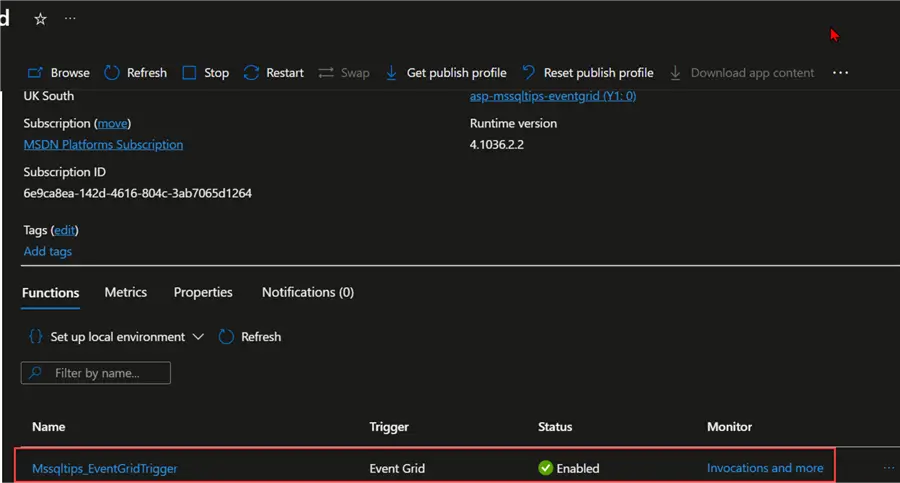
Step 3: Create Event Subscription
In your Azure portal, select the Azure Storage account, then click Events. In the Event tab, create a new Subscription.

In the Event Subscription, you are expected to fill in information like Name and Event Schema. Use the default Schema as Event Grid Schema.
Basics Tab, Event Types, Filter to Event Types. From the dropdown, choose the Blob Deleted option, as we plan to capture information as soon as a particular data format is deleted from the blob container.
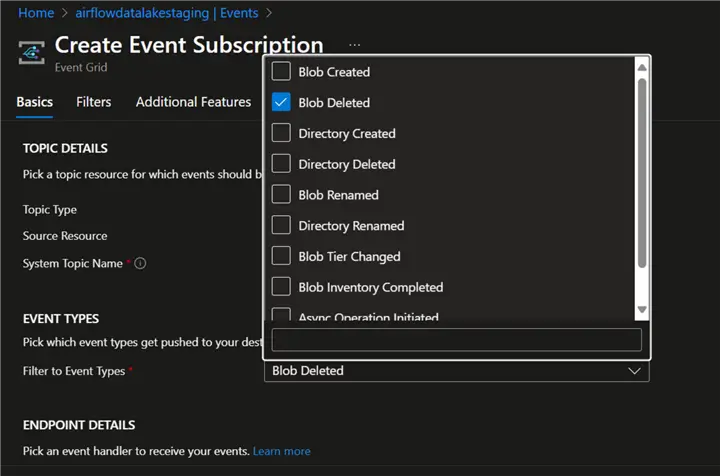
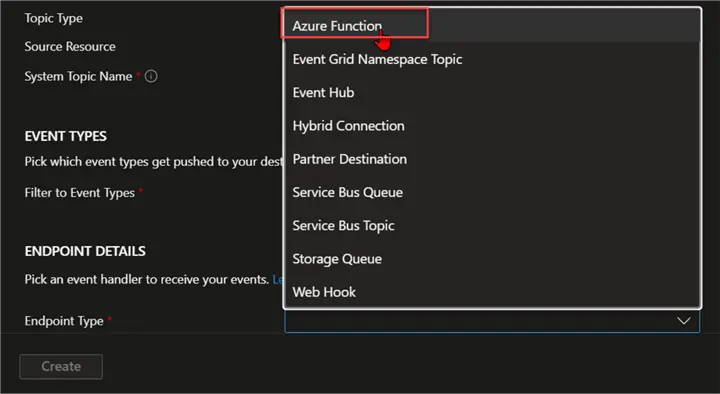
Basics Tab, Endpoint Details: This is used to pick the event sent via EventGrid. We will use the Azure Function as our endpoint for this project.
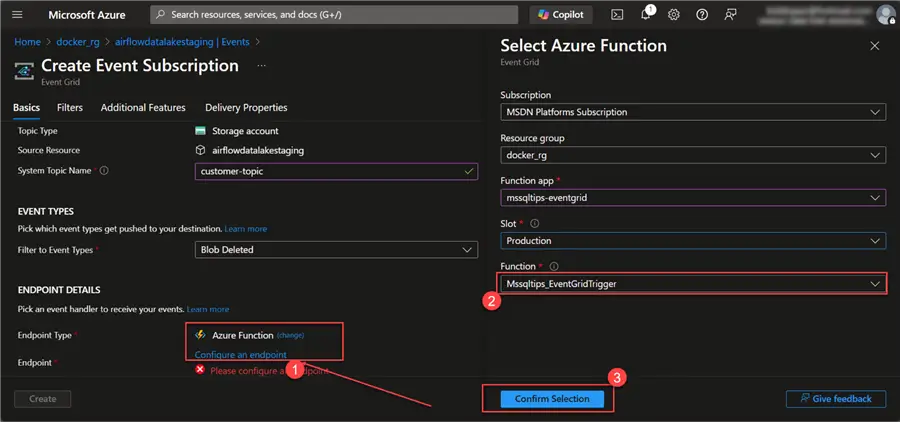
Basics Tab, Endpoint Details, Endpoint Type: At this point, we need to select the Azure Event Function we deployed earlier from the VSCode developer environment. Click Configure an endpoint and fill in the necessary information. Ensure to select the Azure Function deployed earlier and click Confirm Selection.

Filters Tab: On the Filters tab, select the type of data we want to read. From the Microsoft Official Doc on setting trigger subscriptions on blob containers, we need to follow the default setting in doing this. Put in your Subject Begins With and Subject Ends With information, then click Create.
/blobServices/default/containers/<CONTAINER_NAME>/blobs/<BLOB_PREFIX>
This should take a couple of minutes to provision. Now we have our EventGrid running as expected.

Test Template EventGrid
The following steps should be followed to test the blank template for the EventGrid Function.
Step 1: Observe Default Environment
Check all default environments to observe the current state of Azure EventGrid before starting the entire process. You will notice the log for EventGrid still remains constant with no messages being sent now.

Also, in our storage account, we see the .xlsx extension files we want to work with.
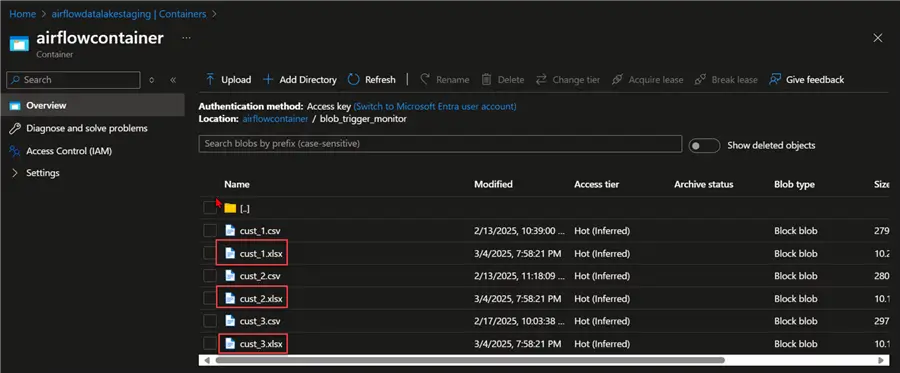
Step 2: Delete .XLSX to Confirm Logic
In your Azure Storage account, let’s delete one of the .xlsx files and see if the Azure Function gets triggered.

You will notice in your Azure Function Log the message shows an action just occurred.
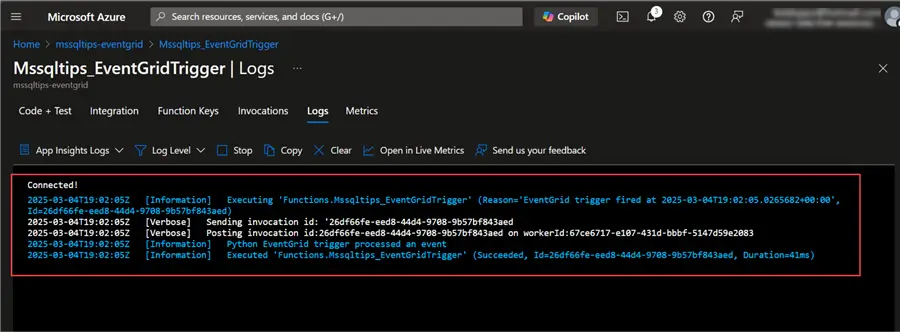
In the log diagram for EventGrid, you will notice the spike indicating an event that just occurred.

Test Slack Notification Triggered by EventGrid
With the EventGrid working as expected, we need to modify the code to send a Slack message to the Admin team whenever a file gets deleted from the storage account.
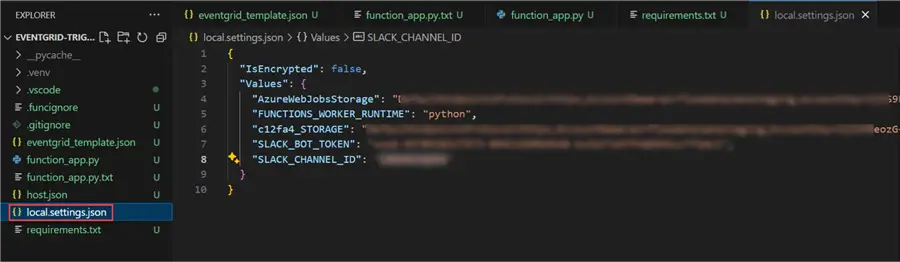
Step 1: Set Necessary Credentials
In your local.settings.json, set the necessary credentials for the project.
Step 2: Update Python Code
We need to update the Python code to include the logic of sending the deleted file to the Admin channel on Slack.
import logging
import azure.functions as func
import os
import json
from datetime import datetime
from slack_sdk import WebClient
from slack_sdk.errors import SlackApiError

app = func.FunctionApp()

def create_slack_client():
    """Create and validate Slack client with proper error handling."""
    token = os.environ.get("SLACK_BOT_TOKEN")

    if not token or not token.startswith('xoxb-'):
        logging.error("Invalid Slack bot token format. Token should start with 'xoxb-'")
        raise ValueError("Invalid Slack bot token format")

    return WebClient(token=token)

def send_slack_alert(message: str) -> bool:
    """Send alert to Slack with enhanced error handling."""
    try:
        client = create_slack_client()
        channel_id = os.environ.get("SLACK_CHANNEL_ID")

        if not channel_id:
            logging.error("Slack channel ID not configured")
            return False

        response = client.chat_postMessage(
            channel=channel_id,
            text=message,
            mrkdwn=True
        )

        if not response.get('ok'):
            logging.error(f"Slack API error: {response.get('error', 'Unknown error')}")
            return False

        logging.info("Slack alert sent successfully")
        return True

    except SlackApiError as e:
        logging.error(f"Failed to send Slack alert: {str(e)}")
        return False
    except Exception as e:
        logging.error(f"Unexpected error sending Slack alert: {str(e)}")
        return False

@app.event_grid_trigger(arg_name="azeventgrid")
def Mssqltips_EventGridTrigger(azeventgrid: func.EventGridEvent):
    """
    Process EventGrid trigger for blob deletion events in the specified container and prefix
    """
    logging.info('Python EventGrid trigger processed an event')

    try:
        # Log the complete event for debugging
        event_data_json = azeventgrid.get_json()
        logging.info(f"Event data: {json.dumps(event_data_json)}")

        # Extract event details
        event_type = azeventgrid.event_type
        subject = azeventgrid.subject

        # Log the event type and subject for debugging
        logging.info(f"Event type: {event_type}")
        logging.info(f"Subject: {subject}")

        # Verify this is a blob deletion event
        if event_type != 'Microsoft.Storage.BlobDeleted':
            logging.info(f"Skipping non-deletion event: {event_type}")
            return

        # Extract container name and blob path
        # Expected subject format: /blobServices/default/containers/<CONTAINER_NAME>/blobs/<BLOB_PATH>
        subject_parts = subject.split('/')

        # Find container and blob path indices
        container_idx = subject_parts.index('containers') if 'containers' in subject_parts else -1
        blobs_idx = subject_parts.index('blobs') if 'blobs' in subject_parts else -1

        if container_idx == -1 or blobs_idx == -1 or container_idx + 1 >= len(subject_parts) or blobs_idx + 1 >= len(subject_parts):
            logging.error(f"Invalid subject format: {subject}")
            return

        container_name = subject_parts[container_idx + 1]
        blob_path = '/'.join(subject_parts[blobs_idx + 1:])

        # Only process files from the specific container and with specific prefix
        if container_name != 'airflowcontainer':
            logging.info(f"Skipping event from different container: {container_name}")
            return

        if not blob_path.startswith('blob_trigger_monitor/'):
            logging.info(f"Skipping blob outside specified prefix: {blob_path}")
            return

        # Extract file name from blob path
        file_name = blob_path.split('/')[-1]

        # Only process .xlsx files (optional, remove if you want to process all files)
        if not file_name.lower().endswith('.xlsx'):
            logging.info(f"Skipping non-xlsx file: {file_name}")
            return

        # Extract storage account from topic
        storage_account = "unknown"
        topic = azeventgrid.topic
        if topic:
            # Extract storage account name from resource ID
            topic_parts = topic.split('/')
            for i, part in enumerate(topic_parts):
                if part == 'storageAccounts' and i + 1 < len(topic_parts):
                    storage_account = topic_parts[i + 1]
                    break

        # Prepare Slack message
        current_time = datetime.now().strftime('%Y-%m-%d %H:%M:%S')
        slack_message = (
            "Hello Admin,\n\n"
            f"The *{file_name}* has been deleted from the *{storage_account}*, {current_time}\n\n"
            "Regards!"
        )

        # Send Slack notification
        success = send_slack_alert(slack_message)

        if success:
            logging.info(f"Slack notification sent for deleted file: {file_name}")
        else:
            logging.error(f"Failed to send Slack notification for: {file_name}")

    except Exception as e:
        logging.error(f"Error processing EventGrid event: {str(e)}")
        # Send error notification to Slack
        error_message = (
            "Hello Admin,\n\n"
            f"*ERROR PROCESSING DELETE EVENT*\n"
            f"Error: {str(e)}\n\n"
            "Please check the function logs for details.\n\n"
            "Regards!"
        )
        send_slack_alert(error_message)
Step 3: Test Notification System
In our Azure Storage Account, let’s delete another storage account with the .xlsx extension and see what happens.

In our Slack Channel for the Admin, notice that a real-time message has been sent to inform the admin team about the file deleted from the storage account.

On the EventGrid Log chart, you will notice a spike in the trend, indicating messages have been sent by EventGrid.

Section 2: HTTP Trigger with Azure Function
The HTTP trigger in Azure Function provides users a way to create a serverless function that is executed via an HTTP request. Building APIs, reacting to webhooks, and developing any type of HTTP-based service all benefit from this approach.
The HTTP methods that your function will react to are specified by you (GET, POST, PUT, DELETE, etc.), dictating how clients can engage with your service.
Mini Project with HTTP Trigger Function
We want to create a monitoring system to monitor a particular Fraud table in our organizational database. Whenever a suspicious record is inserted into the table, a signal POST HooK is sent to Azure Function as an HTTP Trigger Endpoint. A message is sent to the security channel in Slack containing all the information of the data inserted into the Fraud table.

Set Fraud Monitoring System with Azure Function
To set up a monitoring system of the Fraud table, we are going to create a recurrent trigger in Azure Function that will help monitor for new records.
Set Azure HTTP Trigger Function
Step 1: Create Azure Function using ARM Template
Using the ARM Template used earlier, let’s create an Azure Function App and set the name and other necessary information.
az deployment group create --resource-group docker_rg --template-file http_trigger.json --parameters functionAppName=http-trigger-mssqltips location=uksouth
Step 2: Create HTTP Trigger Template
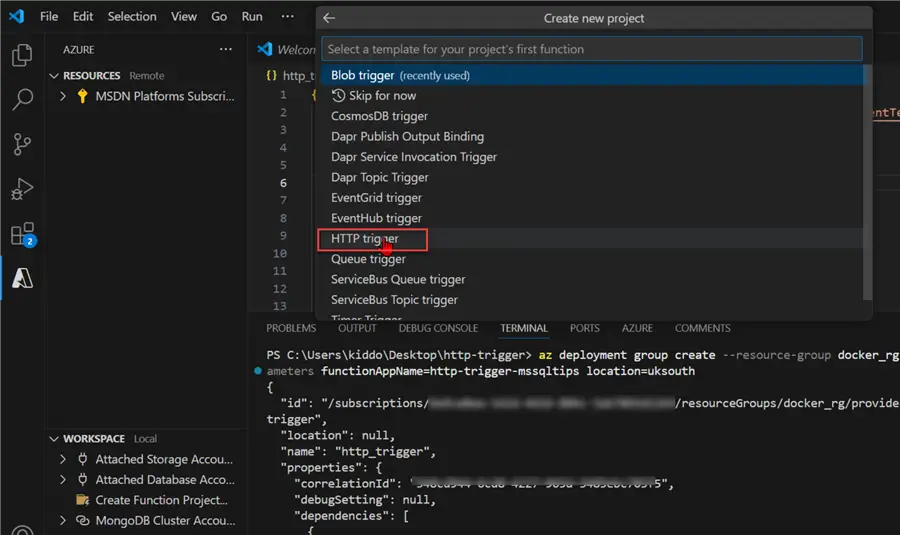
Create a new Function using the VSCode development environment. Select the HTTP Trigger and follow the same process we completed earlier. Refer to this documentation for more details: Microsoft Documentation HTTP Trigger Azure Functions
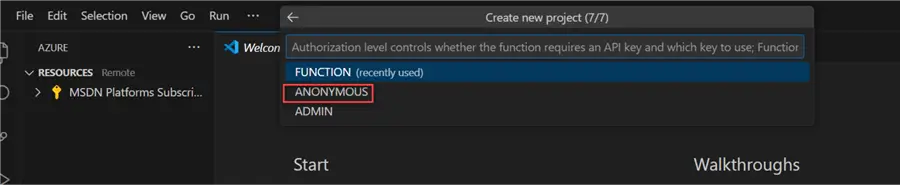
In the Authorization level, let’s use Anonymous, which is typically for development purposes. However, in a production scenario, please use a more secure approach.
In your local.settings.json, update the AzureWebJobsStorage with the value below:
"AzureWebJobsStorage": "UseDevelopmentStorage=true"Default Code Template Generated:
import azure.functions as func
import logging

app = func.FunctionApp(http_auth_level=func.AuthLevel.ANONYMOUS)

@app.route(route="http_trigger")
def http_trigger(req: func.HttpRequest) -> func.HttpResponse:
    logging.info('Python HTTP trigger function processed a request.')

    name = req.params.get('name')
    if not name:
        try:
            req_body = req.get_json()
        except ValueError:
            pass
        else:
            name = req_body.get('name')

    if name:
        return func.HttpResponse(f"Hello, {name}. This HTTP triggered function executed successfully.")
    else:
        return func.HttpResponse(
             "This HTTP triggered function executed successfully. Pass a name in the query string or in the request body for a personalized response.",
             status_code=200
        )
Step 3: Test and Validate
Now that we have our necessary environment set up, we need to validate if the Function works as expected.
In VSCode, click Run and start debugging. This will generate a local URL. Copy the URL and paste it into your browser.

You should get a successful message on your browser.

NOTE: For production purposes, you must update the URL so it works properly when deployed to the Azure portal.
https://<APP_NAME>.azurewebsites.net/api/<FUNCTION_NAME>Step 4: Update HTTP Script
Let’s update the HTTP script that will receive a Post message in a JSON format and send the information to the Slack Security Channel.
import azure.functions as func
import logging
import json
from datetime import datetime
import os
from slack_sdk import WebClient
from slack_sdk.errors import SlackApiError
from dotenv import load_dotenv

# Load environment variables
load_dotenv()

app = func.FunctionApp(http_auth_level=func.AuthLevel.ANONYMOUS)

def create_slack_client():
    """Create and validate Slack client with proper error handling."""
    token = os.environ.get("SLACK_BOT_TOKEN")

    if not token or not token.startswith('xoxb-'):
        logging.error("Invalid Slack bot token format. Token should start with 'xoxb-'")
        raise ValueError("Invalid Slack bot token format")

    return WebClient(token=token)

def format_fraud_message(fraud_data: dict) -> str:
    """Format fraud transaction data into a Slack message."""
    try:
        # Format amount with dollar sign and two decimal places
        amount = float(fraud_data.get('Amount', 0))

        return (
            ":rotating_light: *FRAUD ALERT* :rotating_light:\n\n"
            f"*Fraud Transaction Details*\n"
            f"• *Fraud ID:* {fraud_data.get('FraudID', 'N/A')}\n"
            f"• *Transaction ID:* {fraud_data.get('TransactionID', 'N/A')}\n"
            f"• *User ID:* {fraud_data.get('UserID', 'N/A')}\n"
            f"• *Amount:* ${amount:,.2f}\n"
            f"• *Transaction Date:* {fraud_data.get('TransactionDate', 'N/A')}\n"
            f"• *Fraud Reason:* {fraud_data.get('FraudReason', 'N/A')}\n\n"
            f"*Processing Details*\n"
            f"• *Source:* SQL Database Monitoring\n"
            f"• *Detected At:* {fraud_data.get('TransactionTimestamp', datetime.now().strftime('%Y-%m-%d %H:%M:%S'))}\n"
            f"• *Processed:* {datetime.now().strftime('%Y-%m-%d %H:%M:%S')}\n\n"
            f"*Action Required*: Please review and take appropriate action."
        )
    except Exception as e:
        logging.error(f"Error formatting message: {str(e)}")
        return f"Error processing fraud data: {str(e)}"

def send_slack_alert(message: str) -> bool:
    """Send alert to Slack with enhanced error handling."""
    try:
        client = create_slack_client()
        channel_id = os.environ.get("SLACK_CHANNEL_ID")

        if not channel_id:
            logging.error("Slack channel ID not configured")
            return False

        response = client.chat_postMessage(
            channel=channel_id,
            text=message,
            mrkdwn=True
        )

        if not response.get('ok'):
            logging.error(f"Slack API error: {response.get('error', 'Unknown error')}")
            return False

        logging.info("Slack alert sent successfully")
        return True

    except SlackApiError as e:
        logging.error(f"Failed to send Slack alert: {str(e)}")
        return False
    except Exception as e:
        logging.error(f"Unexpected error sending Slack alert: {str(e)}")
        return False

@app.route(route="http_trigger")
def http_trigger(req: func.HttpRequest) -> func.HttpResponse:
    logging.info('Python HTTP trigger function processing fraud transaction data.')

    try:
        # Get request data
        try:
            fraud_data = req.get_json()
            logging.info(f'Received fraud data: {fraud_data}')
        except ValueError:
            logging.error("Invalid JSON in request body")
            return func.HttpResponse(
                "This HTTP triggered function requires valid JSON data with fraud transaction details.",
                status_code=400
            )

        # Check for required fields
        required_fields = ['TransactionID', 'UserID', 'Amount', 'TransactionDate']
        missing_fields = [field for field in required_fields if field not in fraud_data or fraud_data.get(field) is None]

        if missing_fields:
            missing_fields_str = ', '.join(missing_fields)
            return func.HttpResponse(
                f"Missing required fields: {missing_fields_str}. Please include all required fields in the request.",
                status_code=400
            )

        # Format and send Slack message
        slack_message = format_fraud_message(fraud_data)
        slack_sent = send_slack_alert(slack_message)

        # Prepare response
        response_details = {
            "TransactionID": fraud_data.get('TransactionID'),
            "processed_at": datetime.utcnow().isoformat(),
            "slack_notification_sent": slack_sent
        }

        return func.HttpResponse(
            json.dumps(response_details),
            mimetype="application/json",
            status_code=200
        )

    except Exception as e:
        logging.error(f"Error processing request: {str(e)}")
        return func.HttpResponse(
            f"An error occurred while processing the fraud transaction data: {str(e)}",
            status_code=500
        )
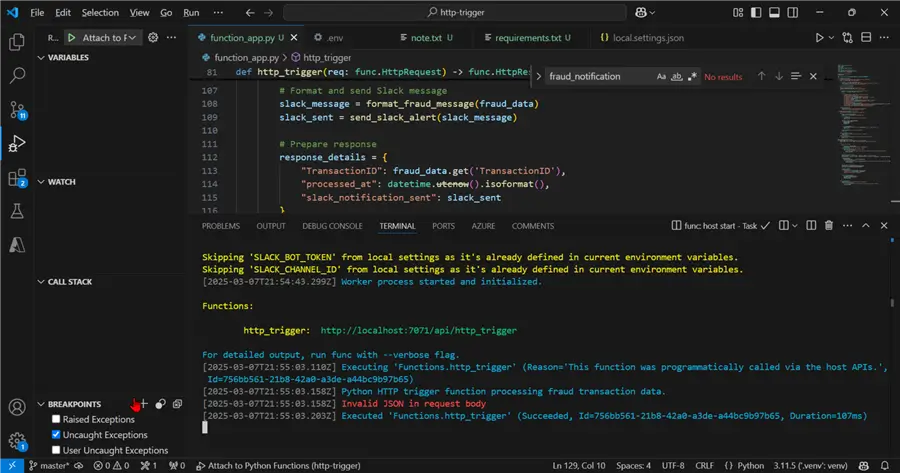
Debug the script locally to see if it works as expected. This should take a couple of minutes to install all necessary libraries.
Step 5: Deploy to Azure Portal
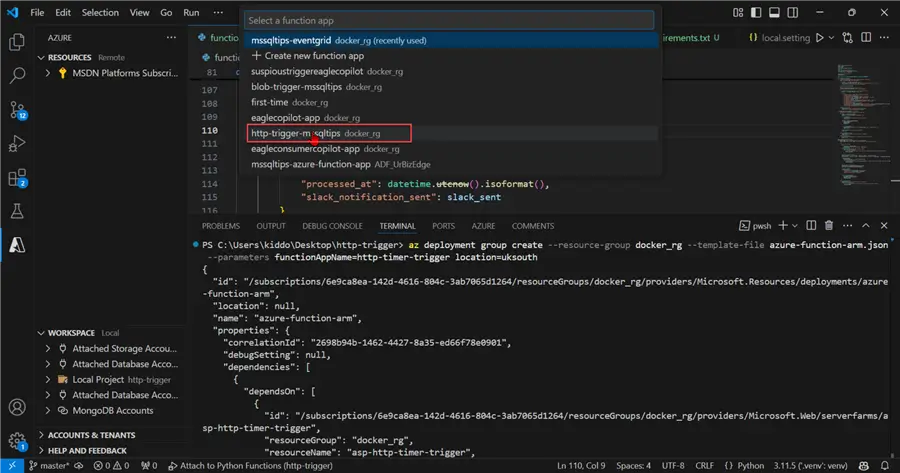
After updating the HTTP trigger script, ensure to deploy the script to Azure Function to make it production-ready.
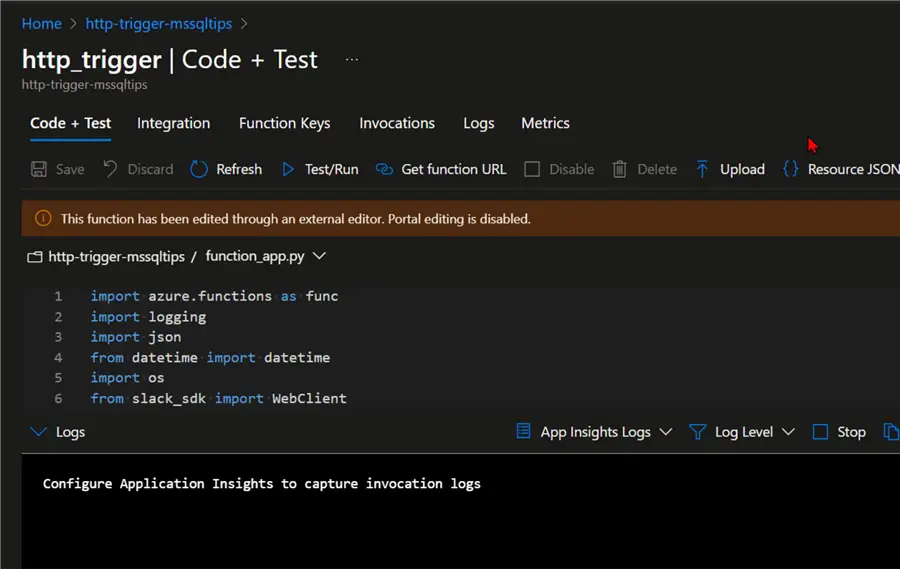
Confirm in the Azure portal that the code is working as expected.
Set Timer Post Trigger Function
Now that we have our Azure HTTP trigger working as expected, let’s create a timer trigger to check the Azure SQL Database table for new records and send the records to the HTTP trigger we just created, starting the entire process of sending the information to the Security team in Slack.
Step 1: Create Table in Azure SQL Database
In our Azure SQL Database portal, let’s create a table and insert a couple of records into it.
CREATE TABLE Eagle.FraudTransactions (
    FraudID INT IDENTITY(1,1) PRIMARY KEY,
    TransactionID VARCHAR(50) NOT NULL,
    UserID INT NOT NULL,
    Amount DECIMAL(10,2) NOT NULL,
    TransactionDate DATE NOT NULL,
    FraudReason VARCHAR(255),
    TransactionTimestamp DATETIME DEFAULT GETDATE()
);
GO

INSERT INTO Eagle.FraudTransactions (TransactionID, UserID, Amount, TransactionDate, FraudReason)
VALUES
    ('TXN001', 101, 500.75, '2025-03-01', 'Suspicious IP Address'),
    ('TXN002', 102, 1200.50, '2025-03-02', 'Card Reported Stolen'),
    ('TXN003', 103, 750.00, '2025-03-03', 'Unusual Location'),
    ('TXN004', 104, 980.00, '2025-03-04', 'Multiple Chargebacks'),
    ('TXN005', 105, 1500.00, '2025-03-05', 'High-Risk Merchant'),
    ('TXN006', 106, 640.30, '2025-03-06', 'Duplicate Transactions'),
    ('TXN007', 107, 875.25, '2025-03-07', 'Mismatched Billing Info'),
    ('TXN008', 108, 1350.90, '2025-03-08', 'Excessive Withdrawals'),
    ('TXN009', 109, 400.00, '2025-03-09', 'Account Compromise'),
    ('TXN010', 110, 2100.45, '2025-03-10', 'Chargeback Fraud'),
    ('TXN011', 111, 525.00, '2025-03-11', 'Unauthorized Transaction'),
    ('TXN012', 112, 690.75, '2025-03-12', 'Abnormal Spending Pattern'),
    ('TXN013', 113, 999.99, '2025-03-13', 'Flagged by AI System'),
    ('TXN014', 114, 1300.20, '2025-03-14', 'Multiple Failed Attempts'),
    ('TXN015', 115, 850.60, '2025-03-15', 'Unverified Card Details');
GO

SELECT * FROM Eagle.FraudTransactions;
Step 2: Create a Timer Template Function
Create a new default timer trigger in VSCode and set the time interval to one minute.
import logging
import azure.functions as func

app = func.FunctionApp()

@app.timer_trigger(schedule="*/1 * * * * *", arg_name="myTimer", run_on_startup=False,
              use_monitor=False)
def timer_trigger_http(myTimer: func.TimerRequest) -> None:
    if myTimer.past_due:
        logging.info('The timer is past due!')

    logging.info('Python timer trigger function executed.')
Step 3: Update Monitoring Script
Let’s update the monitoring script to check the Azure SQL Database table for one minute and perform all necessary checks. The script will send a message to the HTTP trigger if a new record gets inserted into the Azure SQL Database Eagle.FraudTransactions table.
Possible Issues:
- To avoid ODBC issues with Azure Function App, we will be using the pymssql library to connect with Azure SQL Database Server.
- Use Azure Storage Account to log last fraud transaction ID.
import logging
import azure.functions as func
import os
import pymssql
import json
import requests
from datetime import datetime
from dotenv import load_dotenv
from azure.storage.blob import BlobServiceClient, BlobClient, ContainerClient

# Load environment variables
load_dotenv()

app = func.FunctionApp()

def get_db_connection():
    """Create connection to Azure SQL Database with proper error handling."""
    try:
        server = os.environ.get("DB_SERVER")
        database = os.environ.get("DB_NAME")
        username = os.environ.get("DB_USER")
        password = os.environ.get("DB_PASSWORD")

        # Using pymssql instead of pyodbc - keep this exactly as in the original code
        connection = pymssql.connect(
            server=server,
            user=username,
            password=password,
            database=database
        )

        return connection
    except Exception as e:
        logging.error(f"Database connection error: {str(e)}")
        raise

def get_blob_service_client():
    """Create a BlobServiceClient using account name and SAS token."""
    try:
        account_name = os.environ.get("AZURE_STORAGE_ACCOUNT_NAME")
        sas_token = os.environ.get("AZURE_STORAGE_SAS_TOKEN")

        # Construct the account URL with SAS token
        account_url = f"https://{account_name}.blob.core.windows.net"

        # Create the BlobServiceClient
        blob_service_client = BlobServiceClient(account_url=account_url, credential=sas_token)
        return blob_service_client
    except Exception as e:
        logging.error(f"Error creating blob service client: {str(e)}")
        raise

def get_latest_fraud_id():
    """Get the latest processed FraudID from Azure Blob Storage using SAS token."""
    try:
        container_name = os.environ.get("AZURE_STORAGE_CONTAINER_NAME")
        folder_name = os.environ.get("AZURE_FOLDER", "last_fraud")
        blob_name = f"{folder_name}/last_fraud_id.txt"

        # Create the BlobServiceClient
        blob_service_client = get_blob_service_client()

        # Get a client to interact with the blob
        blob_client = blob_service_client.get_blob_client(container=container_name, blob=blob_name)

        # Check if the blob exists
        try:
            # Download the blob content
            download_stream = blob_client.download_blob()
            content = download_stream.readall().decode('utf-8')
            return int(content.strip())
        except Exception as e:
            # If the blob doesn't exist or there's an error, return 0 as the initial value
            logging.info(f"No existing fraud ID found (this is normal for first run): {str(e)}")
            return 0
    except Exception as e:
        logging.error(f"Error getting latest FraudID from blob storage: {str(e)}")
        return 0

def save_latest_fraud_id(fraud_id):
    """Save the latest processed FraudID to Azure Blob Storage using SAS token."""
    try:
        container_name = os.environ.get("AZURE_STORAGE_CONTAINER_NAME")
        folder_name = os.environ.get("AZURE_FOLDER", "last_fraud")
        blob_name = f"{folder_name}/last_fraud_id.txt"

        # Create the BlobServiceClient
        blob_service_client = get_blob_service_client()

        # Get a client to interact with the blob
        blob_client = blob_service_client.get_blob_client(container=container_name, blob=blob_name)

        # Upload the content to the blob
        blob_client.upload_blob(str(fraud_id), overwrite=True)
        logging.info(f"Successfully saved FraudID {fraud_id} to blob storage")
    except Exception as e:
        logging.error(f"Error saving latest FraudID to blob storage: {str(e)}")

def get_new_fraud_transactions(last_fraud_id):
    """Get new fraud transactions since the last check."""
    try:
        conn = get_db_connection()
        cursor = conn.cursor(as_dict=True)

        query = """
            SELECT
                FraudID,
                TransactionID,
                UserID,
                CAST(Amount AS FLOAT) AS Amount,
                CONVERT(VARCHAR(10), TransactionDate, 120) AS TransactionDate,
                FraudReason,
                CONVERT(VARCHAR(19), TransactionTimestamp, 120) AS TransactionTimestamp
            FROM
                Eagle.FraudTransactions
            WHERE
                FraudID > %s
            ORDER BY
                FraudID ASC
        """

        cursor.execute(query, (last_fraud_id,))
        results = cursor.fetchall()

        cursor.close()
        conn.close()

        return results
    except Exception as e:
        logging.error(f"Error querying new fraud transactions: {str(e)}")
        return []

def send_to_http_function(transaction):
    """Send transaction data to HTTP trigger function."""
    try:
        http_endpoint = os.environ.get("HTTP_FUNCTION_URL")

        if not http_endpoint:
            logging.error("HTTP function URL not configured")
            return False

        headers = {
            'Content-Type': 'application/json'
        }

        response = requests.post(
            http_endpoint,
            headers=headers,
            json=transaction
        )

        if response.status_code == 200:
            logging.info(f"Successfully sent fraud transaction {transaction['TransactionID']} to HTTP function")
            return True
        else:
            logging.error(f"Failed to send transaction to HTTP function. Status: {response.status_code}, Response: {response.text}")
            return False
    except Exception as e:
        logging.error(f"Error sending transaction to HTTP function: {str(e)}")
        return False

@app.timer_trigger(schedule="0 */1 * * * *", arg_name="myTimer", run_on_startup=True, use_monitor=False)
def fraud_monitor(myTimer: func.TimerRequest) -> None:
    """Monitor for new fraud transactions every minute and send to HTTP function."""
    logging.info('Fraud transaction monitoring function executed.')

    if myTimer.past_due:
        logging.info('The timer is past due!')

    try:
        # Get the last processed FraudID
        last_fraud_id = get_latest_fraud_id()
        logging.info(f"Last processed FraudID: {last_fraud_id}")

        # Get new fraud transactions
        new_transactions = get_new_fraud_transactions(last_fraud_id)

        if new_transactions:
            logging.info(f"Found {len(new_transactions)} new fraud transactions.")

            # If this is the first run (last_fraud_id is 0), just record the highest ID without processing
            if last_fraud_id == 0 and new_transactions:
                latest_fraud_id = max(transaction['FraudID'] for transaction in new_transactions)
                save_latest_fraud_id(latest_fraud_id)
                logging.info(f"First run - setting initial FraudID to: {latest_fraud_id} without processing existing records")
                return

            latest_fraud_id = last_fraud_id

            # Process each new transaction
            for transaction in new_transactions:
                result = send_to_http_function(transaction)

                if result:
                    # Update the latest processed FraudID
                    latest_fraud_id = max(latest_fraud_id, transaction['FraudID'])

            # Save the latest processed FraudID
            save_latest_fraud_id(latest_fraud_id)
            logging.info(f"Updated last processed FraudID to: {latest_fraud_id}")
        else:
            logging.info("No new fraud transactions found.")
    except Exception as e:
        logging.error(f"Error in fraud monitoring function: {str(e)}")
Ensure that all the necessary .env files are set correctly.
# Database Connection
DB_SERVER=adf-urbizedge.database.windows.net
DB_NAME=xxxxxxxxxx
DB_USER=xxxxxxxx
DB_PASSWORD=xxxxxxxx
# HTTP Function Endpoint
HTTP_FUNCTION_URL=https://xxxxxxxx/api/http_trigger
AZURE_STORAGE_ACCOUNT_NAME=xxxxxxxxxx
AZURE_STORAGE_CONTAINER_NAME=xxxxxxxx
AZURE_FOLDER=last_fraud
AZURE_STORAGE_SAS_TOKEN=?sv=xxxxxxxxx
Step 4: Test Update
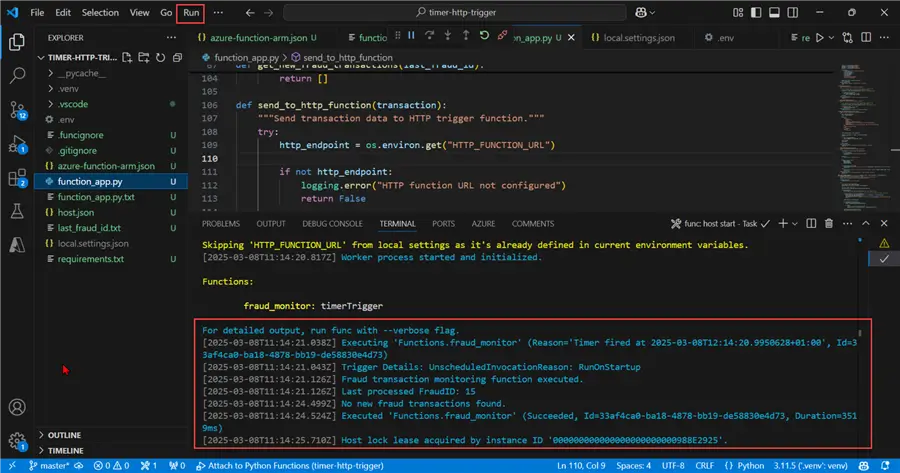
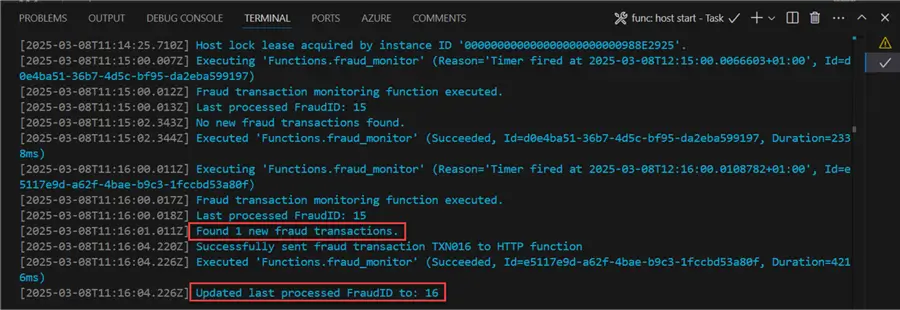
Let’s test the update and confirm if all the logic is working as expected. Firstly, let’s start the debugging process in our local VSCode. You will notice from the message that no new record has been captured, and the solution only tests the last ID in the table.
In your Azure SQL Database portal, let’s insert a new record and see if the monitoring function captures this.
INSERT INTO Eagle.FraudTransactions (TransactionID, UserID, Amount, TransactionDate, FraudReason)
VALUES ('TXN016', 116, 725.45, '2025-03-16', 'Suspicious Multiple Small Transactions');
With the insert of the record, you can observe from the terminal that it captured a new record, and the ID has been increased to 16.
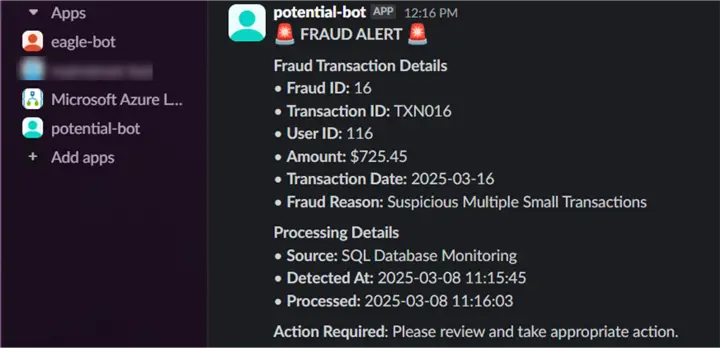
In our Slack channel, a message has been sent to the anti-fraud unit for quick and immediate action.
Deploy Function to Azure Portal
With the Function App working as expected, let’s deploy to the Azure Portal and run the entire process again.
Step 1: Deploy to Azure Portal
In the VSCode Azure Widget, select deploy to Azure Function App. This should take a couple of minutes to deploy depending on your internet speed.

In the Azure Function App portal, select Environment variable, add all the necessary variables, and click Apply.

Step 2: Final Test Process
INSERT INTO Eagle.FraudTransactions (TransactionID, UserID, Amount, TransactionDate, FraudReason)
VALUES ('TXN026', 126, 1450.25, '2025-03-26', 'Multiple Cards Used in Short Time');
In your timer function that monitors the Azure Database, notice that it captures a new record in the database table.

The last records are also stored in the storage account as a form of reference for the entire logic system.

For the HTTP trigger, the message was received and processed before sending it to the Cyber-team on Slack.
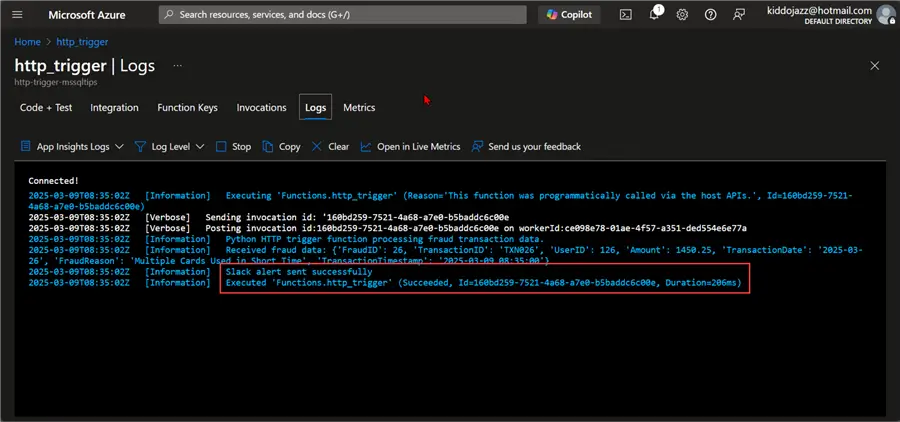
In your Slack Channel, notice that the information from the Database table is captured properly for the Cyber team.

Conclusion
In this article, we have demonstrated additional use cases for using Azure Function for Microservice applications. First, we explained the use of Azure Event Grid, set it up, and triggered the Azure Function that serves as an Endpoint for our project. Second, we created a process to monitor for changes in a database table that sends an HTTP Post request to Azure Functions. This triggers the function to perform certain tasks stated in the code.
Next Steps
- Event filtering for Azure Event Grid – Azure Event Grid | Microsoft Learn
- Tutorial: Trigger Azure Functions on blob containers using an event subscription | Microsoft Learn
- Microsoft Documentation HTTP Trigger Azure Functions
- Check out related articles:
- Download the code for this article:

Temidayo Omoniyi is a Microsoft Certified Data Analyst, Microsoft Certified Trainer, Power Platform Developer, Azure Data Engineer, Content Creator, and Technical writer with over three years of experience.
Currently, he works as a data and business intelligence analyst for a training and consulting company in Lagos, Nigeria.
Temidayo enjoys creating educative content on YouTube, LinkedIn, Twitter, and other online platforms. He loves sharing his knowledge and writing about systems, applications, tools, and processes.
Apart from training, writing, and coding, you will find him watching and reading Anime. He is a big fan of DC Comics.
- MSSQLTips Awards: Trendsetter (25+ tips) – 2025 | Author of the Year – 2023, 2024


Well articulated, thanks for sharing this vital information