Problem
Microsoft offers SQL Server Reporting Services (SSRS) which allows you to create reports as well as schedule report runs and delivery of reports. Learn about the SSRS download, installation, configuration and writing your first SSRS report.
Solution
SSRS is a reporting service provided by Microsoft. You can create reports from different sources, including SQL Server, Oracle, MariaDB, MySQL, and others. You can export reports to HTML, PDF, Excel, CSV, and XML file formats.
In this article, we will show how to install and configure SSRS. We will show how to build a simple SSRS report using Visual Studio.
How to Download SSRS
Use the following link to download SSRS the installer: SSRS Installer.
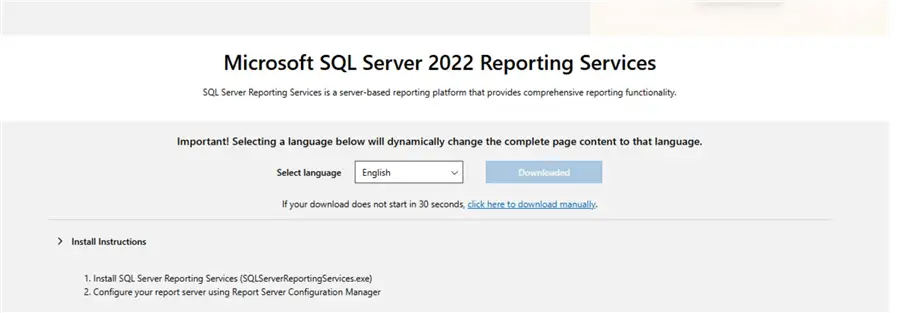
Once downloaded, run the installer.
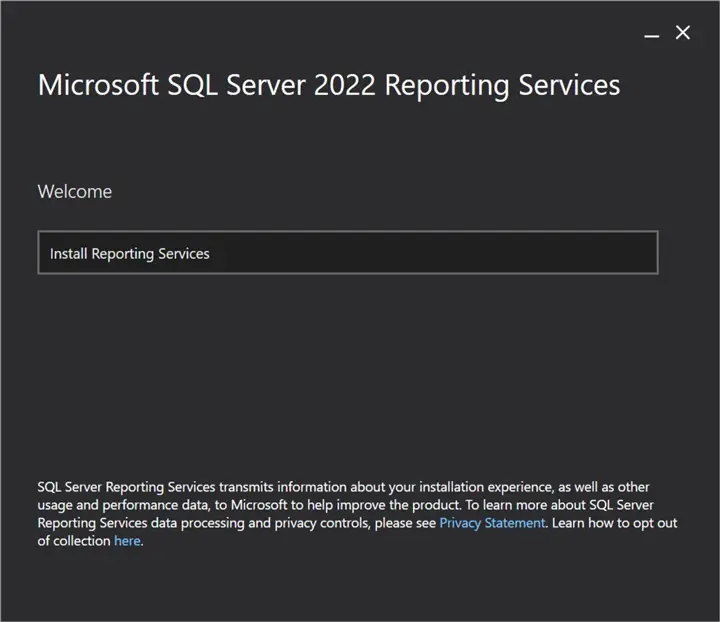
Below is the opening screen to the SSRS installer.
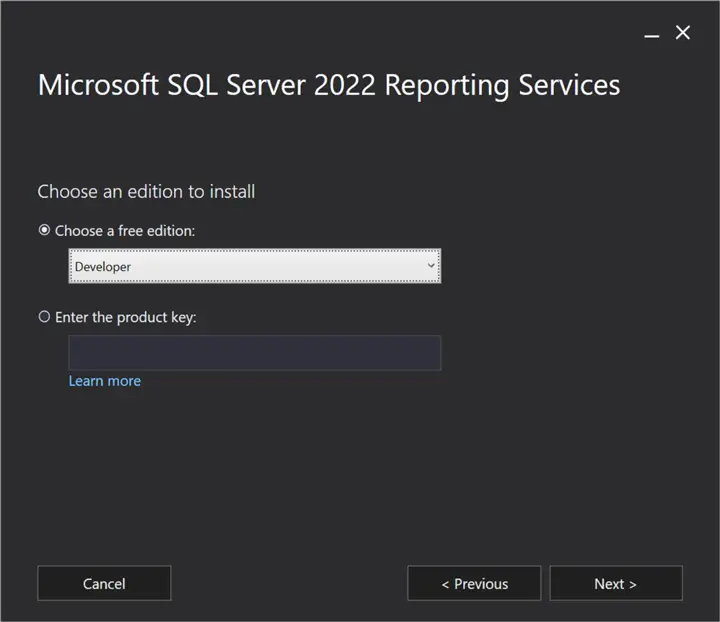
On the screen below, there are three editions to choose from:
- Trial edition for 180 days
- Free Developer edition, mainly for development purposes
- Express edition, which has some limitations.
The following link, SSRS features supported by edition, lists the limitations for each edition.
Also, be sure to use your product key if you don’t use a free edition.
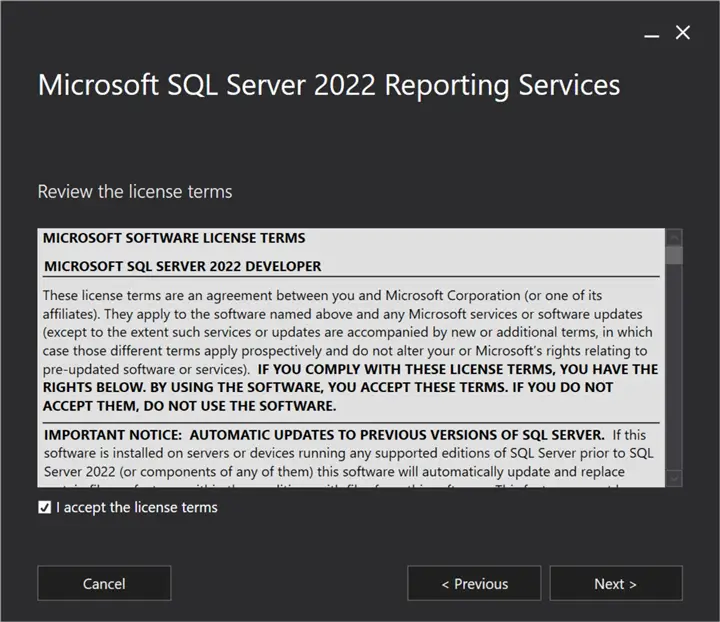
Please read the license terms, and if you agree with them, check the I accept the license terms box and click Next.
SSRS requires a database named ReportServer. It also installs a temporary database named ReportServerTempDB. You are required to have a database engine installed. If you do not have the database installed, refer to this this article to install SQL Server.
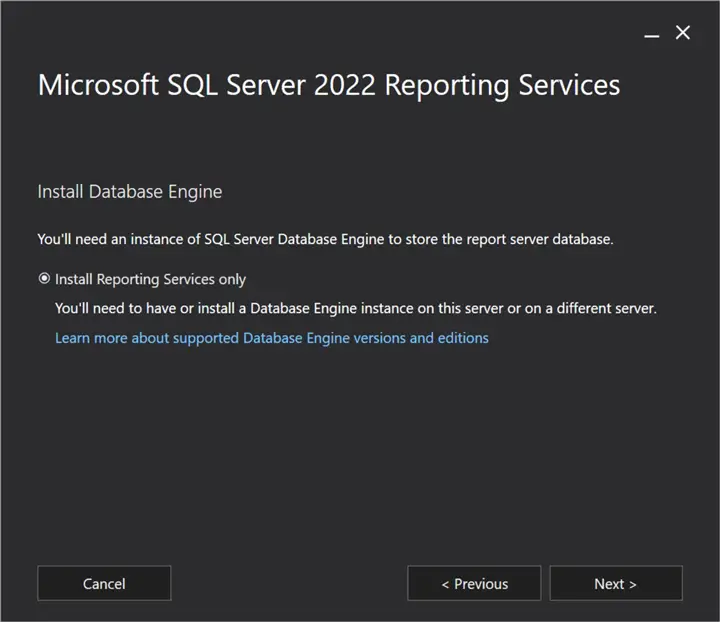
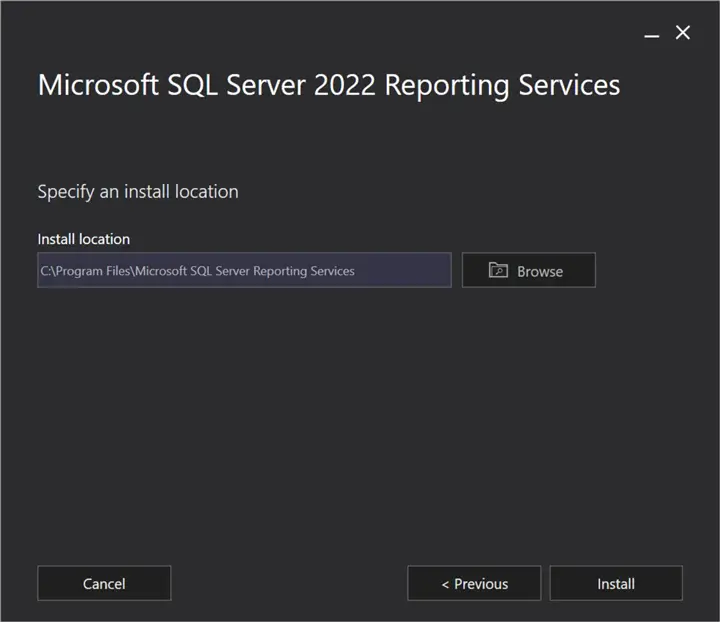
Next, specify the installation location. Once selected, click Install.
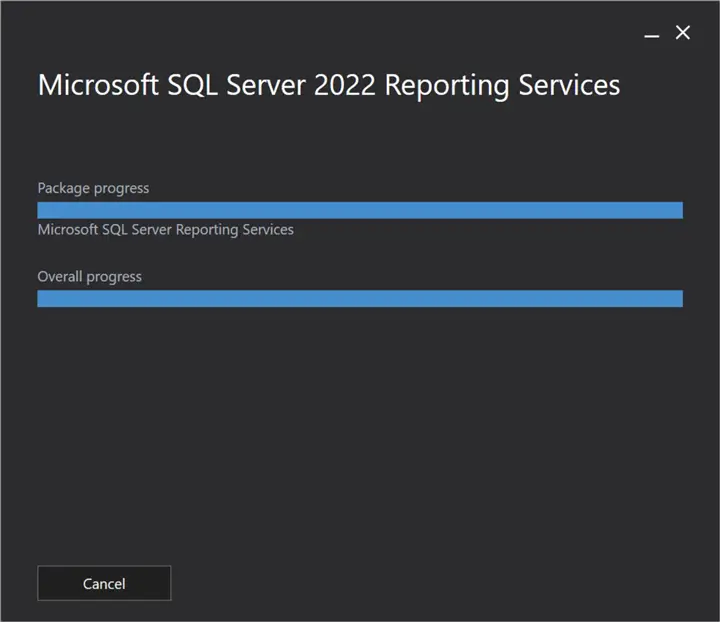
Wait until the installation is complete.
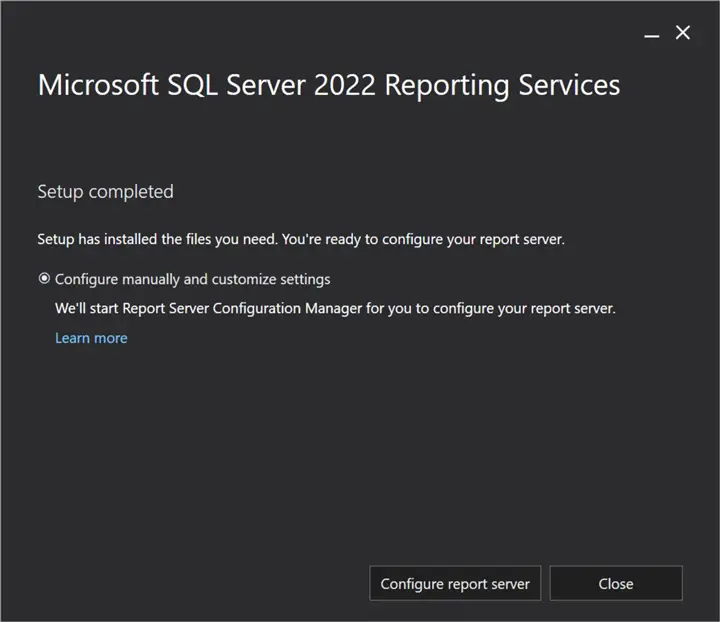
Once completed, a message will appear saying the Setup is complete. Click Close.
Report Server Configuration Manager
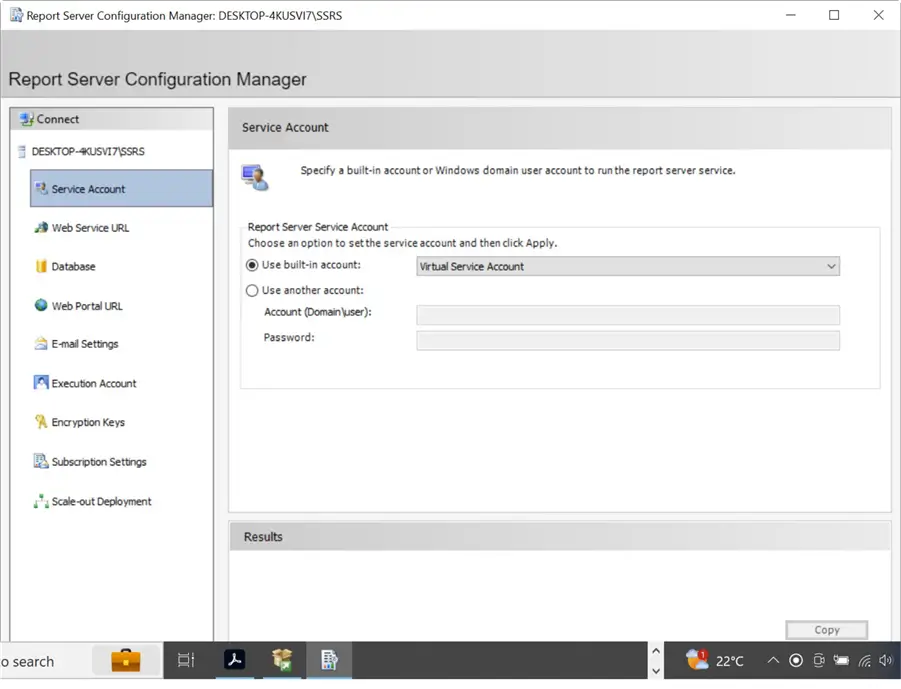
Once installed, you will see the Report Server Configuration Manager.
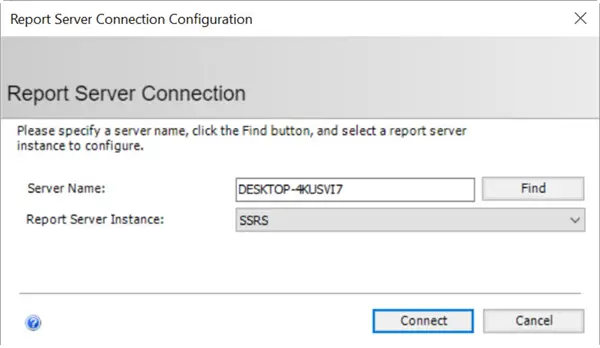
In the Report Server Configuration Manager, click Connect.
This application configures the database, the URLs, ports used for the reports, and the URL to access the reports programmatically. You can also manage the reports here and configure emails to notify subscriptions and alerts related to the reports.
Add SSRS Extension in Visual Studio (VS)
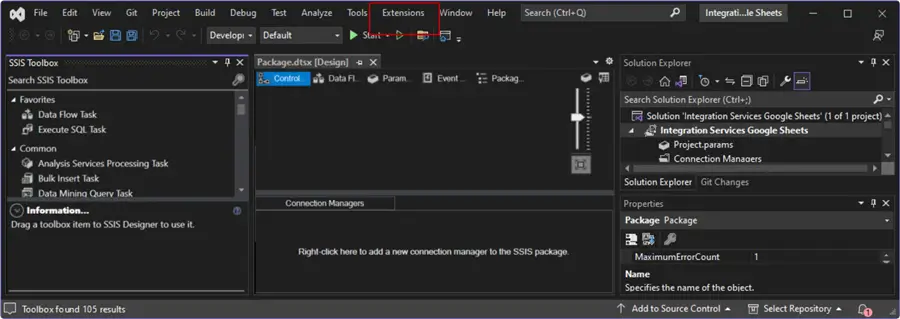
Once SSRS is installed, in Visual Studio, go to Extensions in the menu.
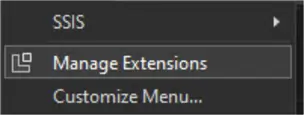
Select Manage Extensions.
Search for the SQL Server Reporting Services Projects 2022 and download it.
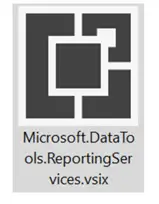
Run the installer.
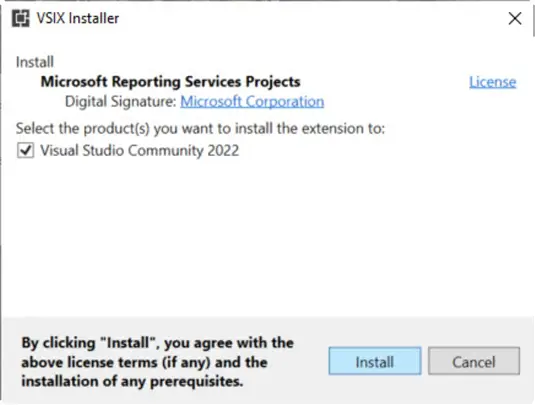
Click Install.
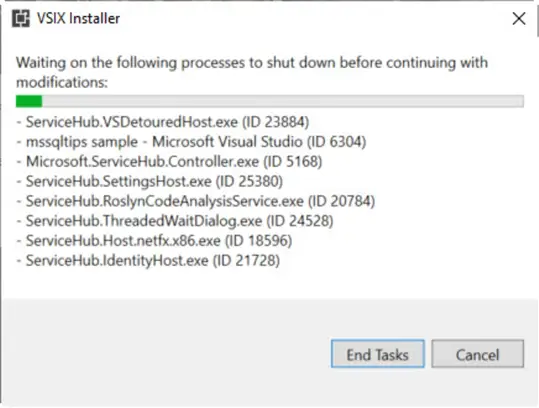
If you get a message similar to the following, close Visual Studio.
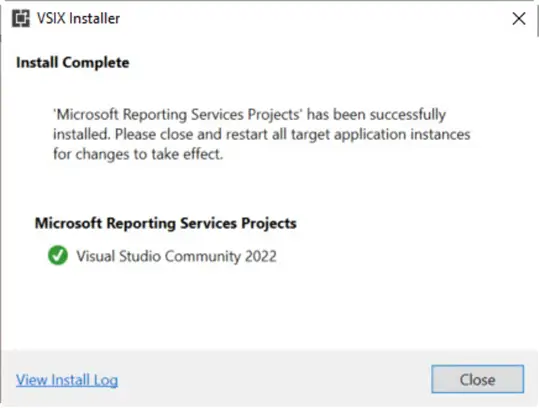
Once the installation is complete, click Close.
Create First SSRS Project
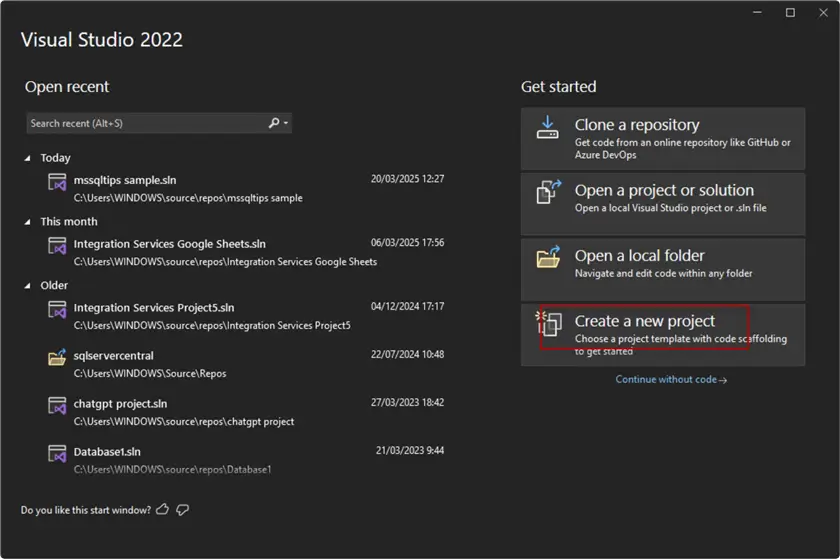
In Visual Studio, select the Create a New Project option.
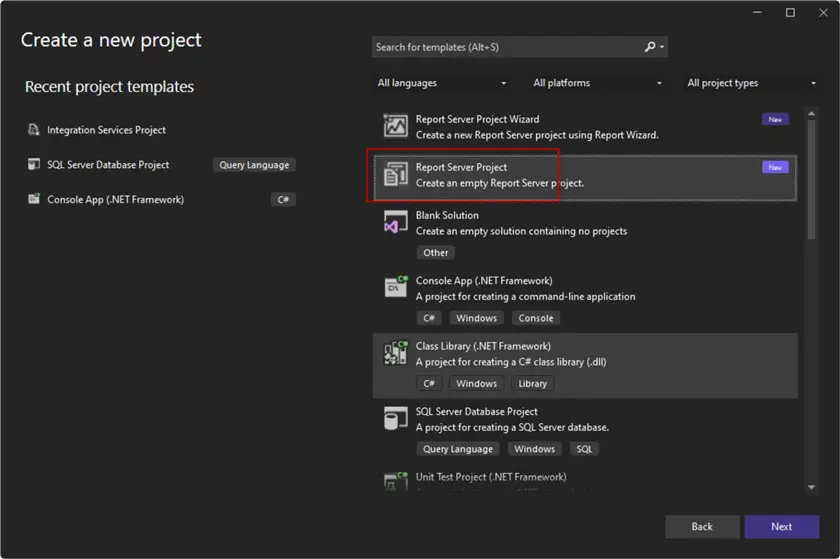
Select Report Server Project.
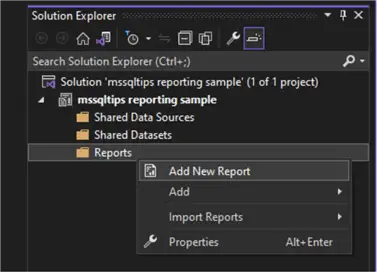
In the Solution Explorer, right-click on Reports and select Add New Report.
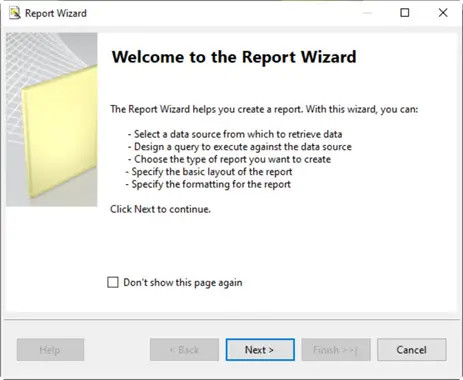
You will receive a Welcome Message (below). Click Next.
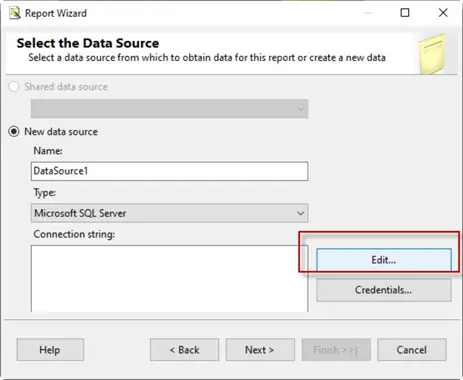
Click Edit to edit the connection string.
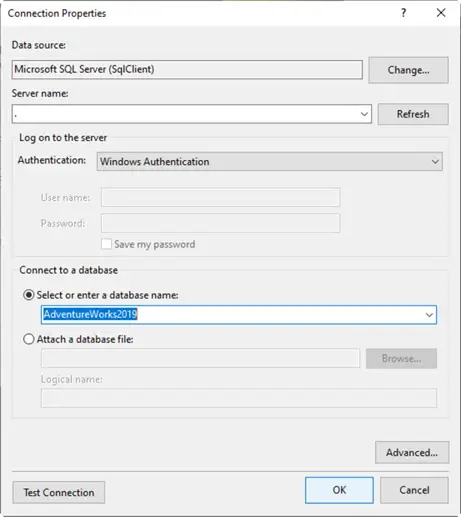
Type the SQL Server name and select a database. Click OK.
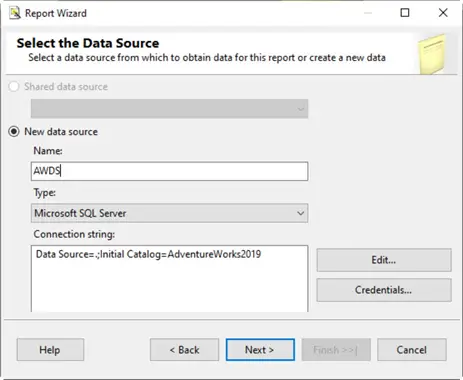
Type the name for the data source and click Next.
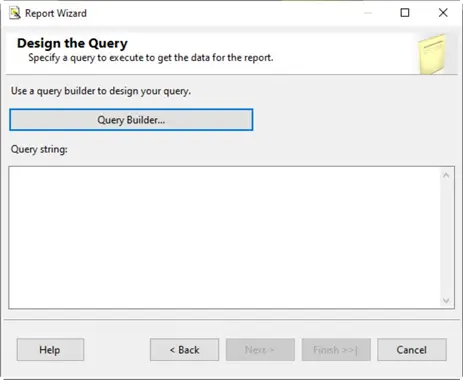
The Design the Query window appears. Click Query Builder.
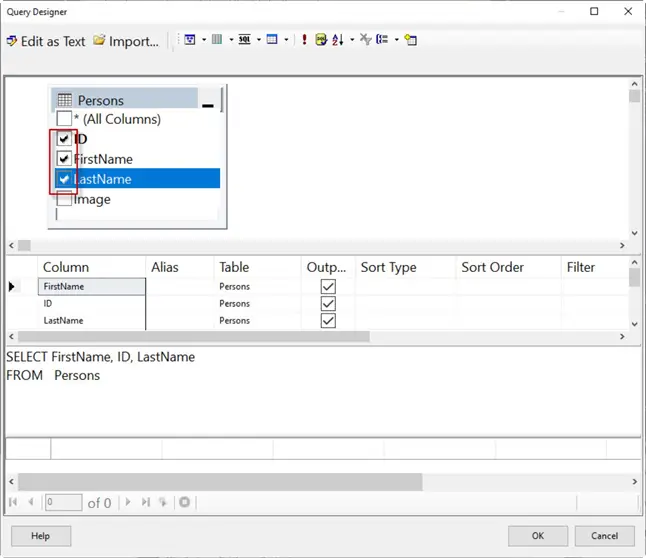
In Query Designer, click the table with a yellow + to add a table to the report. In the table, select the columns you want in the report. Click OK.
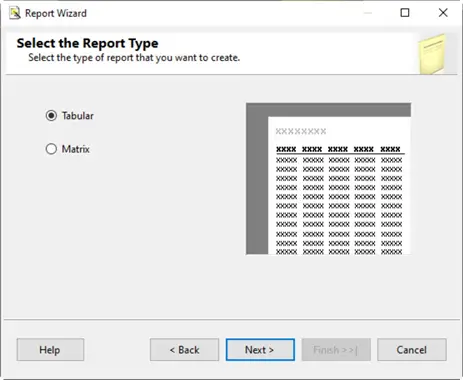
Next, select a Tabular or a Matrix report type. Tabular is a simple grid format. Each row represents a record and the columns represent a field. A Matrix report is like a crosstab report. It allows you to organize data in rows and columns dynamically, making it ideal for dynamic data where rows and columns can change dynamically.
Click Next.
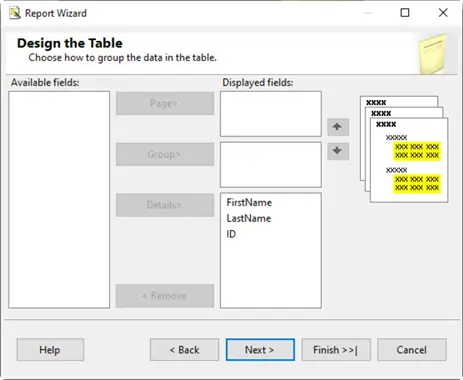
To design the table, select the fields you want to include in the report. Click Next.
Finally, click Finish to close the wizard.
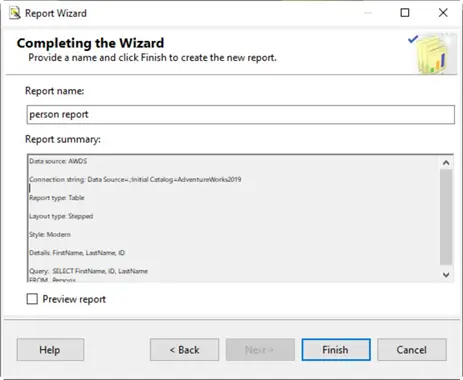
The report is now ready.
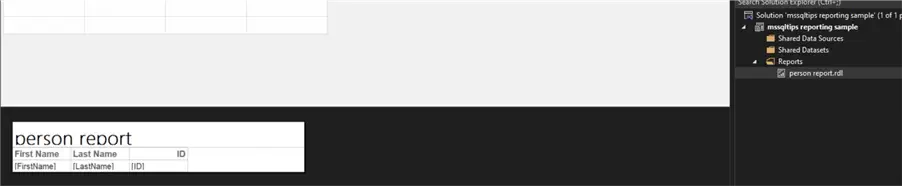
Go to the Preview page to view the report.
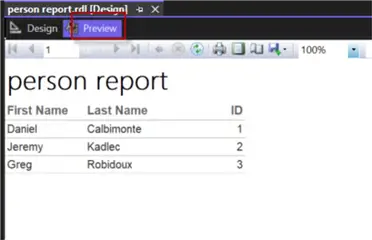
Congratulations! Here is your first report.
Next Steps
For more information about SSRS, check out these links:
- SQL Server Reporting Services SSRS 2017 Parameters
- SSRS 2017 Backup and Encryption Key Maintenance
- Refresh the Data for a KPI in SSRS 2016

Daniel Calbimonte is a Microsoft Most Valuable Professional, Microsoft Certified Trainer and Microsoft Certified IT Professional for SQL Server. He is an accomplished SSIS author, teacher at IT Academies and has over 10 years of experience as a QE and developer for SQL Server related software. He has worked for the government, oil companies, web sites, magazines and universities around the world. Daniel also regularly speaks at SQL Servers conferences and blogs.
- MSSQLTips Awards: Author of the Year Contender – 2015-2018, 2022, 2023 | Champion (100+ tips) – 2018