Problem
I’m building an analytical model in Power BI, and I need a table that stores all the times of a day (per second). Is there an easy way to build this kind of table in Power BI? Read on to learn how to build a Power BI time dimension.
Solution
In the tip, Easy T-SQL Script to create a Time Dimension, we explained the concepts of a time dimension and showed how to build this table using T-SQL. But what if you don’t have a data warehouse or relational database as a source? In this tip, we demonstrate how to build a time table in Power BI using the Query editor, which means using the Power Query Formula Language. Consequently, the resulting query can also be reused in other versions of Power Query, such as Excel or Microsoft Fabric Dataflows Gen 2.
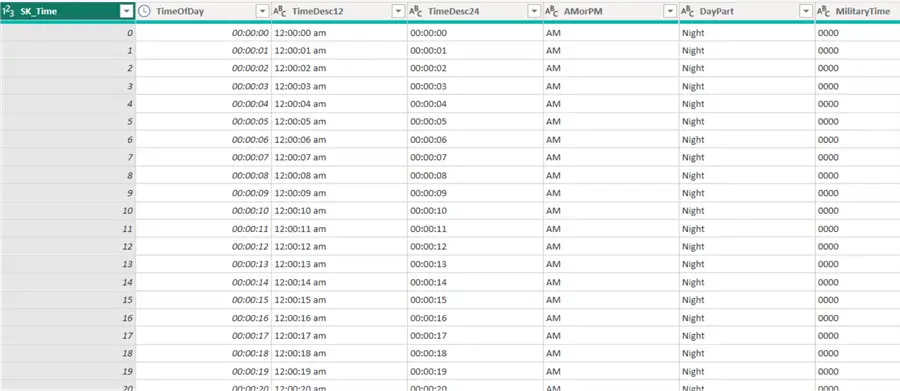
The end result of our query shall look like this:
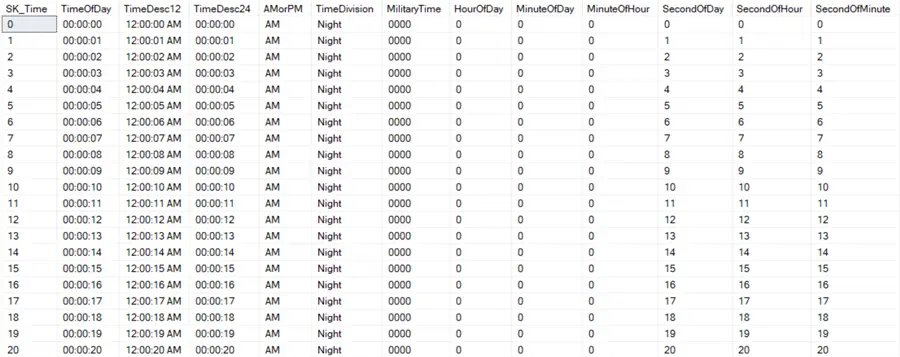
If needed for your business, you can always add extra columns, such as morning and late shifts, busy hours, opening hours, etc.
Build a Time Dimension with Power Query
In this tip, we will use Power BI Desktop to create the query. In the Desktop app, click on Transform Data.

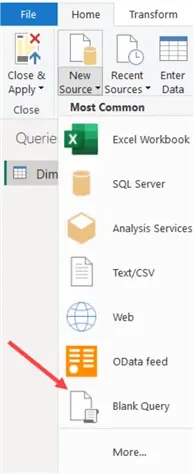
This will take you to the Query Editor, where you can ingest data from various sources and transform them using Power Query. Choose to start with a blank query.
Power Query List.Times Function
In the tip, Easy T-SQL Script to create a Time Dimension, we explored various ways to generate a list of numbers (also called a tally table or numbers table) to create a sequence of times. However, in Power Query, we have the option to directly generate a list of sequential time values using the List.Times function. The formula is as follows:
= List.Times(#time(0, 0, 0),86400,#duration(0, 0, 0, 1))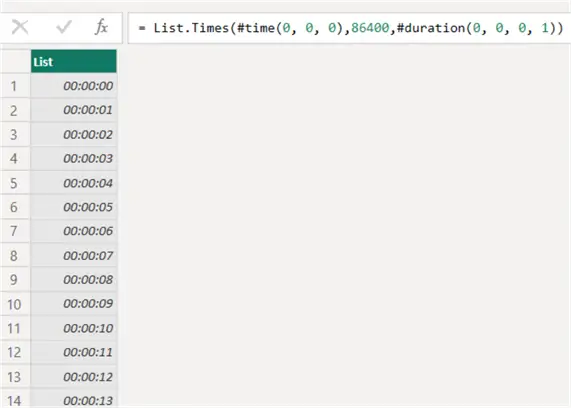
The starting point is the time value 00:00:00 (midnight), and we add 86,400 seconds (24 * 60 * 60) to it. A second is expressed as a duration value of (0, 0, 0, 1). We can then convert the resulting list to a table by right clicking the column header and selecting To Table from the context menu.
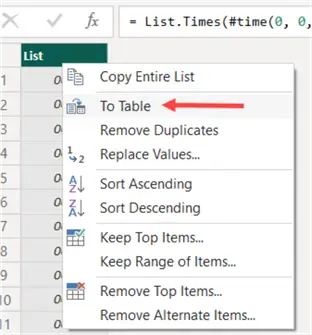
I slightly edited the resulting formula to rename the column to TimeOfDay.
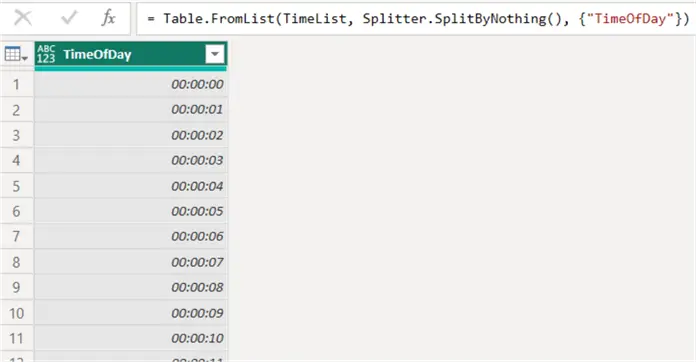
Convert Back to Time Data Type
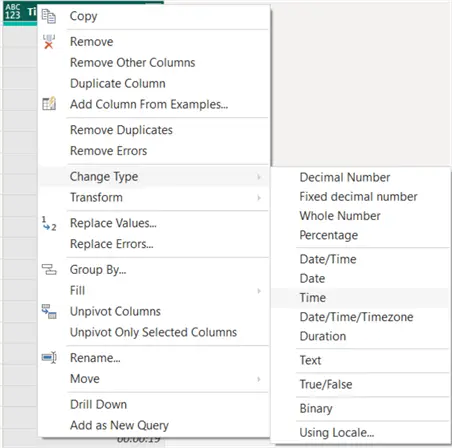
Due to the conversion from list to table, the data type is lost. Convert it back to the time data type.
Add Surrogate Key Column
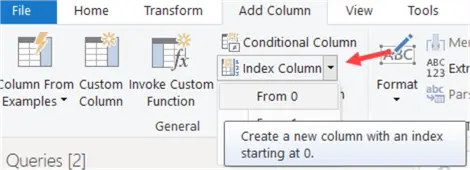
Adding the surrogate key column is quite easy: we can just add an index column.
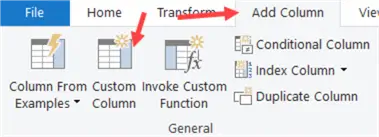
For the description columns containing the time in either 12h or 24 format, we can add custom columns.
Time Formulas
The formula for the 12-hour format (using AM and PM) is:
= Time.ToText([TimeOfDay],"hh:mm:ss tt")The 24-hour format formula:
= Time.ToText([TimeOfDay],"hh:mm:ss")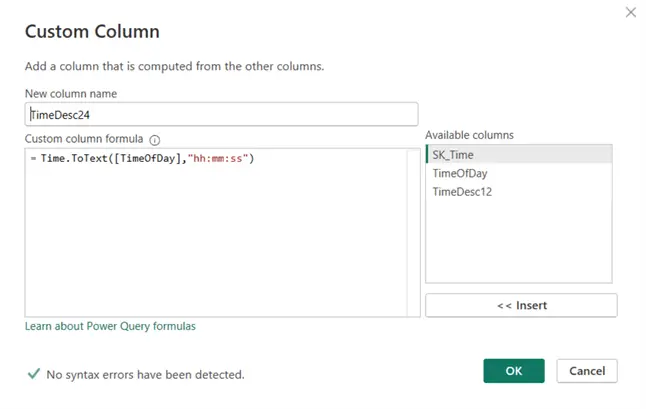
Add Columns
The column with the indicator for AM or PM can be added as a custom column using the Text.End function. We also use Text.Upper to put the result in upper case:
= Text.Upper(Text.End([TimeDesc12],2))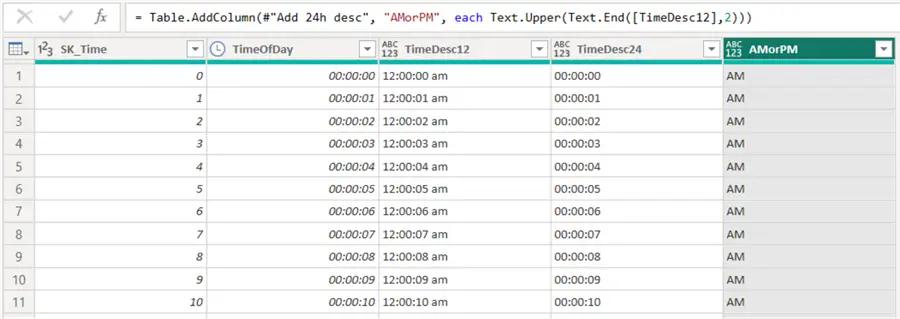
To get the column with the different hours of the day (0-23), we can duplicate the column with the time values.
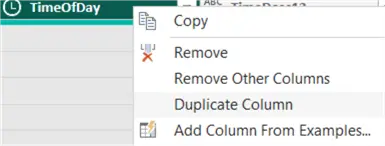
Since this column is in the time data type, we can extract the hour using the built-in time functions:
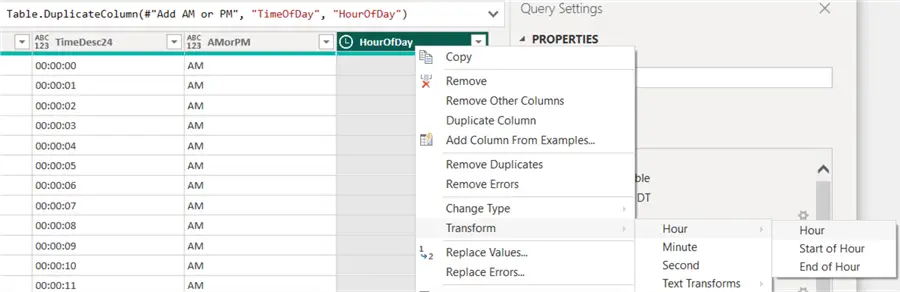
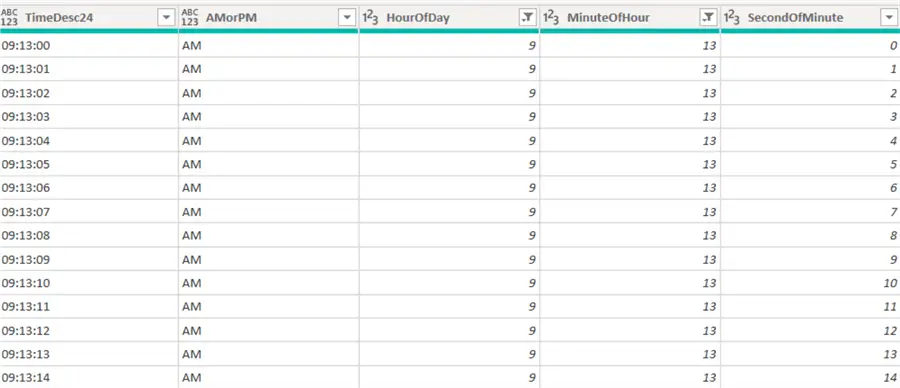
The result:

We can repeat this process two times to also add columns for the minutes (minute of hour, 0-59) and seconds (second of minute, 0-59).
Add Derived Columns for Power BI Time Dimension
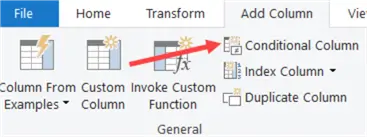
Now that we have most of the base columns present, we can start adding derived columns using the formula language. The DayPart column (night, morning, afternoon, and evening) can be added as a conditional column.
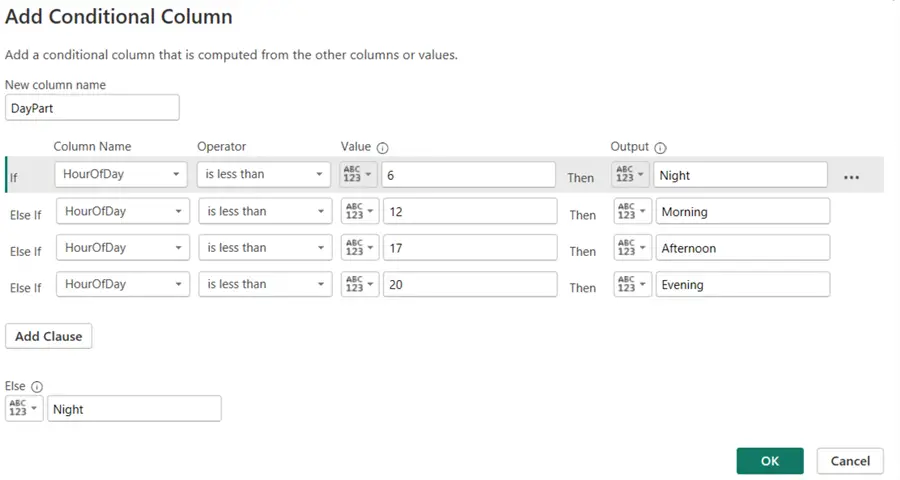
If you want to add it as a custom column, you can use the following formula:
= if [HourOfDay] < 6 then "Night"
 else if [HourOfDay] < 12 then "Morning"
 else if [HourOfDay] < 17 then "Afternoon"
 else if [HourOfDay] < 20 then "Evening"
 else "Night"
The military time column can be added by concatenating (using Text.Combine) the extracted values of hour and minutes by using the Time.ToText function with the correct format.
= Text.Combine({Time.ToText([TimeOfDay],"HH"),Time.ToText([TimeOfDay],"mm")})The next column is SecondOfDay, which holds the number of seconds after midnight. This is the same as our surrogate key column, so we can duplicate it.
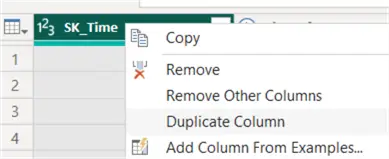
The MinuteOfDay column (number of minutes after midnight) can be added with the following formula:
= [HourOfDay] * 60 + [MinuteOfHour]Similarly, the SecondOfHour (the number of seconds in the current hour) has the following formula:
=[MinuteOfHour] * 60 + [SecondOfMinute]If you want, you can change the data types of some columns to make sure they use the most efficient storage.

After re-ordering the tables, we have the exact same time table as its T-SQL counterpart but fully created in Power Query:
Complete Script
If you only want the end result, you can copy and paste the entire script in the M language (aka the Power Query Formula Language) into the advanced editor of a blank query. Here is the script that can be used for the Power BI time dimension.
let
    TimeList = List.Times(#time(0, 0, 0),86400,#duration(0, 0, 0, 1)),
    #"Converted to Table" = Table.FromList(TimeList, Splitter.SplitByNothing(), {"TimeOfDay"}),
    #"Change to Time DT" = Table.TransformColumnTypes(#"Converted to Table",{{"TimeOfDay", type time}}),
    #"Added Index" = Table.AddIndexColumn(#"Change to Time DT", "SK_Time", 0, 1, Int64.Type),
    #"Reordered Columns" = Table.ReorderColumns(#"Added Index",{"SK_Time", "TimeOfDay"}),
    #"Add 12h desc" = Table.AddColumn(#"Reordered Columns", "TimeDesc12", each Time.ToText([TimeOfDay],"hh:mm:ss tt")),
    #"Add 24h desc" = Table.AddColumn(#"Add 12h desc", "TimeDesc24", each Time.ToText([TimeOfDay],"hh:mm:ss")),
    #"Add AM or PM" = Table.AddColumn(#"Add 24h desc", "AMorPM", each Text.Upper(Text.End([TimeDesc12],2))),
    #"Duplicated Column" = Table.DuplicateColumn(#"Add AM or PM", "TimeOfDay", "HourOfDay"),
    #"Extracted Hour" = Table.TransformColumns(#"Duplicated Column",{{"HourOfDay", Time.Hour, Int64.Type}}),
    #"Duplicated Column1" = Table.DuplicateColumn(#"Extracted Hour", "TimeOfDay", "MinuteOfHour"),
    #"Extracted Minute" = Table.TransformColumns(#"Duplicated Column1",{{"MinuteOfHour", Time.Minute, Int64.Type}}),
    #"Duplicated Column2" = Table.DuplicateColumn(#"Extracted Minute", "TimeOfDay", "SecondOfMinute"),
    #"Extracted Second" = Table.TransformColumns(#"Duplicated Column2",{{"SecondOfMinute", Time.Second, Int64.Type}}),
    #"Add DayPart" = Table.AddColumn(#"Extracted Second", "DayPart", each if [HourOfDay] < 6 then "Night"
 else if [HourOfDay] < 12 then "Morning"
 else if [HourOfDay] < 17 then "Afternoon"
 else if [HourOfDay] < 20 then "Evening"
 else "Night"),
    #"Add MilitaryTime" = Table.AddColumn(#"Add DayPart", "MilitaryTime", each Text.Combine({Time.ToText([TimeOfDay],"HH"),Time.ToText([TimeOfDay],"mm")})),
    #"Add SecondOfDay" = Table.DuplicateColumn(#"Add MilitaryTime", "SK_Time", "SecondOfDay"),
    #"Add MinuteOfDay" = Table.AddColumn(#"Add SecondOfDay", "MinuteOfDay", each [HourOfDay] * 60 + [MinuteOfHour]),
    #"Add SecondOfHour" = Table.AddColumn(#"Add MinuteOfDay", "SecondOfHour", each [MinuteOfHour] * 60 + [SecondOfMinute]),
    #"Reordered Columns1" = Table.ReorderColumns(#"Add SecondOfHour",{"SK_Time", "TimeOfDay", "TimeDesc12", "TimeDesc24", "AMorPM", "DayPart", "MilitaryTime", "HourOfDay", "MinuteOfDay", "MinuteOfHour", "SecondOfDay", "SecondOfMinute", "SecondOfHour"}),
    #"Changed Type" = Table.TransformColumnTypes(#"Reordered Columns1",{{"TimeDesc12", type text}, {"TimeDesc24", type text}, {"AMorPM", type text}, {"DayPart", type text}, {"MilitaryTime", type text}, {"MinuteOfDay", Int64.Type}, {"SecondOfHour", Int64.Type}})
in
    #"Changed Type"
Next Steps
Make sure you read the tip on how to generate this time table in T-SQL: Easy T-SQL Script to create a Time Dimension
- An alternative version of the time table can be found in the Power BI Community Blogs by Michal Dvorak. It only goes to the minute level but has an extra column indicating intervals (for example, the four quarters of an hour). It’s a bit more complex as it uses custom functions.
- There are also tips on how to create a date dimension:

Koen Verbeeck is a seasoned business intelligence consultant with over a decade of experience with the Microsoft Data Platform. He holds several certifications, including Azure Data Engineer. He’s a prolific writer, with over 375 articles on technologies such as Microsoft Fabric, SSIS, ADF, SSAS, SSRS, MDS, Power BI, Snowflake and Azure services. He has spoken at various events such as PASS, SQLBits, dataMinds Connect and many others. He frequently delivers educational webinars on MSSQLTips.com. For his efforts, Koen has been awarded the Microsoft MVP data platform award for many years.
- MSSQLTips Awards:
- Leadership Award (200+ Tips) – 2021
- Author of the Year – 2014/2020/2022
- Author Contender – 2024/2025