Problem
SQL Server allows you to do many things including automating tasks and sending notifications. You can configure SQL Server to use Database Mail to send emails from SQL Server and include content in the email body as well as send attachments. In this article, we look at how to setup Database Mail using SQL Server Management Studio.
Solution
There are two ways that you can setup Database Mail, either by using the stored procedures that are included with SQL Server or by using SQL Server Management Studio (SSMS). For this exercise we will walk through how to setup using SSMS.
Setup Database Mail
To setup, connect to your server and expand the Management node of the tree and then right click on “Database Mail”.

Then select “Configure Database Mail’ and you will get the following welcome screen and then click “Next”.

Select Configuration Task
The following screen will appear and select “Set up Database Mail by performing…” and click “Next”.

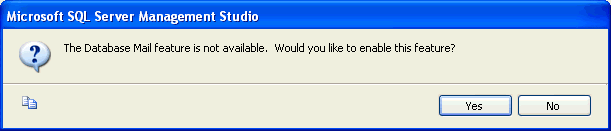
If Database Mail has not been enabled, you will get this following screen. Just click “Yes” to enable it. If it has already been enabled this screen will not appear.
Create Mail Profile
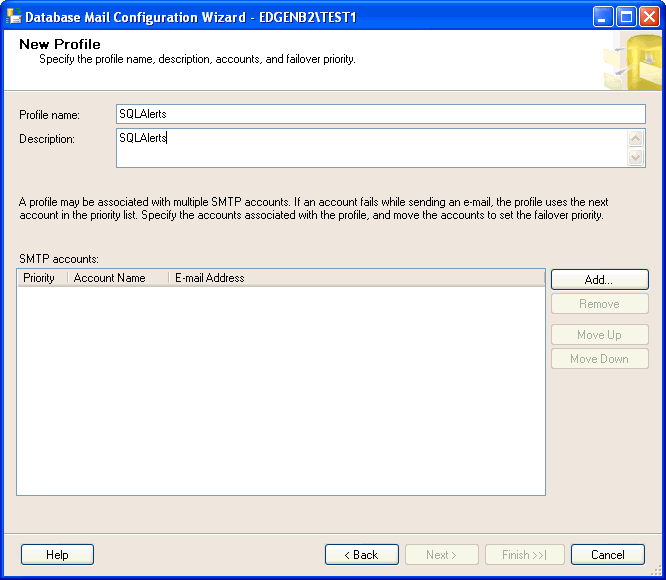
Enter in a name for the Profile and also a description and click “Add…”
Configure Database Mail Account
The following screen will appear. Fill out the details for your mail account that will be used to send out email from SQL Server. When you are done click “OK”. You can send email using SSL or not, so configure accordingly. There are also several options for SMTP authentication. In this example, we will just use “Basic authentication”.

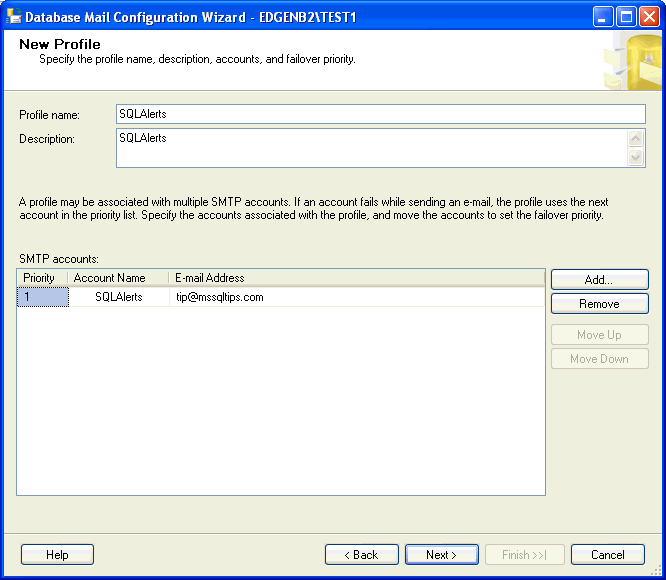
After you click “OK” you will be brought back to the screen below and the SMTP details will now show for the account you just setup. Click “Next” to continue.
Manage Profile Security
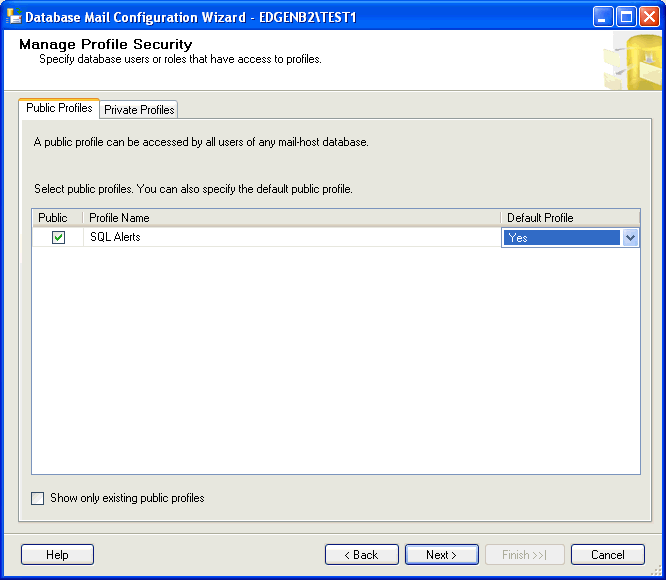
On the next screen you will see the name of the profile that you just setup. Click on the checkbox to allow this to be a Public profile and also select “Yes” for the default profile and then click “Next”.
Additional Parameters
The following screen has some additional parameters that can be set to control how mail is sent. You can make changes or leave the defaults. When you are done click “Next”.

A summary screen will appear that shows you all of the options that were selected. If everything is correct click “Finish” or click “Back” to go back and make changes.
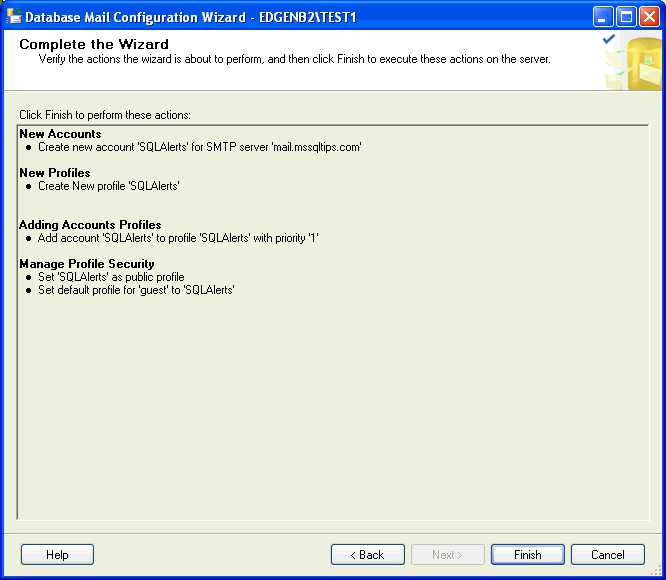
When you click “‘Finish” the next screen will appear that shows you the status of installing Database Mail. When this has finished just click “Close” to close this screen.

Send Test E-Mail from Database Mail
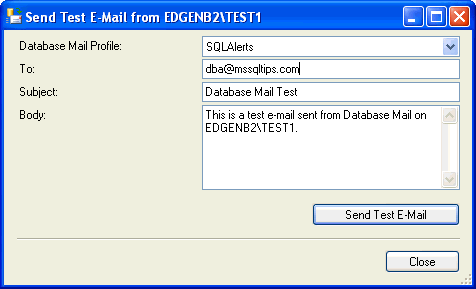
To test Database Mail, right click on Database Mail and select “Send Test E-Mail”.
Fill in a “To:” email address and change the body of the email if you want and then click “Send Test E-Mail”.
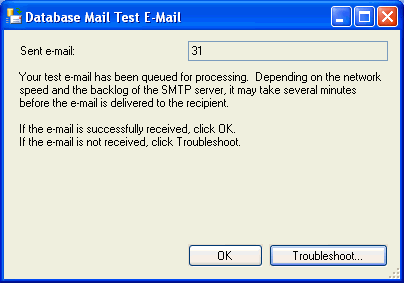
After you have sent the email you will get this message box to confirm if the email was received or not. If it was, you can click “OK” to close the screen or click “Troubleshoot” which will launch the help information to see what the issue may be and how it can be resolved.
Summary
That’s all there is to it. As I mentioned before this can also be setup by using stored procedures. To look at this approach take a look at this article Database Mail in SQL Server.
Next Steps
- Setting up Database Mail is not that complicated and can be very useful.
- After you setup Database Mail don’t forget to setup your operators, alerts and SQL Agent alert settings

Greg Robidoux has been working with databases for 35+ years with extensive hands on SQL Server experience from version 6.5 to 2025. He has authored over 250 technical articles and delivered several presentations online and at various conventions. Greg is also the President and founder of Edgewood Solutions, a technology services company delivering services and solutions for Microsoft SQL Server.
Hi Steven,
here are the scripts. We will create an article for this on the site.
EXEC msdb.dbo.sysmail_add_profile_sp
@profile_name = ‘Database Mail’
,@description = ‘mail from SQL Server’;
EXEC msdb.dbo.sysmail_add_account_sp
@account_name = ‘test’
,@description = ‘test email’ — optional
,@email_address = ‘tips@mssqltips.com’
,@display_name = ‘MSSQLTips’ — optional
,@replyto_address = ‘tips@mssqltips.com’ — optional
,@mailserver_name = ‘mail.mssqltips.com’
,@mailserver_type = ‘SMTP’ — optional SMTP is default
,@port = 25
— basic authentication
,@username = ‘tips@mssqltips.com’
,@password = ‘test123’;
EXEC sysmail_help_account_sp; — use output from this for @account_id below
EXEC sysmail_help_profile_sp; — use output from this for @profile_id below
EXEC msdb.dbo.sysmail_add_profileaccount_sp
@profile_id = 1
,@account_id = 1
,@sequence_number = 1;
EXEC sp_configure ‘show advanced options’, ‘1’;
RECONFIGURE
GO
EXEC sp_configure ‘Database Mail XPs’, 1;
RECONFIGURE
GO
EXEC msdb.dbo.sp_send_dbmail
@profile_name = ‘Database Mail’
,@recipients = ‘greg@edgewood.com’
,@subject = ‘Test’
,@body = ‘Test email body’;
What is the option to script DB Mail in SQL Express since that functionality is not part of Express?