Problem
SQL Server Management Studio (SSMS) is a tool for SQL Server professionals to develop queries and administer the database environment. Artificial intelligence (AI) is expanding its horizons with its integration into almost all tools, systems, and databases. Does SSMS support leveraging AI to help developers and administrators perform their tasks with improved productivity?
This tip explores how you can interact with AI using SQL Server Management Studio.
Solution
AI is touching everyone’s life, increasing at a compound annual growth rate of 19.20% (CAGR- 2024-2034) to reach a value of USD 3,680.47 billion by 2034. AI technology is getting implemented in business processes, models, and tools to improve productivity and operational efficiency.

Microsoft launched Copilot as an AI-powered companion for integrating with Microsoft applications, including Office 365, Azure applications, operating systems, and databases, to enhance user experience and productivity. The cheese wheel below gives a high-level overview of Copilot and its integration across the board.
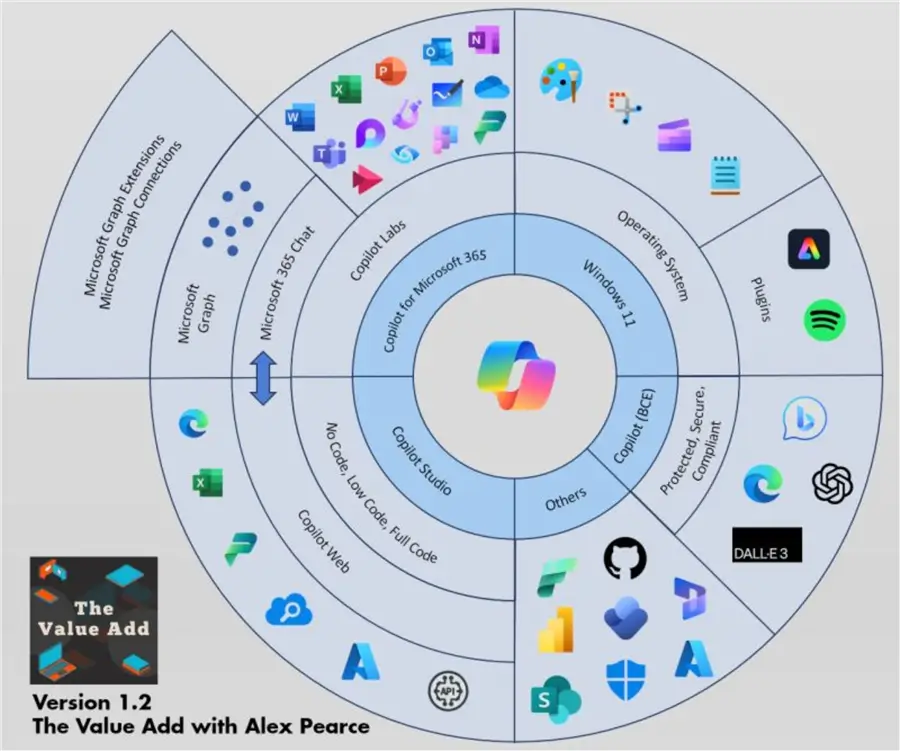
Source: LinkedIn
Key Takeaways
- SSMS Copilot is an AI-powered assistant integrated into SQL Server Management Studio 21 to improve productivity.
- Copilot allows users to interact with databases using natural language, debugging SQL logic, and generating scripts.
- To use SSMS Copilot, you need to configure Azure OpenAI endpoints and API keys for connectivity.
- It provides responses to prompts about SQL version, compatibility mode, and database queries, enhancing user experience.
- Always review and validate the output from Copilot before implementing it in a production environment.
SSMS Copilot
Microsoft introduced its AI-powered assistant Copilot into SSMS version 21. It can help you interact with databases in natural language, debug or clarify complex SQL logic, explore database metadata, and generate scripts for automating your database context.
Note: If you are unfamiliar with SSMS21, refer to the SQL Server Management Studio 21 (SSMS) Quick Start Guide.
SSMS Copilot utilizes the Azure OpenAI deployment, leveraging Azure OpenAI endpoints. The high-level workflow is as follows:
- SSMS interacts with Azure OpenAI endpoints with the user prompt (asks) along with the database context.
- Azure OpenAI generates a response to the prompt using the configured GPT-based model.
- It sends the response back to the SSMS application either in the Copilot chat panel or in the SSMS editor as per user preferences. This response could include the code explanation, script, code fix, etc.
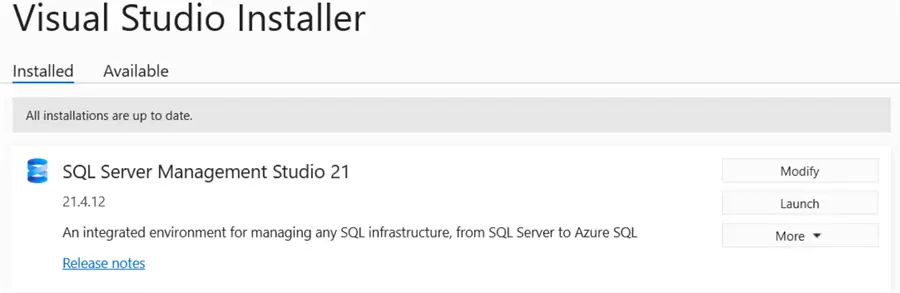
To use the Copilot feature, you can either install it during the SSMS21 installation wizard or launch the SSMS21 installer and click ‘Modify.’
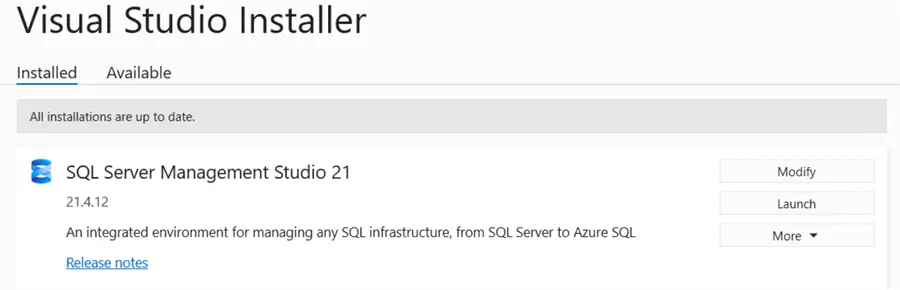
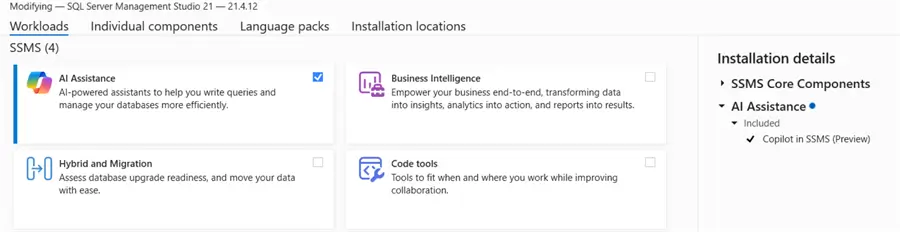
Enable AI assistance in the Workloads tab, as shown below.
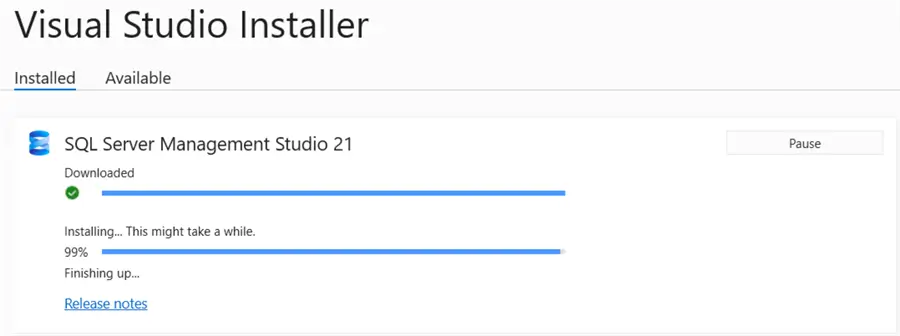
It downloads the required component and installs it.
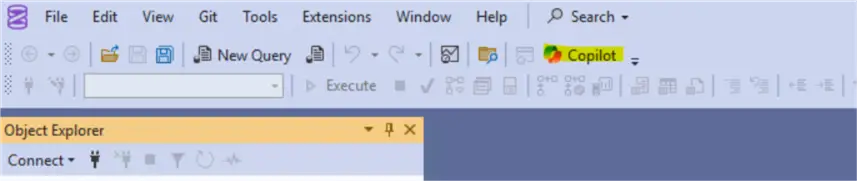
Launch SSMS21. You will see a Copilot icon on the bar menu.
Click on the Copilot icon, and it asks you to configure the Azure OpenAI endpoint, deployment, and API key.
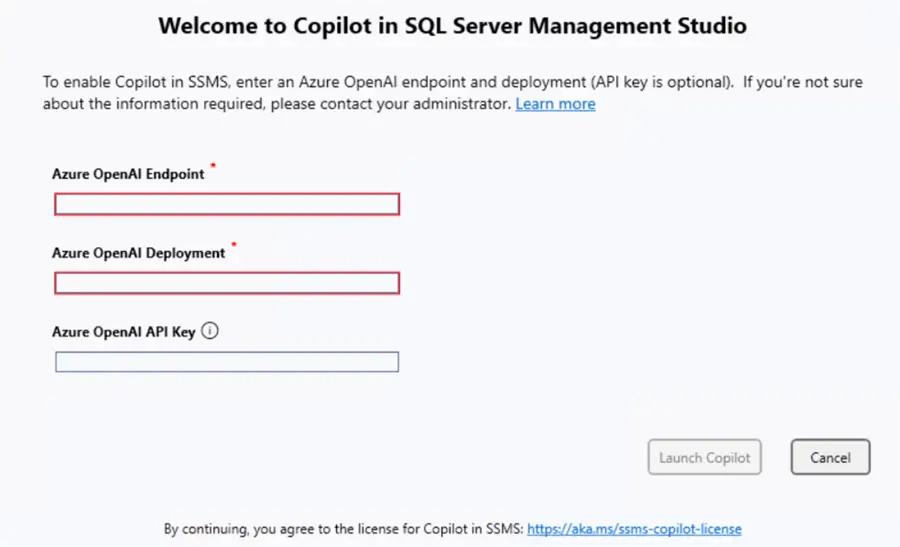
Configure Azure OpenAI Deployment and Endpoint for SSMS Copilot
Azure OpenAI is a Microsoft Azure service that enables users to securely access OpenAI’s large language models, including GPT-4, GPT-4o, and GPT-3.5, through REST APIs as part of its subscription. It provides flexibility, built-in data privacy, and integration with different Azure services. Note: You need to have an Azure subscription to use the Azure OpenAI service.
You can create a free-tier or pay-as-you-go account with Azure and search for the Azure OpenAI service.
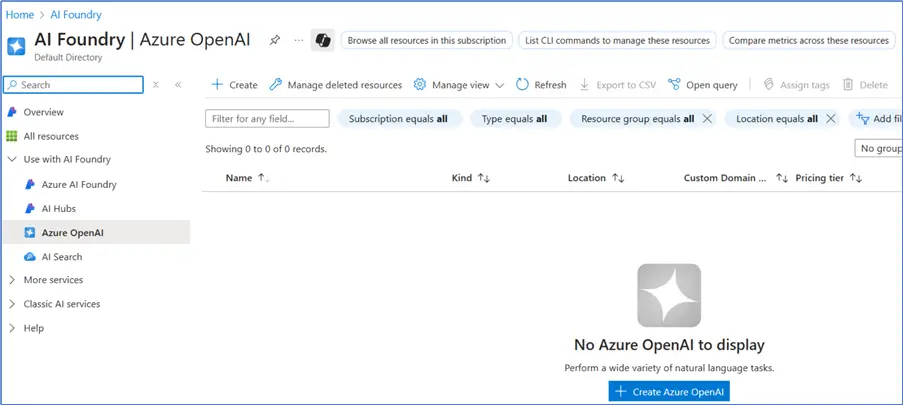
Click on Create Azure OpenAI and enter the following details:
- Subscription
- Resource Group
- Instance Details
- Region
- Name
- Pricing Tier
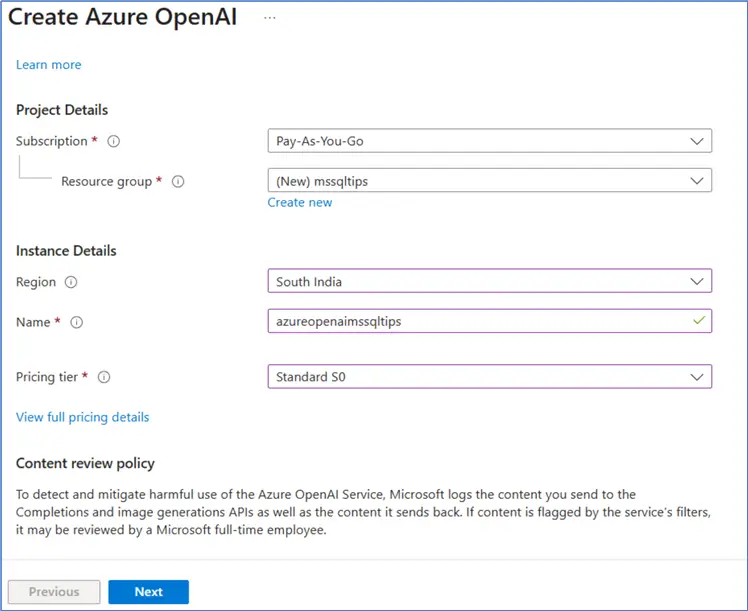
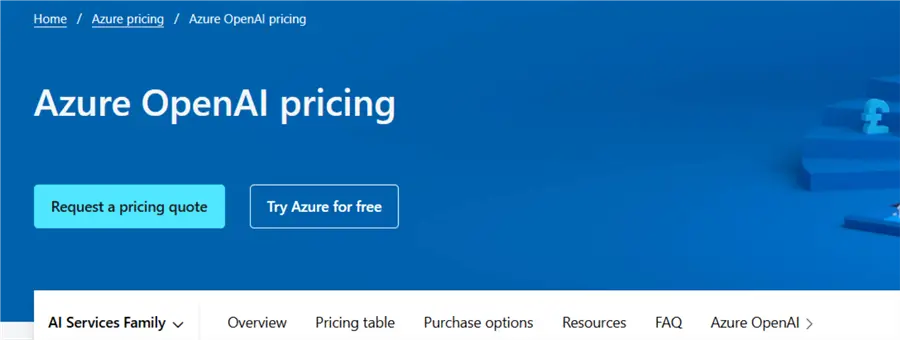
You can click on View full pricing details to explore the Azure OpenAI pricing details.
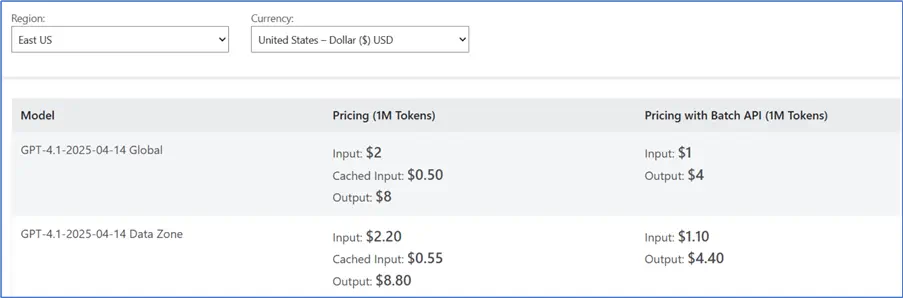
For example, it shows me the following pricing for the East US region:
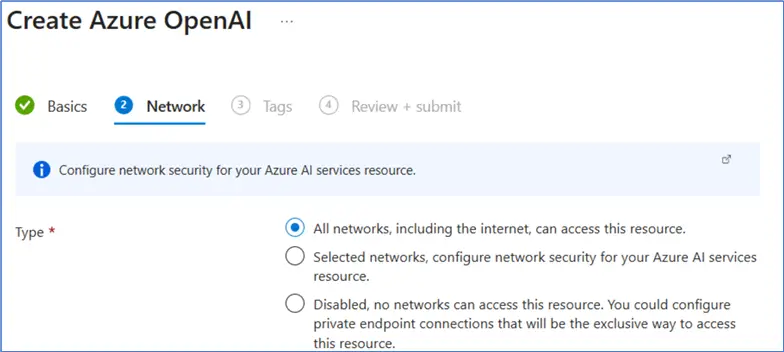
Click Next and then choose Network Security for the Azure AI Service. You can allow connections from selected networks or all networks, including the internet, to access this resource. It also gives you the option to restrict network access completely and access only through private endpoint connections.
Note: For demo purposes, I have opted for all networks; however, please exercise caution when using this option. You must restrict access to networks, especially when dealing with production environments.
Click B, skip the 3rd step (optional), and proceed to the Review + Summit page. Review the configurations and click Create at the bottom of the page.
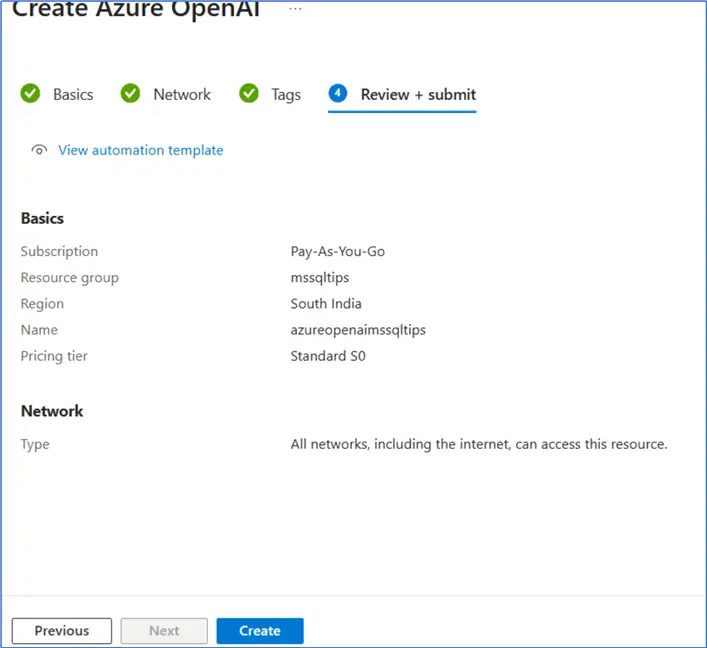
It quickly deploys the Azure OpenAI service.
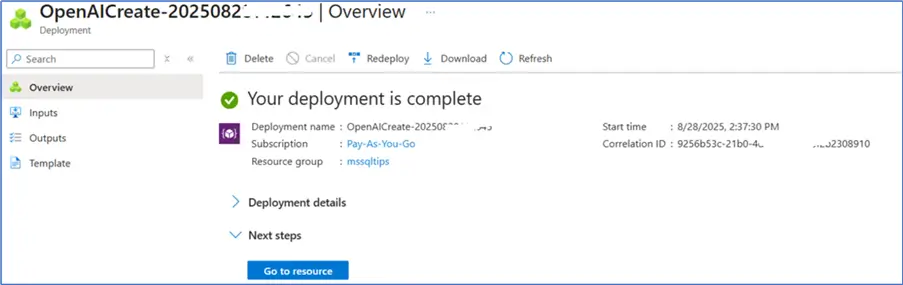
Click on Go to resource to view the deployed service and its status.
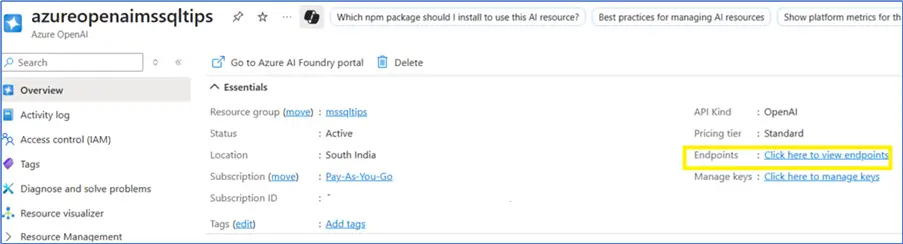
To work with the SSMS Copilot, we need to have the keys and the endpoint. Click on the Endpoints (seen above in the yellow box), and it opens the page to record the keys and endpoint.
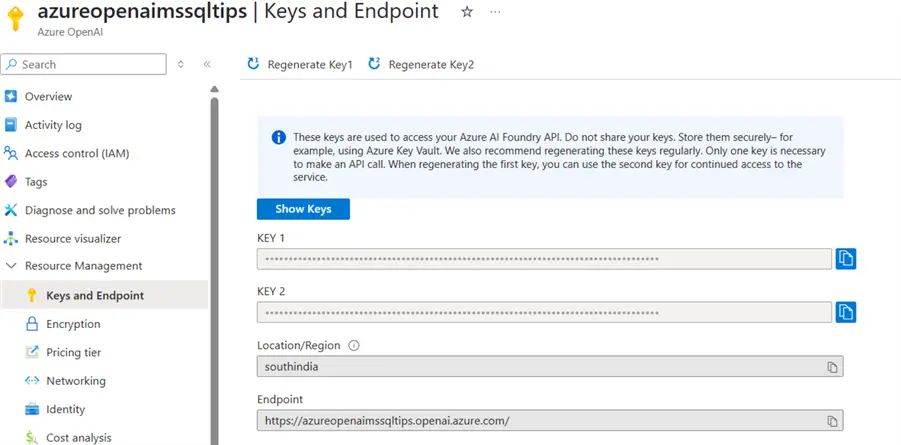
Create a Deployment in Azure OpenAI Service
In the previous step, we generated the keys and endpoint to access the Azure OpenAI service. However, we still need to create the deployment to connect large language models to the service.
Click Explore Azure AI Foundry portal from the Azure OpenAI portal.
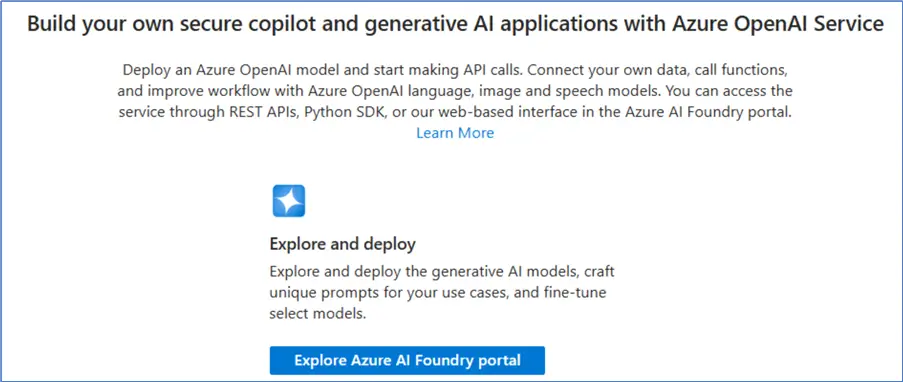
It opens the Azure AI Foundry deployment page. Currently, we do not have any deployments; therefore, it indicates that a deployment is needed to modify and interact with the chat playground.
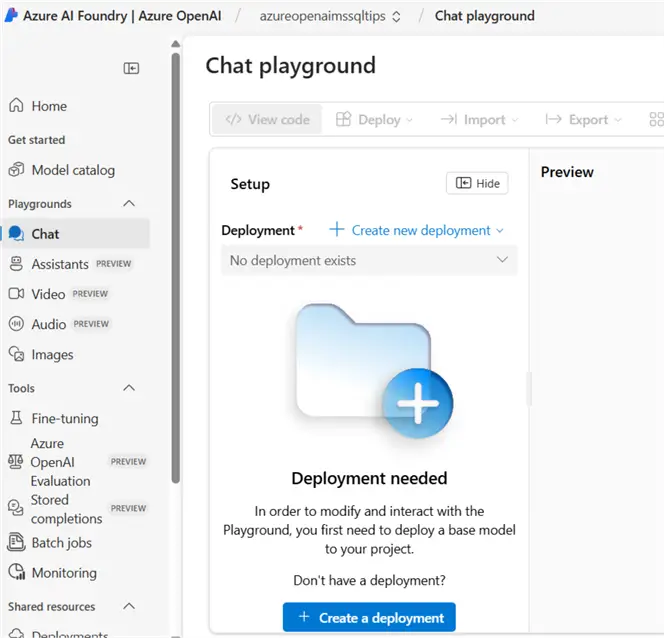
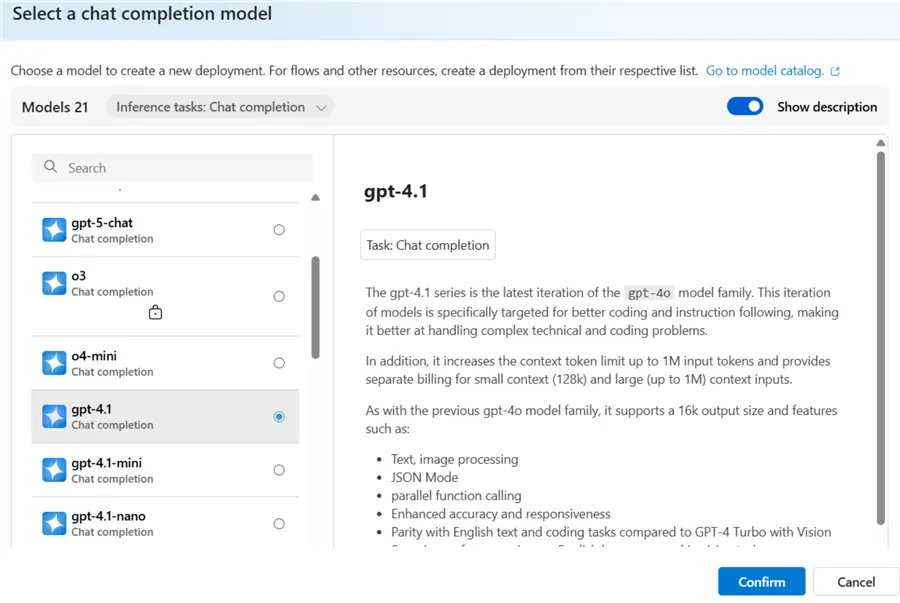
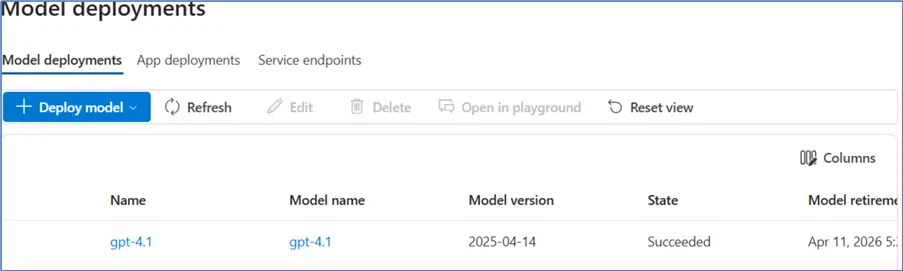
Click Create a deployment and choose a chat completion model. You can view the models and their descriptions. Here, I have chosen the GPT-4.1 model, as shown below.
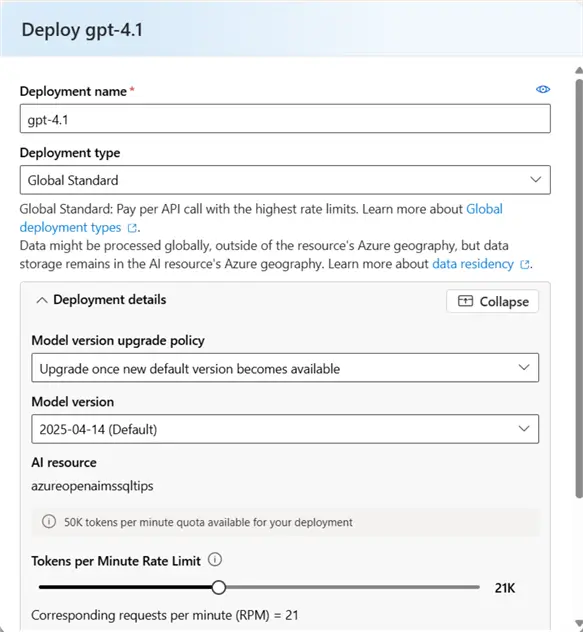
Click Confirm, and it provides deployment configuration options. We can proceed with the default values for the deployment and click Deploy at the bottom of the page.
It shows the deployment name, model name, model version, state, and model retirement timestamp. As shown below, we have successfully deployed the Azure OpenAI GPT-4.1 model.
We are now ready to configure the SSMS Copilot and start exploring it. Let’s return to SSMS.
SSMS Copilot Configuration
In the SSMS Copilot configuration page, enter the following details:
- Azure OpenAI endpoint
- Azure OpenAI deployment name
- Azure OpenAI API key
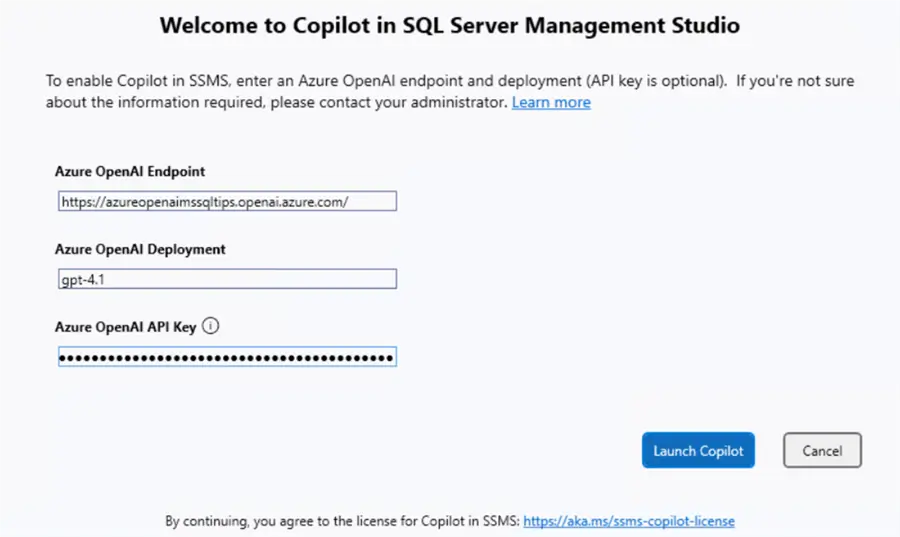
Click Launch Copilot, which connects with Azure OpenAI endpoints and deployment. Once it is connected, you will see the following Copilot in SSMS chat option:
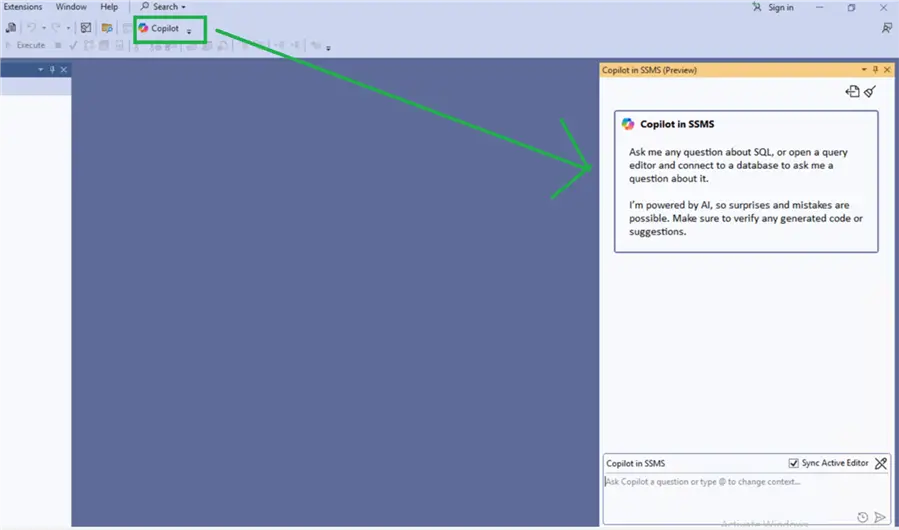
Let’s start running a few sample chat prompts to check that it’s working.
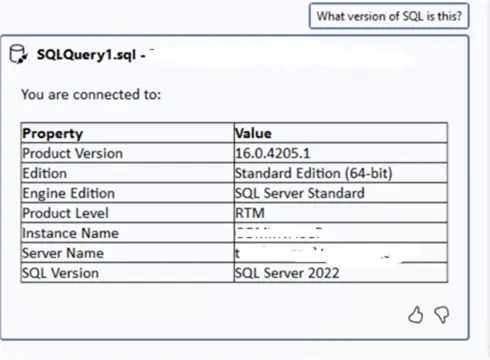
Prompt 1: What version of SQL is this?
It provides the following response, including product version, edition, product level, connected SQL server, and instance name:
Prompt: What is the compatibility mode for the database?
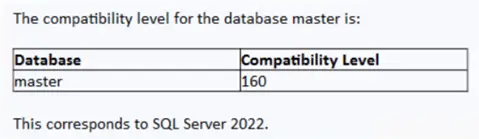
Prompt 3: Connect to AdventureWorks Database and give me the top 5 tables
It provides the steps to follow, along with the script, to obtain the required data. You also receive a warning to review the script carefully before executing it.
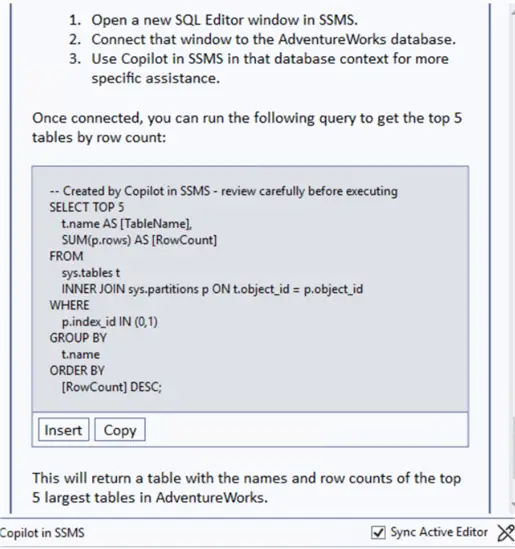
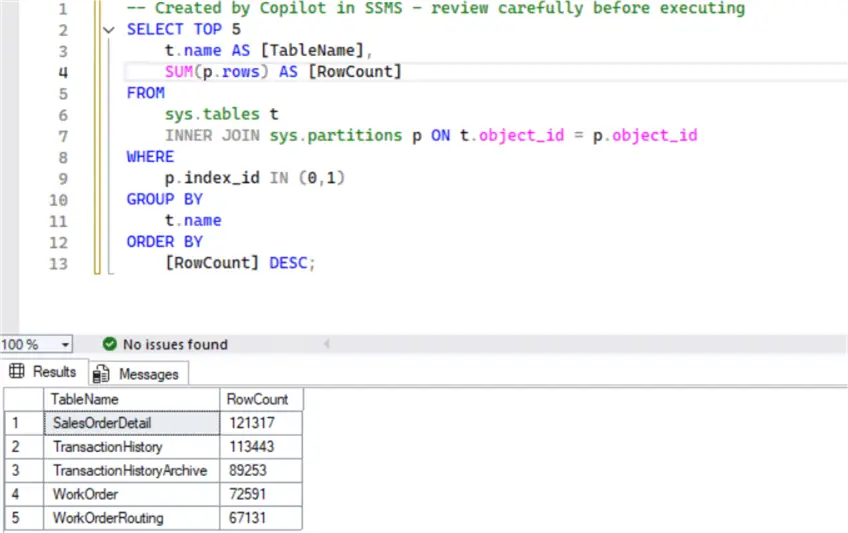
You can directly insert a query into the code editor or copy and paste it manually. I executed the required query, and it gave me the result:
Summary
This was the basic testing I did with the SSMS Copilot. You should explore the use cases of SSMS Copilot further and determine if it is worthwhile to configure and pay for it.
Note: SSMS Copilot is designed to improve productivity by generating scripts and providing troubleshooting steps as a guide. It is not a substitute for a database professional. You must constantly review and validate Copilot’s output before running it in production environments. You can treat its output as a starting point, not final code.
Next Steps
- You should go through the SSMS Copilot documentation to get more information.
- Be careful in using SSMS Copilot, particularly in the production environment.
- You should also look at the costs and benefits of Copilot together to see if it fits the need.
- Go through the SSMS 21 release notes for detailed information.
- Explore existing tips on MSSQLTips.com for database administration and development.

Hi! I am Rajendra Gupta, Database Specialist and Architect, helping organizations implement Microsoft SQL Server, Azure, Couchbase, AWS solutions fast and efficiently, fix related issues, and Performance Tuning with over 14 years of experience.
I am the author of the book “DP-300 Administering Relational Database on Microsoft Azure.” I can be reached at: Rajendra.gupta16@gmail.com for any consulting help.
- MSSQLTips Awards:
- Author of the Year – 2022 | Author Contender – 2021/2023/2024 | Champion Award (100+ tips) – 2020


Fortunately, this will only be available in SSMS 21. SSMS 22 is shifting towards GitHub Copilot: https://techcommunity.microsoft.com/blog/sqlserver/now-available-by-popular-demand-github-copilot-in-ssms-preview/4461475