Problem
In many conversations with my colleagues and other developers who work with different database engines, they often underestimate SQL Server. In my opinion, one of the key causes is that they didn’t work with the SQL Server Management Studio GUI to see how much easier it is to manage SQL Server compared to other databases, even with the most popular ones. Essentially, this article embodies a Quick Start guide for using SQL Server Management Studio (SSMS), the powerful, official enterprise-level GUI provided by Microsoft to manage SQL Server databases.
Solution
One of the strengths of Microsoft SQL Server, and Microsoft products in general, is their ease of use. In my opinion, Microsoft works on its graphical user interface (GUI) more than its competitors. Honestly, I didn’t hear anyone who has worked with Microsoft products say that they are unclear or complicated, even starting with the Microsoft Office applications.
Microsoft’s SQL Server Management Studio (SSMS) is a user-friendly GUI that makes it easier to work with SQL Server databases. It provides an all-in-one environment that allows access, configuration, management, and development of everything related to SQL Server, Azure SQL Database, and other connected services.
In this article, learn useful information regarding how to download, install, and get started with SSMS 21.
SSMS Versions
Starting with SQL Server 2016, SSMS became a standalone application, while previously it was integrated within the SQL Server installation. This is why it’s important to select the version that supports the user’s SQL Server version. The current version is 21.0.1, released in 2025.
It is worth mentioning that different versions of SSMS can be installed on the same machine.
Download SSMS
Microsoft provides a download link for SSMS 21: Download SSMS 21.
Also, see the chart below for the latest build numbers of publicly released versions:
| SSMS Version | Build Number | Release Date |
| 20.2.1 | 20.2.37.0 | April 8, 2025 |
| 19.3 | 19.3.4.0 | January 10, 2024 |
| 18.12.1 | 15.0.18420.0 | June 21, 2022 |
| 17.9.1 | 14.0.17289.0 | November 21, 2018 |
| 16.5.3 | 13.0.16106.4 | January 30, 2017 |
Beginning with version 21, Microsoft uses the Visual Studio Installer to download and install SSMS, and creating a standalone offline installer requires some additional steps.
Install SSMS
Once the VS installer has been downloaded, it will require additional components to be downloaded to continue.
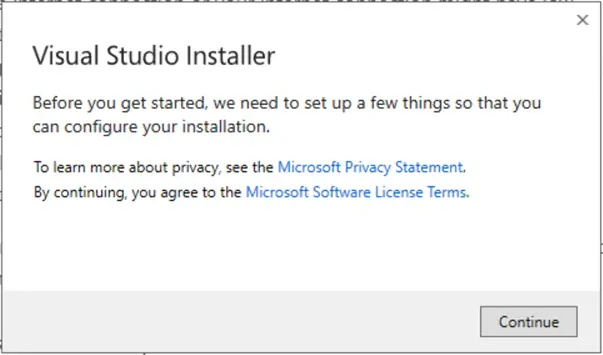
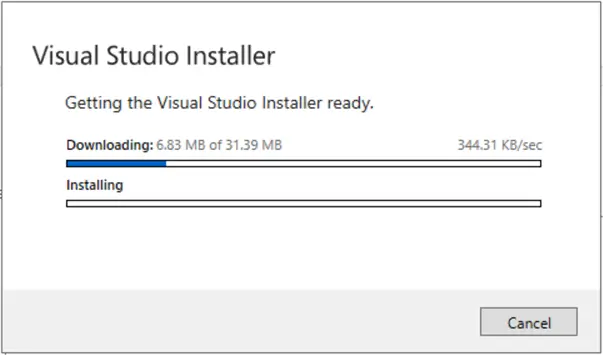
Once finished, the installer asks users to select which additional components they need based on the workload.
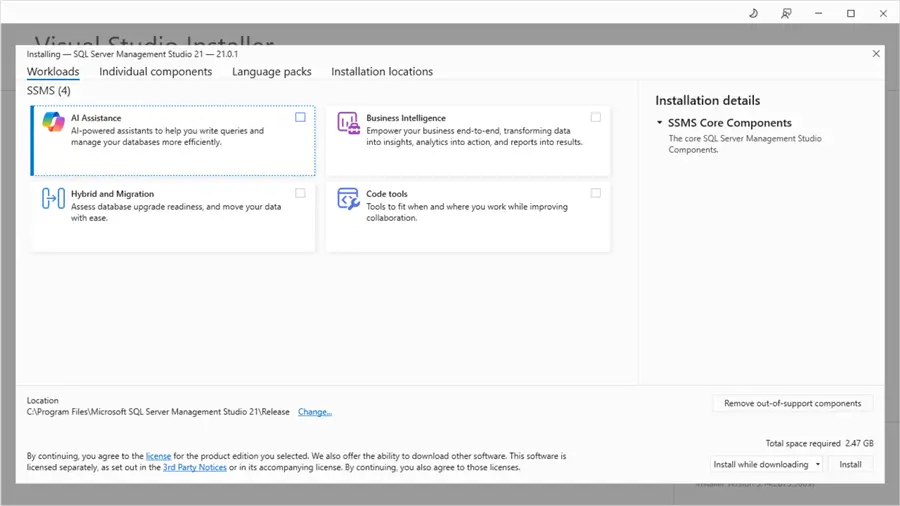
On the “Individual components” tab, check all needed components.
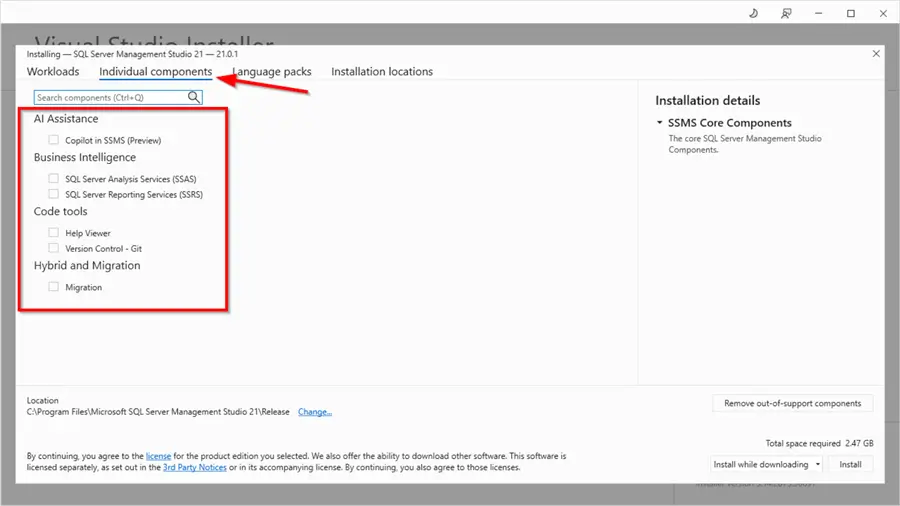
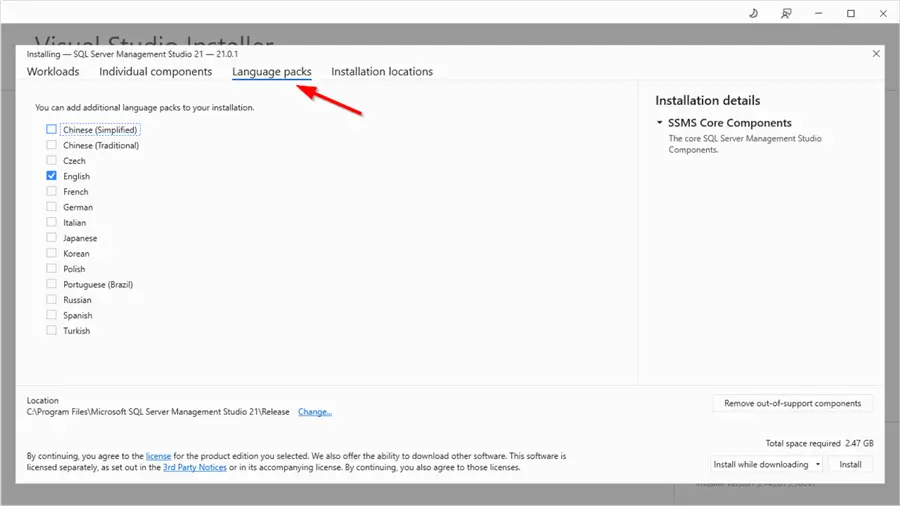
Moreover, several languages packs are available.
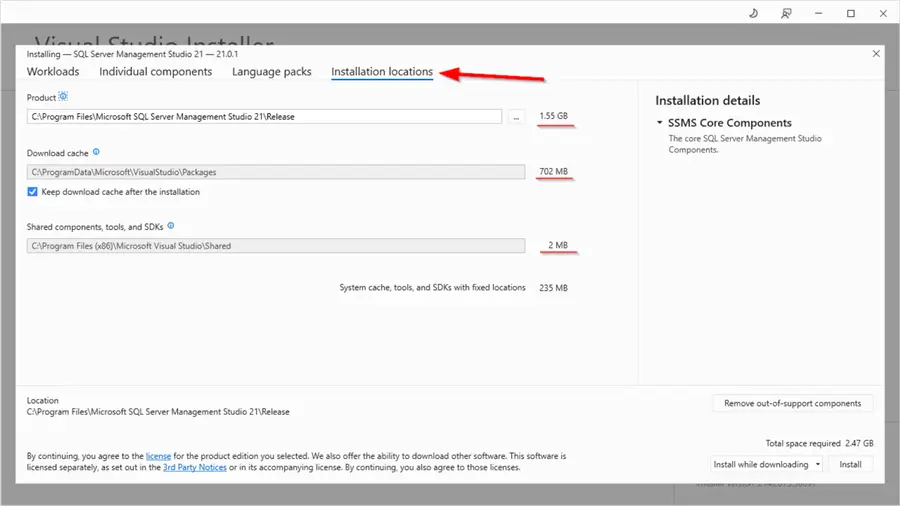
The VS installer also allows users to change the installation and cache directories from the “Installation Locations” tab, showing the required storage for each directory (based on the user selections).
For this demonstration, I selected the “AI Assistance” workload components. Be on the lookout for a “Copilot in SSMS”.
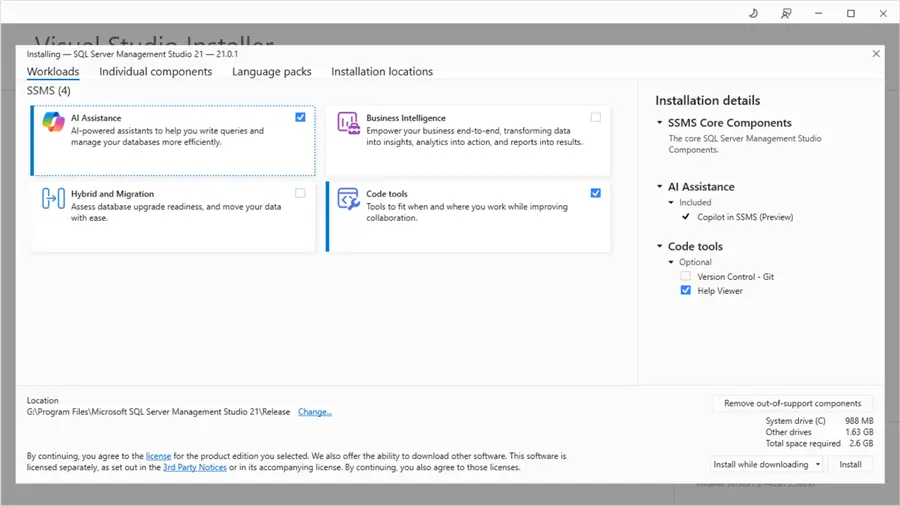
Finally, we need to select whether we need to download all components before installing them, or to install them while downloading. Then, click Install. The VS installer will show the installation progress as follows:
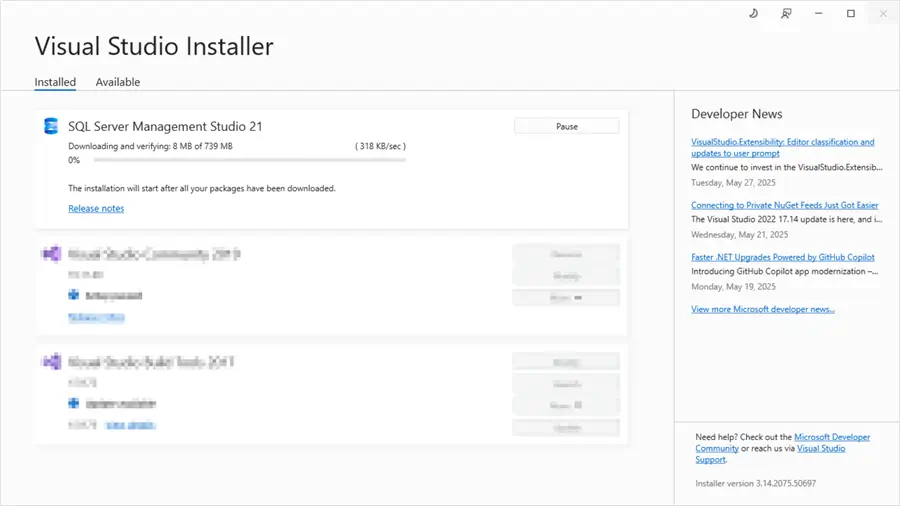
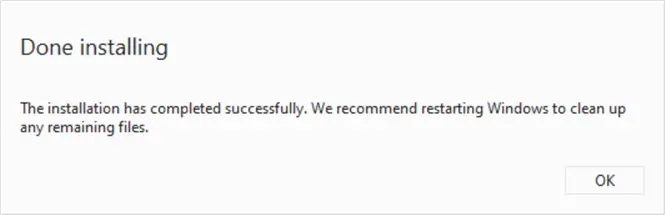
Once the installation completes, a restart is required.
Starting SSMS
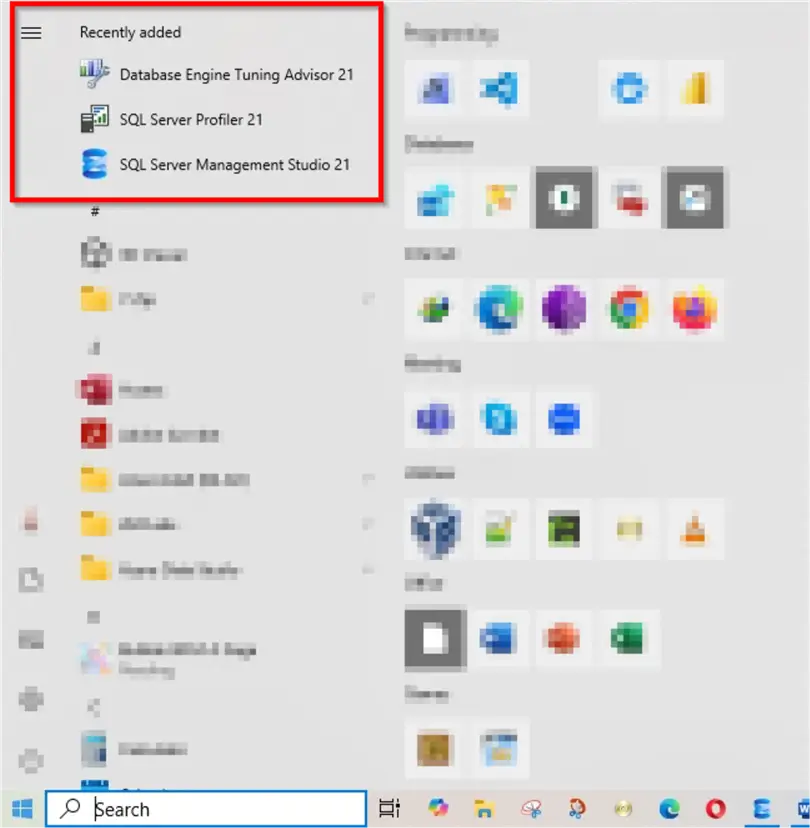
After restarting your computer, the SSMS icon will be available in the Windows Start menu.
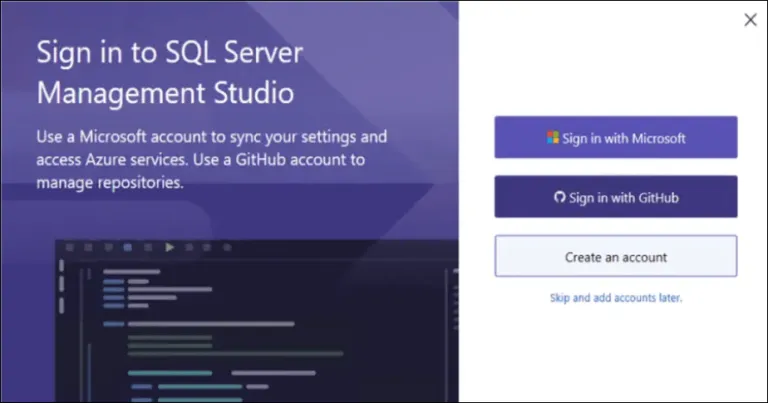
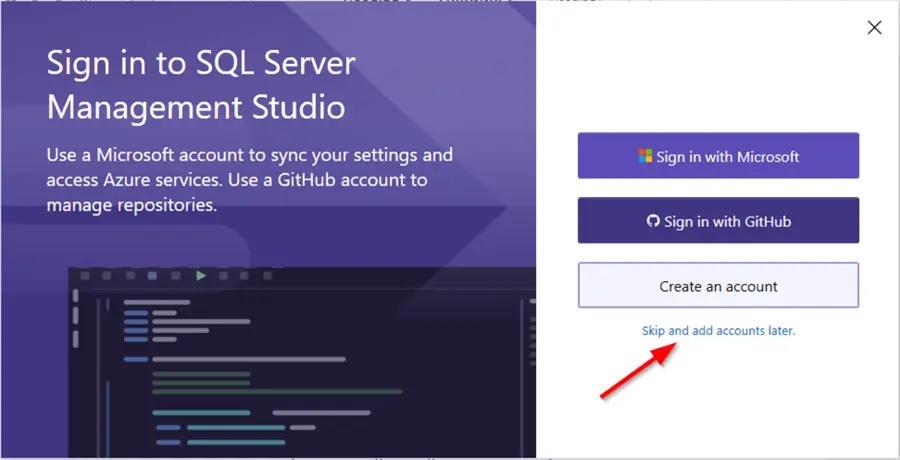
With the first launch of SSMS 21, a prompt appears to sign in using a Microsoft Account, which enables the online features related to Microsoft Azure or Copilot. For now, click “Skip and add accounts later.”
Connection Dialog Box
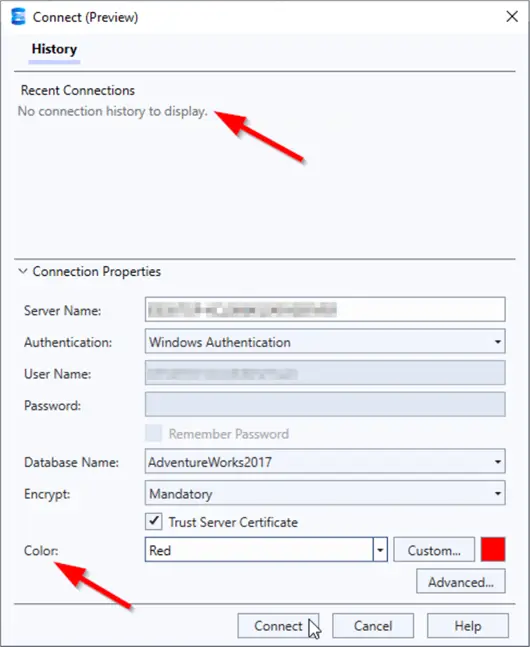
In SSMS 21, a new connection dialog (still in preview mode) is introduced. This dialog is similar to the previous versions, where a user specifies the server name, credentials, encryption method, and database name. In this version, recent connections are listed on the top half of the dialog. Also, the user can specify the tab color of all queries related to this connection.
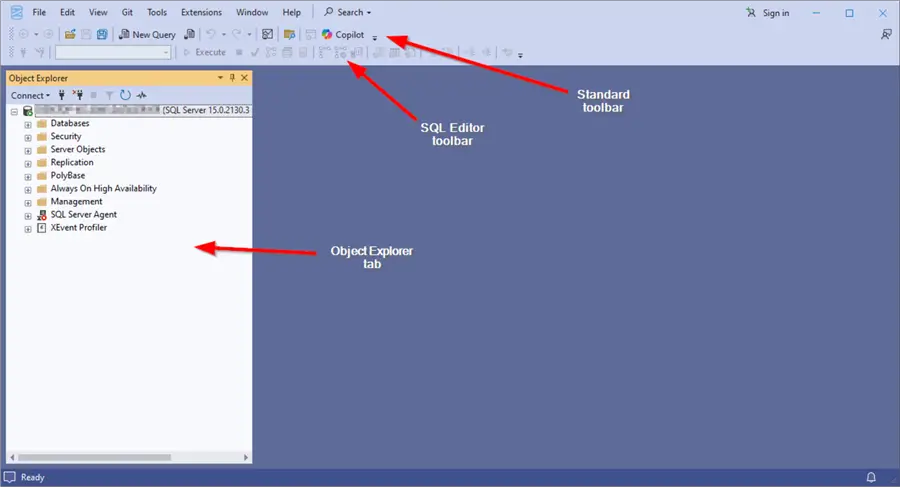
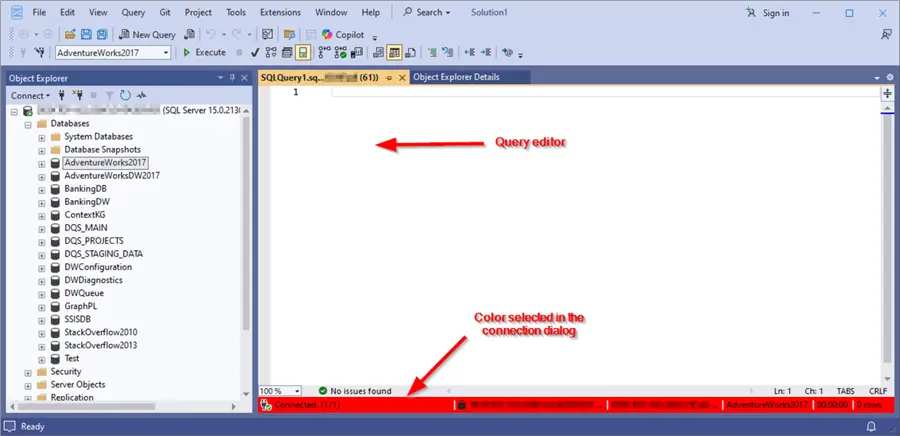
After successfully connecting to the database engine, the main window appears, showing the “Object Explorer” tab to the left and the “Standard” and “SQL Editor” toolbars below the menu strip.
Add Windows and Toolbars
More windows and toolbars can be added via the “View” menu.
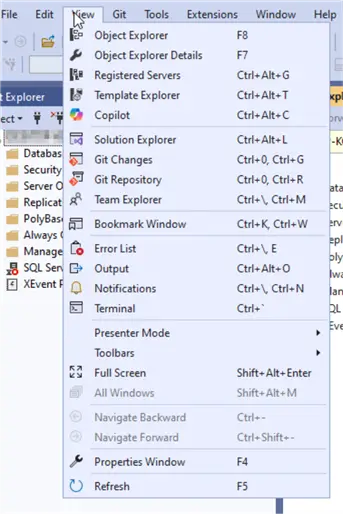
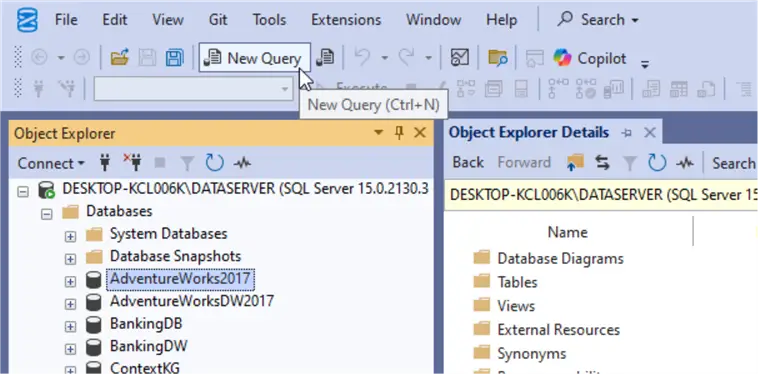
For example, to show additional details about the object listed in the Object Explorer bar, we can add the “Object Explorer Details” window. As shown in the image below, if we select a database from the Object Explorer (i.e., AdventureWorks2017 database), the database objects and properties are displayed within the “Object Explorer Details” window. Moreover, a search bar that facilitates searching objects by their name is found at the top of the window.

In the Object Explorer pane, several objects are listed in a tree:
- Server Node: Represents the connected SQL Server instance.
- Databases: Lists all user and system databases.
- Security: Manages logins, users, and roles.
- Server Objects: Contains linked servers, triggers, and backup devices.
- Replication: Handles data replication between servers.
- Management: Includes logs, maintenance plans, and configuration tools.
- SQL Server Agent: Schedules and runs automated jobs and tasks.
- PolyBase: Enables querying external data sources like Hadoop or Azure Blob Storage using T-SQL.
- XEvent Profiler: Provides a lightweight, real-time view of SQL Server activity for troubleshooting and monitoring.
Querying Databases
To write SQL queries, click “New Query” in the Standard toolbar.
A new query editor will open. At the bottom of this editor, a status bar (colored as selected in the connection dialog) shows the query connection information and execution time.
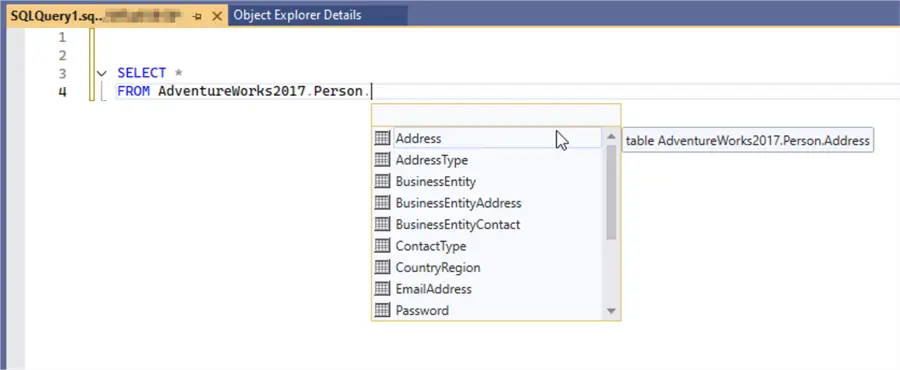
As shown below, the query editor contains an Intellisense service that helps developers recognize the existing objects to facilitate writing queries.
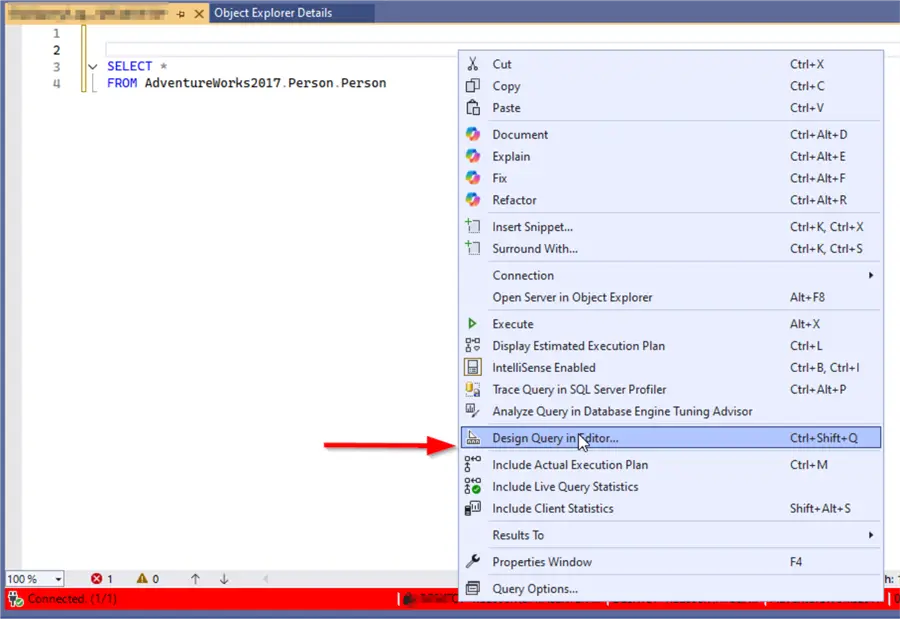
Additionally, developers who are new to writing SQL queries can use the “Design Query in Editor” option found within the mouse right-click context menu.
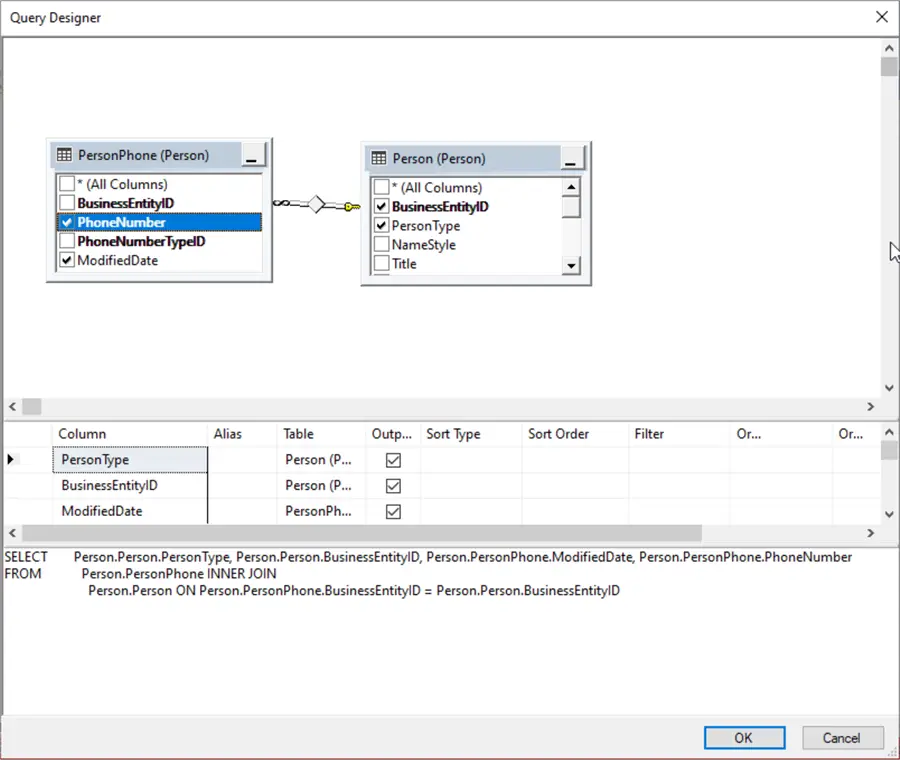
The Design Query has drag-and-drop capabilities so developers can generate SQL queries by selecting tables and establishing joins easily.
Query Optimization
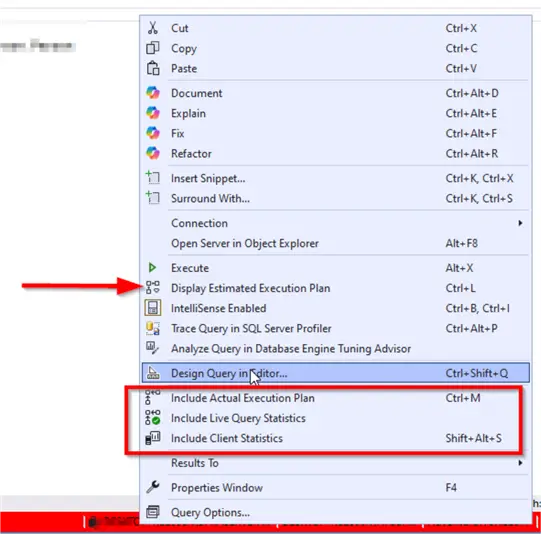
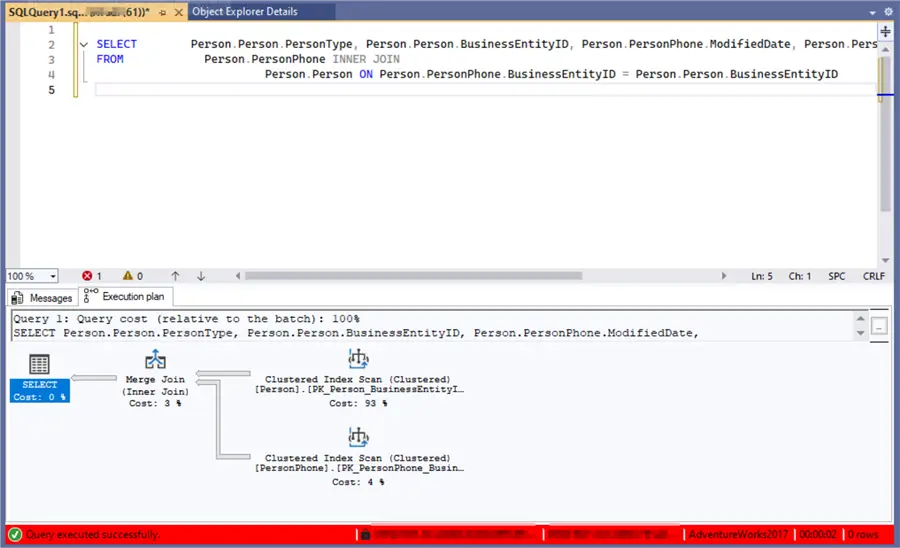
Within the query editor, several options exist to optimize queries. We can visualize the estimated or actual execution plan. Moreover, query statistics can be included.
The execution plan illustrates the sequence of physical operators the database engine needs to perform to execute the SQL query.
SQL Profiler and Database Engine Tuning Advisor
Two powerful external tools included from decades within SSMS: SQL Profiler and the Database Engine Tuning Advisor. They can be accessed via the “Tools” menu.
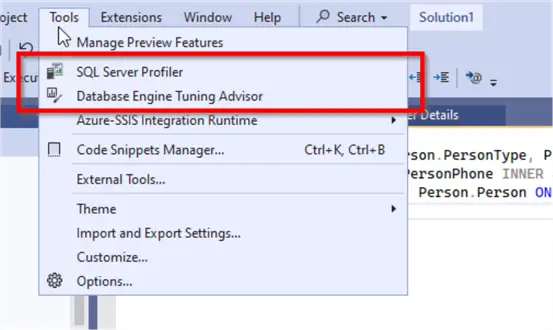
The SQL Profiler is a tool that captures and logs real-time SQL Server events to help monitor and troubleshoot performance issues. The Database Engine Tuning Advisor analyzes workloads and suggests indexes, statistics, and partitioning to improve query performance.
Frequently Asked Questions
No. SSMS is only the tool you use to connect and work with SQL Server. SQL Server can be installed on your local machine. It can also be on another server. The important part is that you know the server name and have the right access. For a basic connection walkthrough see Use SQL Server Management Studio to Connect to Database.
Not always. If you are only connecting to a local SQL Server or a normal database server you can skip the sign in step. You can always add the account later if you need Azure features or Copilot features. For a first setup I would keep it simple and connect to the database first.
First check the server name. Then check the authentication type and the user name. Also make sure the SQL Server service is running. If the instance is on another machine you may also need to check remote connections and firewall settings. This tip goes deeper into the common connection issues: Resolving could not open a connection to SQL Server errors.
Use Windows Authentication when your environment supports it. It is usually easier for domain users because it uses your Windows account. SQL Server Authentication is useful when you need to connect with a SQL login. The right choice depends on how the server was configured and what access you were given.
Tab colors are a simple way to avoid mistakes. I use different tab colors for each environment. Green for development, orange for test and red for production environments. This makes it easier to notice where a query window is connected before running anything. It is not a security feature, but it is a helpful visual reminder.
Yes. The GUI is useful for learning and efficiency in some circumstances. Still, I would not depend on it for everything. Writing T-SQL builds your knowledge and makes your work easier to repeat. For table changes be careful with the designer and review what SSMS is going to do before saving. This older tip is still a useful reminder: Use Caution Altering Tables with SQL Server Management Studio.
No. Query Designer can help when you are new or when you want to build a query visually. You still need to learn the SQL syntax. I would use it as a starting point then review the code and try to understand it. Over time writing the query yourself will be faster.
This can happen when a server has many databases or many objects. Do not expand everything unless you need it. Use filters and Object Explorer Details to search for something specific. Small habits can save a lot of time in SSMS. I would checkout SQL Server Management Studio Time Saving Tips.
After the basics I would learn how to read execution plans. Then look at shortcuts and a few productivity options in SSMS. These are small things, but they help a lot in daily work. A good next step is How to read SQL Server graphical query execution plans.
SQL Profiler is still useful to know, but do so with purpose. It can collect a lot of data. For a simple learning setup it is fine to test and see what events look like. For examples see SQL Server Profiler Examples.
Next Steps
This is a quick overview of SSMS 21, and still there are lots of features that requires hours to explain. You can take the following steps:
- You can check some SQL Server Profiler Examples.
- You can learn more about SQL Server Query Optimization with Database Engine Tuning Advisor.
- You can read about How to read SQL Server graphical query execution plans.
- You can check the SQL Server Management Studio Time Saving Tips.

Hadi Fadlallah is an SQL Server professional with more than 10 years of experience. His main expertise is in data integration. He’s one of Stackoverflow.com’s top ETL and SQL Server Integration Services contributors. Also, he is a university lecturer and writes scientific and technical articles on several blogs. On the academic level, he holds a Ph.D. degree in data science focusing on context-aware big data quality and two master’s degrees in computer science and business computing.
- MSSQLTips Awards: Trendsetter (25+ tips) – 2025 | Author of the Year Contender – 2023 | Rookie of the Year – 2022