Problem
In the article “Install SQL Server 2025 Standard Developer Edition,” we explored the installation of SQL Server 2025 Standard Developer Edition on the Windows platform. SQL Server 2025 (Preview) also works on Linux editions, and it is equally important to cover the installation steps. Let’s see how we can install it on an AWS EC2 instance running Ubuntu.
Solution
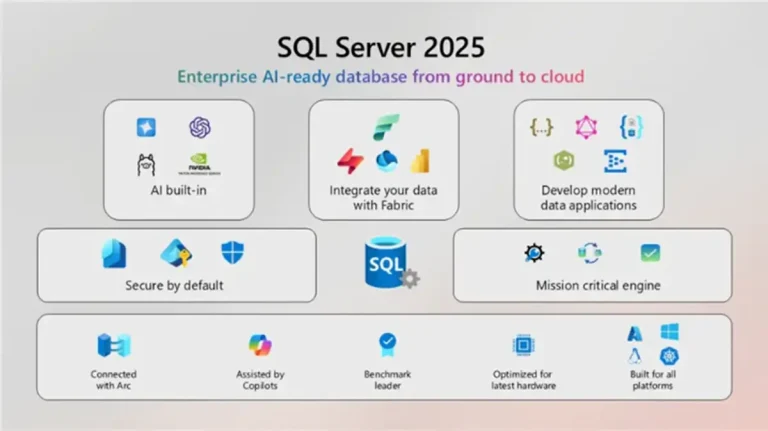
SQL Server 2025 (Preview) integrates relational database capabilities with artificial intelligence technology. You can use SQL Server on both Windows and Linux operating systems. The Linux support systems include Red Hat Enterprise Linux, Ubuntu 22.04, SUSE Linux Enterprise Server 15, or Docker Engine 1.8+ on Linux.
You can use an on-premises virtual machine or a VM/EC2 instance in cloud platforms such as Azure, AWS, and GCP.
This article does the following:
- Create or deploy an AWS EC2 instance running Ubuntu.
- Deploy SQL Server 2025 Preview Developer edition on the EC2.
- Connect to SQL Server 2025 Linux and run queries.
Let’s start with deploying an AWS EC2 instance.
Create or deploy an AWS EC2 instance running Ubuntu
You need to have a subscription to the respective cloud platform to begin deploying resources. For learning purposes, you can configure and start using an AWS free tier account.
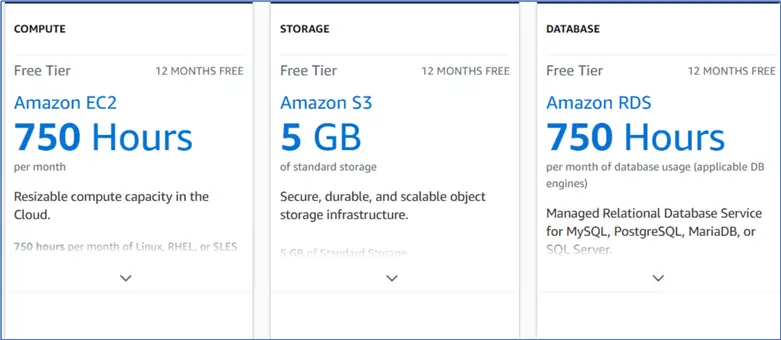
At a high level, this free-tier account provides sufficient resources for learning and deploying resources.
- 750 hours of AWS EC2 Instance
- 5 GB Amazon S3 bucket
- Amazon RDS 750 hours of Usage
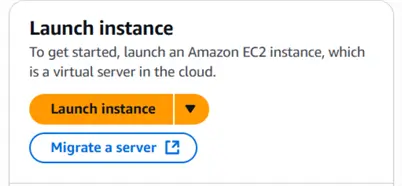
Let’s create an Ubuntu Instance in AWS EC2. In the AWS portal, click on the Launch instance button.
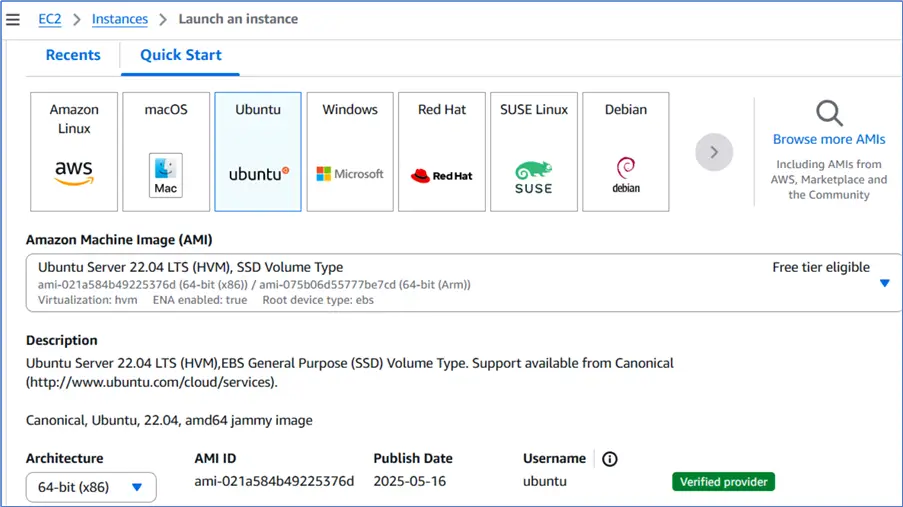
Select the OS image as Ubuntu 22.04. SQL Server 2025 Linux supports Ubuntu 22.04. Refer to the Microsoft docs.
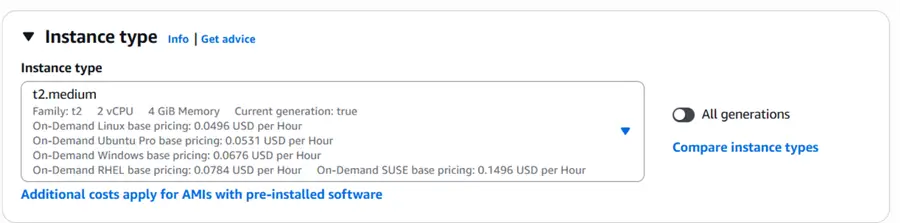
Choose the required instance type with a minimum of 2 vCPU.
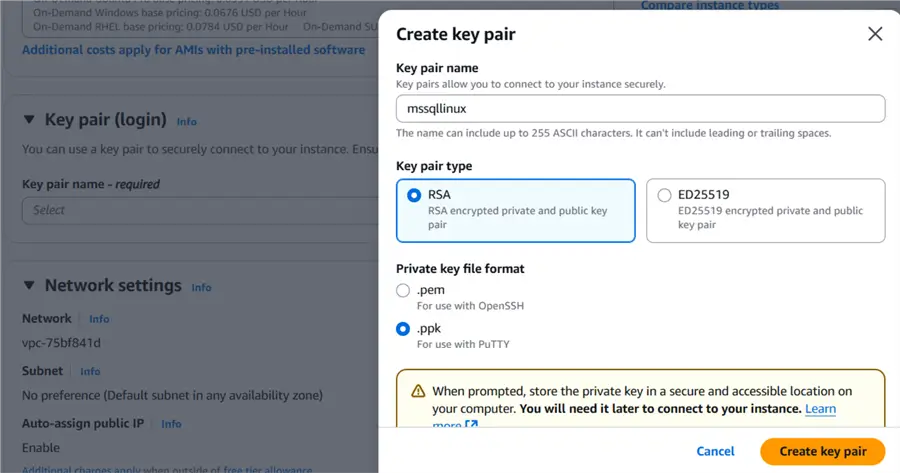
Create a new key pair to connect to the Ubuntu Instance.
Scroll down and choose the required storage. To deploy a test instance and a small DB, I will select 16 GiB of storage.
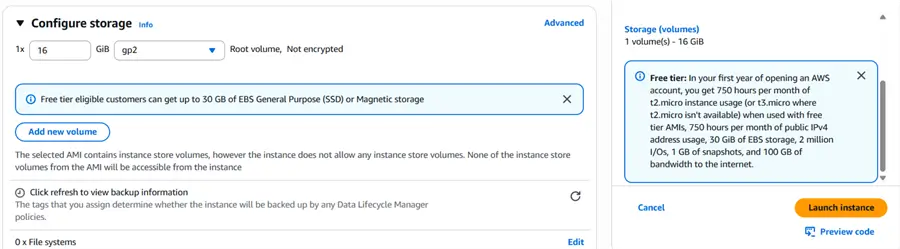
Click on Launch Instance.
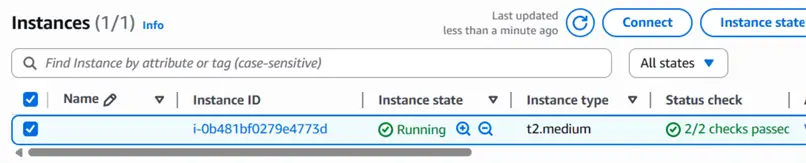
Here, you need to wait for the status to be Running and the status check to show 2/2 checks passed.
Install SQL Server 2025 (Preview) On Ubuntu
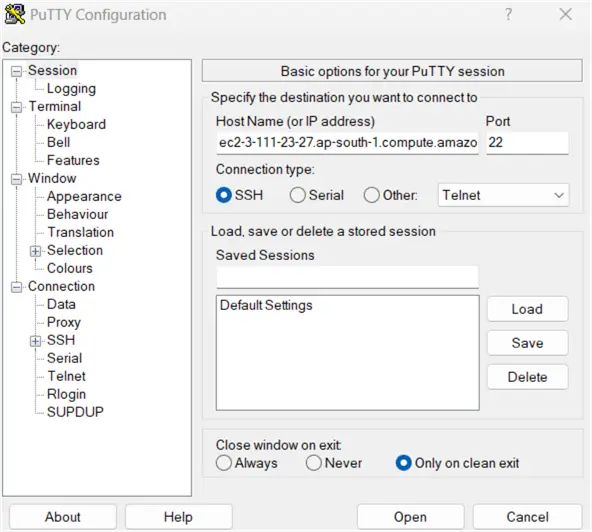
You can open a terminal window or Putty session to initiate a connection to the AWS EC2 Instance.
Enter the Public DNS or IP address from the EC2 Instance portal in PuTTY.
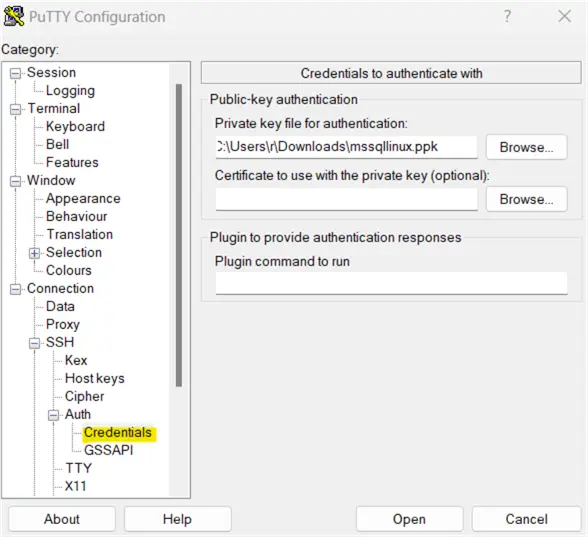
Click on Connection -> SSH -> Auth -> Credentials and supply the private key that was downloaded while creating the key pair in the AWS EC2 launch instance.
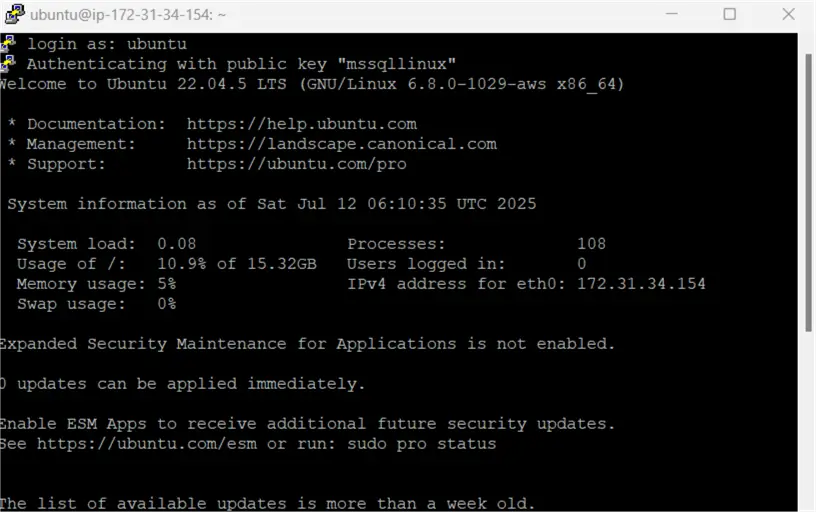
Enter the login name as Ubuntu, and it successfully authenticates with the supplied key.
Download Keys and Register
The command below uses the CURL command to download the public key in the GPG format.
curl -fsSL https://packages.microsoft.com/keys/microsoft.asc | sudo gpg --dearmor -o /usr/share/keyrings/microsoft-prod.gpgRegister the SQL Server 2025 (Preview) for Ubuntu repository.
curl -fsSL https://packages.microsoft.com/config/ubuntu/22.04/mssql-server-preview.list | sudo tee /etc/apt/sources.list.d/mssql-server-preview.list
The following command refreshes the list of available packages and their versions from the configured repositories.
Sudo apt-get update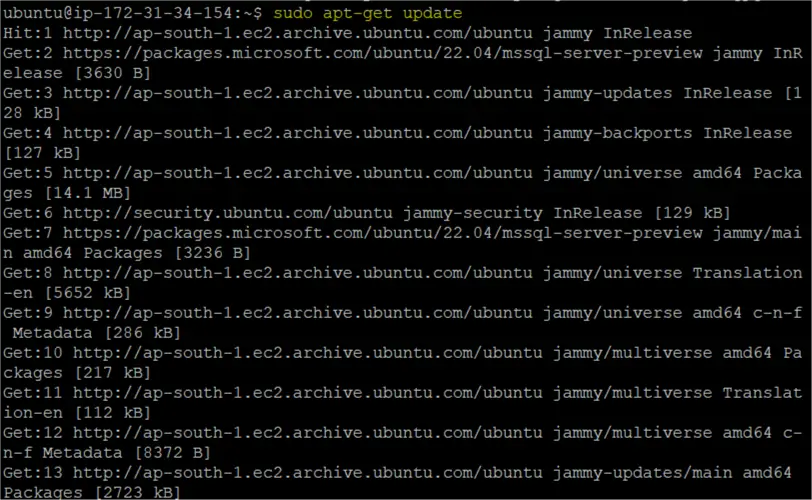
Once the preliminary steps are done, you can install the SQL Server 2025 preview.
sudo apt-get install -y mssql-server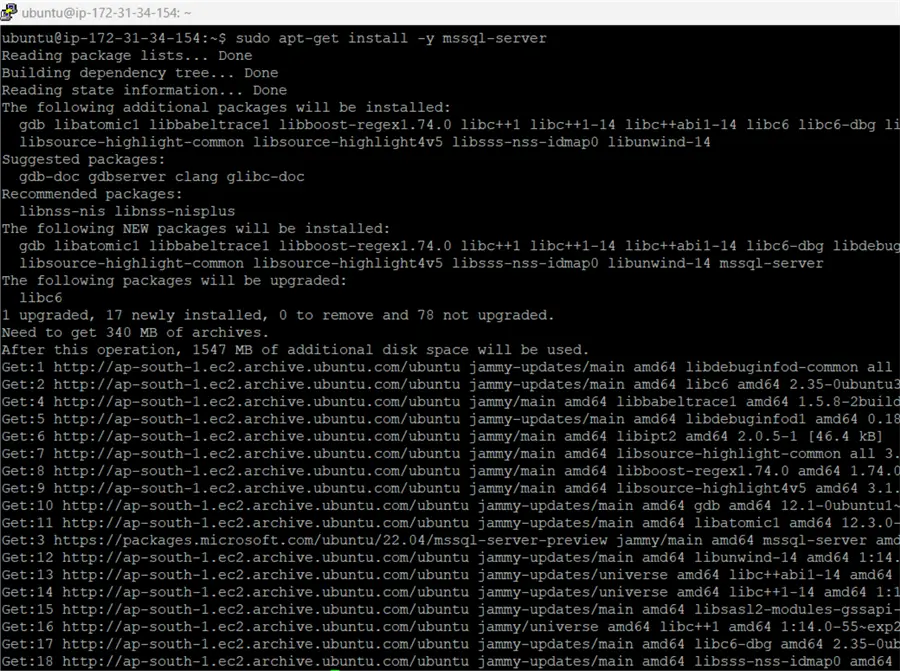
This installs the SQL Server on a Linux machine; however, it is still not ready to use.
SQL Server on Linux uses the mssql-conf utility for configuration of the following:
- Choose the required SQL Server edition. For this article, we will use the Standard Developer edition (3).
- Set SA password
- Accept the license agreement
To launch the SQL Server on Linux configuration, run the mssql-conf command as shown below.
sudo /opt/mssql/bin/mssql-conf setupYou can choose the edition number from the following list:
| 1 | Evaluation |
| 2 | Enterprise Developer |
| 3 | Standard Developer *** New in SQL 2025 |
| 4 | Express |
| 5 | Web |
| 6 | Standard |
| 7 | Enterprise – CPU Core max 20 physical/ 40 hyperthreaded |
| 8 | Enterprise Core |
| 9 | Retail license |
| 10 | Standard (Billed through Azure) |
| 11 | Enterprise Core (Billed through Azure) |
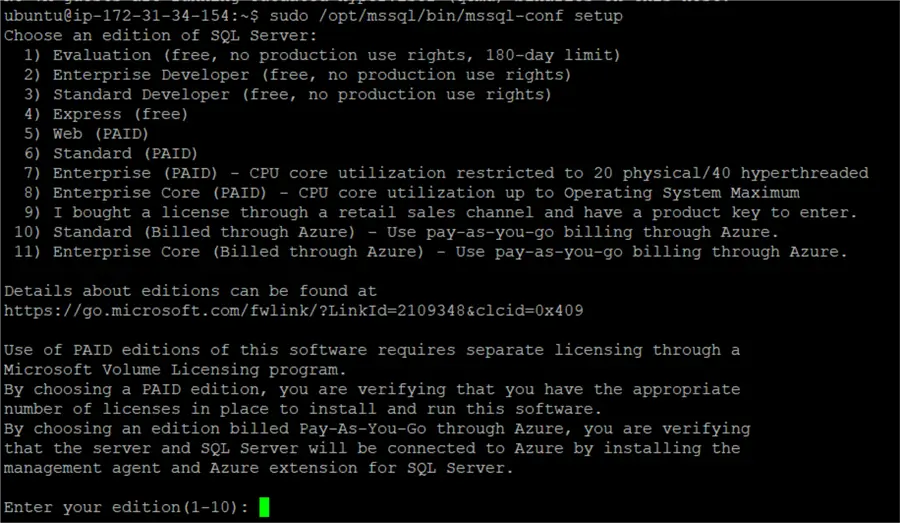
For this tip, I will use edition 3 (SQL Server Standard Developer edition).
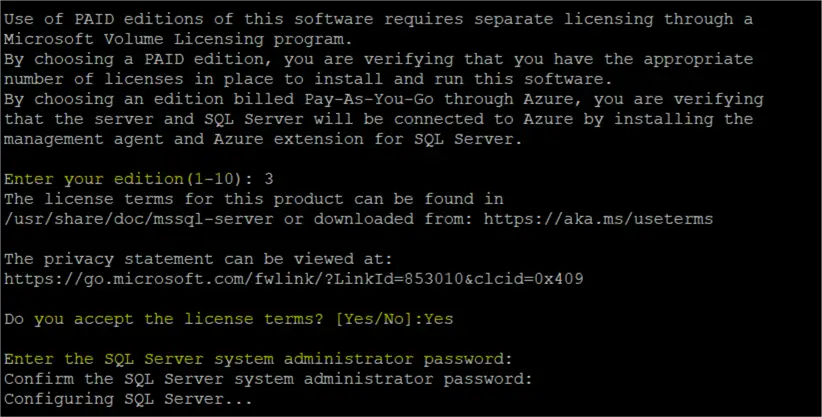
I see the following error message related to the PID. This does not prevent the configuration of the SQL Server. It is associated with Product ID (license key). Please do not confuse it with the Process ID. It might be due to some issues with the SQL Server 2025 Linux preview setup. You can ignore it for now, and I hope it will be fixed in subsequent releases.

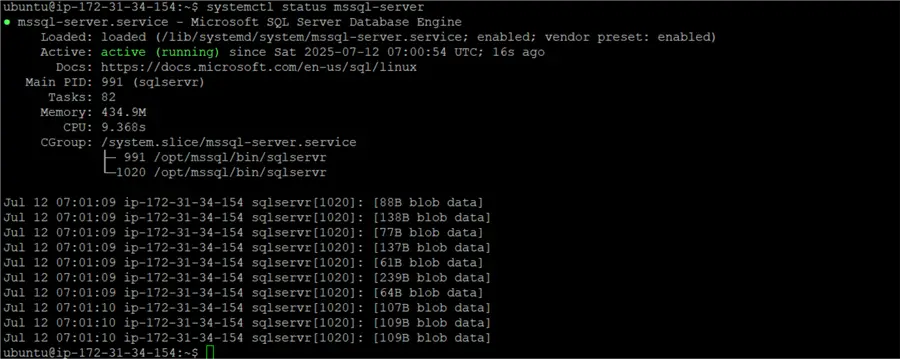
Once the installation is finished, you can check the SQL Service status; it should be active (running). If it is other than this status, you need to investigate the reason for it by checking the SQL Server logs stored in /var/opt/mssql/log.
Install the SQL Server 2025 Linux command-line tools (sqlcmd, bcp)
By default, SQL Server on Linux does not install the sqlcmd and ODBC tools. Sqlcmd is a command-line tool to work with SQL Server on Linux. SSMS installation does not work with Linux. You can use it on a Windows machine to connect to a Linux SQL Server. However, if you want to work on a Linux terminal, you need to have SQLCMD installed.
The first step is to import the public repository GPG keys with the CURL command given below.
curl https://packages.microsoft.com/keys/microsoft.asc | sudo tee /etc/apt/trusted.gpg.d/microsoft.asc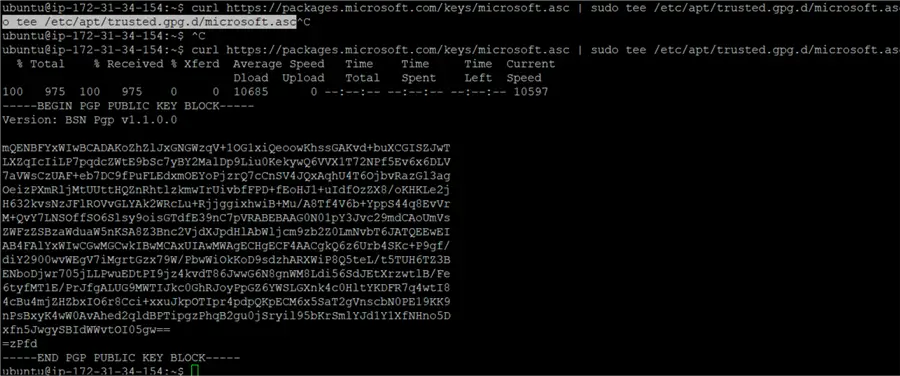
Register the Microsoft Ubuntu <Version> repository.
My setup has Ubuntu 22.04; therefore, I use the following command:
curl https://packages.microsoft.com/config/ubuntu/22.04/prod.list | sudo tee /etc/apt/sources.list.d/mssql-release.listUse the following commands as per your Ubuntu versions:
Ubuntu 20.04
curl https://packages.microsoft.com/config/ubuntu/20.04/prod.list | sudo tee /etc/apt/sources.list.d/mssql-release.listUbuntu 18.04
curl https://packages.microsoft.com/config/ubuntu/18.04/prod.list | sudo tee /etc/apt/sources.list.d/mssql-release.list
Now, you need to update the sources list with the apt-get update command. Also, install the UnixODBC package.
sudo apt-get update
sudo apt-get install mssql-tools18 unixodbc-dev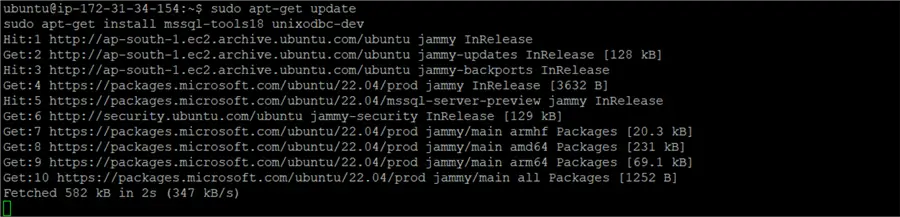
It opens the configuration window for the ODBC. Click on Yes to accept the license terms.

Similarly, accept the license terms for the mssql-tools installation as well on your setup.

Once done, you need to do the following tasks:
- Add /opt/mssql-tools18/bin/ to your PATH environment variable in a bash shell.
echo 'export PATH="$PATH:/opt/mssql-tools18/bin"' >> ~/.bash_profile
source ~/.bash_profile- Modify the PATH in the ~/.bashrc file to make sqlcmd and bcp accessible from the bash shell for interactive/non-login sessions.
echo 'export PATH="$PATH:/opt/mssql-tools18/bin"' >> ~/.bashrc
source ~/.bashrc
At this point, SQL Server on Linux client tools installation is complete.
Connect to SQL Server
Now, we can connect to SQL Server 2025 on Linux locally with sqlcmd.
To connect to SQL Server on Linux remotely, run the following command.
Sqlcmd -S . -U sa- The [.] represents the local server; you can also specify the machine name here.
- -U is for specifying the SQL login user.
- You can specify the password with the -P parameter or press Enter to get a prompt for entering the password of the selected user.
I got a connection failure to SQL Server for an SSL error.

Recently, Microsoft added the option to specify the encrypted connection in SQLCMD 18.0. It accepts the value [s | m | o] for the -N parameter.
- s: It is for strict encryption
- m: Mandatory ( Default)
- o: Optional
For my SQL Server on Linux install, I do not have encryption configured, so I will use -No to connect to SQL Server without encryption.
Sqlcmd -S . -U sa -No It connected successfully to SQL Server on Linux and moved to the 1> prompt.
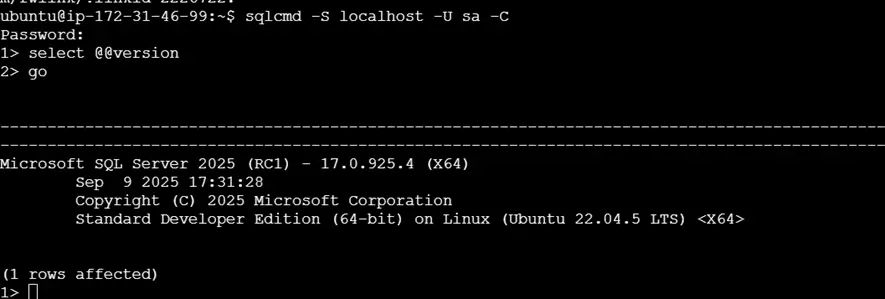
Now, you can verify the SQL Server version using the SELECT @@VERSION command. As shown below, we can see we installed SQL Server 2025 Standard Developer Edition on Linux version.
Next Steps
- Learn more about SQL Server 2025 features.
- Download the SQL Server 2025 preview and start using it to explore features that are exciting for you.
- Stay tuned for detailed tips on SQL Server 2025 features.

Hi! I am Rajendra Gupta, Database Specialist and Architect, helping organizations implement Microsoft SQL Server, Azure, Couchbase, AWS solutions fast and efficiently, fix related issues, and Performance Tuning with over 14 years of experience.
I am the author of the book “DP-300 Administering Relational Database on Microsoft Azure.” I can be reached at: Rajendra.gupta16@gmail.com for any consulting help.
- MSSQLTips Awards:
- Author of the Year – 2022 | Author Contender – 2021/2023/2024 | Champion Award (100+ tips) – 2020