Problem
SQL Server Availability Groups are great for DR and HA purposes. In this article, we look at how to setup a SQL Server 2025 Availability Group using the features in SQL Server Management Studio.
Solution
To setup an Availability Group, this task can be performed using the “New Availability Group Wizard” in SQL Server Management Studio. It can be used for step-by-step pre-configuration and the creation of Availability Group.
Table of contents
Types of Availability Groups and Tools to Create
First, let’s review the types of availability groups and ways AGs can be created before diving into our scenario of creating a traditional AG (single domain-joined, WSFC cluster-based) using the SSMS wizard.
Types of Availability Groups
There are several types of Availability Groups (AG), differentiated based on domain membership:
- Domain-joined (traditional AG setups, distributed AGs)
- Domainless (based on workgroup clusters with certificate-based auth, also Linux)
- Multi-Domain (AGs with replicas in different domains, distributed AGs with AGs in different domains)
Based on cluster membership:
- Windows Server Failover Cluster (WSFC) (traditional AGs, distributed AGs)
- None (domainless AGs, clusterless AGs, read-scale AGs)
- External Cluster (Linux Pacemaker, Kubernetes (Azure Arc))
Based on other factors:
- Basic Availability Groups (SQL Server Standard Edition)
- Distributed Availability Groups (AG of AGs)
- Contained Availability Groups (system databases, logins, jobs, etc. are synced across replicas)
- Read-Scale Availability Groups (no cluster, no listener, no automatic failover, etc.)
For more information on AG capabilities, check out this article – High Availability and Disaster Recovery Options for SQL Server and Azure SQL in the SQL AG section.
Tools for Availability Group Creation
Here is the list of common methods used to create Availability Groups:
- “New Availability Group Wizard” (SSMS)
- “New Availability Group” dialog box (SSMS)
- Transact-SQL
- PowerShell
Our Scenario
Our setup assumes we are using Windows Servers that are joined to domain, the Windows Server Failover Cluster is already created, servers are added as nodes to WSFC, a file share witness has been configured, and we are creating a traditional Availability Group (not a DAG, BAG, or CAG) – using the New Availability Group Wizard in SSMS.
Recap of the setup:
- Domain-joined Servers (AD environment, single domain)
- WSFC-based Cluster
- Traditional AG (two replicas in this example)
- New AG Wizard in SSMS
Here are instructions on how to Install Active Directory Domain Services. Also, here are instructions on how to install Failover Clustering feature and create WSFC. In addition, if here is information on how to implement group-Managed Service Accounts (gMSA) for SQL Server services if you would like to do this too.
Preparation Steps
Before starting the “New Availability Group Wizard”, we need to check a few things:
Configure Firewall
If Windows Defender Firewall is on, it needs to be configured to allow traffic over the following ports between the AG replicas:
- 1433 (Standard SQL Engine port) (specify the correct port if not using the standard port)
- 5022 (Mirroring and HADR endpoint port)
On all servers that will host the AG replicas: Open the “Windows Defender Firewall with Advanced Security” > Inbound Rules > Click “New Rule…”
- Rule Type: select “Port”
- Protocol and Ports: select “Specific local ports”, type “1433,5022”
- Action: “Allow the connection”
- Profile: “Domain and Private”
- Name: “Allow_Inbound_1433_5022_domain_private”
The created rule will look like this:
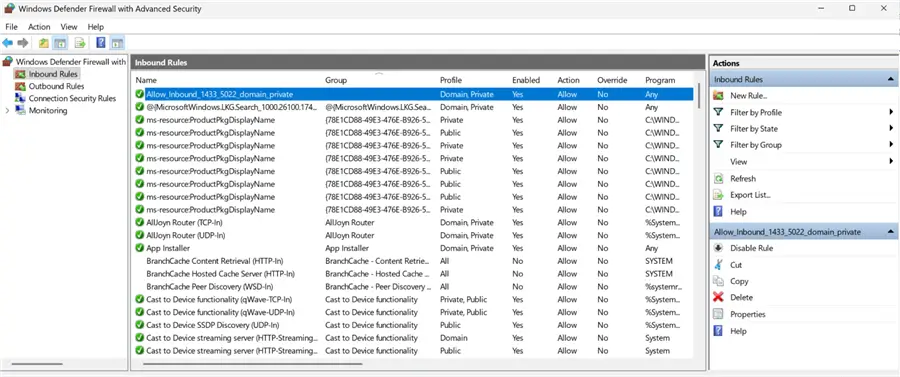
After the rule has been created, you can go to its properties and configure much tighter security, if you wish to.
Similarly, configure any other firewall(s) that control traffic between replicas, if such exist. If you do not have any firewalls and Windows Defender is turned off, most likely you do not need to configure anything.
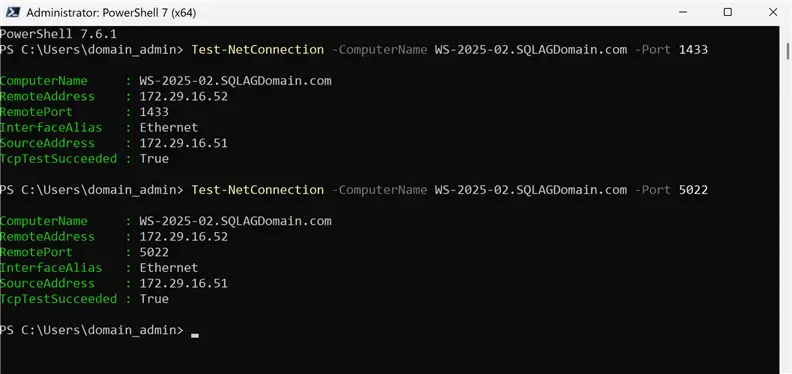
To test if replicas can reach each other, the following PowerShell command can be used:
--MSSQLTips.com (PowerShell)
Test-NetConnection -ComputerName WS-2025-02.SQLAGDomain.com -Port 1433
Test-NetConnection -ComputerName WS-2025-02.SQLAGDomain.com -Port 5022
Just replace the server names in the above example with server names used in your environment. Output should look similar to below, with TcpTestSucceeded equals “True”.
Enable Always On Availability Groups Feature
On each SQL Server instance that will be a replica in the AG, we need to enable the HADR feature.
Open SQL Server Configuration Manager and go to SQL Server Services > right-click SQL Server > Properties > Always On Availability Groups tab > check box “Enable Always On Availability Groups” > click Apply > click OK.
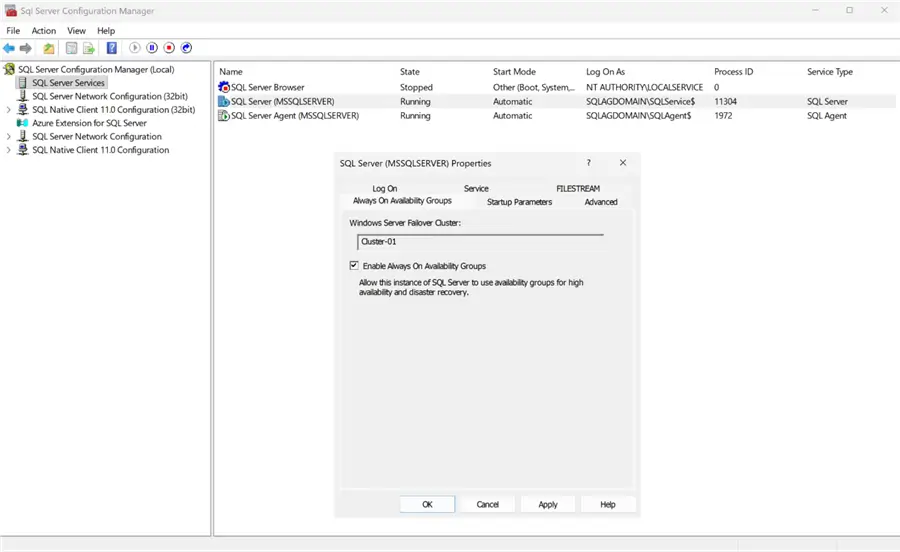
After all AGs have been enabled, the SQL Server instances will need to be restarted to take effect. Restart the SQL Agent service as well.
Perform Full Backups
For all databases that you want to add to the AG, create a full backup and a log backup might be required too. This is needed when automatic seeding is off. Temporarily stop any backup jobs (full, diff, t-log) before running the backups for the AG.
New Availability Group Wizard
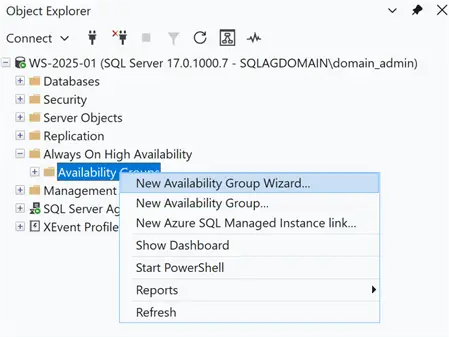
In SSMS’s Object Explorer, connect to the SQL Server instance that is going to be primary replica. Expand “Always On High Availability” folder > right click “Availability Groups” > New Availability Group Wizard…
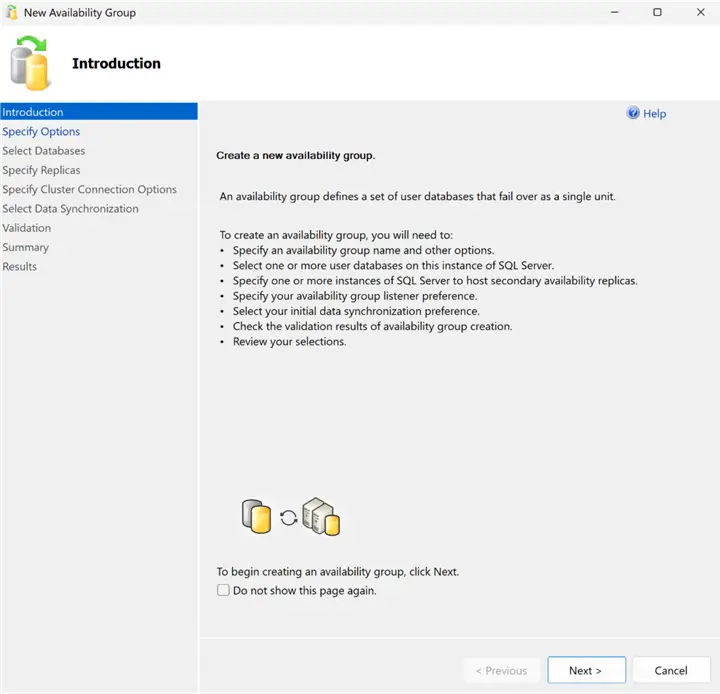
Introduction
This is the introductory screen showing general information about AGs.
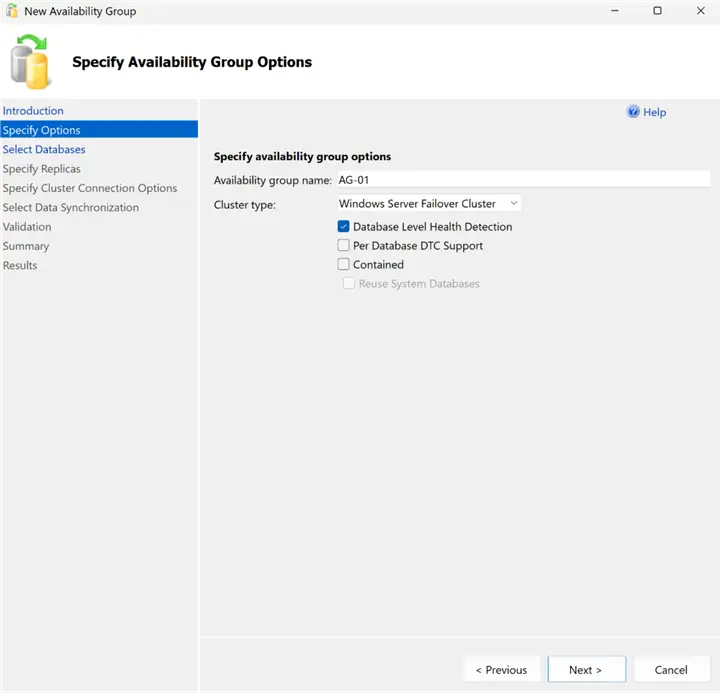
Specify Options
- Availability Group name: specify AG name
- Cluster Type: Windows Server Failover Cluster (according to our scenario, the traditional AG)
Database Level Health Detection: is a feature that automatically triggers failover when ANY database in the AG becomes unhealthy. Database‑level health detection continuously monitors the state of each database in the availability group. If SQL Server detects that a database is no longer online or encounters certain I/O‑related failures, it reports this to the Windows Server Failover Cluster (WSFC), which can then initiate an automatic failover.
Typical conditions that trigger failover include:
- Database enters SUSPECT mode
- Database goes OFFLINE
- Database fails to recover during startup
- Severe I/O failures during log writes or rollback operations
This protects applications that depend on multiple databases – if even one becomes unusable, the AG can fail over to a healthy replica.
So basically, it’s for you to decide the level of sensitivity for failover – whether it is server-level events only, and AG can tolerate issues with particular database, or database events can cause failover, too. In our example, we check this box.
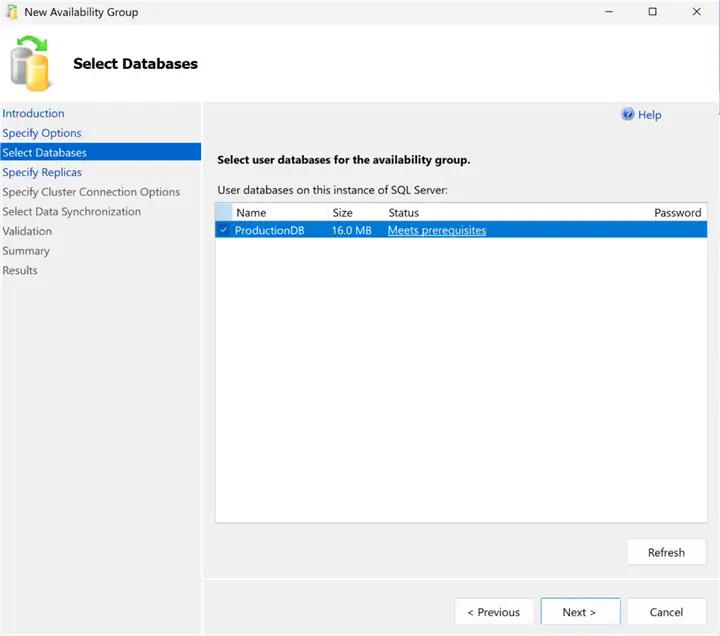
Select Databases
Pick the databases you want to add to availability group. Each database needs to have a full backup performed to meet prerequisites. Also, if the database has a Database Master Key (DMK) encrypted by password, that password needs to be entered into the Password field. This is often encountered in TDE encrypted databases scenarios.
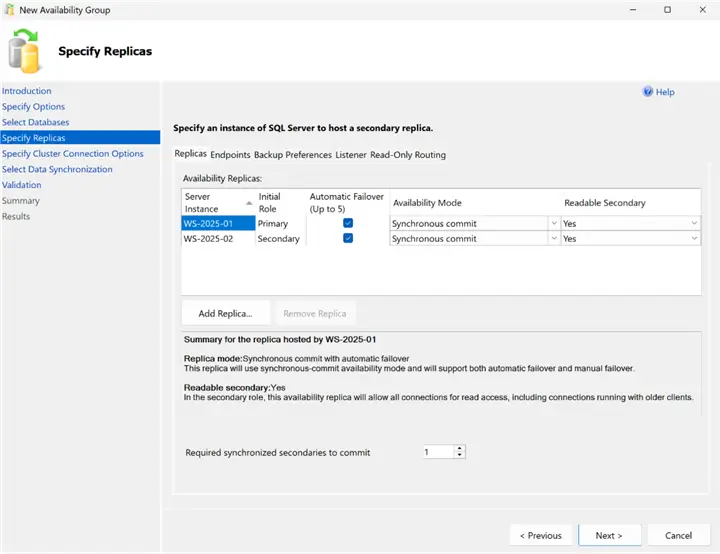
Specify Replicas
Add the servers that will be replicas. Press the “Add Replica…” button.
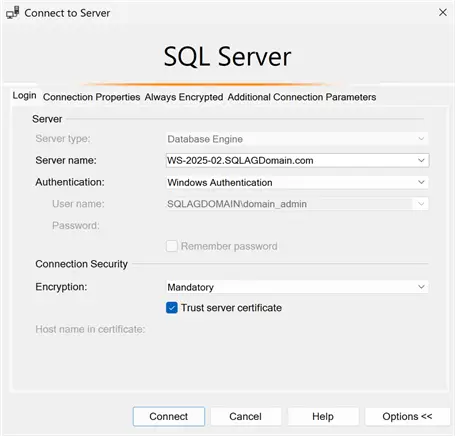
To add replicas, we will need to connect to them. For this, we opened port 1433 (or the port you are using) on all servers before to make sure the connection works.
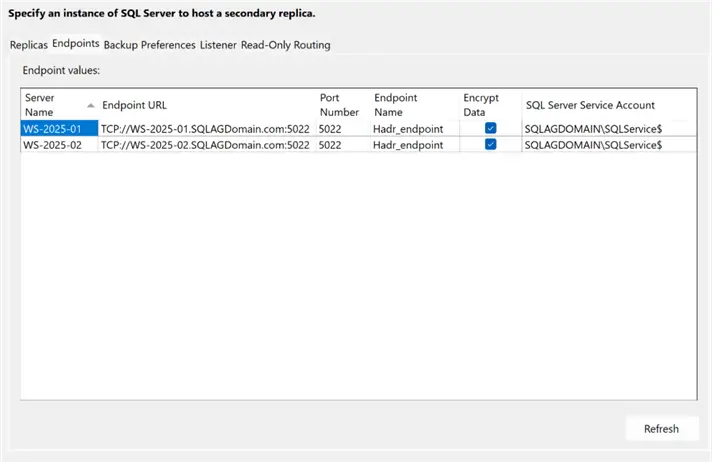
Endpoints:
Here you can view the endpoint information, as well as configure encryption for the data exchange flow.
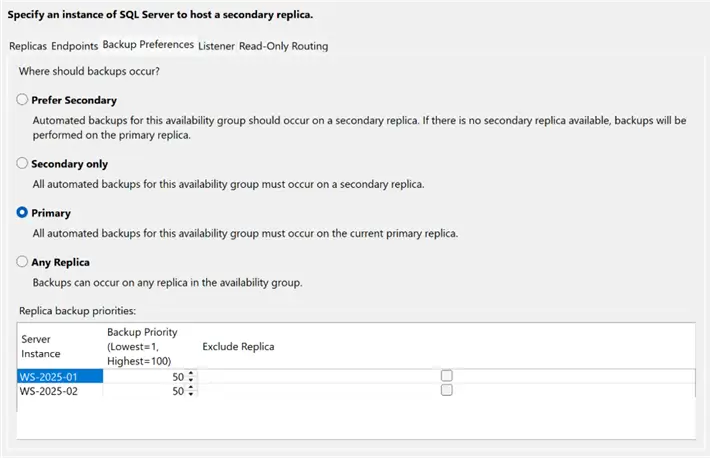
Backup Preferences:
The Backup Preferences are honored by any scripts, tools or features that consider:
- sys.availability_groups DMV (automated_backup_preference)
- sys.fn_hadr_backup_is_preferred_replica() DMF
Backup preferences do NOT effect plain “BACKUP” T-SQL commands that are run ad hoc by users, applications or processes without checking above DMV and DMF.
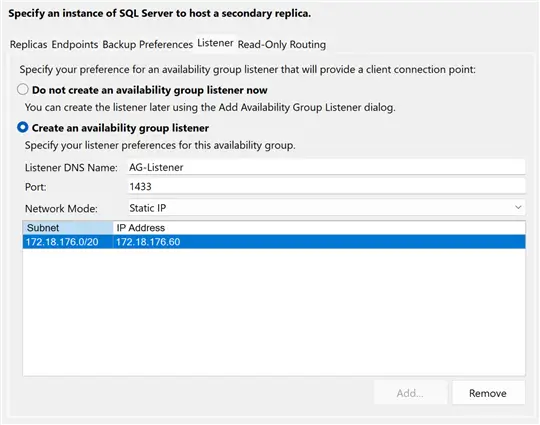
Listener:
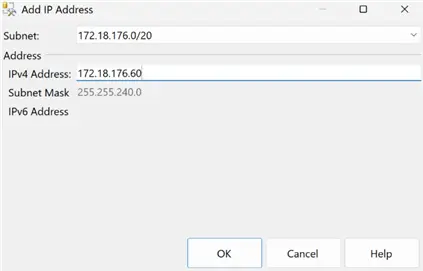
Pick “Create an availability group listener”, specify DNS name, static IP, and the IP address itself.
In our example, IP address for the listener is 172.18.176.60, in your environment it can be any.
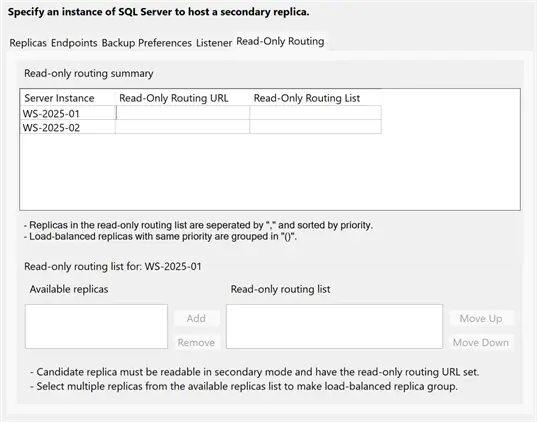
Read-Only Routing:
Here you can configure read-only routing for connections with “ApplicationIntent=ReadOnly” properties
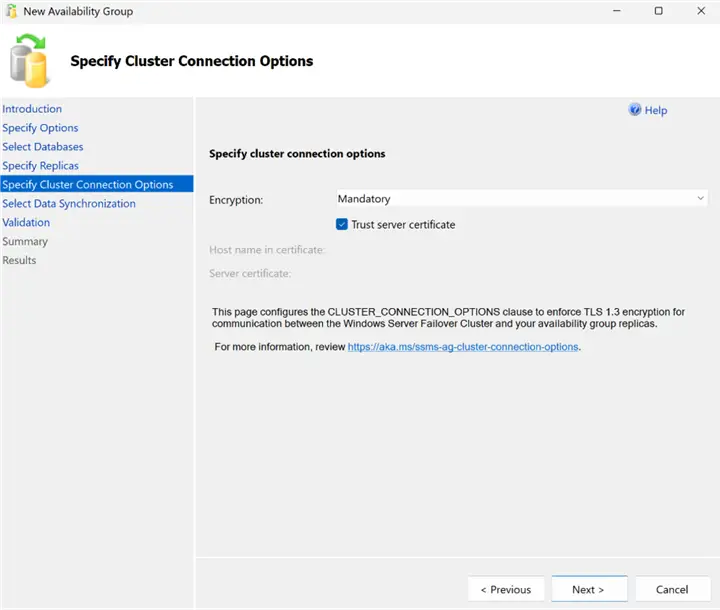
Specify Cluster Connection Options
Encryption – Mandatory and check Trust server certificate.
This way TLS 1.3 encryption will be enforced for communication between WSFC and AG in SQL Server 2025.
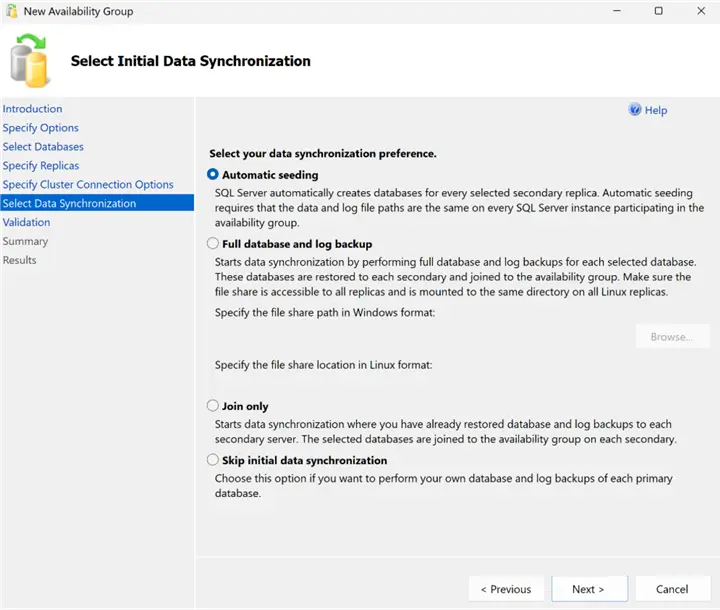
Select Initial Data Synchronization
Here we can configure how secondary replicas will be initially seeded with databases and data. We can select “Automatic seeding”, just make sure the data and log paths are the same on every SQL Server instance that are added. Otherwise, we can add databases to the AG using other methods, for example manual full and log backups and then add databases, using T-SQL or the Wizard itself.
Validation
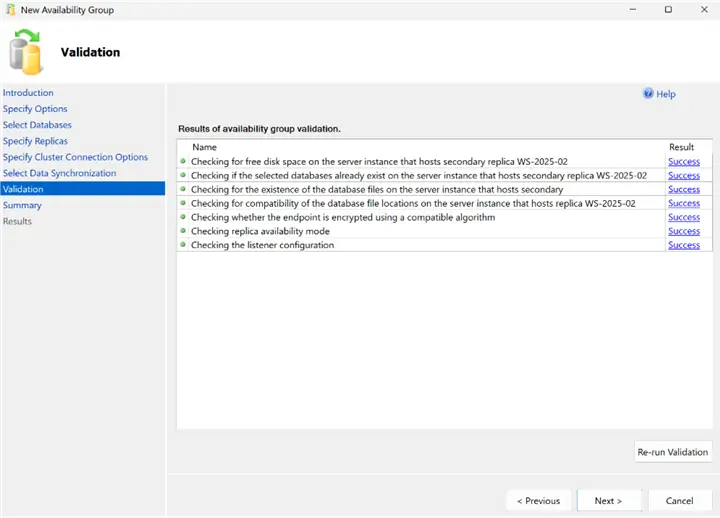
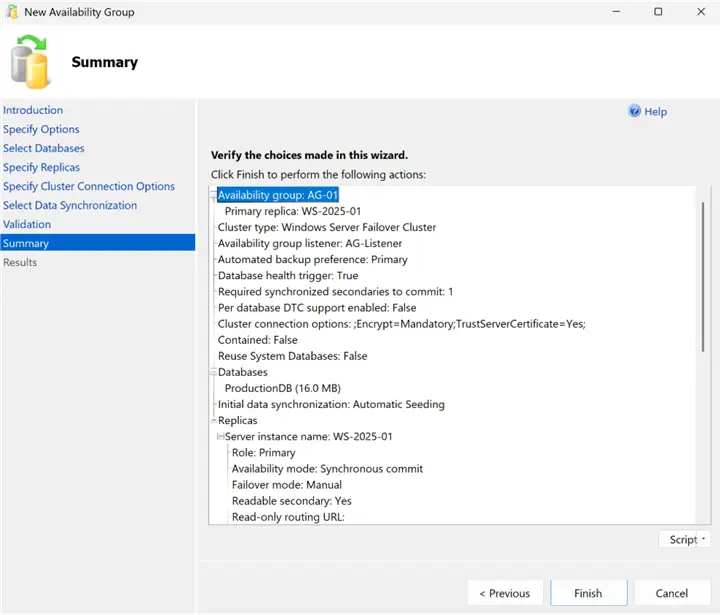
Summary
Review the summary and confirm everything looks correct, press Finish.
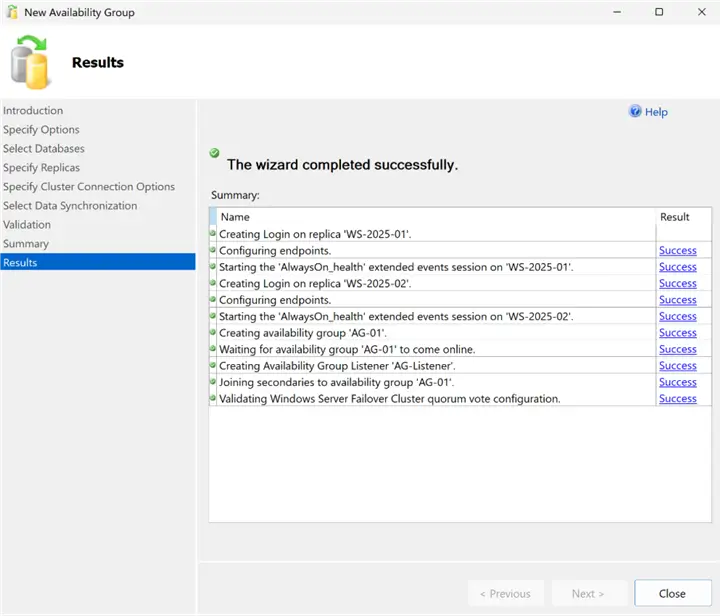
Results
After the AG has been created, review the Results and press Close.
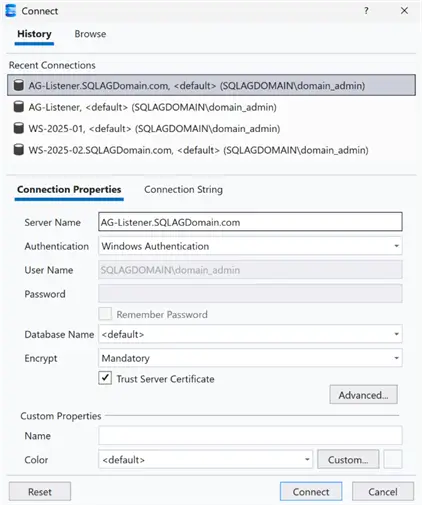
Connecting to Availability Groups
Now that our new AG has been created, we should be able to connect to it:
In Server Name, type the AG full name (in our example, it is AG-Listener.SQLAGDomain.com), specify the proper authentication and/or account, and press Connect.
Monitoring the Availability Groups
There are few common ways to monitor the state and health of Availability Groups and AG databases:
AG Dashboard in SSMS
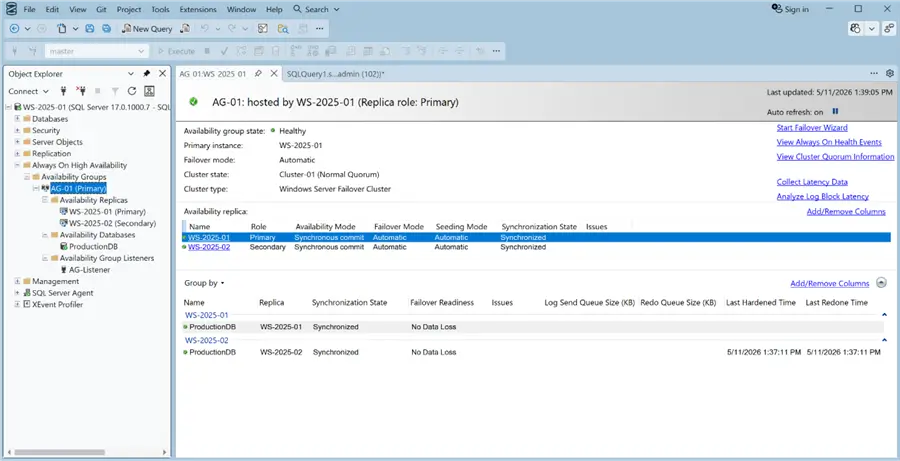
We can view the AG’s status in a Dashboard in SSMS.
Expand the AG folder, right click the Availability Group > Show Dashboard. It shows the status of the replicas, status of individual databases, synchronization state, failover readiness, and so on. It is highly recommended to perform manual failover using the Dashboard in SSMS, not the Failover Cluster Manager.
Failover Cluster Manager
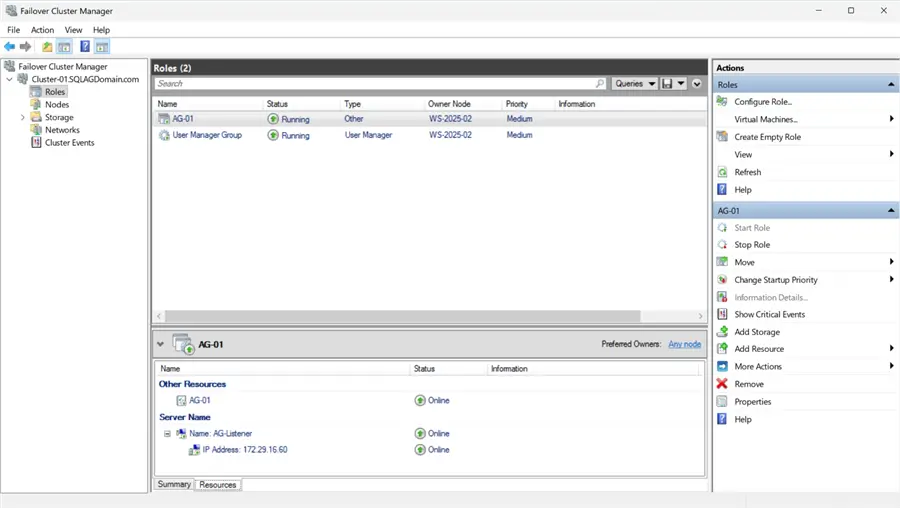
Now we should be able to see the AG Role in Failover Cluster Manager in the Roles folder. We should see its current status, as well as the status and health of its components.
Windows Admin Center
If you have Windows Admin Center (WAC) configured – similarly to Failover Cluster Manager, WAC shows node-level and AG role-level information, and the status of AG role resources – and if they are online and running.
Summary
In this article, we described a way to create a traditional SQL Server 2025 Availability Group (based on domain-joined servers and Windows Server Failover Cluster), using the New Availability Group Wizard in SQL Server Management Studio.
Next Steps
- High Availability and Disaster Recovery Options for SQL Server and Azure SQL
- Azure High Availability and Disaster Recovery Options

Aleksey Vitsko is SQL Server DBA with several years of experience including production database administration, database development, performance tuning, security, high availability and disaster recovery, migrations, and more – both on-premises and in Azure SQL. He has earned these certifications: Microsoft Certified Solutions Associate (MCSA, 2020) and Microsoft Certified: Azure Database Administrator Associate (MCADAA, 2025). He can be reached at voodoosh2@gmail.com for any questions or help.