Problem
In this tip we look at various methods of how to get the start time for a SQL Server instance.
Solution
Here are a few different ways that you can tell when SQL Server was last started.
Key Takeaways
- You can determine the SQL server last restart time using various methods, including sys.dm_os_sys_info.
- Check the SQL Server Error Log for the startup message; ensure the log hasn’t been cycled.
- Use Dashboard Reports in SSMS for a visual representation of the last restart time.
- Windows Event Viewer can also show startup times by filtering for Event ID 17162.
- These methods provide different ways to find the last restart time efficiently.
Method 1: Find Last Start Time for SQL Server using sys.dm_os_sys_info
This DMV, sys.dm_os_sys_info, contains a column that holds the startup time for SQL Server.
You can run the following command to find the start time.
SELECT sqlserver_start_time FROM sys.dm_os_sys_info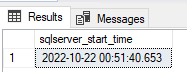
Method 2: Find Last Start Time for SQL Server using SQL Server Error Log
If you open the current SQL Server error log in SSMS under Management > SQL Server Logs and scroll to the bottom of the error log you can see when the server was started. Note the highlighted text below “SQL Server is starting”. You will want to look for this to make sure the error log was not cycled and give you a false impression of the start time.
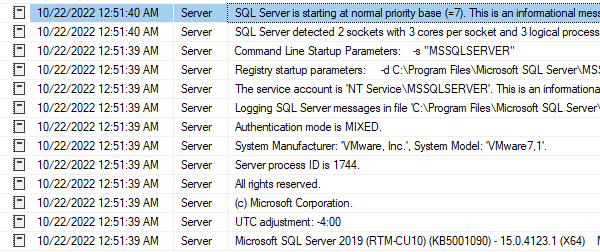
Here is an example of a cycled error log from a different SQL Server instance and note the highlighted text. If you see this you will need to look at a previous error log until you find the log that contains the information in the image above.
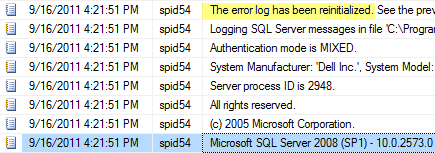
Another message to look for in the SQL Server error log is “This instance of SQL Server has been using a process ID of…” and this will provide the date as follows. This method will be helpful if the error log is recycled. These messages show up around 12AM each day.

Note: if you are running the Express edition of SQL Server you cannot read the error logs directly from SSMS, but you can use xp_readerrorlog or navigate to the folder where the log files are stored and use a text editor to read the SQL Server error log files.
Method 3: Find Last Start Time for SQL Server using Dashboard Reports
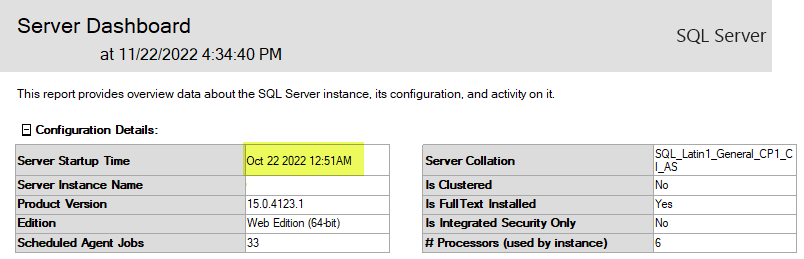
Another option is to use the SQL Server Dashboard Report. Right click on the server name in SSMS and select Reports > Server Reports > Server Dashboard and you will get a report similar to the following.
Method 4: Find Last Start Time for SQL Server using Windows Event Viewer
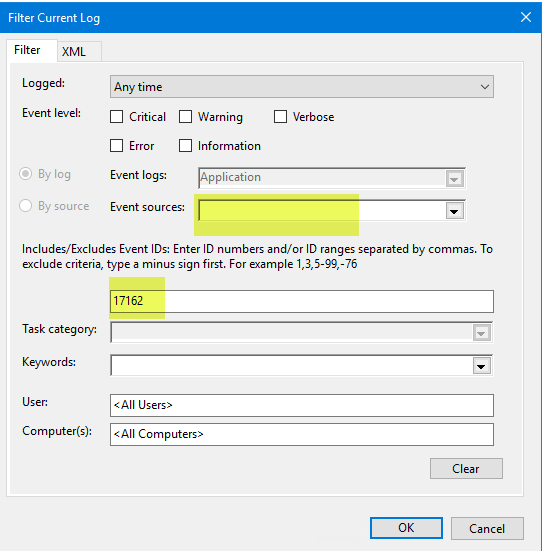
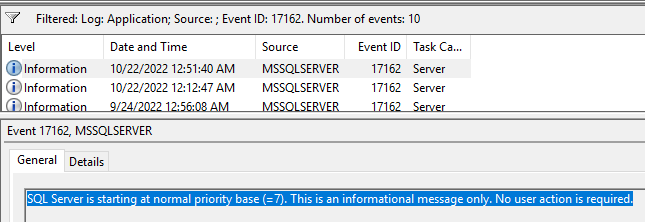
Another option is to use Windows Event Viewer to look for the startup time. If you open Windows Event Viewer and filter Event ID 17162 you will find all occurrences that are in the log. You could also include a value for Event Sources (in our case MSSQLSERVER) for the SQL Server instance and you can find all of the startup times that are still in the Event Viewer log.
Here is a partial listing of the startup times for this instance.
Method 5: Find Last Start Time from when TempDB was Created
TempDB is a SQL Server system database that gets recreated each time SQL Server restarts.
SELECT LastServerRestart = create_date
FROM sys.databases
WHERE name = 'tempdb'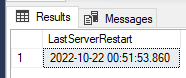
Method 6: Query sysprocesses for the First Login or First Batch
Here is another query that you could use to get the information.
SELECT MIN(login_time) as LastServerRestart1, MIN(last_batch) as LastServerRestart2
FROM sys.sysprocesses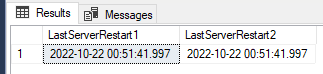
Next Steps
- Hopefully this information comes in handy the next time you want to find out when SQL Server was started.
- I think the DMV is the easiest way.
- The error log method can be used for pretty much any version of SQL Server.
- Thanks to all of the suggestions below. If there are others let me know and we can update the article.

Greg Robidoux has been working with databases for 35+ years with extensive hands on SQL Server experience from version 6.5 to 2025. He has authored over 250 technical articles and delivered several presentations online and at various conventions. Greg is also the President and founder of Edgewood Solutions, a technology services company delivering services and solutions for Microsoft SQL Server.
In terms of minimal typing, I find this to be worth a try, to quickly see the LastBatch of SPID 1 – although not sure if it is 100% reliable…
sp_who2 ‘1’
You can also use DOS command like this
systeminfo | find “System Boot Time”
System Boot Time tells you when the OS last restarted. If SQL Server has been stopped and restarted since then, those won’t be the same.