Problem
How can I generate a SQL Server Agent status report using SQL Server Reporting Services (SSRS)? Where is the data available and what data is available to help me better manage my SQL Server Agent Jobs?
Solution
SQL Server Reporting Services (SSRS) is a great tool that keeps getting better and better. One way we can use SSRS is to generate a SQL Server Agent Job Status report that provides us with details on items such as: last job result status, job description, last run date / time / duration, average duration, job frequency, and next run date / time. This tip is in a similar theme as Koen Verbeeck’s tip on Administrative Intelligence, which describes generating a report that lists out all the tables in various file groups.
Our first step is to retrieve the needed data from the database. Fortunately, several tables / views exist in the msdb database that give us all the data needed to produce a report. These tables include: dbo.sysjobs, dbo.sysjobschedules, dbo.sysschedules, and dbo.syscategories.
We will use the 2014 versions of the AdventureWorks regular and data warehouse databases which are available on Codeplex. Once these sample databases are downloaded and installed, we subsequently initiate several SQL Server Agent jobs to simulate the running of various jobs by the SQL Server Agent. Finally, to generate our report, we will use the SQL Server Data Tools for Business Intelligence (SSDT-BI) for Visual Studio 2013 to develop our report. You can download SSDT-BI from here.
SSRS SQL Agent Job Status Report Setup
So our first step is to create a query to retrieve the data needed for our report. Before diving into the below query it would be good to explore the sysjobs and sysjobschedules tables; Chad Churchwell’s tip, Querying SQL Server Agent Job History Data provides an excellent review of these tables.
SELECT
 SERVERPROPERTY('Servername') AS ServerName
,categories.NAME AS CategoryName
 ,jobs.name
 ,SUSER_SNAME(jobs.owner_sid) AS OwnerID
 ,CASE jobs.enabled WHEN 1 THEN 'Yes' ELSE 'No'END AS Enabled
 ,CASE schedule.enabled WHEN 1 THEN 'Yes' ELSE 'No' END AS Scheduled
 ,jobs.description
 ,CASE WHEN jobs.description ='This job is owned by a report server process. Modifying this job could result in database incompatibilities. Use Report Manager or Management Studio to update this job.' THEN 'Yes' ELSE 'No' END AS ReportServerJob
 ,CASE schedule.freq_type
  WHEN 1 THEN 'Once'
  WHEN 4 THEN 'Daily'
  WHEN 8 THEN 'Weekly'
  WHEN 16 THEN 'Monthly'
  WHEN 32 THEN 'Monthly relative'
  WHEN 64 THEN 'When SQL Server Agent starts'
  WHEN 128 THEN 'Start whenever the CPU(s) become idle'
  ELSE ''
  END AS FequencyType
 ,CASE schedule.freq_type
  WHEN 1 THEN 'O'
  WHEN 4 THEN 'Every ' + CONVERT(VARCHAR, schedule.freq_interval) + ' day(s)'
  WHEN 8 THEN 'Every ' + CONVERT(VARCHAR, schedule.freq_recurrence_factor) + ' weeks(s) on ' + LEFT(CASE
      WHEN schedule.freq_interval & 1 = 1
       THEN 'Sunday, '
      ELSE ''
      END + CASE
      WHEN schedule.freq_interval & 2 = 2
       THEN 'Monday, '
      ELSE ''
      END + CASE
      WHEN schedule.freq_interval & 4 = 4
       THEN 'Tuesday, '
      ELSE ''
      END + CASE
      WHEN schedule.freq_interval & 8 = 8
       THEN 'Wednesday, '
      ELSE ''
      END + CASE
      WHEN schedule.freq_interval & 16 = 16
       THEN 'Thursday, '
      ELSE ''
      END + CASE
      WHEN schedule.freq_interval & 32 = 32
       THEN 'Friday, '
      ELSE ''
      END + CASE
      WHEN schedule.freq_interval & 64 = 64
       THEN 'Saturday, '
      ELSE ''
      END, LEN(CASE
       WHEN schedule.freq_interval & 1 = 1
        THEN 'Sunday, '
       ELSE ''
       END + CASE
       WHEN schedule.freq_interval & 2 = 2
        THEN 'Monday, '
       ELSE ''
       END + CASE
       WHEN schedule.freq_interval & 4 = 4
        THEN 'Tuesday, '
       ELSE ''
       END + CASE
       WHEN schedule.freq_interval & 8 = 8
        THEN 'Wednesday, '
       ELSE ''
       END + CASE
       WHEN schedule.freq_interval & 16 = 16
        THEN 'Thursday, '
       ELSE ''
       END + CASE
       WHEN schedule.freq_interval & 32 = 32
        THEN 'Friday, '
       ELSE ''
       END + CASE
       WHEN schedule.freq_interval & 64 = 64
        THEN 'Saturday, '
       ELSE ''
       END) - 1)
  WHEN 16
   THEN 'Day ' + CONVERT(VARCHAR, schedule.freq_interval) + ' of every ' + CONVERT(VARCHAR, schedule.freq_recurrence_factor) + ' month(s)'
  WHEN 32
   THEN 'The ' + CASE schedule.freq_relative_interval
     WHEN 1
      THEN 'First'
     WHEN 2
      THEN 'Second'
     WHEN 4
      THEN 'Third'
     WHEN 8
      THEN 'Fourth'
     WHEN 16
      THEN 'Last'
     END + CASE schedule.freq_interval
     WHEN 1
      THEN ' Sunday'
     WHEN 2
      THEN ' Monday'
     WHEN 3
      THEN ' Tuesday'
     WHEN 4
      THEN ' Wednesday'
     WHEN 5
      THEN ' Thursday'
     WHEN 6
      THEN ' Friday'
     WHEN 7
      THEN ' Saturday'
     WHEN 8
      THEN ' Day'
     WHEN 9
      THEN ' Weekday'
     WHEN 10
      THEN ' Weekend Day'
     END + ' of every ' + CONVERT(VARCHAR, schedule.freq_recurrence_factor) + ' month(s)'
  ELSE ''
  END AS Occurence
 ,CASE schedule.freq_subday_type
  WHEN 1
   THEN 'Occurs once at ' + STUFF(STUFF(RIGHT('000000' + CONVERT(VARCHAR(8), schedule.active_start_time), 6), 5, 0, ':'), 3, 0, ':')
  WHEN 2
   THEN 'Occurs every ' + CONVERT(VARCHAR, schedule.freq_subday_interval) + ' Seconds(s) between ' + STUFF(STUFF(RIGHT('000000' + CONVERT(VARCHAR(8), schedule.active_start_time), 6), 5, 0, ':'), 3, 0, ':') + ' and ' + STUFF(STUFF(RIGHT('000000' + CONVERT(VARCHAR(8), schedule.active_end_time), 6), 5, 0, ':'), 3, 0, ':')
  WHEN 4
   THEN 'Occurs every ' + CONVERT(VARCHAR, schedule.freq_subday_interval) + ' Minute(s) between ' + STUFF(STUFF(RIGHT('000000' + CONVERT(VARCHAR(8), schedule.active_start_time), 6), 5, 0, ':'), 3, 0, ':') + ' and ' + STUFF(STUFF(RIGHT('000000' + CONVERT(VARCHAR(8), schedule.active_end_time), 6), 5, 0, ':'), 3, 0, ':')
  WHEN 8
   THEN 'Occurs every ' + CONVERT(VARCHAR, schedule.freq_subday_interval) + ' Hour(s) between ' + STUFF(STUFF(RIGHT('000000' + CONVERT(VARCHAR(8), schedule.active_start_time), 6), 5, 0, ':'), 3, 0, ':') + ' and ' + STUFF(STUFF(RIGHT('000000' + CONVERT(VARCHAR(8), schedule.active_end_time), 6), 5, 0, ':'), 3, 0, ':')
  ELSE ''
  END AS Frequency
 ,CONVERT(DECIMAL(10, 2), jobhistory.AverageDurationInSeconds) AverageDurationSeconds
 ,CONVERT(VARCHAR, DATEADD(s, ISNULL(CONVERT(DECIMAL(10, 2), jobhistory.AverageDurationInSeconds), 0), 0), 108) AS AverageDuration
 ,CASE jobschedule.next_run_date
  WHEN 0
   THEN CONVERT(DATETIME, '1900/1/1')
  ELSE CONVERT(DATETIME, CONVERT(CHAR(8), jobschedule.next_run_date, 112) + ' ' + STUFF(STUFF(RIGHT('000000' + CONVERT(VARCHAR(8), jobschedule.next_run_time), 6), 5, 0, ':'), 3, 0, ':'))
  END NextScheduledRunDate
,lastrunjobhistory.LastRunDate
,ISNULL(lastrunjobhistory.run_status_desc,'Unknown') AS run_status_desc
,ISNULL(lastrunjobhistory.RunTimeInSeconds, 0) AS RunTimeInSeconds
,CONVERT(VARCHAR, DATEADD(s, ISNULL(lastrunjobhistory.RunTimeInSeconds, 0), 0), 108) AS RunTime

,lastrunjobhistory.message
FROM msdb.dbo.sysjobs AS jobs
LEFT JOIN msdb.dbo.sysjobschedules AS jobschedule
 ON jobs.job_id = jobschedule.job_id
LEFT JOIN msdb.dbo.sysschedules AS schedule
 ON jobschedule.schedule_id = schedule.schedule_id
INNER JOIN msdb.dbo.syscategories categories
 ON jobs.category_id = categories.category_id
LEFT OUTER JOIN (
 SELECT sysjobhist.job_id
  ,(SUM(((sysjobhist.run_duration / 10000 * 3600) + ((sysjobhist.run_duration % 10000) / 100 * 60) + (sysjobhist.run_duration % 10000) % 100)) * 1.0) / Count(sysjobhist.job_id) AS AverageDurationInSeconds
 FROM msdb.dbo.sysjobhistory AS sysjobhist
 WHERE sysjobhist.step_id = 0
 GROUP BY sysjobhist.job_id
 ) AS jobhistory
 ON jobhistory.job_id = jobs.job_id  -- to get the average duration
LEFT OUTER JOIN
(
SELECT sysjobhist.job_id
 ,CASE sysjobhist.run_date
  WHEN 0
   THEN CONVERT(DATETIME, '1900/1/1')
  ELSE CONVERT(DATETIME, CONVERT(CHAR(8), sysjobhist.run_date, 112) + ' ' + STUFF(STUFF(RIGHT('000000' + CONVERT(VARCHAR(8), sysjobhist.run_time), 6), 5, 0, ':'), 3, 0, ':'))
  END AS LastRunDate
 ,sysjobhist.run_status
 ,CASE sysjobhist.run_status
  WHEN 0
   THEN 'Failed'
  WHEN 1
   THEN 'Succeeded'
  WHEN 2
   THEN 'Retry'
  WHEN 3
   THEN 'Canceled'
  WHEN 4
   THEN 'In Progress'
  ELSE 'Unknown'
  END AS run_status_desc
 ,sysjobhist.retries_attempted
 ,sysjobhist.step_id
 ,sysjobhist.step_name
 ,sysjobhist.run_duration AS RunTimeInSeconds
 ,sysjobhist.message
 ,ROW_NUMBER() OVER (
  PARTITION BY sysjobhist.job_id ORDER BY CASE sysjobhist.run_date
    WHEN 0
     THEN CONVERT(DATETIME, '1900/1/1')
    ELSE CONVERT(DATETIME, CONVERT(CHAR(8), sysjobhist.run_date, 112) + ' ' + STUFF(STUFF(RIGHT('000000' + CONVERT(VARCHAR(8), sysjobhist.run_time), 6), 5, 0, ':'), 3, 0, ':'))
    END DESC
  ) AS RowOrder
FROM msdb.dbo.sysjobhistory AS sysjobhist
WHERE sysjobhist.step_id = 0  --to get just the job outcome and not all steps
)AS lastrunjobhistory
 ON lastrunjobhistory.job_id = jobs.job_id  -- to get the last run details
 AND
 lastrunjobhistory.RowOrder=1
The above query is certainly quite long, but performs several tasks. Let us review the various parts of the query.
- The first few lines return general information about each job:
- Server name
- Category name
- Job name
- Job owner
- Whether the job is enabled
- Whether the job is scheduled
- Job description
- Flag which determines if the job is actually a SSRS subscription job. We will show later in the tip that we excludes these jobs from our report; however if Microsoft ever changes the description of these subscriptions, the query would need to be updated.
- The next many sets of lines are related to the schedule on which the job runs. Note how Microsoft stores the schedule is actually quite complex and uses a bit flag scheme to tag when a job should run (see this MSDN article). Included in this part of the query are the:
- Frequency Type how often? Daily, Weekly, etc.)
- Occurrence (Every x days, weeks, etc.)
- Frequency (Occurs every hh hours)
- Average duration in seconds and in HH:MM:SS format – note only those jobs still in the history are used to complete this calculation
- Next scheduled run date / time
- Details from most recent execution of the job (this data is retrieved from a sub query so we return only the most recent execution of the job)
- Most recent run date / time
- Most recent job run status including Failed, Succeeded, Retry, In Progress, and Unknown (Unknown includes jobs that have never run)
- Most recent run duration in seconds and in HH:MM:SS format
- Most recent run message (at the job level, not step level)

Next we need to begin to create our Status Report by opening SQL Server Data Tools-BI edition (SSDT-BI) to. If you need help creating a SSRS report, I would suggest starting with this SSRS tutorial.

Let me go over what is present on the above report file. The report header on the left side lists the server name and date while the right side shows the report name. The report footer list the page numbers and run time. Inside the main part of the report, we list:
- Job status
- Job name
- Job description
- Job owner
- Enabled flag
- Scheduled flag
- Last run date and time
- Last run duration
- Average run duration
- Next run date and time
- Frequency type
- Occurrence
- Frequency detail
Additionally, we define one parameter. This parameter is a free form field where you will enter the server name for which you would like the backup status report. This parameter could easily be modified, for instance, to retrieve a list of server names from a table that contains a list of all your servers. For this tip, I was trying to make the report somewhat flexible and easy to run.

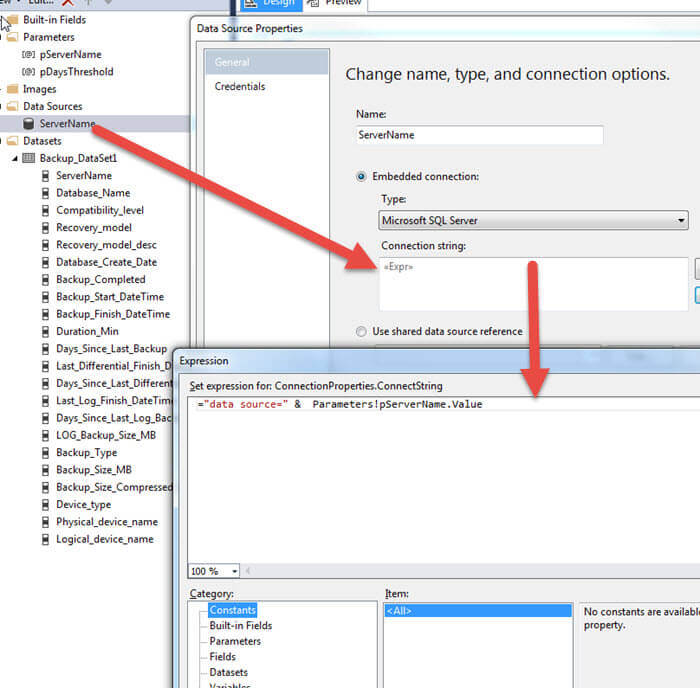
You may be wondering how we make the Data Source dynamically adjust the server to connect to. As shown below, we create an embedded data source with a type of Microsoft SQL Server, and then use =”data source=” & Parameters!pServerName.Value in the connection string. Now the server is dynamically set based on what is input in the Servername parameter.
We next add a tool tip to the Last Run textbox which displays the message status field from our query; this field shows the detailed results from job execution at the job level (not the step level).

We also add conditional formatting to the job status field / row which sets the background color to yellow if the status equals “Failed”, green if the status equals “Succeeded”, and finally Light Steel Blue for all other statuses. Furthermore, if a job has never been run, its status will be “Unknown”; likewise a job could have a status of “In Progress”. In both these cases, the row would use Light Steel Blue as the background color.

Similarly, we add a yellow background / highlight to the last run time duration field if the run time exceeds the average run time by 25% or greater.

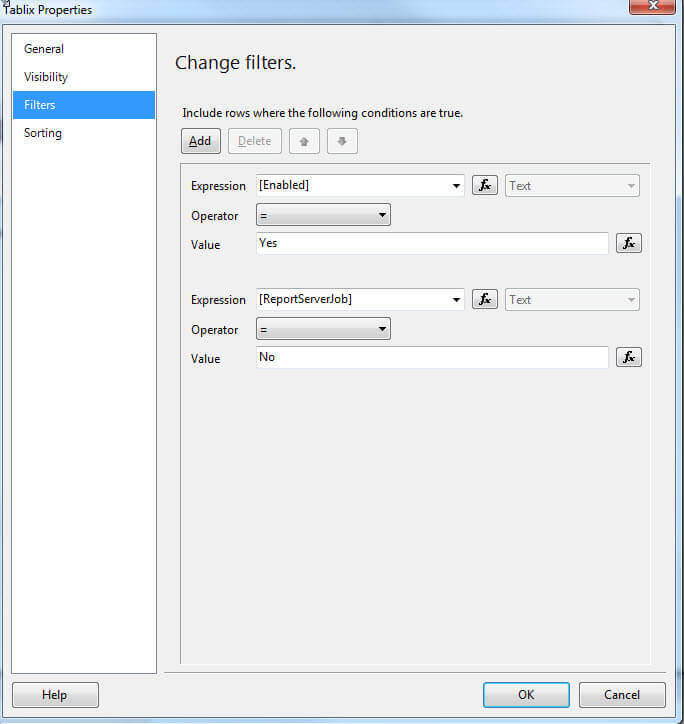
Next to last, we add two filters to the tablix. One filter is set to only include Enabled jobs while the second is used to exclude SSRS subscription jobs (most SSRS subscriptions succeed even if the subscription fails).
Finally, we insert an arrow “Trend” indicator to signify whether the last run time exceeded or beat the average run time duration.

Now we have a quick and easy Job Status Report that we can run against our various servers. Notice the tool tip for the failed job along with the cell background color highlights and the Trend indicator.

A copy of the SSRS RDL file that was used in this tip is available here to download.
Conclusion
In this tip we developed a summary SQL Agent Job Status report that retrieves history information from the msdb database. The query primarily uses the dbo.sysjobs, dbo.sysjobschedules, dbo.sysschedule tables to return fields such as last run date and time, last run status, last run duration, and average run duration. The report itself groups job executions by their status (success, failure, etc.), and then highlights those jobs that take 25% longer than the average to complete. This tip will be the second in a series of sample SSRS reports that can assist with your Administrative Intelligence functions. My next tip will be on an Analysis Services status report.
Next Steps
- Check out these resources:

I have a passion for crafting Business Intelligence Solutions for my user groups. My experience includes almost 15 years of SQL Server involvement with the last 12 years focused specifically on Business Intelligence, SharePoint, OLAP, SSRS, and Decision Support solutions. Currently, I am a Business Intelligence Architect in the healthcare industry, and I also teach database and analytics classes for Kennesaw State University, Southern New Hampshire University, and Reinhardt University. My education includes an MBA and an undergraduate in Accounting (yes I am a reformed accountant!), both from Kennesaw State University. I enjoy every day by trying to grow my faith and spend precious time with my family. I have been happily married to my wife of over 20 years, and we have two teenagers one who we home school with the help of a University Model School, Cornerstone Prep in Acworth, GA (cornerstoneprep.org). Our other child is a Construction Management major at KSU’s Southern Poly / Marietta campus. We are a soccer and Cross Country (XC) family who play, coach, and referee soccer or run for fun most every day. For several years, our family has volunteered (and played with the dogs and cats) at Etowah Valley Humane Society in Cartersville, GA.
- MSSQLTips Awards: Champion (100+tips) – 2016 | Author of the Year – 2015 | Author Contender – 2014, 2016-2021


