Problem
In a previous article, SQL Server Management Studio (SSMS) 20 New Features and Functionality, we discussed the future roadmap of SSMS 21 and specified that it will migrate to the Visual Studio 2022 shell. Recently, Microsoft released the preview of SSMS 21. This tip explores the features and enhancements that will make transitioning to the SSMS 21 worthwhile.
Solution
Microsoft has continuously revolutionized SSMS for SQL data professionals to work with SQL Server on-premises or in the cloud. Earlier SSMS versions used the Visual Studio 2015 Shell. SSMS 21 is based on Visual Studio 2022 (64-bit), so it can use the new features integrated with Visual Studio.
System Requrirements
First, check the following table for the supported and unsupported operating systems.
Supported Operating Systems:
| Operating System | Editions |
|---|---|
| Windows 11 | Home, Pro, Pro Education, Pro for Workstations, Enterprise, and Education |
| Windows 10 | Home, Professional, Education, and Enterprise |
| Windows Server 2022 | Standard, Datacenter |
| Windows Server 2019 | Standard, Datacenter |
| Windows Server 2016 | Standard, Datacenter |
Unsupported Operating Systems:
| Category | Details |
|---|---|
| 32-bit and ARM32 OS | Not supported. |
| Windows 11 (S mode) | Home in S mode, Windows Enterprise IoT |
| Windows 10 Editions | IoT Core, Enterprise LTSC, Windows 10 S, Windows 10 Team Edition |
| Windows Server Options | Server IoT, Minimal Server Interface options |
| Containers | Windows containers |
| Virtual Environments | Running without a full Windows OS in VMs |
| Application Virtualization | Microsoft App-V, MSIX, or third-party app virtualisation technologies |
| Multiple simultaneous Users on Same Machine | Shared virtual desktop infrastructure, pooled Windows Virtual Desktop host |
Note: You need administrator rights for SSMS 21 Preview installation.
Hardware Requirements:
| Component | Details |
|---|---|
| Processor | x64 processor; Quad-core or better recommended. ARM64 and ARM32 processors are not supported. |
| RAM | Minimum: 4 GB. Recommended: 16 GB |
| Hard Disk Space | Minimum: 20-50 GB. SSD is recommended for best performance. |
| Video Card & Resolution | Minimum resolution: WXGA (1366×768). Best experience: 1920×1080 or higher. |
| Display Scaling | The minimum resolution assumes 100% zoom, DPI, and text scaling. Scale adjustments are required for higher DPI. |
Download and Install SSMS 21
After satisfying the system requirements, you can download the 4.2 MB Download SSMS 21 Preview bootstrapper file.

When you click on the vs_SSMS bootstrapper file, Visual Studio Installer launches with hyperlinks to Microsoft privacy and software license terms.
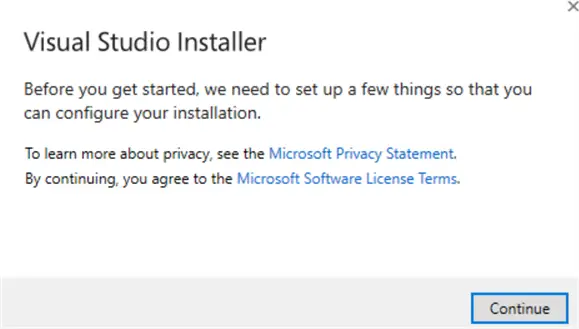
Press Continue to prepare the Visual Studio installer.
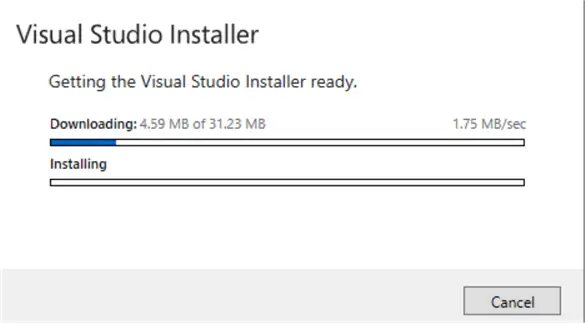
It launches the following screen with four tabs:
- Workloads
- Individual components
- Language packs
- Installation locations
Workloads

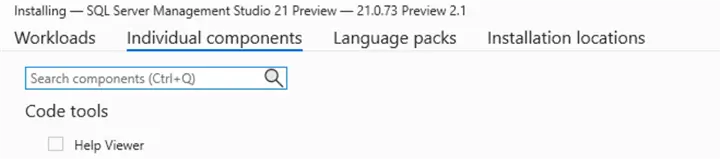
Individual Components
Currently, the Individual components section shows just the help viewer.
Language Packs
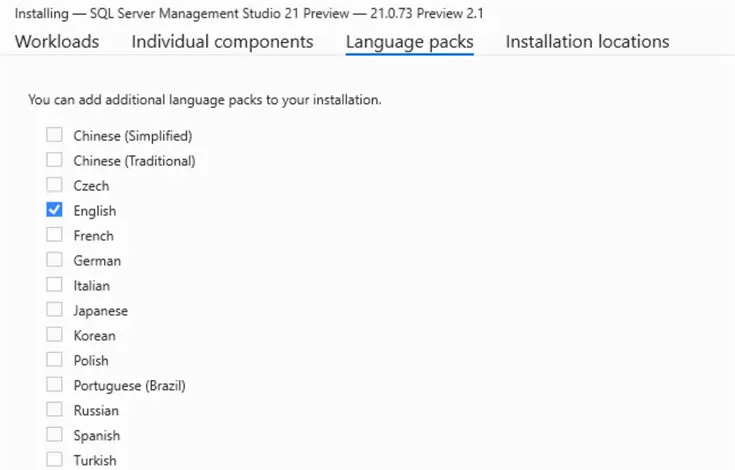
Language packs give you options to add additional languages for the installation.
Installation Locations
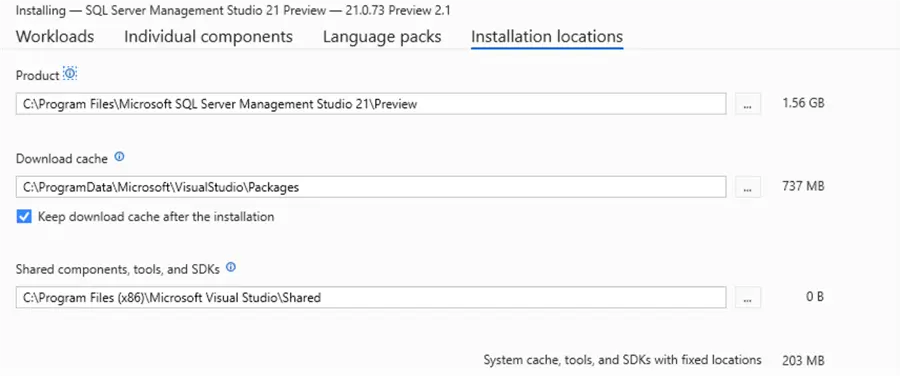
The installation locations give flexibility for users to select the directories for the following:
- Product: Approx 1.56 GB space requirement.
- Download cache: Approx 737 MB space requirement.
- Share components, tools and SDKs: Approx 203 MB space requirement.
Install Options
At the bottom of the Visual Studio installer, you can select “Download all, then install” or “Install while downloading”. The overall space requirement is 3.71 GB.


Download Process
Here, I am using the “Download all, then install” option. As shown below, it starts downloading the SSMS21 preview setup. You can pause the download and resume it later if necessary.

After some time, a pop-up message will appear that Visual Studio has been successfully installed. It does not say SSMS was installed.

SSMS Screens
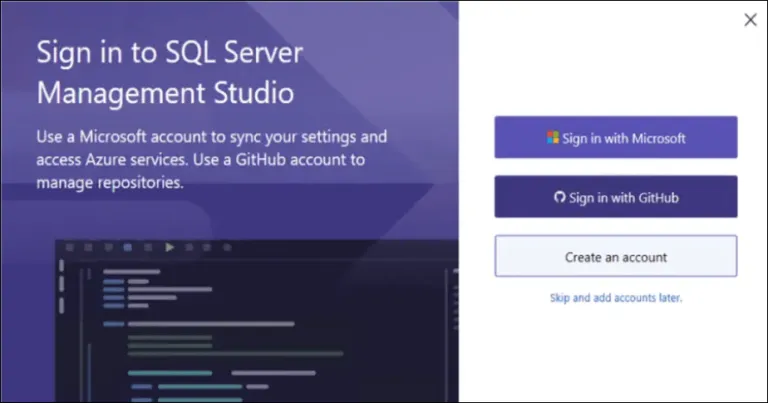
Click Launch on the prior screen and you get the SSMS 21 screen.

It does not directly launch SSMS for the connection. SSMS 21 has an option for syncing settings across devices and integrating seamlessly with Azure Services.
You can do the following on this page:
- Sign in with a Microsoft account.
- Sign in with GitHub.
- Create an account.

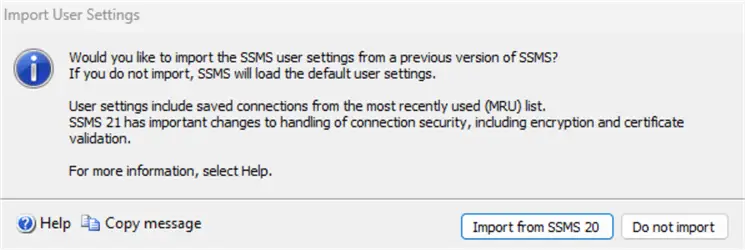
However, sign-in is not mandatory; click Skip this for now to launch SSMS 21. If necessary, you can import the SSMS user settings from older versions of SSMS.
Changes from SSMS 20 to SSMS 21
Icon
If you search for the SQL Server Management Studio keyword in the start menu, you can distinguish the icon change between SSMS20 and SSMS21.

Menus
If we compare the SSMS 20 and 21 menu bars, many things are removed, added, and simplified:
- Removed the MDX\DMX\XMLA\DAX section.

- Added the Git list for working with the repository.

Search Capability
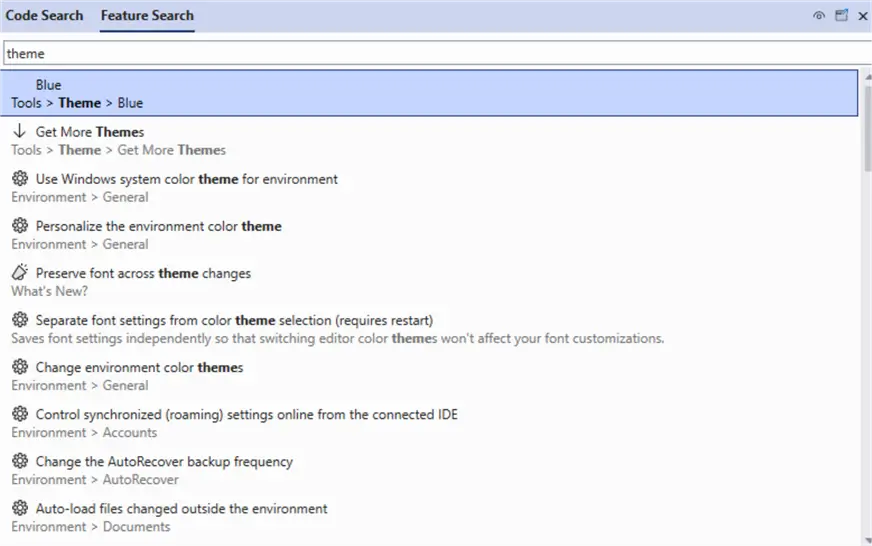
SSMS21 has a search at the top, and it has two options: Code Search and Feature Search.

Suppose you want to find a way to turn the line numbers on or off in SSMS. You do not need to search online; type the keyword, and it will show all available options, as shown below.

Similarly, the Feature Search below shows the options related to the theme keyword in SSMS21.
The Code Search helps you find the codes for a specific string in a file, folder, or repository.

We can further narrow down the searches. For example, the following search only shows the file names for the specific string.
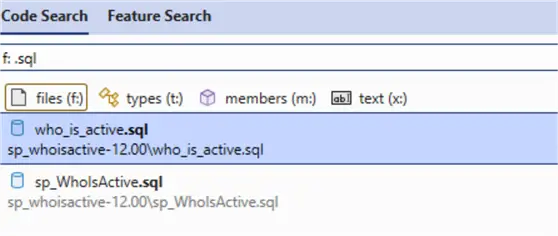
We can ignore the types and members options from the code search; they do not seem suitable for SQL codes.
Tab Layout
Usually, developers or administrators keep many tabs open to switch between them as required. In SSMS 20 or prior, we must select the tabs or sessions from a vertical list. SSMS 21 helps organize these tables in multiple rows, as shown below.

To use this multiple-row format, click on the option Show Tabs in Multiple Rows, as shown below.

Another change is to choose the tab’s position. By default, opening the new query window shows the tab at the top and the query window below.

You can configure this tab to be placed on the left or right position. Right-click on the tab window and go to Set Tab Layout. The figure below shows the default option, Place Tabs on the Top.

Let’s click the option – Place Tabs on the Right – to see the difference.
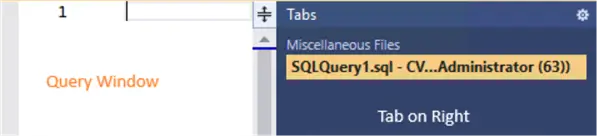
Similarly, the following figure shows the changes with the option – Place Tabs on the Left.

Database-Scoped Options
SSMS 21 includes a new configuration window for database-scoped options. It consists of a list of supported database-scoped operations and their values for Primary and Secondary. You get these database-scoped configurations under the Configurations tab of database properties.

Next Steps
- Go through the SSMS 21 release notes for detailed information.
- Explore existing tips on MSSQLtips.com for database administration and development.
- Check out these additional SSMS articles.

Hi! I am Rajendra Gupta, Database Specialist and Architect, helping organizations implement Microsoft SQL Server, Azure, Couchbase, AWS solutions fast and efficiently, fix related issues, and Performance Tuning with over 14 years of experience.
I am the author of the book “DP-300 Administering Relational Database on Microsoft Azure.” I can be reached at: Rajendra.gupta16@gmail.com for any consulting help.
- MSSQLTips Awards:
- Author of the Year – 2022 | Author Contender – 2021/2023/2024 | Champion Award (100+ tips) – 2020


Nice one
Do people really work with that many tabs open, that would drive me crazy.
All this but it still does not save my unnamed file like VSCode does. Am I silly to have this expectation?
The best thing about SSMS 21 is that it remembers to trust the server certificate between restarts. SSMS 20 doesn’t to that.
Also a great dark theme.