Problem
In Power Apps, a Combo Box is particularly useful when creating interactive and dynamic applications or forms. When fields are represented in Power Apps in a Combo Box (or a Dropdown), the values may not be sorted in a way that end users would find user-friendly. You might need to ensure these fields are sorted alphabetically (text field) or ascending/descending (numerical field), although the latter also applies to text fields.
Solution
For demo purposes, this tip assumes you are getting your data sourced from a SharePoint List. However, the concept remains the same for other data sources. It is also assumed that:
- You have connected to your data source in Power Apps.
- You have added the fields into a Combo Box or a Drop Down in the Power Apps Edit Form.
Now that all the above is complete, and you only need to sort the values in the Combo Box or Drop Down, the example below shows what we are trying to achieve.
In this demo, I have 4 Combo Boxes (UK_Cities, Football_Clubs, Tiers, and Numbers) and a Drop Down, as seen in the image below.

The unsorted choice values in the “UK_Cities” box are seen in the image below. This can be difficult for end users.

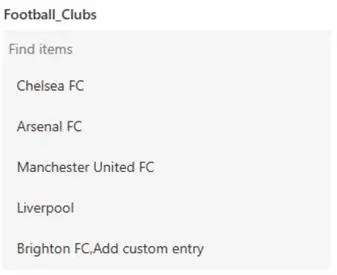
The “Football_Clubs” box is also shown below. It’s not sorted either.
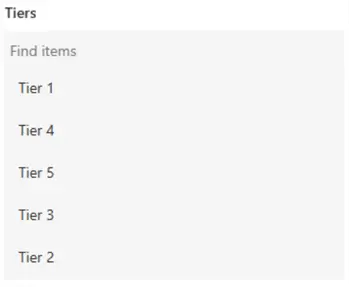
Similarly, we have string values in the “Tiers” Combo box below. Again, it’s not sorted.
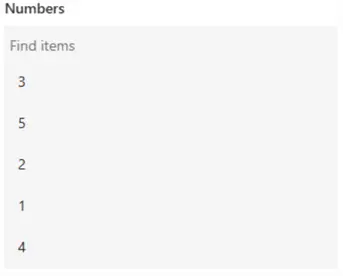
The next combo box, seen below, is “Numbers,” which contains numbers that aren’t sorted.
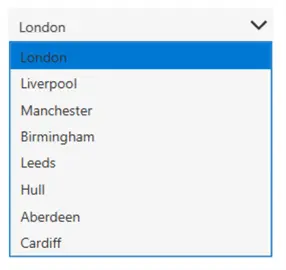
The only Drop down is set to use the values from the “UK_Cities,” but again, is not sorted, as seen in the image below.
Two factors play into why I am using several combo boxes and a drop down in this demo:
- The data type of the choice values; and
- The current expression in the Items settings of each combo box or drop down.
Configure Combo Boxes
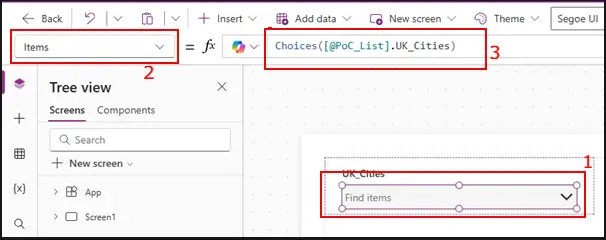
UK_Cities:
- The data type is text data.
- The current expression in its Items settings is ‘Choices([@PoC_List].UK_Cities)’ as seen in the image below.
- This is the same for the Drop Down, since it is populated with the Item property of this field.
Football_Clubs:
- The data type is text data.
- The current expression in its Items settings is ‘Split(Concat(Choices([@PoC_List].Football_Clubs), Value, “, “) & “,Add custom entry”, “, “)’ as seen in the image below.
- This is done to show when there has been an existing expression in the Items setting for another purpose other than sorting.

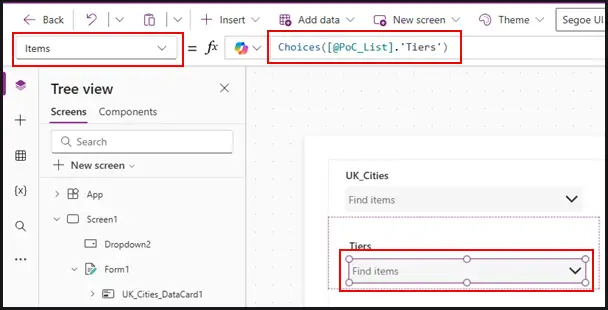
Tiers:
- The data type is a string type.
- The current expression in its Items settings is ‘Choices([@PoC_List].’Tiers’)’ as seen in the image below.
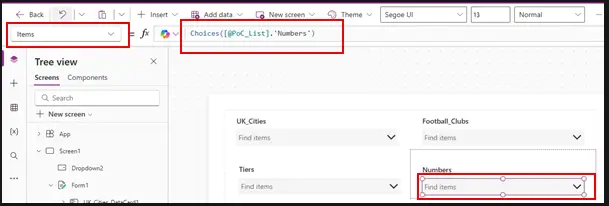
Numbers:
- The data type is integers or numeric.
- The current expression in its Items settings is ‘Choices([@PoC_List].’Numbers’)’ as seen in the image below.
Sorting Combo Box Values
Now that we understand how to view and interpret the choice values in both the Combo Boxes and Drop Down and why they are not sorted, I will show an easy way to sort the information as required.
Let’s leverage two Power Apps functions – Sort and Value.
- Sort Function Syntax: Sort (Table, Formula [, SortOrder]). As with most programming or expression languages, any value in square brackets is optional.
- Value Function Syntax: Value (String [, LanguageTag]).
Applying the Sort and Value functions on the Item property of the “UK_Cities” combo box will look like the following, with an output like the image below:
Sort (Choices([@PoC_List].UK_Cities), Value)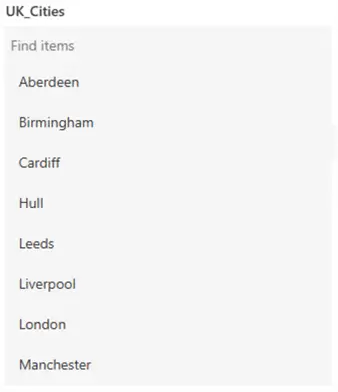
For “Football_Clubs,” which already has some additional formulas when used in the canvas app, we can apply Sort and Value as follows, and the output is seen in the image below:
Sort (Split(Concat(Choices([@PoC_List].Football_Clubs), Value, ", ") & ",Add custom entry", ", "), Value)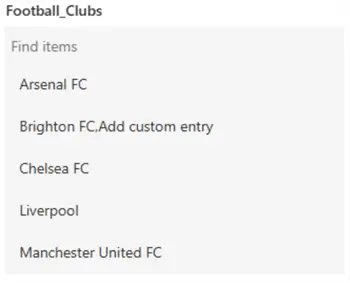
For “Tiers,” which is a string type, I will apply the functions in the same way. But this time, I will include the optional argument in the Sort syntax, which will sort the values in descending order, as seen in the image below:
Sort (Choices([@PoC_List].'Tiers'), Value, SortOrder.Descending)
For “Number,” I will apply the Sort and Value function like the others. However, I am also using the optional argument in the Sort syntax – sorting the numbers in ascending order (although, by default, it should be sorted in ascending order even without stipulating it). See the image below for the sorted output:
Sort (Choices([@PoC_List].'Numbers'), Value, SortOrder.Ascending)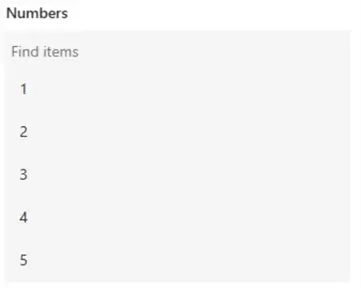
Summary
Drop-down controls are sorted the same way as a Combo Box. The choice of what to use is yours, nonetheless.
In summary, we have successfully demonstrated how to leverage the Sort and Value Power Apps functions to sort values in a Combo box or a Drop down. Sorting the values using these controls is very important for end users to have a good user experience while using the app.
However, it is important to note that this example is demonstrated using a Canvas App with source data from a SharePoint List. It will be great to hear how you have achieved this in a different way before.
Next Steps
- Read more about Power Apps Edit Form.
- Read more on Power Apps Drop Down Control.
- Read more about Combo Box Control in Power Apps.
- Read more about the Sort function in Power Apps.
- Read more about the Value function in Power Apps.

Kenneth A. Omorodion is a Microsoft Certified Solutions Associate (MCSA) with 12+ years of enterprise application experience in Power BI, DAX, Microsoft Fabric, Business Intelligence, data warehousing, SSRS, T-SQL, and Azure. Beyond his technical skills, Kenneth has expertise working with stakeholders’ and business leaders to help them better understand key insights. He has a great track record of successfully delivering full life cycle Business Intelligence and data solutions to organizations with measurable business impact.
- MSSQLTips Awards
- Achiever Award (75+ Tips) – 2025
- Author of the Year-2021
- Author Contender-2022/2023/2024