Overview
The RESTORE HEADERONLY option allows you to see the backup header information for all backups for a particular backup device. So in most cases each backup you create only has one backup stored in a physical file, so you will probably only see one header record, but if you had multiple backups in one file you would see the information for each backup.
Explanation
The RESTORE HEADERONLY option can be simply issued as follows for a backup that exists on disk.
Get headeronly information from a full backup
RESTORE HEADERONLY FROM DISK = 'C:\AdventureWorks.BAK'
GO
The result set would like the following. As you can see there is a lot of great information that is returned when using HEADERONLY.
| ColumnName | Value |
| BackupName | NULL |
| BackupDescription | NULL |
| BackupType | 1 |
| ExpirationDate | NULL |
| Compressed | 0 |
| Position | 1 |
| DeviceType | 2 |
| UserName | TESTServer1\DBA |
| ServerName | TESTServer1 |
| DatabaseName | AdventureWorks |
| DatabaseVersion | 611 |
| DatabaseCreationDate | 10/22/08 13:48 |
| BackupSize | 177324544 |
| FirstLSN | 414000000754800000 |
| LastLSN | 414000000758300000 |
| CheckpointLSN | 414000000754800000 |
| DatabaseBackupLSN | 0 |
| BackupStartDate | 3/19/09 12:02 |
| BackupFinishDate | 3/19/09 12:02 |
| SortOrder | 0 |
| CodePage | 0 |
| UnicodeLocaleId | 1033 |
| UnicodeComparisonStyle | 196608 |
| CompatibilityLevel | 90 |
| SoftwareVendorId | 4608 |
| SoftwareVersionMajor | 9 |
| SoftwareVersionMinor | 0 |
| SoftwareVersionBuild | 3077 |
| MachineName | TESTServer1 |
| Flags | 512 |
| BindingID | 459DDE25-B461-4CFD-B72E-0D4388F50331 |
| RecoveryForkID | E1BF182D-E21A-485A-9E2F-09E9C7DEC9D4 |
| Collation | Latin1_General_CS_AS |
| FamilyGUID | E1BF182D-E21A-485A-9E2F-09E9C7DEC9D4 |
| HasBulkLoggedData | 0 |
| IsSnapshot | 0 |
| IsReadOnly | 0 |
| IsSingleUser | 0 |
| HasBackupChecksums | 0 |
| IsDamaged | 0 |
| BeginsLogChain | 0 |
| HasIncompleteMetaData | 0 |
| IsForceOffline | 0 |
| IsCopyOnly | 0 |
| FirstRecoveryForkID | E1BF182D-E21A-485A-9E2F-09E9C7DEC9D4 |
| ForkPointLSN | NULL |
| RecoveryModel | FULL |
| DifferentialBaseLSN | NULL |
| DifferentialBaseGUID | NULL |
| BackupTypeDescription | Database |
| BackupSetGUID | 0C6D57F2-2EDB-4DEB-9C10-53C68578B046 |
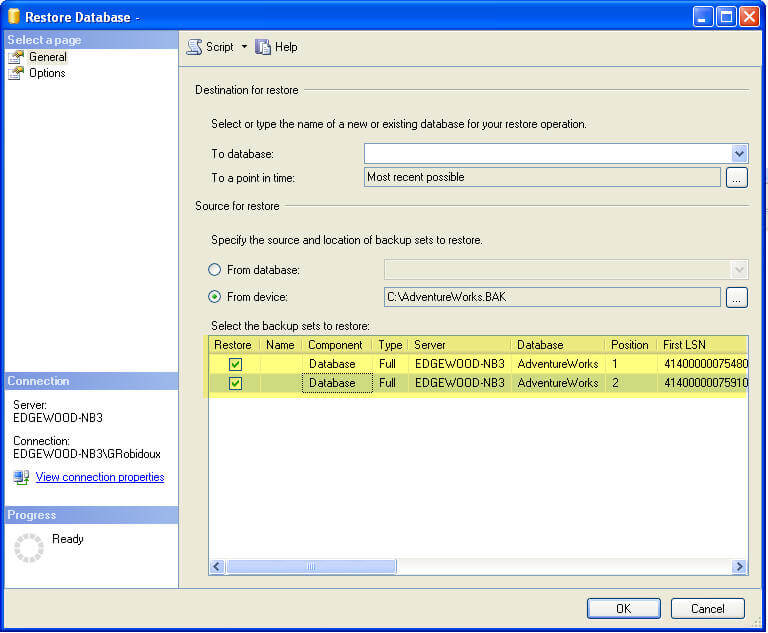
If this backup file contained multiple backups you will get information for each backup that was in the file.
SQL Server Management Studio
- Right click on the Databases
- Select “Restore Database…”
- Select “From Device:” and click on the “…”
- Click on “Add” and select the back file, for this example it is “C:\AdventureWorks.BAK” and click “OK”
- Click “OK” again to see the contents of the backup file, below you can see that there are two backups in this one file

Greg Robidoux has been working with databases for 35+ years with extensive hands on SQL Server experience from version 6.5 to 2025. He has authored over 250 technical articles and delivered several presentations online and at various conventions. Greg is also the President and founder of Edgewood Solutions, a technology services company delivering services and solutions for Microsoft SQL Server.