Problem
We would like to get notifications if any SSRS report subscriptions fail. This feature was working great until it wasn’t. The scheduled SSRS subscription in the SQL Server Agent job didn’t fail and we were not aware of any failures. In some cases, a partial data driven subscription failed.
Moreover, after some testing we realized that the SQL Server Agent job won’t fail for the Standard subscriptions (that are available in SQL Server Standard Edition) either.
Solution
SQL Server Reporting Services (SSRS) Data-driven Subscription (DDS) is a feature that is available in SQL Server Enterprise Edition. It provides flexibility in reports delivery and conditional reports logic. For example, if you have an application that has a security table with users’ access to only specific regions you can create a subscription based on the user/region pair. Or, if you have a table with Orders and User ID then you can send to the user with DDS automated emails with only his/her orders updates. You can also have a custom table that can be used as a business logic for the DDS.
To reproduce the issue with missing error notifications, we will use a report with sample data from the AdventureWorks2022 database on SQL Server 2022. Read this tip for the steps to Install the AdventureWorks database.
We will create a sample/demo report with Standard and Data-driven Subscription and emulate report’s subscriptions failure. Then we will review some of the potential failures and provide steps to create email notifications for the failed subscriptions.
Create Report’s Subscriptions
This SSRS Tutorial provides detailed steps for the reports creation and SSRS Configuration.
You can read this tip about SSRS Data-driven Subscription configuration and prerequisites.
Demo Report
We will use our existing Demo report and then create the Subscriptions (Data-driven and Standard one).
In the AdventureWorks2022 database we will create a new view based of the existing [Sales].[vSalesPersonSalesByFiscalYears] view:
CREATE VIEW [Sales].[vSalesPersonSalesByFiscalYears_DDS]
AS
SELECT
     pvt.[SalesPersonID]
    ,pvt.[FullName]
    ,pvt.[2011]
    ,pvt.[2012]
FROM (SELECT
        soh.[SalesPersonID]
        ,p.[FirstName] + ' ' + COALESCE(p.[MiddleName], '') + ' ' + p.[LastName] AS [FullName]
        ,e.[JobTitle]
        ,st.[Name] AS [SalesTerritory]
        ,soh.[SubTotal]
        ,YEAR(DATEADD(m, 6, soh.[OrderDate])) AS [FiscalYear]
    FROM [Sales].[SalesPerson] sp
        INNER JOIN [Sales].[SalesOrderHeader] soh
        ON sp.[BusinessEntityID] = soh.[SalesPersonID]
        INNER JOIN [HumanResources].[Employee] e
        ON soh.[SalesPersonID] = e.[BusinessEntityID]
      INNER JOIN [Person].[Person] p
      ON p.[BusinessEntityID] = sp.[BusinessEntityID]
    ) AS soh
PIVOT
(
    SUM([SubTotal])
    FOR [FiscalYear]
    IN ([2011], [2012])
) AS pvt;
GO
Our Demo Report will be configured with the “SalesPersonID” parameter:
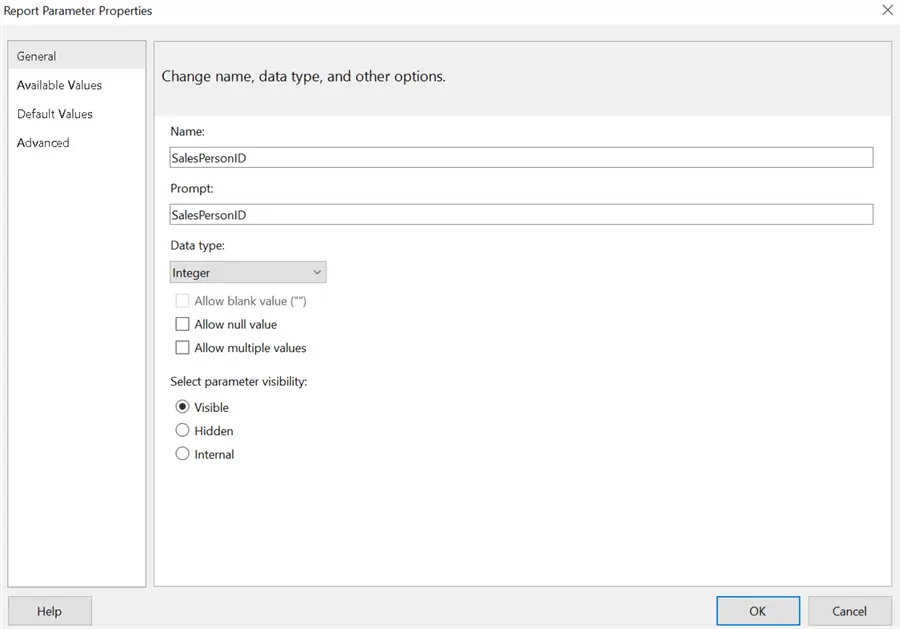
The Dataset will use the following query:
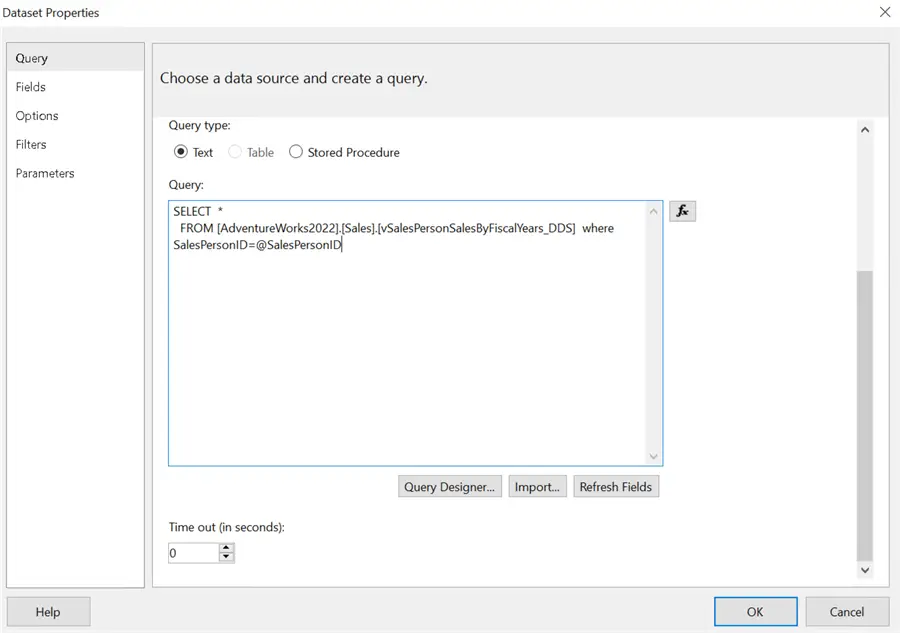
SELECT *
  FROM [AdventureWorks2022].[Sales].[vSalesPersonSalesByFiscalYears_DDS]
  WHERE SalesPersonID = @SalesPersonID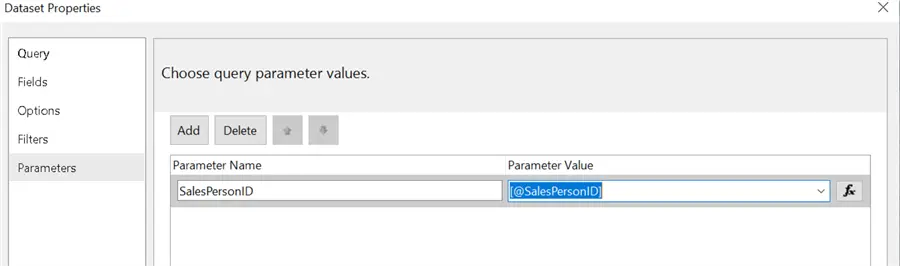
The final report will look like this after execution with a SalesPersonID = 275:
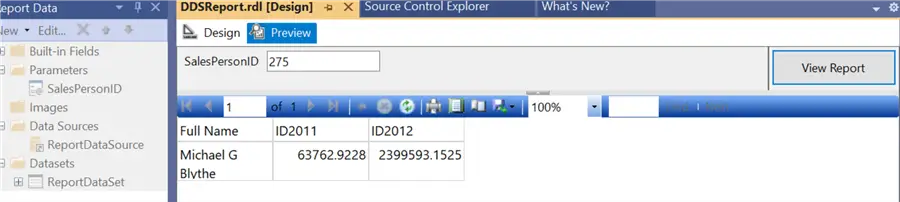
This tip has more detailed steps on how to create the SSRS report.
Standard Subscription Configuration
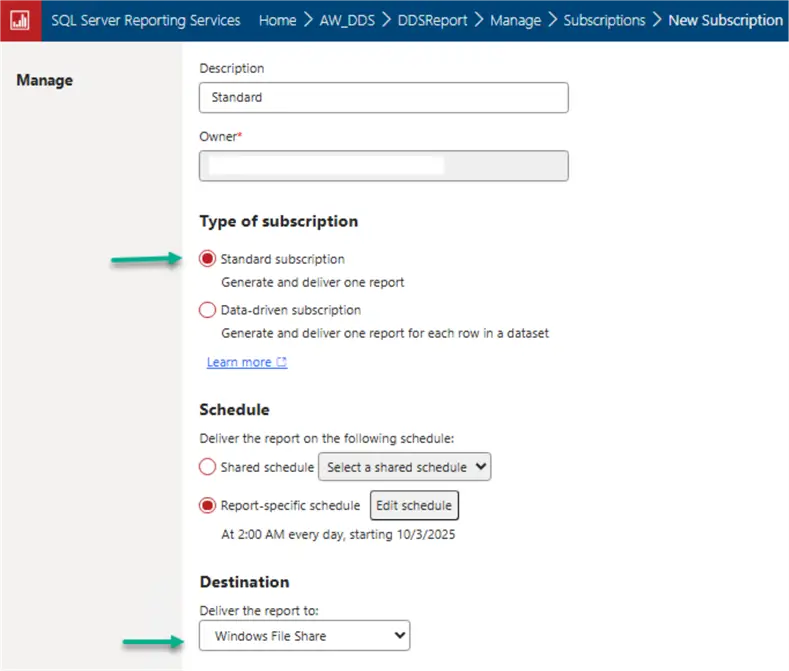
First, we will create a Standard subscription for our report:

We will configure the new Standard subscription as following:
- “Type of subscription” – Standard subscription
- “Destination” – Windows File Share
- Any choice of the File Name and Render Format
- “Path” – \\srv1\dds1 . We will use non-existing share to emulate the subscription’s failure.
- “Report parameters” – enter any valid SalesPersonID
- “Overwrite options” – overwrite
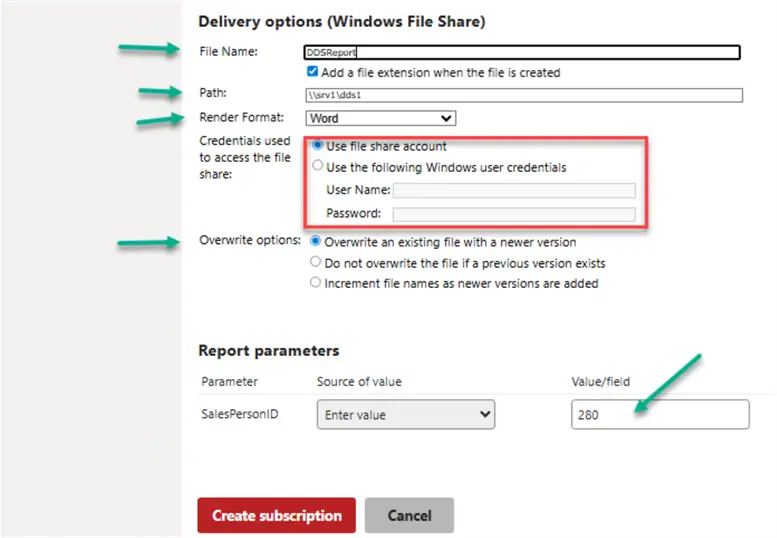
Note, that you need to enter the account credentials or have it configured under SSRS “Subscription Settings” configuration:
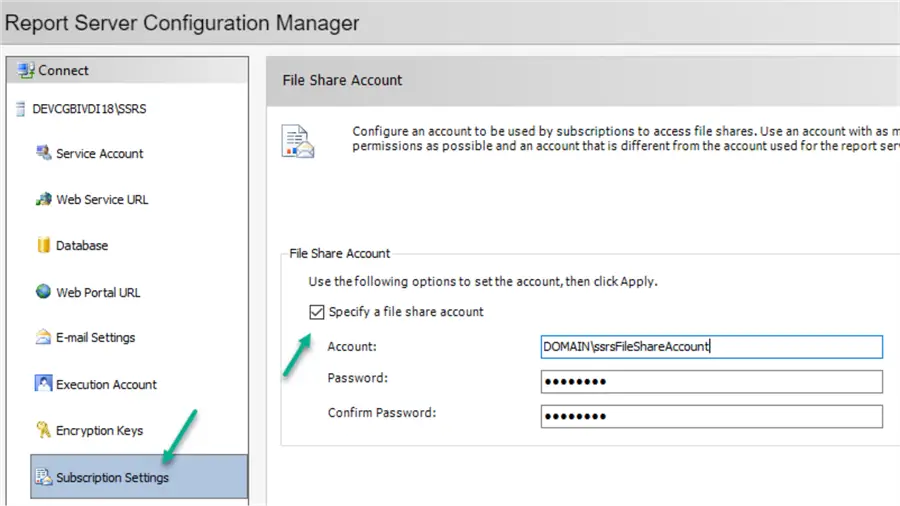
Read the SSRS 2016 Subscription Enhancements tip about Configuring a Single Credential for Report Exports to a Shared File Store.
Data-driven Subscription Configuration
We will create the new “Data-driven subscription” now:
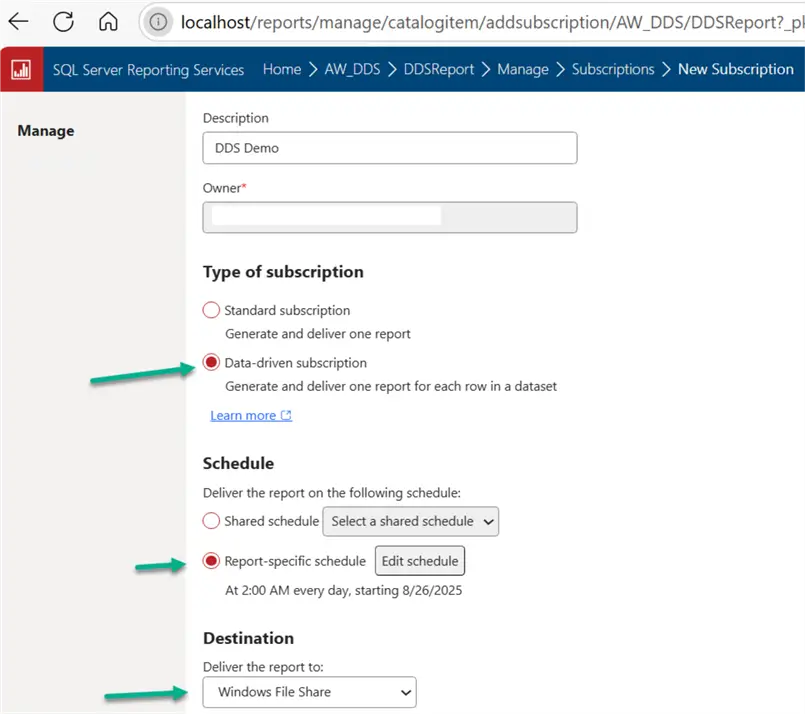
Note, that the Data-driven subscription is the SQL Server Reporting Services Enterprise Edition’s feature.
Click the “Edit dataset” button to proceed with the DDS dataset configuration:

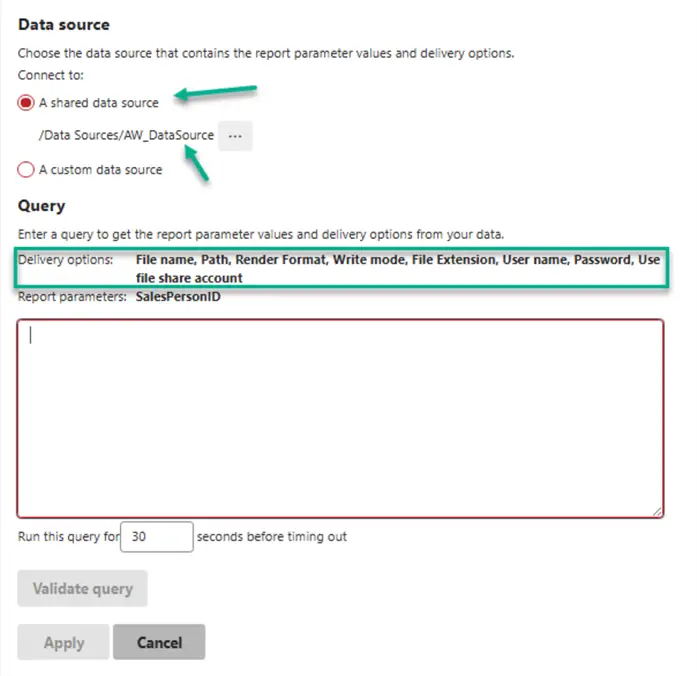
We will select our existing Data Source connection (the AdventureWorks2022 database):
And will use this query that returns three Dataset fields that will be used for the subscription configuration:
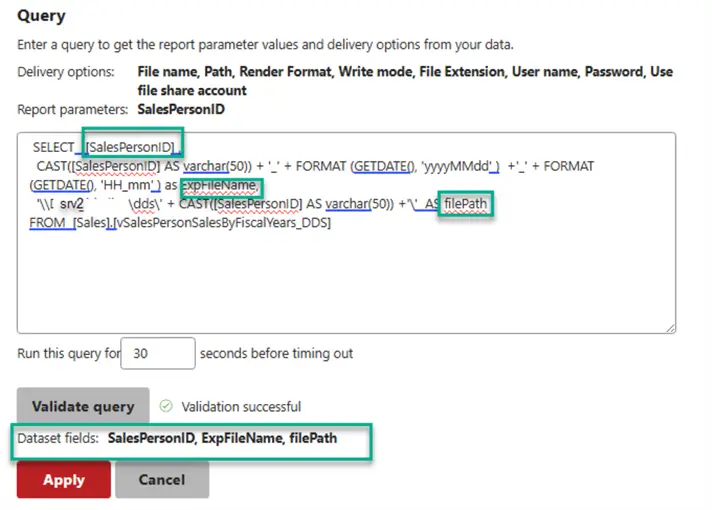
SELECT SalesPersonID,
    CAST([SalesPersonID] AS varchar(50)) + '_' + FORMAT (GETDATE(), 'yyyyMMdd' )  +'_' + FORMAT (GETDATE(), 'HH_mm' ) as ExpFileName,
    '\\srv2\dds\' + CAST([SalesPersonID] AS varchar(50)) +'\'  AS filePath
FROM [Sales].[vSalesPersonSalesByFiscalYears_DDS]
Here is an example of the data returned and fields description:
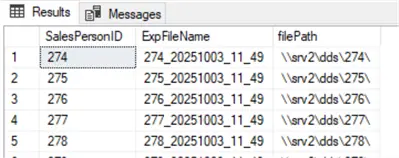
- SalesPersonID – this column is used for the report’s parameter. There will be a separate file created for each SalesPersonID under corresponding SalesPersonID subfolder
- ExpFileName – export file name, the file’s name will be in this format: “SalesPersonID_YYYYMMDD_HH_MI”
- filePath – file share with subfolders for each SalesPersonID.
Each report will be saved in the corresponding subfolder (SalesPersonID) that we created manually for our testing. We are not creating all subfolders; we will skip a couple of SalesPersonID’s. This is to trigger the subscription’s error and review the results later.
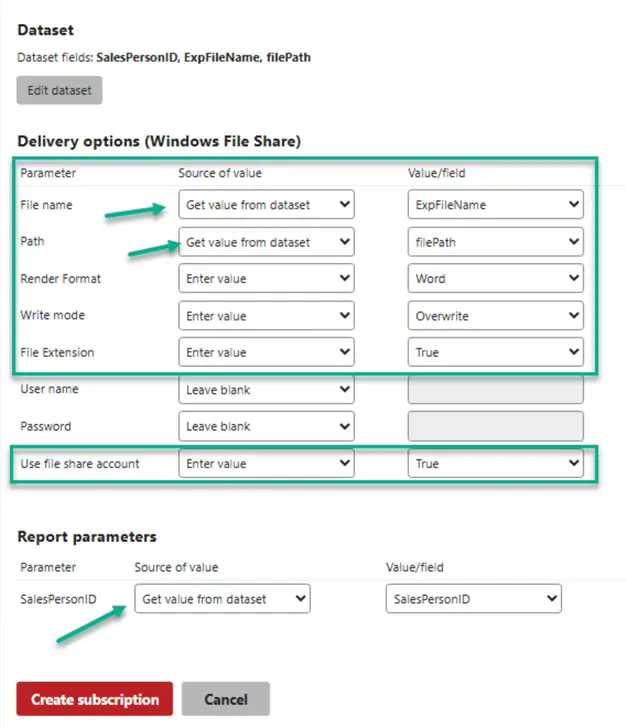
Note, that we will use “file share account” that is setup under the SSRS configuration, but you can use a different user if you require to have a separate account for the security, governance or other reasons.
Test Report’s Subscriptions
Schedule or Run the Subscriptions
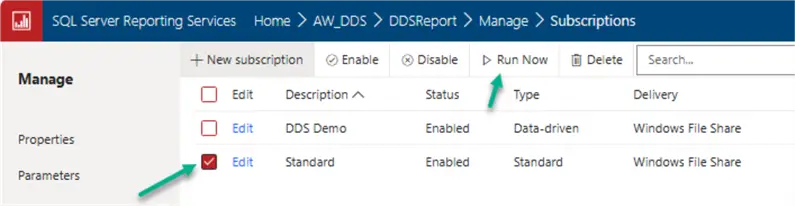
To schedule the report’s subscription, we can update the report-specific schedule or use a Shared schedule. We can setup our subscriptions to run in 5 minutes. Or we can use “Run Now” option in SSRS 2022 to run/test the subscription immediately:
Read this tip about How to easily identify a scheduled SSRS report.
The new subscription will create SQL Server Agent job under the “Report Server” category:

Review the Results
Both of our reports are setup for now to generate the errors. Let’s run them and review some of the results.
Report’s Data-driven subscription ran, but nothing was processed (this was related to the subscription misconfiguration):

The report’s Standard subscription ran, but failed due to “The network path was not found” error (we set it up in purpose to srv1 instead of srv2):

Report’s Data-driven subscription ran, but failed partially:

Four of the SalesPersonID folders were missing:
ERROR: Failure writing file \\srv1\dds\289\289_20251003_09_44.docx : System.IO.DirectoryNotFoundException:
Could not find a part of the path '\\srv1\dds\289\289_20251003_09_44.docx'.
Report’s subscription ran, but has not completed:

If there are errors during subscription execution SSRS server might retry based on the SSRS configuration (see rsreportserver.config file):
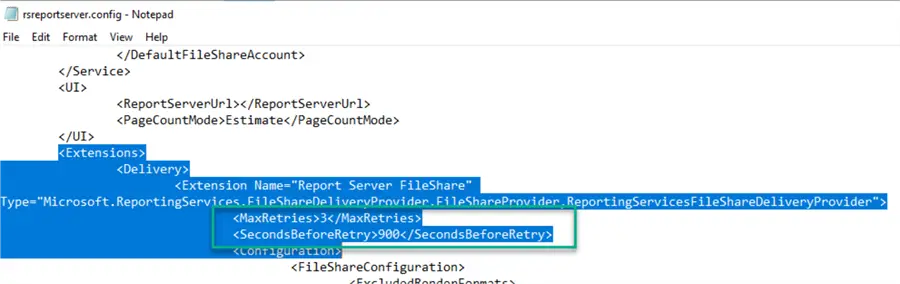
Depending on the numbers of failed items the SSRS will retry each of them 3 times after 900 seconds. So, if the “Processing” result doesn’t resolve to “Done” it might be due to the retries.
In all these cases the SQL Server Agent jobs have completed Successfully even though there were errors.
Note, that because Data-driven subscription generates multiple reports the results only provide a summary of the execution. The full error details could be found in one of the SSRS log/trace files: “<drive>:\Program Files\Microsoft SQL Server Reporting Services\SSRS\LogFiles\ReportingServicesService_YYYY_MM_DD_HH_MI_SS.log”.
Create Subscriptions Monitoring Job
The status/results of the last subscription execution can be found in the [ReportServer].[dbo].[Subscriptions] table:
SELECT [Description], LastStatus FROM [ReportServer].[dbo].[Subscriptions]![The results of the subscriptions run in the [ReportServer].[dbo].[Subscriptions] table](/wp-content/images-tips-11/11529_ssrs-failed-subscriptions-monitoring-and-notifications-22.webp)
With many subscriptions it might be a good idea to have a detailed description for a subscription.
A successful Data-driven subscription will have a result like this:

Based on our testing we will use a query to the [ReportServer].[dbo].[Subscriptions] table to find the failed (or hang) subscriptions:
SELECT [Description], LastStatus
   FROM [ReportServer].[dbo].[Subscriptions] s
   WHERE LastStatus LIKE '%[^ ][^0] error%' -- DDS with NN errors; excluding " 0 error" string
         OR LastStatus LIKE 'Done: 0 processed%' -- completed, but with some issues
         OR LastStatus LIKE 'Failure%' -- standard subscription will have more meaningful error
OR LastStatus LIKE 'Processing%' -- potentially hangsNote, that this might be not a complete list of the issues in your case, and you may need to add additional conditions. This is a good starting point though.
To automate email notifications for the failed subscriptions we will schedule SQL Server Agent job with this query as a job step:
/*-- modified by SGolovko
*/
-- begin config variables
DECLARE @Recipients VARCHAR(MAX) = 'dba@mycompany.com' -- to
DECLARE @FromAddress VARCHAR(MAX) = 'dba@mycompany.com' -- from
DECLARE @ProfileName sysname = 'DBAMailProfile' -- database mail profile to use
-- end config variables

DECLARE @SubscrFailCount int -- number of failed subscriptions

SET @SubscrFailCount =
(
   SELECT COUNT (DISTINCT [Description])
   FROM [ReportServer].[dbo].[Subscriptions] s
   WHERE [LastRunTime] >= CAST(CAST(DATEADD(DAY, -1, GETDATE())  as date) as datetime)--your timeframe
    AND
   (LastStatus LIKE '%[^ ][^0] error%' -- DDS with NN errors; excluding " 0 error" string
    OR LastStatus LIKE 'Done: 0 processed%' -- completed, but with some issues
    OR LastStatus LIKE 'Failure%' -- standard subscription will have more meaningful error
    OR LastStatus LIKE 'Processing%' -- potentially hangs
      )
)
IF @SubscrFailCount > 0 -- send email only if failed subscriptions exist
BEGIN
   DECLARE @Subject NVARCHAR(255) = N'SSRS Failed Subscription(s) count (since yesterday): ' + CAST(  @SubscrFailCount  AS nvarchar(255)) ,
      @mess_body nvarchar(max)
 SELECT @mess_body =
  COALESCE(@mess_body+', "' ,'"') +  [Description] +'"'
     FROM [ReportServer].[dbo].[Subscriptions] s
   WHERE [LastRunTime] >= CAST(CAST(DATEADD(DAY, -1, GETDATE())  as date) as datetime)--your timeframe
    AND
   (LastStatus LIKE '%[^ ][^0] error%' -- DDS with NN errors; excluding " 0 error" string
    OR LastStatus LIKE 'Done: 0 processed%' -- completed, but with some issues
    OR LastStatus LIKE 'Failure%' -- standard subscription will have more meaningful error
    OR LastStatus LIKE 'Processing%' -- potentially hangs
      )
   EXEC [msdb].[dbo].[sp_send_dbmail] @profile_name = @ProfileName,
                                      @recipients = @Recipients,
                                      @subject = @Subject,
                                      @from_address = @FromAddress,
                                      @body = @mess_body
END;
Here is an example of the email that will be sent for 2 failed subscriptions since beginning of the last day:
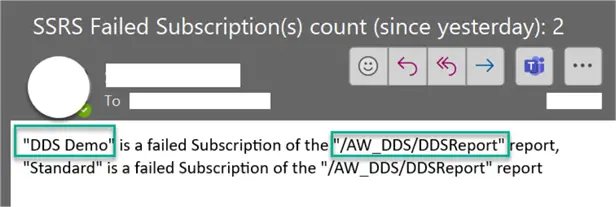
This will help you to have high level information in case there are failed subscriptions. You may need to check SSRS Log file (ReportingServicesService_YYYY_MM_DD_HH_MI_SS.log) to view errors’ details for the Data-driven subscriptions.
Next Steps
- Read more about working with subscriptions: Work with subscriptions (web portal) – SQL Server Reporting Services (SSRS) | Microsoft Learn .
- Check other SQL Server Reporting Services Overview Tips (mssqltips.com).

Svetlana has been working in IT for more than 17 years. Most of her career has focused on Database Administration (both SQL Server and Oracle) and Database Development. Databases are Svetlana’s passion, but she also has fun helping co-workers and friends in troubleshooting non-database related issues. Svetlana tries to explore and learn as many SQL Server features as possible. Her favorite SQL Server features are Policy Based Management, SSIS, SSRS and Master Data Services. One of Svetlana’s areas of expertize is cross systems / database integration. Svetlana is currently a hands-on Database Team Lead in Calgary, Canada where she promotes SQL Server.
Svetlana likes to share her knowledge with others and enjoys learning herself. Her hobby is photography, but now she spends her free time away from Database Administration with her little girl who proudly wears her MSSQLTips shirt. Svetlana blogs at http://databaserefresh.com and posts her pictures to https://plus.google.com/u/0/111115767149899859037/posts. Her Twitter account is @magasvs.
- MSSQLTips Awards: Rising Star (50+ tips) – 2018 | Author of the Year Contender – 2015-2017