Problem
As a Microsoft Fabric Administrator, you have the responsibility to manage all the Microsoft Enterprise gateways installed and deployed across your entire data estate. At the time of writing. Microsoft stated they actively support only the last six releases of the on-premises data gateway. Microsoft typically releases an updated version of the on-premises data gateway every month, which requires you to update your running version at least every other month. Whether you have a couple of gateways installed or dozens of these in your environment, it is not just a risk to your credibility with Microsoft raising a support request, but you also may be missing out on critical security updates and new features. This has always been a long-winded and time-consuming activity, requiring a lot of manual effort for most parts of process.
Solution
Let’s take a look at how this can be done.
Table of contents
Microsoft On-Premises Data Gateway
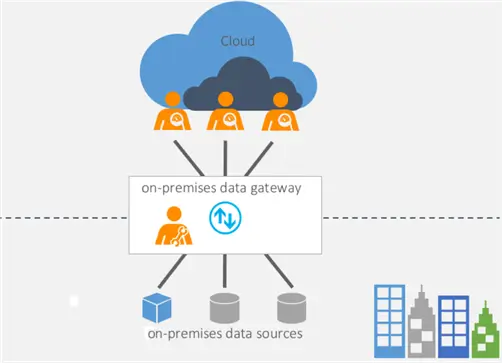
The Microsoft On-Premises data gateway (NOT the personal mode one!) is a small and lightweight application program. This can only be installed on a Windows Operating System inside your organization’s network. The purpose of this is to securely connect your data from “door-to-door”. Your local data sources to cloud services, enabling seamless and integrated access without moving any data to the cloud. Here is a simple illustration of this, from the official Microsoft Documentation:
Further, this diagram shows information on how this gateway internally works, in a separate Microsoft article:
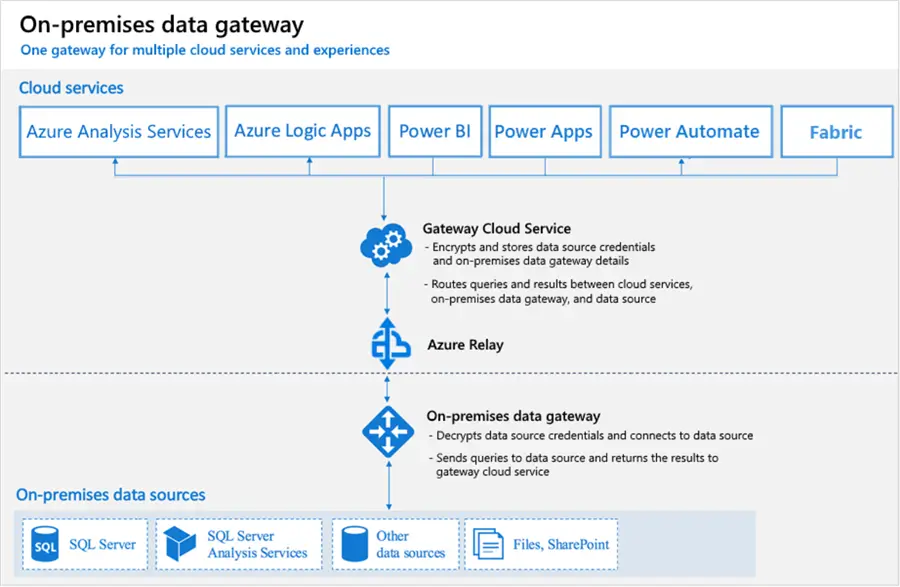
The above-mentioned is not the key focus of this article. This is a quick overview of what the on-premises data gateway is for you to refer to. Additional reference materials are also linked at the end of this article.
Simplified Gateway Updates with Fabric
Up to the end of October 2025, you had to manually deploy updates to the gateway installation. This was either by downloading and running the installer locally on the machine or via some software management process of deployment like WSUS or Microsoft Intune. That was until Microsoft released a preview feature (November 2025 update release***) that now enables administrators to remotely update these gateways automatically via the service or programmatically through a PowerShell command. This not only saves you a lot of time, but also provides you with a mechanism to perform an often-overlooked task at maximum scale, and just another release from Microsoft to further streamline gateway maintenance with minimal user administration.
***Please note: The methods shown here are still in Preview at the time of writing, so use with necessary caution and care in production environments!
Manually trigger an update via the Fabric/Power BI Service GUI
Get started here by following these steps in order:
Step 1
Considerations and pre-requisites before you start:
- You need to install or update the gateway to the November 2025 baseline version (or later) first. Get it here: On-premises data gateway November 2025 release | Microsoft Fabric Blog | Microsoft Fabric
- Microsoft recommends a minimum of 10GB of available disk space available on the Operating System drive of the machine you’re going to install the update on.
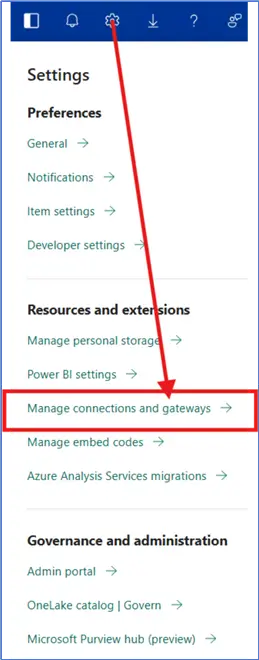
- Permissions – always a thorn in the side – to update an on-premises data gateway from the Fabric UI, the user must have gateway Admin permissions on the gateway (or cluster). You will not be able to see and manage gateways unless you’re set as an administrator of at least one gateway. See the screenshot below for the next step:
Step 2
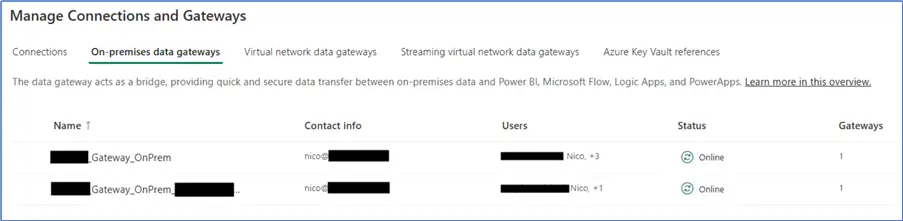
After navigating to the “Manage connections and gateways” section via the Fabric/Power BI UI portal, open the “On-premises data gateways” section, where you’ll see all of the installed data gateways (that you have access to or have been shared with you).
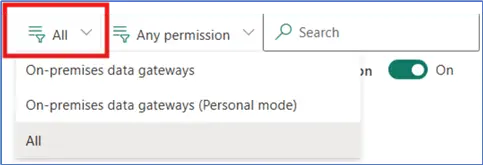
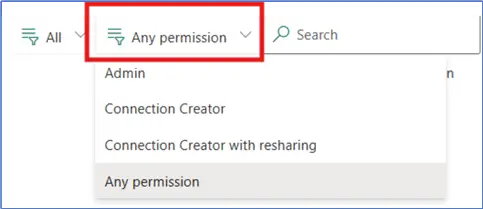
On the top-right side of the page, you will see the following options, that allows you to filter for specific gateways, in terms of types or via permissions, including a search-box to easily find the gateway in question:
Step 3
Click on the Info-button that is situated right next to On-premises data gateway in Name-column, which will open a new dialog-box to the right of the screen, as follows:
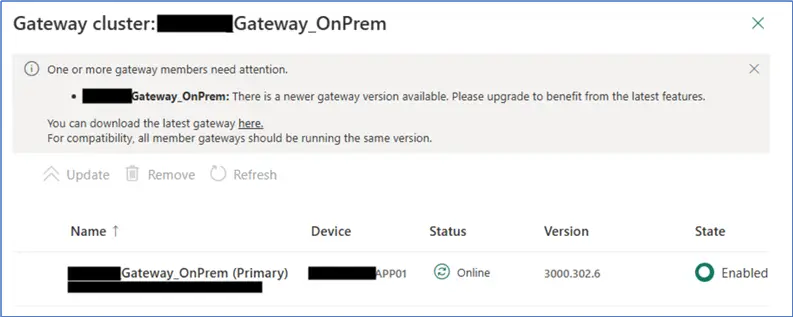
Click on the Update-button to trigger updates to the select(ed) gateways – note the requirements and conditions listed in the tooltip:

Programmatically Perform an Update using PowerShell
In addition to the UI update-control described earlier, the following PowerShell cmdlet allows the automation and scalability to trigger updates in a programmatic style. The Update-DataGatewayClusterMember PowerShell command update your gateways (clustered or single-standalone instances) to latest available version. Make sure to also have the MicrosoftPowerBIMgmt module installed.
--MSSQLTips.com (PowerShell)

Update-DataGatewayClusterMember -GatewayClusterId <Guid> [-MemberGatewayId <Guid>] [-CheckStatus]
 [-ProgressAction <ActionPreference>] [<CommonParameters>]
Important Considerations
Please be aware of various restrictions that exist, and noteworthy limitations that you need to keep in mind:
- Gateways are not supported on Server Core machines or Windows Containers. You cannot install it on a Domain Controller. Install it on a “machine” that is always switched on and connected to the internet – wired instead of wireless.
- Use a dedicated “machine”, which can only host 2 gateways: an Enterprise data gateway and a Personal mode gateway (only usable by Power BI/Fabric).
- Performance may be degraded or inconsistent if you use a VM with a virtualization layer.
- Depending on your workload, like for example with dataflows, there may be more specific requirements around the compatibility of gateway versions that you need to investigate further.
- “A recovery key is assigned (that is, not autogenerated) by the administrator at the time the on-premises data gateway is installed. The recovery key is required if the gateway is to be relocated to another machine, or if the gateway is to be restored. Therefore, the key should be retained where other system administrators can locate it if necessary.” – official MS Learn documentation referenced below. Disaster Recovery is however out of scope for this article.
Permissions
By default, you have administrative permissions on any gateway that you install – but you must be the admin of the machine where the gateway is being installed. If you’re planning to use Windows authentication, make sure you install the gateway on a computer that’s a member of the same Microsoft Entra environment as the data sources. Also, you (and even Fabric Administrators) will only be able to see gateways where you/they are explicitly added as admins. And as the administrator you can grant another user permission to co-administer the gateway. This is a recommended best practice to have multiple people with administrative responsibilities in case of unforeseen circumstances. Fabric’s on-premises data gateway uses a two-layered permission model. Having access to one does not automatically grant access to the other:
- The Gateway roles control who can manage the gateway itself, which includes:
- Admin – Full control over the gateway.
- Connection Creator – Can only create new connections on the gateway and test the connections.
- Connection Creator with Sharing – Same as Connection creator, with additional ability to share it.
- Connection (Data Source) roles control who can use specific data sources behind it.
A hidden “Tenant administration” toggle, is available only to Global and Fabric Admins, which unlocks full visibility and control across all gateways in the tenant.

Access to on-premises data is enforced through a strict permission chain in the following order: Entra ID authentication, workspace access, connection permissions, and gateway availability. All of which must be in place, or data refreshes and queries will fail using this gateway.
Monitoring and Optimization
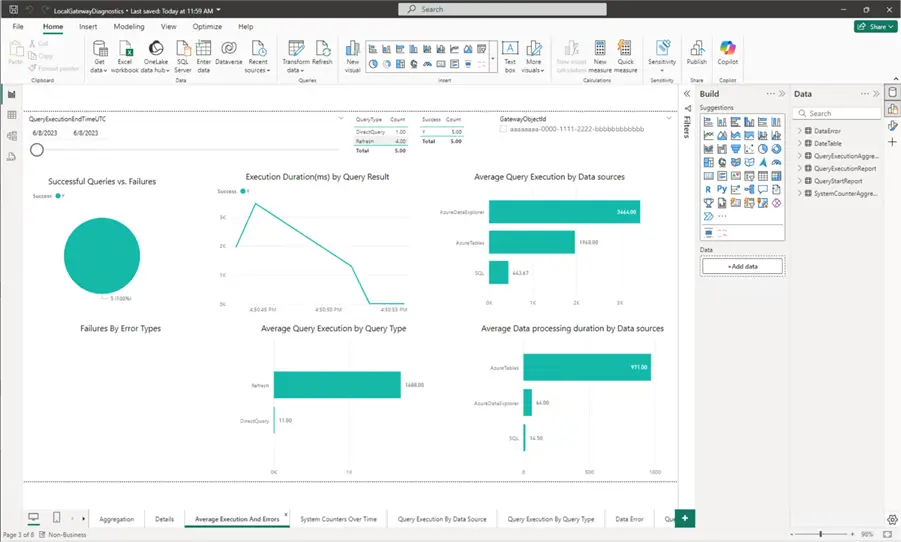
Data gateway performance used to be monitored mainly through Windows Performance Monitor counters. At the time of writing, Microsoft provides (in public preview) query logging in the gateway console and a ready-made Power BI performance template. This gives clearer visibility into gateway usage and helps pinpoint slow queries. Keep in mind that this applies only to standard mode gateways, not the personal mode one. It’s worth noting that gateway diagnostics don’t cover machine or network issues like CPU, bandwidth, or latency. Those still need to be monitored separately at the server level. Here is a screenshot showing what the Power BI template report looks like in action:
Key Takeaways
- Microsoft supports the latest six releases of the Microsoft on premises data gateway, requiring regular updates.
- The on-premises data gateway connects local data sources to cloud services securely, facilitating seamless data access without moving it to the cloud.
- A new preview feature allows administrators to remotely update gateways automatically, significantly reducing manual effort.
- Use the Fabric/Power BI Service GUI or PowerShell to trigger updates programmatically and enhance scalability.
- Be mindful of permissions and limitations when managing the Microsoft on premises data gateway to ensure smooth operation.
Next Steps
- Always test gateway updates in a non-production or test environment before rolling them out at scale across the entire estate.
- Preview features should be validated carefully and used with caution and extra care, to avoid unintended service disruptions.
- Use the above-mentioned techniques and sample code and template report, to rollout your own internal audit. Through careful planning and execution in order to take stock of your data gateway inventory and ensure it complies with your own governance practices.
- The following MSSQLTips articles also cover various aspects of the gateway, which you can find here:
- In addition to that, please find the following links to the official Microsoft Documentation:

Nico Botes is a Data Platform Specialist, focusing on the Microsoft stack. He loves working with data and started his career in IT working with Microsoft SQL Server. After spending a decade in the UK, working for several multi-national organizations across different industries in various roles, he has settled back in his country of birth in a remote part of the Karoo, South Africa.


The best way to update your gateway cluster members is to do it manually, with at least a two generations old version. Highly recommend to watch the forums for any signs of trouble before committing to an upgrade. It cannot be overstated that there is no way to downgrade. If something goes wrong you have to uninstall, reinstall, and reconfigure.