Problem
When using SQL Server in a Docker container environment, setting up the environment could be quite tedious as it involves ensuring a supported Operating System, sufficient CPU/RAM/Disk capacity, port mapping, and connectivity.
Solution
AWS provides the Amazon Elastic Container Service (ECS) for running Docker containers as a managed service. Using ECS shifts the infrastructure management and maintenance to AWS so that a user can develop containerized applications efficiently. Furthermore, the serverless option Amazon Fargate simplifies the deployment of containers by not exposing any EC2 instances to a user; server provisioning, compute resource allocation, and server scaling are all handled by AWS.
In this article I explain how to run SQL Server on Amazon ECS/Fargate.
Table of contents
Setting the Environment
Create an AWS account if you do not already have one. Download and install SQL Server Management Studio (SSMS) on your local machine, if not already installed.
Creating an ECS Service
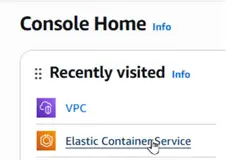
To create an ECS managed service for SQL Server database open the AWS Management Console in a browser. Click the link Elastic Container Service.
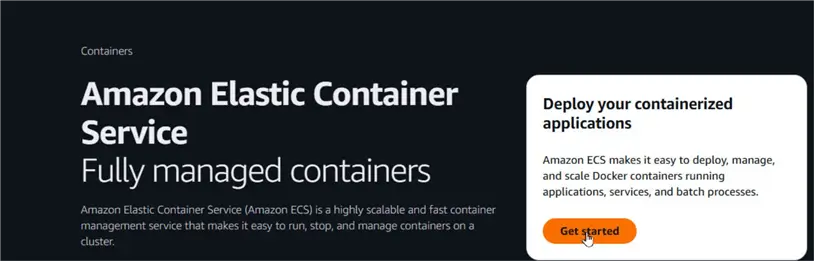
Click Get started on the Amazon Elastic Container Service page.
Choose an Image
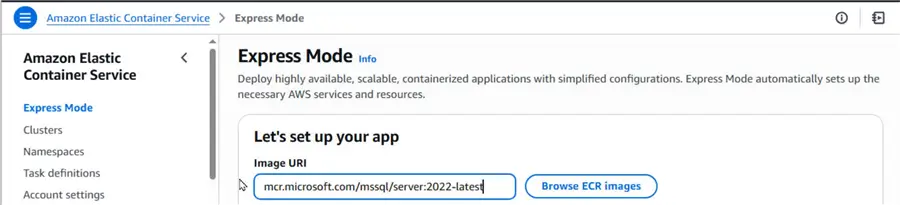
The Express Mode is selected by default; it automatically sets up AWS services and resources based on simplified configuration a user provides. Express Mode is suitable for most workloads. Specify the Docker image URI for an SQL Server image in the Image URI field. You can browse for an image that is stored in an Elastic Container Registry (ECR) with the Browse ECR images button.
We use the SQL Server image mcr.microsoft.com/mssql/server:2022-latest, which is one of the official images for Microsoft SQL Server based on Ubuntu.
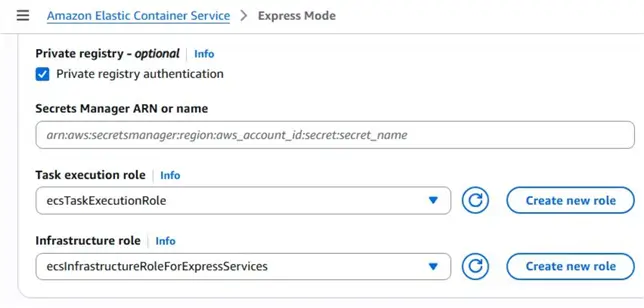
If you were to choose a Docker image that is hosted on a private registry, you would need to click the Private registry authentication checkbox and provide the requested Secrets Manager ARN or name.
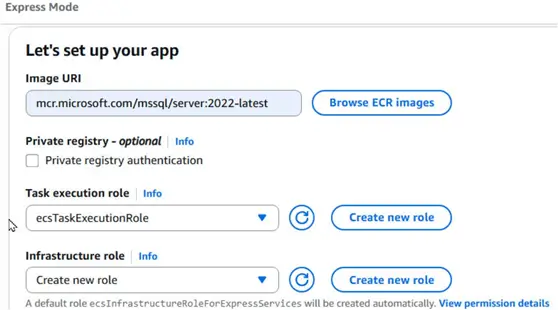
We did not click the checkbox because we are using an image on a publicly hosted registry, the Docker Hub. Select the default Task execution role that provides you access to some of the essential AWS services like ECR, and CloudWatch Logging. If this is the first time using the ECS service, the Infrastructure role is set to Create new role, which creates a new role.
Additional Configurations
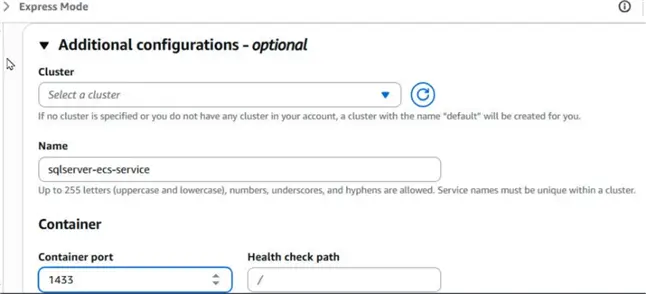
Expand the Additional configurations option, and specify a cluster name (for e.g., sqlserver-ecs-service) for the default cluster that is created for you. An Amazon ECS cluster groups tasks, and services within an ECS application, which facilitates shared capacity and common configurations. A cluster uses one of three methods for obtaining compute capacity:
1. Fargate only – This is a serverless platform that creates and manages servers internally, automatically, without exposing the servers to the user. It is called “Serverless” not because it does not use any servers but because it doesn’t expose any servers to the user.
2. Fargate and Managed Instances – This option provisions managed server instances that AWS scales and manages automatically. However, this option does expose the servers to the user and lets the user make configuration changes on them. Choose this method for more advanced workloads.
3. Fargate and Self-managed instances – This option provisions server instances that a user must manage completely including performing scaling, patching etc. Choose this option if you want complete control over the server EC2 instances.
You have the option to use a cluster that you create separately; however, the Express mode provisions a cluster using the Fargate platform only.
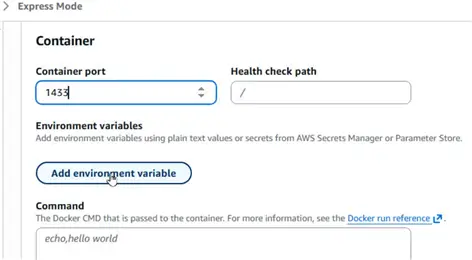
Specify Container port as 1433, which is the port SQL Server listens on by default.
Next, click Add environment variable button to configure the environment variables.
Environment Variables
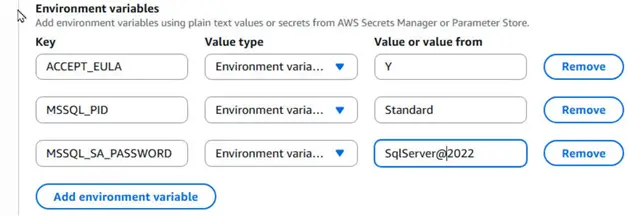
Add these three environment variables, one at a time.
| Variable Name | Value | Notes |
|---|---|---|
| ACCEPT_EULA | Y | Confirms your acceptance of the End-User Licensing Agreement |
| MSSQL_SA_PASSWORD | SqlServer@2022 | This is the database system administrator ‘sa’ password that you use to connect to SQL Server once the container is running. The password needs to include at least eight characters from at least three of these four sets: uppercase letters, lowercase letters, digits, and non-alphanumeric symbols. |
| MSSQL_PID | Standard | This is the is the Product ID (PID) or edition that the container runs with. |
Select Value type as Environment variable for each of these.
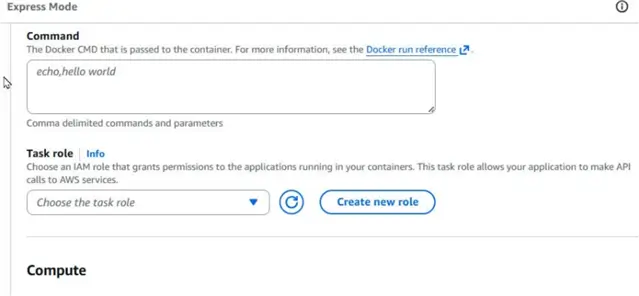
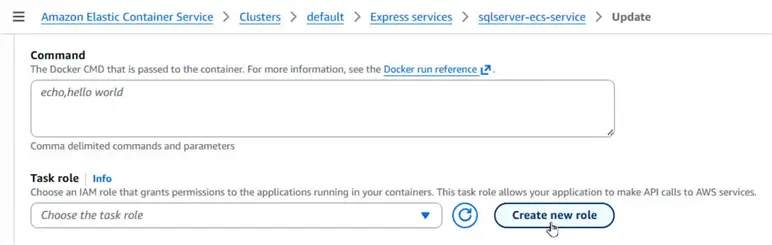
You can optionally specify a Docker CMD that is passed to the container. Furthermore, you can create a Task role that is used within a Docker container. You can include permissions that provide access to other AWS services.
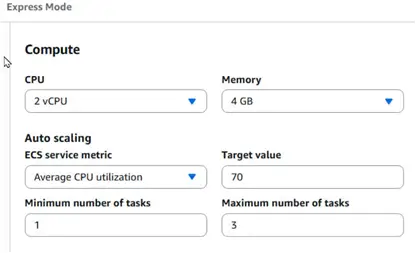
Configure the compute capacity of the cluster. We have set CPU as 2 vCPU, and Memory as 4 GB. Further, we have set the Auto scaling > ECS service metric > Average CPU Utilization to a Target value of 70, which means it uses 70% of the CPU on average. We have set Minimum number of tasks to 1, and Maximum number of tasks to 3. Each task is associated with a separate Elastic Network Interface (ENI) and provides a separate endpoint, or Public IP address, that a user can connect to. This is true for the Fargate platform only, which uses the awsvpc network mode. The cluster automatically scales the number of tasks between the minimum and maximum values based on the workload.
Enabling Connectivity
To enable connectivity to the SQL Server running on ECS, these four settings must be used:
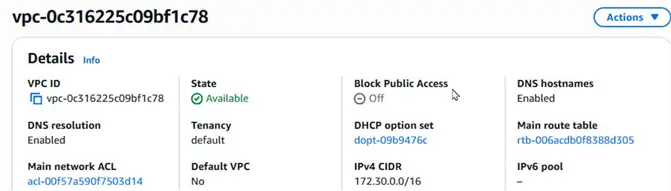
1 – The VPC in which the ECS cluster is provisioned must not block public access as shown by the Block Public Access set to Off.
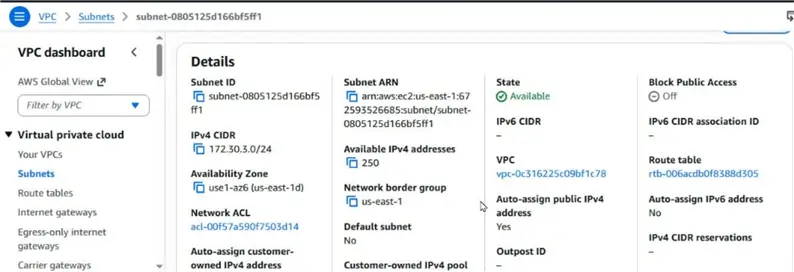
2 – The Subnet within the VPC in which the ECS cluster is running auto-assigns a public IP address, as shown by the setting Auto-assign Public IP address set to Yes.
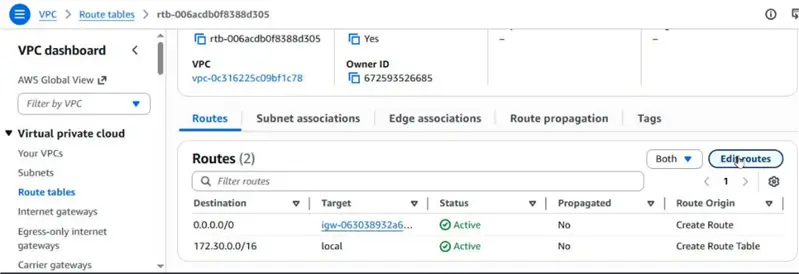
3 – The Route table that is associated with the Subnets should route network connections from the Internet to the public Subnet(s).
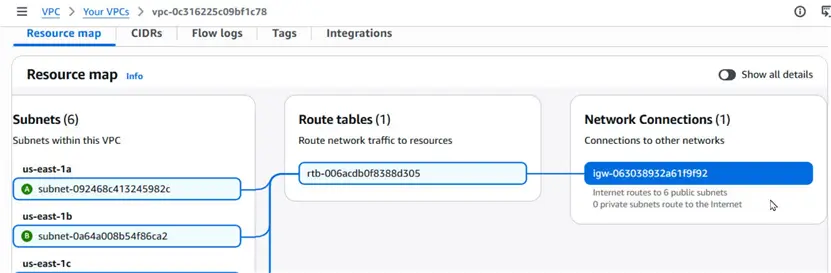
The Resource Map for the VPC should show that network connections can be made from the Internet to public subnets.
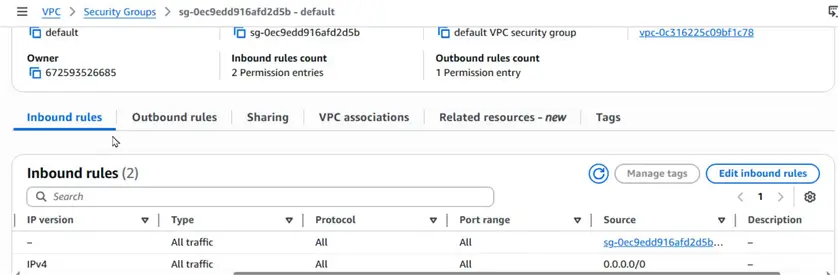
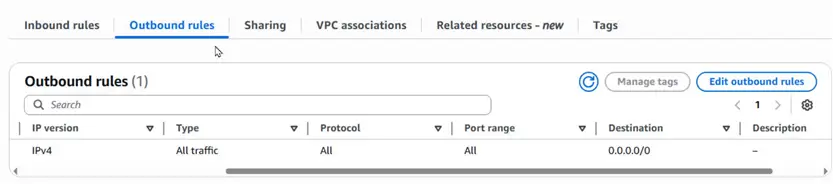
4 – The Security group associated with the VPC allows inbound/outbound traffic as configured in the Inbound rules:
And the Outbound rules:
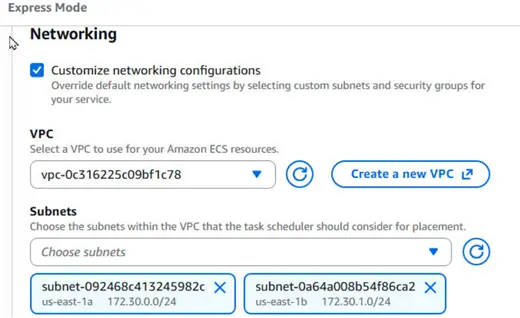
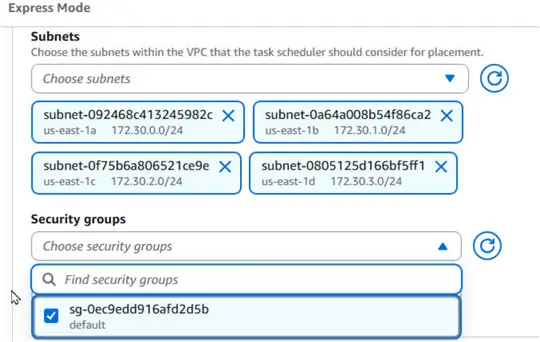
Accordingly, `continuing with our configurations in the Express Mode, click the checkbox Customize networking configurations. Select a VPC, or create a new one, that fulfills the connectivity requirements listed earlier. Choose the public Subnets within the chosen VPC.
Next, choose a Security group that allows inbound/outbound traffic.
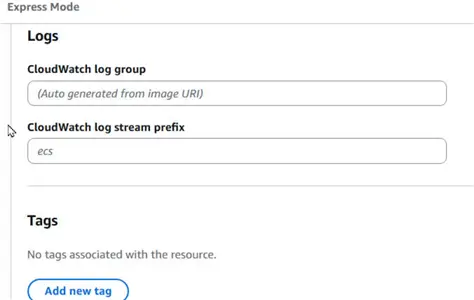
Choose the default settings for CloudWatch logs, or provide your own. CloudWatch logs are helpful in identifying issues, if any, that occur during provisioning and use of SQL Server running in an ECS cluster. The logging is fine-grained and can identify the cause why a task does not run, or an SQL Server instance does not get started.
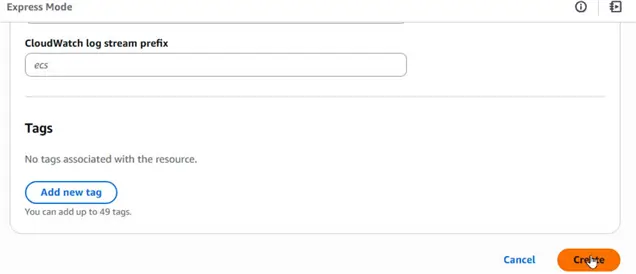
Click on Create to create the ECS service, which includes a cluster, tasks, containers running within the tasks, SQL Server running within a Docker container, the associated task definition, and the underlying infrastructure (Fargate or managed).
Discovering the Provisioned Cluster
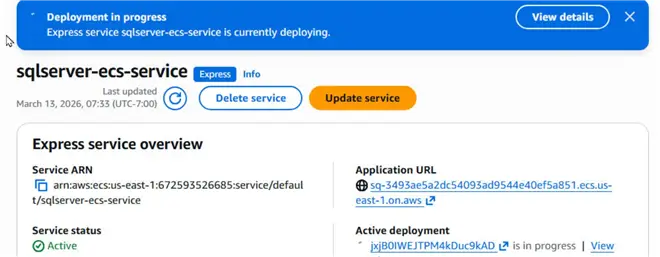
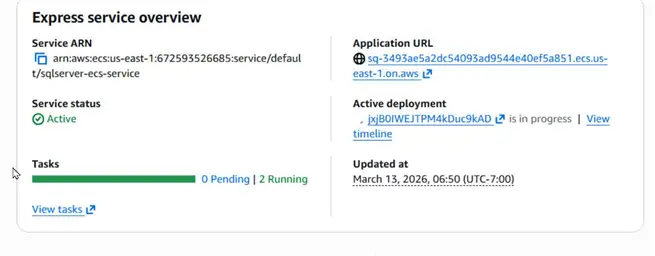
The cluster starts to get provisioned as indicated by the Deployment in progress status.
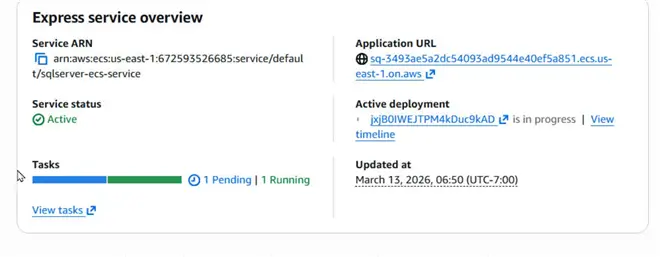
Note that Tasks are listed as 1 Pending and 1 Running.
The number of tasks may fluctuate based on workload, as shown by Tasks as 0 Pending, and 2 Running.
The Resources tab lists the resources that are provided.

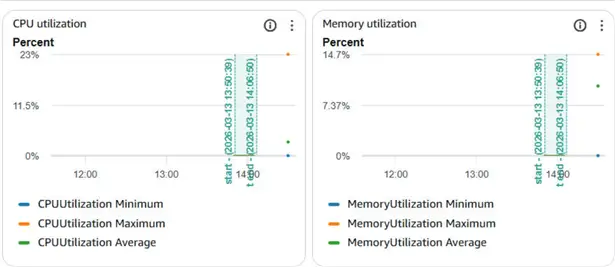
The Observability tab shows graphs for CPU and Memory use. Note that in a new cluster that hasn’t started to receive any connections has low CPU and Memory utilization.
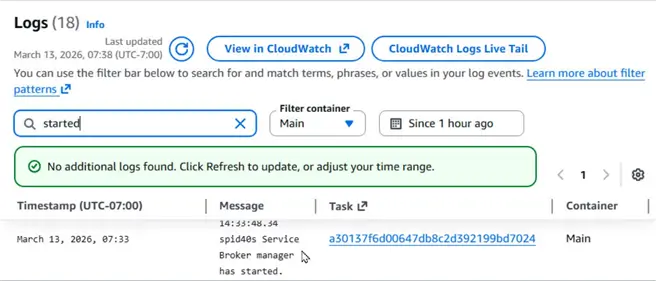
You may query the CloudWatch logs by selecting the Logs tab. As an example, let’s search the logs for “started”. The CloudWatch logs indicate that the Service Broker Manager has started.
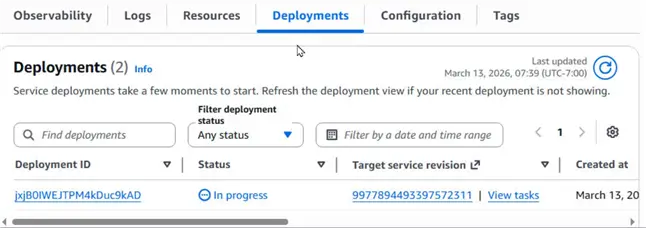
Click the Deployments tab to discover the deployments In progress, or completed.
Click the Configuration tab to list the configurations.
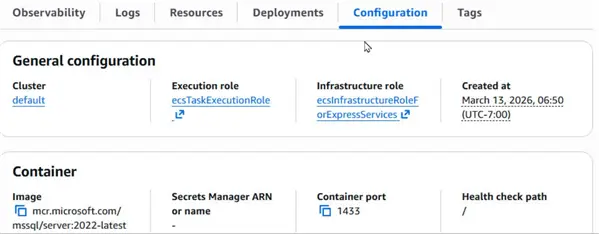
Scroll, and discover the Task definitions for the cluster.
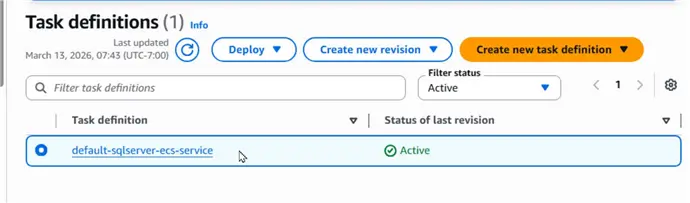
We can discover the cluster at the top-level under Clusters. It created a cluster called “default” because we did not specify a cluster of our own.
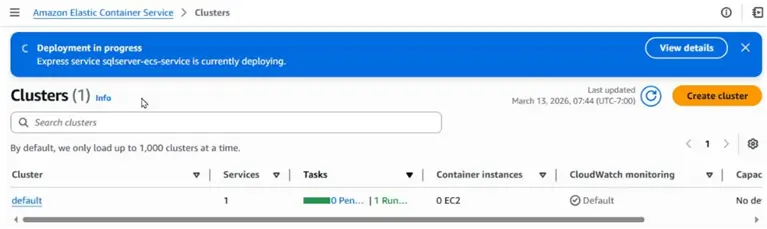
Discover the services within the cluster under the Services tab. The Express label indicates that the service we created is Express.
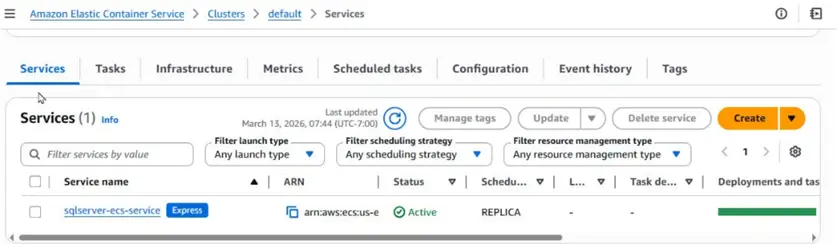
Click the Tasks tab to discover the tasks within the cluster.
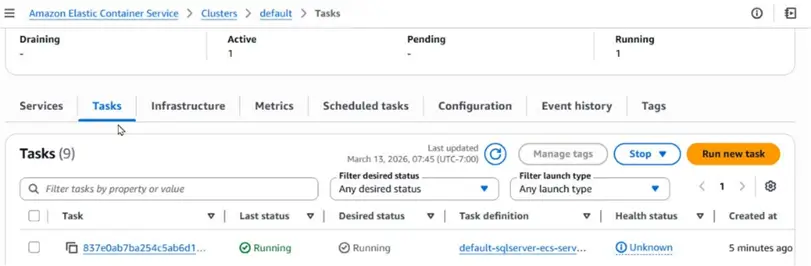
Click a task to further discover its configuration under the Configuration tab.
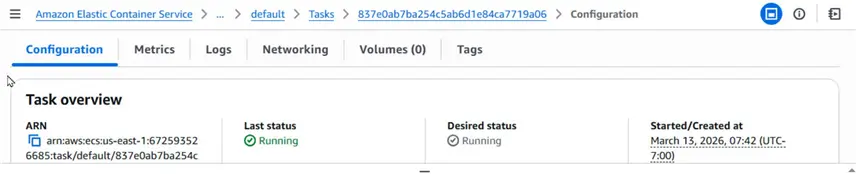
Discover the containers hosted by a task in the Containers table.

Connecting to SQL Server Using SQL Server Management Studio
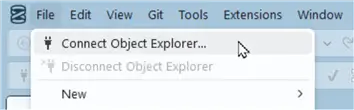
Launch the SQL Server Management Studio hosted on your local machine. The SSMS could even be running on an EC2 instance; however, we are demonstrating connecting from local machine. Click File > Connect Object Explorer.
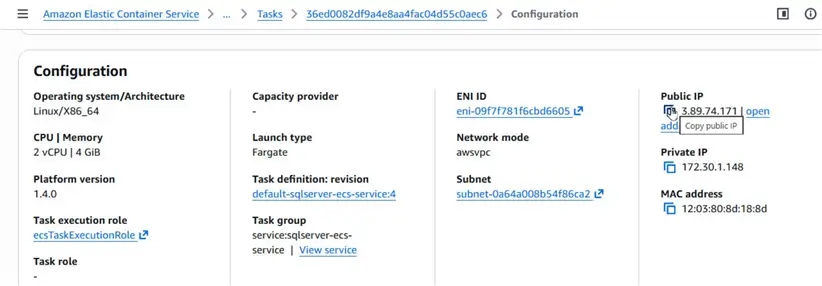
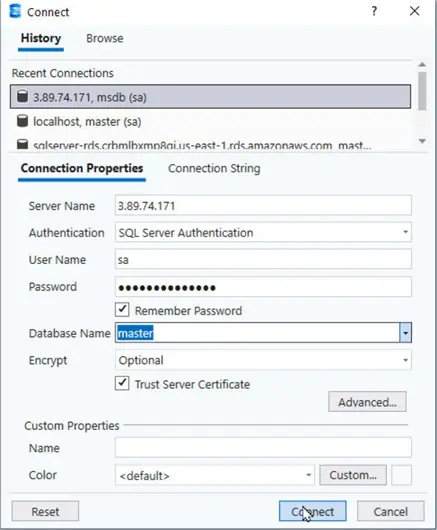
A Connect dialog opens. We need the endpoint of the SQL Server to connect to. Navigate to the Configuration tab for a task running within the ECS cluster. Copy the Public IP.
We need the password for the ‘sa’ user. If not noted and saved while provisioning the cluster, the password can be obtained from the sqlserver-ecs-service configuration under Environment variables.

Provide the Server Name as the Public IP. Specify User Name as sa. Provide the Password. Click on the down arrow adjacent the Database Name to establish an initial connection with the SQL Server and retrieve the databases.
Select the master database, click the checkbox Trust Server Certificate, and click Connect.
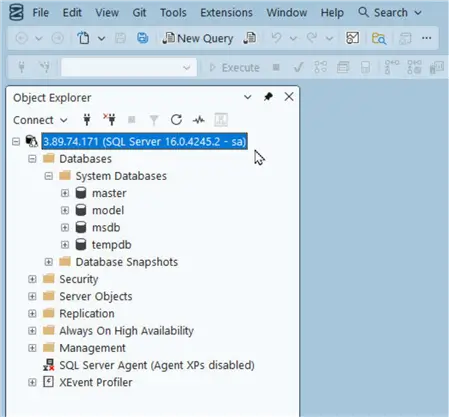
A connection gets added to the Object Explorer in the SQL Server Management Studio.
Running a Query
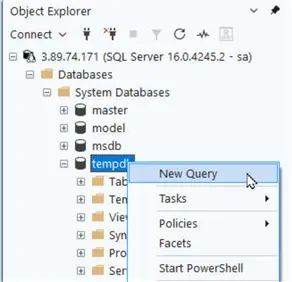
Let’s run an example query to create and table. Right-click the tempdb and select New Query in the Object Explorer.
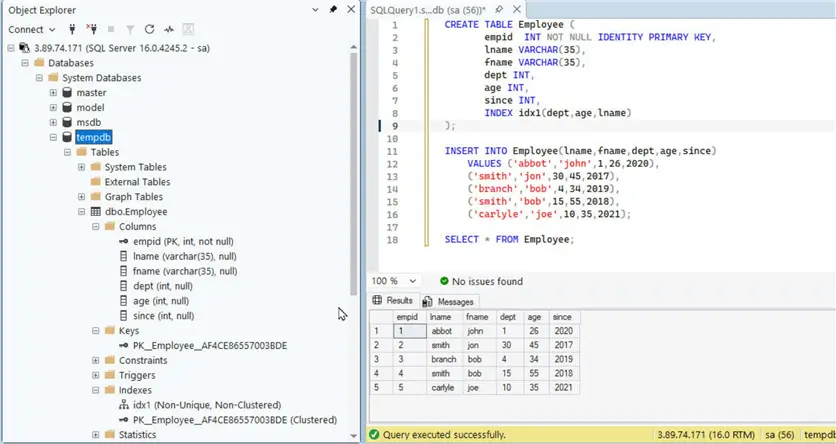
Copy the following script to the query editor.
--MSSQLTips.com (T-SQL)

CREATE TABLE Employee (
       empid  INT NOT NULL IDENTITY PRIMARY KEY,
       lname VARCHAR(35),
       fname VARCHAR(35),
       dept INT,
       age INT,
       since INT,
       INDEX idx1(dept,age,lname)
);
INSERT INTO Employee(lname,fname,dept,age,since) VALUES ('abbot','john',1,26,2020), ('smith','jon',30,45,2017), ('branch','bob',4,34,2019),('smith','bob',15,55,2018),('carlyle','joe',10,35,2021);
SELECT * from Employee;
Click Execute in the toolbar to run the script. It creates a table, adds data to it, and selects data from it.
Updating the ECS Service
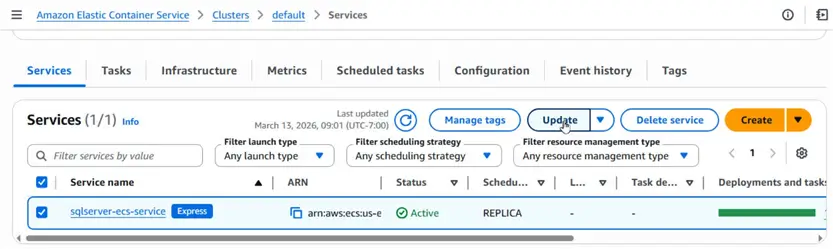
We can update a service when we need to. Let’s demonstrate by updating the service to add a task role. Select the sqlserver-ecs-service in the Services table, and click Update.
Scroll to the Task role, and click Create new role.
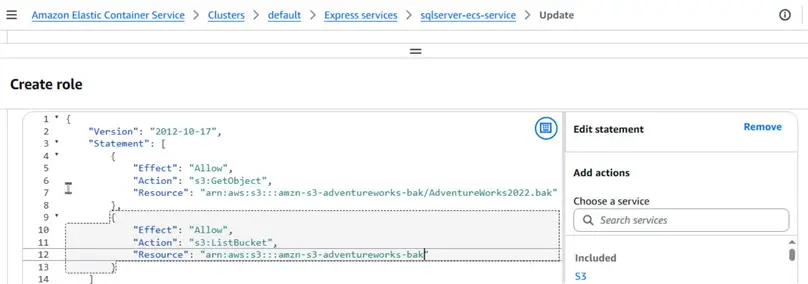
In Create role dialog add a new policy in JSON format. For example, add a policy that provides access to an AWS S3 bucket.
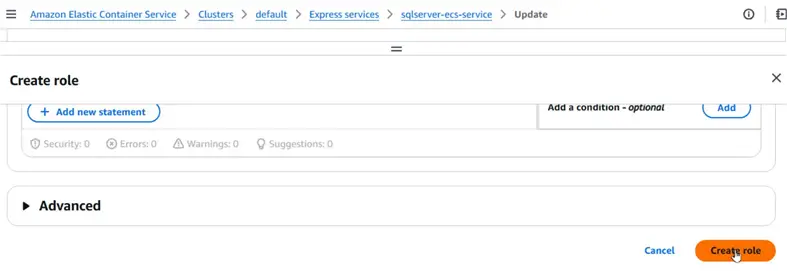
Click Create role.
Back in the sqlserver-service-ecs dialog, the new role should get added in Task role.
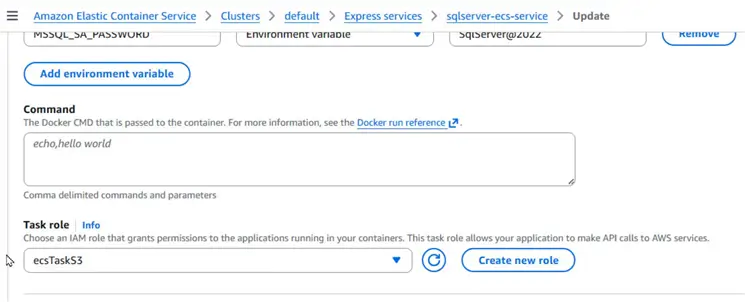
Click Update.
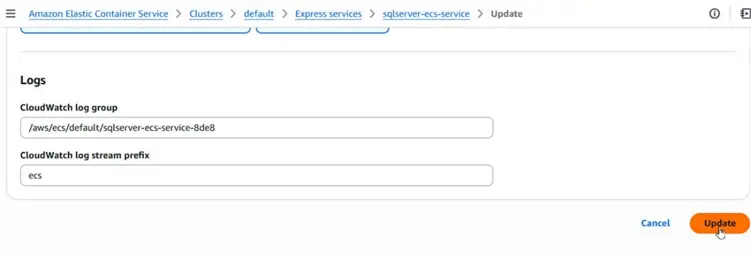
The new task role gets added to a running service without first having to stop the service.
Deleting the Service Cluster
To delete a cluster, we must ensure that all tasks running within the cluster have been stopped. This is because it does not let you delete a cluster with active tasks. Select Actions > Delete cluster when ready to delete a cluster.
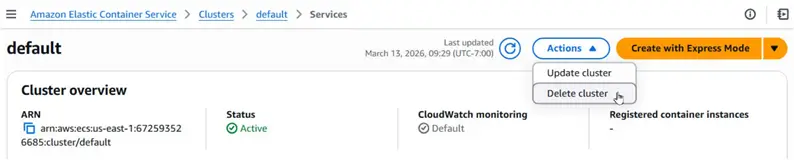
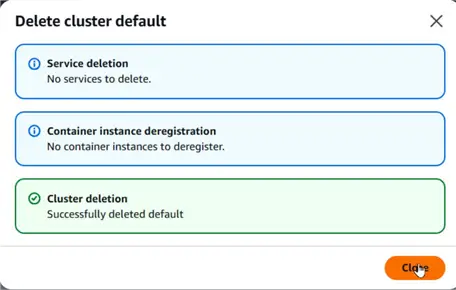
It deletes the cluster. Click Close on the confirmation dialog.
Summary
In this article, we explain the procedure to use the Amazon Elastic Container Service (ECS) for running an SQL Server instance within a Docker container. We use the Express mode, which automates most of the cluster provisioning using the Fargate serverless platform. Then, we connect to the SQL Server from a local machine with SQL Server Management Studio, and create an example table. We learn to update a running service, and delete it when we no longer need it.
Next Steps
- Register an Account with AWS
- Download and install SQL Server Management Studio
- Explore the SQL Server Docker images
- Get started with Amazon ECS
- Read up on related articles:
- Create SQL Server on Linux Docker Container using Dockerfile
- Docker Commands with Examples for SQL Server DBAs
- Best Practices for Docker to run SQL Server on a Mac
- Setup SQL Server and Docker on a MacBook
- Create a SQL Server on Linux Container with 5 Lines of Code
- Create SQL Server on Windows Docker Container
- Build Docker Containers with External Storage on Your Desktop

Deepak Vohra is an Oracle Certified Data Science Professional, and an author of more than 20 books. Hobbies include philately, golf, and cricket.