Problem
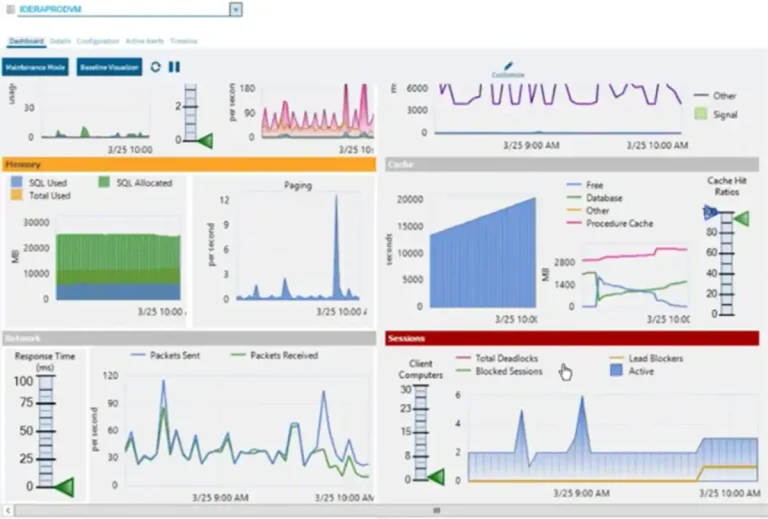
If you’re one of the lucky ones, you or your company has the ability to purchase third party software to monitor the health of your database systems. If you’re not, now with SQL Server 2012, Microsoft has introduced the sp_server_diagnostics stored procedure which provides us with a lot of valuable insight into the health of our system. This tip will look at how we can parse the output of this stored procedure to give us some useful information on the state of our database system.
Solution
If you haven’t read anything about the sp_server_diagnostics stored procedure this tip provides a good high level overview of the information output by this system stored procedure. Now that we have an idea of some of the data output by this stored procedure, let’s take a look at some examples from each component and how we can parse the xml data returned.
Overview of components
We’ll start by checking the status of each of the components that make up the sp_server_diagnostics output. In order to more easily work with the results of the stored procedure, especially because we are going to be running many queries against the result set, let’s store the output into a temporary table so we can query it as many times as we need. Here is the query to both create the temporary table as well as load the output into this table.
CREATE TABLE #ServerStats (create_time datetime,
                           component_type sysname,
                           component_name sysname,
                           state int,
                           state_desc sysname,
                           data xml)
INSERT INTO #ServerStats execute sp_server_diagnostics
With the temporary table loaded we can now check the status of each component. Note that the “events” component will always have a status of unknown. Here is the query and a sample output.
-- Overview
SELECT create_time as "Date",
       component_name as "Component",
       state_desc as "Status"
FROM #ServerStats| Date | Component | Status |
|---|---|---|
| 2014-02-28 22:11:15.787 | system | clean |
| 2014-02-28 22:11:15.787 | resource | clean |
| 2014-02-28 22:11:15.787 | query_processing | clean |
| 2014-02-28 22:11:15.787 | io_subsystem | clean |
| 2014-02-28 22:11:15.787 | events | unknown |
System
Now let’s dig into the system component which gives us some high level information on system related components like CPU and memory. In order to extract this information, we’ll need to parse the xml output for this component. There are a few ways you could do this but we’ll do it by using the XQuery value() method. Here is an example query and its output.
-- System
select 'System' as "System",
       data.value('(/system/@systemCpuUtilization)[1]','bigint') as "System CPU",
       data.value('(/system/@sqlCpuUtilization)[1]','bigint') as "SQL CPU",
       data.value('(/system/@nonYieldingTasksReported)[1]','bigint') as "Non-yielding Tasks",
       data.value('(/system/@pageFaults)[1]','bigint') as "Page Faults",
       data.value('(/system/@latchWarnings)[1]','bigint') as "LatchWarnings"
  from #ServerStats
where component_name like 'system'| System | System CPU | SQL CPU | Non-yielding Tasks | Page Faults | LatchWarnings |
|---|---|---|---|---|---|
| System | 4 | 14 | 0 | 2717 | 0 |
Resources
Next let’s take a look into the resource component which gives us a fairly detailed view of the memory use within our system. Again we will use XQuery value() method to extract any of the information we are interested in viewing. Here is an example query and its output.
-- Memory
select 'Memory' as "Memory",
       data.value('(/resource/memoryReport/entry[@description="Working Set"]/@value)[1]',
          'float')/1024/1024 as "Memory Used by SQL Server (MB)",
       data.value('(/resource/memoryReport/entry[@description="Available Physical Memory"]/@value)[1]',
          'float')/1024/1024 as "Physical Memory Available (MB)",
       data.value('(/resource/@lastNotification)[1]','varchar(100)')
          as "Last Notification",
       data.value('(/resource/@outOfMemoryExceptions)[1]','bigint')
          as "Out of Memory Exceptions"
  from #ServerStats
where component_name like 'resource'| Memory | Memory Used by SQL Server (MB) | Physical Memory Available (MB) | Last Notification | Out of Memory Exceptions |
|---|---|---|---|---|
| Memory | 130.25 | 537.25 | RESOURCE_MEM_STEADY | 0 |
Query Processing
The query processing component contains a lot of detailed information on waits as well as CPU intensive and blocking queries. Let’s first take a look at the wait information returned by this component which is divided into two categories, preemptive and nonpreemptive. Within these two categories the waits are further broken down and sorted by number of occurrences (count) or by duration. To query this data we need to shred the XML using the XQuery nodes() method and the CROSS APPLY TSQL function. Here is an example query and output for each category.
-- Nonpreemptive waits by duration
select 'Non Preemptive by duration' as "Wait",
       tbl.evt.value('(@waitType)','varchar(100)') as "Wait Type",
       tbl.evt.value('(@waits)','bigint') as "Waits",
       tbl.evt.value('(@averageWaitTime)','bigint') as "Avg Wait Time",
       tbl.evt.value('(@maxWaitTime)','bigint') as "Max Wait Time"
from #ServerStats CROSS APPLY
     data.nodes('/queryProcessing/topWaits/nonPreemptive/byDuration/wait') AS tbl(evt)
where component_name like 'query_processing'| Wait | Wait Type | Waits | Avg Wait Time | Max Wait Time |
|---|---|---|---|---|
| Non Preemptive by duration | CLR_AUTO_EVENT | 8807 | 3384270126 | 639906300 |
| Non Preemptive by duration | HADR_FILESTREAM_IOMGR_IOCOMPLETION | 3365570 | 1692111738 | 11811 |
| Non Preemptive by duration | TRACEWRITE | 432995 | 868715044 | 13822 |
| Non Preemptive by duration | LCK_M_U | 6 | 572063 | 253719 |
| Non Preemptive by duration | ASYNC_NETWORK_IO | 1646 | 72411 | 2117 |
| Non Preemptive by duration | SLEEP_MASTERDBREADY | 1 | 26795 | 26795 |
| Non Preemptive by duration | FT_IFTSHC_MUTEX | 3 | 15013 | 15013 |
| Non Preemptive by duration | PAGEIOLATCH_EX | 80 | 10859 | 1329 |
| Non Preemptive by duration | IO_COMPLETION | 846 | 9788 | 278 |
| Non Preemptive by duration | PAGEIOLATCH_SH | 589 | 6411 | 273 |
-- Preemptive waits by duration
select 'Preemptive by duration' as "Wait",
       tbl.evt.value('(@waitType)','varchar(100)') as "Wait Type",
       tbl.evt.value('(@waits)','bigint') as "Waits",
       tbl.evt.value('(@averageWaitTime)','bigint') as "Avg Wait Time",
       tbl.evt.value('(@maxWaitTime)','bigint') as "Max Wait Time"
from #ServerStats CROSS APPLY
     data.nodes('/queryProcessing/topWaits/preemptive/byDuration/wait') AS tbl(evt)
where component_name like 'query_processing'| Wait | Wait Type | Waits | Avg Wait Time | Max Wait Time |
|---|---|---|---|---|
| Preemptive by duration | PREEMPTIVE_XE_CALLBACKEXECUTE | 83605750 | 86073 | 340 |
| Preemptive by duration | PREEMPTIVE_OS_WAITFORSINGLEOBJECT | 525 | 72304 | 2117 |
| Preemptive by duration | PREEMPTIVE_OS_LIBRARYOPS/td> | 1 | 17023 | 17023 |
| Preemptive by duration | PREEMPTIVE_OS_PIPEOPS | 1 | 14859 | 14859 |
| Preemptive by duration | PREEMPTIVE_OS_GENERICOPS | 15 | 14114 | 14021 |
| Preemptive by duration | PREEMPTIVE_OS_QUERYREGISTRY | 28115 | 14074 | 1988 |
| Preemptive by duration | PREEMPTIVE_OS_WRITEFILEGATHER | 82 | 3201 | 241 |
| Preemptive by duration | PREEMPTIVE_OS_SQMLAUNCH | 21 | 1872 | 1866 |
| Preemptive by duration | PREEMPTIVE_OS_WRITEFILE | 185 | 1816 | 142 |
| Preemptive by duration | PREEMPTIVE_OS_FILEOPS | 142 | 1282 | 106 |
Similarly, to extract the list of CPU intensive queries we need to shred the XML column. Here is the query to do this as well as sample output.
-- CPU intensive queries
select 'CPU Intensive Queries' as "CPU Intensive Queries",
       tbl.evt.value('(@sessionId)','bigint') as "Session ID",
       tbl.evt.value('(@command)','varchar(100)') as "Command",
       tbl.evt.value('(@cpuUtilization)','bigint') as "CPU",
       tbl.evt.value('(@cpuTimeMs)','bigint') as "CPU Time (ms)"
  from #ServerStats CROSS APPLY
       data.nodes('/queryProcessing/cpuIntensiveRequests/request') AS tbl(evt)
where component_name like 'query_processing'| CPU Intensive Queries | Session ID | Command | CPU | CPU Time (ms) |
|---|---|---|---|---|
| CPU Intensive Queries | 54 | UPDATE | 93 | 48344 |
| CPU Intensive Queries | 57 | SELECT | 0 | 344 |
| CPU Intensive Queries | 52 | EXECUTE | 0 | 32 |
The blocked process reports can also be extracted with this method. I’ve included an example query below, but not the output since the XML report returned here is the same thing you are familiar with if you’ve ever enabled this event in a SQL Trace session and would not display nicely due to its length.
-- Blocked Process Reports
select 'Blocked Process Report' as "Blocked Process Report",
       tbl.evt.query('.') as "Report XML"
from #ServerStats CROSS APPLY
     data.nodes('/queryProcessing/blockingTasks/blocked-process-report') AS tbl(evt)
 where component_name like 'query_processing'
IO Subsystem
Looking into the IO subsystem component a little deeper we see that we can extract both high and some lower level information on IO performance. The following example query pulls out a few of the high level performance details. You could also use the same shredding technique we used above to expand the details of the longestPendingRequests node to drill down to any specific files that are having an issue. A sample output of the query is also provided below.
-- IO report
select 'IO Subsystem' as "IO Subsystem",
       data.value('(/ioSubsystem/@ioLatchTimeouts)[1]','bigint') as "Latch Timeouts",
       data.value('(/ioSubsystem/@totalLongIos)[1]','bigint') as "Total Long IOs"
from #ServerStats
where component_name like 'io_subsystem'| IO Subsystem | Latch Timeouts | Total Long IOs |
|---|---|---|
| IO Subsystem | 0 | 0 |
Events
The event component is the final component we need to dive into. This component contains information on any events in your system related to memory, CPU, other resources, etc… Since it contains different types of events, depending on the event captured the data captured will be different as well. Because of this I simply capture the event time and the xml output. If you are troubleshooting a specific event you can filter as required, but for monitoring I like to see all of the events. Here is a sample query and truncated event data output.
-- Event information
select tbl.evt.value('(@name)','varchar(100)') as "Event Name",
       tbl.evt.value('(@package)','varchar(100)') as "Package",
       tbl.evt.value('(@timestamp)','datetime') as "Event Time",
       tbl.evt.query('.') as "Event Data"
 from #ServerStats
  CROSS APPLY data.nodes('/events/session/RingBufferTarget/event') AS tbl(evt)
where component_name like 'events'| Event Name | Package | Event Time | Event Data |
|---|---|---|---|
| memory_broker_ring_buffer_recorded | sqlos | 2014-03-10 16:34:26.223 | … |
| scheduler_monitor_system_health_ring_buffer_recorded | sqlos | 2014-03-10 16:35:15.063 | … |
| resource_monitor_ring_buffer_recorded | sqlos | 2014-03-10 16:35:27.337 | … |
Summary
As you can see we can get quite a bit of system health/performance information from this stored procedure. The complete script listing of the queries above can be used or edited as required for your environment. I’ve found the easiest way to see what’s available is to simply return the entire xml data column and then select out what you feel is most relevant.
Next Steps
- Schedule this or similar query and store the results for later analysis. Running this query multiple times throughout the day would give you a good performance profile of your database system.
- Alternatively you can create an extended event session and monitor/capture similar events to an asynchronous_file_target
- Read more on shredding XML

Ben Snaidero has been a Database Administrator for just over 10 years. Starting out working mainly with Oracle he got into SQL Server in 2005 and has worked primarily with SQL Server for the last 3 years. His main focus with both Oracle and SQL Server is in the area of performance tuning.
- MSSQLTips Awards: Achiever (75+ tips) – 2018 | Author of the Year Contender – 2016-2017