Problem
I have created a pipeline in Azure Data Factory. I want to copy data from my SQL Server instance hosted on my local server. I can connect easily to cloud sources, but not to my on-premises sources. How can I achieve this?
Solution
Azure Data Factory is a scalable data integration service in the Azure cloud. In Azure Data Factory, you can create pipelines (which on a high-level can be compared with SSIS control flows). In a pipeline, you can put several activities, such as copy data to blob storage, executing a web task, executing a SSIS package and so on. A common scenario is to copy data from local sources to the cloud. In this case, Azure Data Factory needs to be able to connect to those sources. This can be achieved by using the self-hosted integration runtime.
The self-hosted integration runtime is a service running in Azure Data Factory, but you can add local compute nodes on local servers in your on-premises network. A connection is created between the nodes and the integration runtime within your Azure Data Factory (ADF) in Azure. Through this connection, ADF can reach your local data and copy it securely to the cloud. This set-up is very similar to the Power BI on-premises gateway. In fact, the self-hosted integration runtime used to be called the “data management gateway”.
An alternative to using the self-hosted integration runtime (IR), is to use an on-premises ETL tool – like SSIS – to push the data to the cloud. However, this means you need a SQL Server license and a server. The self-hosted IR service is free to use and can be run on any local server. If you want to migrate your data infrastructure to the cloud, Azure Data Factory (and other Azure tools like Logic Apps) are a better choice.
It’s important to note that the self-hosted IR will grant ADF access to your on-premises sources, but not the Azure-SSIS IR. If you want SSIS packages to connect to your local environment, you need to join the Azure-SSIS IR to a virtual network.
Setting Up the Self-Hosted Integration Runtime
The first step is setting up the self-hosted IR in ADF. Then we install a node (or multiple nodes) on a local server and connect the node with the integration runtime.
In ADF, go to the edit pane, then to connections (at the bottom) and finally to the Integration Runtimes. There, click on the New button to create a new IR.
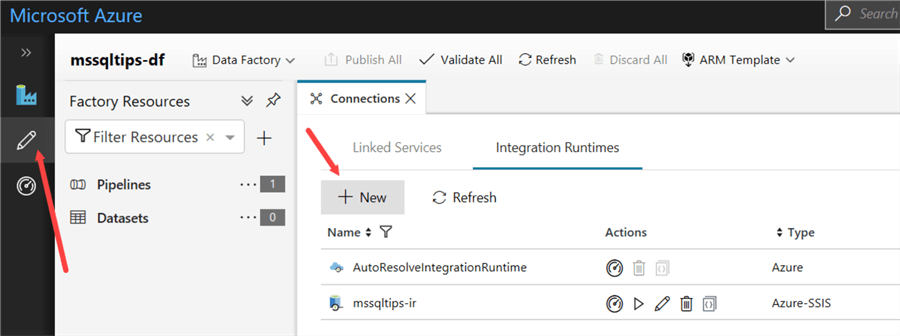
In the wizard, you get two options for the integration runtimes: one for external computes and the Azure-SSIS IR. We’re going to pick the first one. For setting up an Azure-SSIS IR, check out the tip Configure an Azure SQL Server Integration Services Integration Runtime.

You can either create an IR in Azure or a self-hosted IR. We’re going to choose the second option.

Next, we’re going to provide a name and a description.
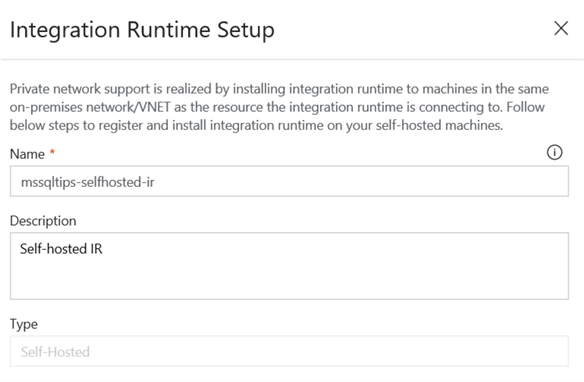
To configure the self-hosted IR node on your local machine, you can choose between an express setup or a manual install.

However, I got the following error when I tried to download the express setup:

Manual installation and configuration it is then. You can download the ADF IR from the Microsoft site:

After downloading, run the setup on the server that will host your self-hosted IR node. Ideally, this server is close to your data. There’s an easy to follow setup wizard:

When the setup is finished, you can configure the node. First, we need to register it to the IR we created in ADF. Copy one of the authentication keys which you can find in the ADF IR setup:

Paste the key into the local IR config menu and click Register:

Next you can specify a name for your local node of the self-hosted IR.

If necessary, you can configure remote access as well:

When everything went successfully, you’ll get a message stating the local node has been registered successfully to the self-hosted IR.

After the setup, the configuration manager of the node will be shown. Here you can consult the status of the service and see if it is connected to the cloud service.

When you go back to the connections in ADF, you can see the self-hosted IR among the other IRs. It’s possible the status is unavailable, while the node configuration manager says the connection is successful. In most cases, you simply need to refresh the screen.
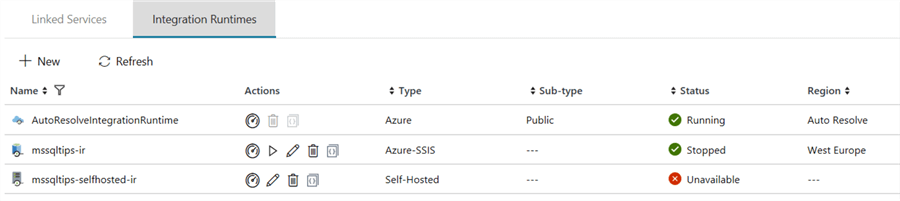
You can click on the monitor icon to get more detail about your self-hosted IR:

Creating a connection to a local database
Before we can pull data from our on-premises server, we need to create a linked service to the database. In the connection pane, go to Linked Services and click on New.

In the wizard, choose SQL Server as the data store type.

Click Continue to go to the configuration screen of the linked service. There you’ll need to specify a name, server name, database name and connection credentials. Don’t forget to select the self-hosted IR from the dropdown.

At the bottom, you can test your connection. Click Finish to create the linked service.

Conclusion
In the first part of this tip, we’ve configured a self-hosted integration runtime in Azure Data Factory. Then we added a note to this IR on our local server. We created a linked service in ADF to our local instance of SQL Server and the connection was successful. In the next part of this tip, we’ll see how we can use this setup to copy data from the SQL Server database to Azure Blob Storage.
Next Steps
- More information about the Azure-SSIS Integration Runtime:
- More tips about SSIS and Azure:
- You can find more Azure tips in this overview.

Koen Verbeeck is a seasoned business intelligence consultant with over a decade of experience with the Microsoft Data Platform. He holds several certifications, including Azure Data Engineer. He’s a prolific writer, with over 375 articles on technologies such as Microsoft Fabric, SSIS, ADF, SSAS, SSRS, MDS, Power BI, Snowflake and Azure services. He has spoken at various events such as PASS, SQLBits, dataMinds Connect and many others. He frequently delivers educational webinars on MSSQLTips.com. For his efforts, Koen has been awarded the Microsoft MVP data platform award for many years.
- MSSQLTips Awards:
- Leadership Award (200+ Tips) – 2021
- Author of the Year – 2014/2020/2022
- Author Contender – 2024/2025
Hi Sam,
I believe it uses public network, which you can secure as described here:
https://docs.microsoft.com/en-us/azure/data-factory/create-self-hosted-integration-runtime#tlsssl-certificate-requirements
However, it also seems you could use a private endpoint, as discussed here:
https://stackoverflow.com/questions/67115488/how-do-i-connect-an-azure-self-hosted-integration-runtime-to-a-data-factory-priv
Regarding the scale out using multiple nodes, the only thing I could find is that a single copy activity will partition itself over the different nodes:
https://docs.microsoft.com/en-us/azure/data-factory/copy-activity-performance
Regards,
Koen
Hi,
If I want to configure 4 nodes for my Self hosted IR, how will the workload be distributed between the 4 nodes? Is Azure data gateway also required for using multiple nodes? If yes, how do we integrate data gateway with IR ?
Also does the self hosted IR data transfer uses private network between on-premise and azure vnet or it uses public network ?
Hi Santhosh,
I would look into PowerShell for extracting data from AD.
I have been tasked to integrate an on-premise active directory with the cloud Azure SQL database( Managed Instance).
The task is to pull the identity data from on-prem AD and pump it into a SQL table in the managed SQL instance on Azure. Can ADF connect on-prem AD with cloud Azure SQL?. Some pointers, please?
Hi Santosh,
this is hard to troubleshoot from remote. It might be a firewall issue, as indicated by the error. Can you log in with the user yourself on your local machine? Does the user have permission to access the database? Is the self-hosted IR registered as up and running in the list of integration runtimes in ADF?
Koen
Hi,
I am begineer in ADF. Please help.
I am facing connection issue while creating linked services for on-premises sql server. Please help. Below is error
Cannot connect to SQL Database: ‘(LocalDB)\MSSQLLocalDB’, Database: ‘AdventureWorksDW2016’, User: ‘santo’. Check the linked service configuration is correct, and make sure the SQL Database firewall allows the integration runtime to access.
Login failed for user ‘santo’., SqlErrorNumber=18456,Class=14,State=1,
Activity ID: e1d0b6c6-c54c-45cb-bbfb-78bb936af562
Great article! This really helped me. Thank you!
Hi Shashank,
for the moment this does not seem to be possible. Linux is not listed in the system requirements.
https://www.microsoft.com/en-us/download/details.aspx?id=39717
Regards,
Koen
Can i install Self hosted IR on linux machine?