Problem
I have a number of Excel files in a SharePoint library. I want to load the data from those files into my database in Azure. I tried using Azure Data Factory, but SharePoint isn’t listed as one of the sources. What are my options to get the data out of SharePoint?
Solution
At the moment, SharePoint is not supported as a data source in Azure Data Factory (ADF), the cloud-based data integration service by Microsoft. It is not listed as a supported data store/format for the Copy Activity, nor is it listed as one of the possible connectors. If we want to read the data from the Excel files and write it to an Azure SQL database, we need to explore other options. Luckily, there are many:
- You could code a solution using .NET, Python or PowerShell and automate it using Azure Runbooks. See the tip Automate the Azure-SSIS Integration Runtime Start-up and Shutdown – Part 1 for an example of using a runbook.
- You could build an Integration Services package to get the files and the data and write the results to the database. Then you can put the SSIS package in Azure by using an Azure-SSIS runtime environment to schedule your package inside Azure Data Factory. The tips Configure an Azure SQL Server Integration Services Integration Runtime and Customized Setup for the Azure-SSIS Integration Runtime can get you started with this.
- Or you can use Azure Logic Apps to fetch the files from SharePoint, dump them into Azure Blob Storage and then copy the data into the database using the Copy Activity in ADF.
In this tip, we’ll take a look at the last option. Logic Apps allow you to create serverless workflows that automate the integration between various services without writing a single line of code. Luckily, Logic Apps can connect to SharePoint, and many other sources as well, such as BizTalk, Office 365, Box, OneDrive, Power BI, Teradata and so on. The list is over 200 items long! The example in this tip uses SharePoint as a source, but Logic Apps can handle many different scenarios.
Creating a Logic App
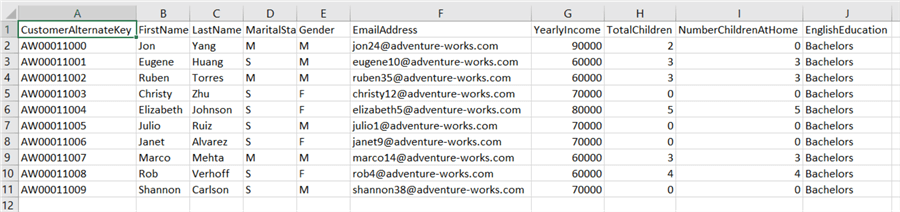
The goal is to read data from an Excel file stored in a SharePoint document library. The sample data looks like this (it’s retrieved from the employee dimension of the AdventureWorks data warehouse):
In the Azure Portal, click on Create a Resource.
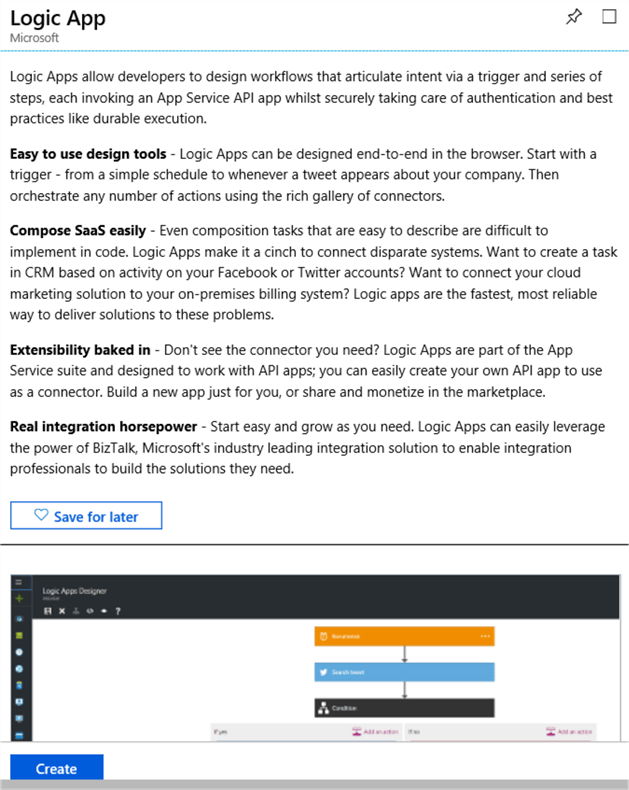
Search for Logic Apps.

Click on the Create button to add a new Logic App.
Choose a name, a subscription, a resource group and a location.

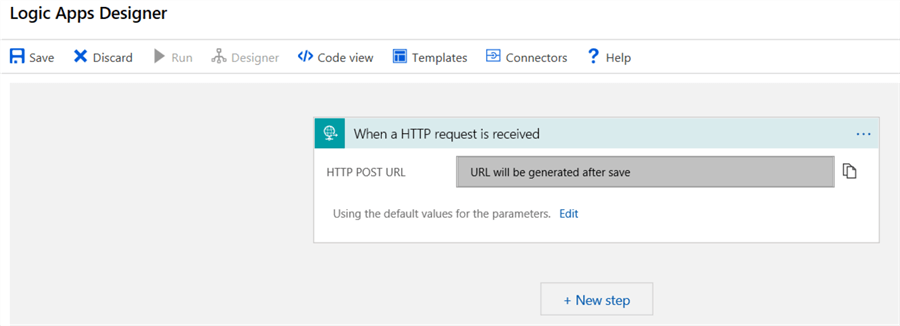
When you go to the newly created Logic App, the designer will open. You can start with a blank workflow, or you can choose between any of the existing templates. If you start with a blank flow, you need to choose a trigger. The trigger will specify when the Logic App will run. In this example, we’ll choose a HTTP request, so we can run the app on demand.

After choosing the trigger, the design canvas will be opened, with the trigger added to the top:
Now we need to add a step to the workflow, which will be executed once the trigger has been called. Simply click on New step. A step will be added and you need to choose the action the step will perform:

Search for SharePoint and in the resulting list, choose the List Folder action. This action will list all of the items in the document library. We can then use this output to loop over the items and read them their contents.

The next step is to sign into your SharePoint environment. If you have an on-premises SharePoint, you can connect through a data gateway (more info can be found in the tip Connect to On-premises Data in Azure Data Factory with the Self-hosted Integration Runtime – Part 1).
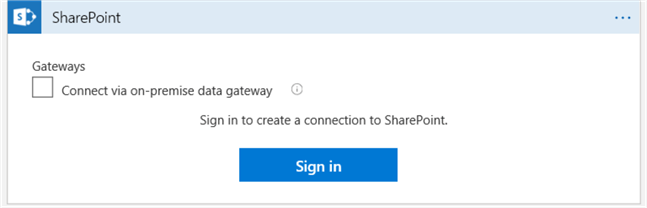
A pop-up will come where you can enter your credentials. It’s possible this pop-up is blocked in some browsers. After signing in, you’ll get the following window where you can configure your action:
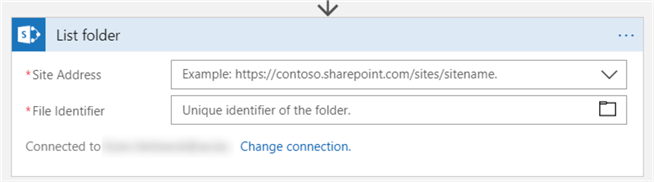
If you click the first dropdown, you’ll get a list of SharePoint sites you can connect to. Once you select one, you can click on the folder icon to browse to the desired library:

Click on the arrows on the right to go to a subfolder, or on the folder itself to select it. Click on New step to add a new subsequent step. In the new step, choose SharePoint again as the connector. Then, select Get File Content. In the File Identifier, we want to use the identifiers of all the files in the folder, found by the List Folder step. To do this, select Add dynamic content. This allows you to use values/objects returned by previous steps.

In the list, select Id (the unique id of the file). The Logic Apps designer is smart enough to detect that you can actually have multiple files in the folder, so it’s going to wrap the Get File Content step in a For each loop.

Don’t forget to select a SharePoint site as well, which obviously needs to be the same site as in the List Folder step. The final step will write the contents of the file to Azure Blob storage (configuration of blob storage is out of scope for this tip, but examples can be found in the tips Customized Setup for the Azure-SSIS Integration Runtime or Copying SQL Server Backup Files to Azure Blob Storage with AzCopy). Click on Add an action. In the action screen, search for blob, choose Azure Blob Storage and then select Create blob.

If you have multiple storage accounts, choose the one you need for your setup. Give the connection a name.

Now you can configure the action to create the blob. You can use dynamic content to use the same file name. For the blob content, you need to choose File Content from the dynamic content.

Testing the Logic App
The logic app is now finished. Click on the save icon to save your work. Once the app is saved, you can run it from the designer.

The logic app will then run, check if there are files in the SharePoint folder and then copy them to the Azure Blob container.

In the blob container, we can verify the Excel file is present:

Conclusion
In this we showed how you can easily create a workflow with Azure Logic Apps that transfers data from SharePoint (there are many other connectors available as well) to Azure Blob Storage, without writing a single line of code. The app created in this tip can be called by an HTTP request, but there are other types of triggers as well, such as when a file arrives in a folder.
If you’ve worked with Microsoft Flow before, creating Logic Apps will be very familiar. In fact, Flow is built upon Logic Apps and they share the same designer and connectors.
Next Steps
- Try it out yourself. You can try to automate some of your tasks or replace some old SSIS packages with native cloud functionality. You can also incorporate the logic app into an Azure Data Factory pipeline by using the HTTP request.
- An interesting article comparing Flow, Logic Apps, Webjobs and Azure Functions.
- You can find more Azure tips in this overview.

Koen Verbeeck is a seasoned business intelligence consultant with over a decade of experience with the Microsoft Data Platform. He holds several certifications, including Azure Data Engineer. He’s a prolific writer, with over 375 articles on technologies such as Microsoft Fabric, SSIS, ADF, SSAS, SSRS, MDS, Power BI, Snowflake and Azure services. He has spoken at various events such as PASS, SQLBits, dataMinds Connect and many others. He frequently delivers educational webinars on MSSQLTips.com. For his efforts, Koen has been awarded the Microsoft MVP data platform award for many years.
- MSSQLTips Awards:
- Leadership Award (200+ Tips) – 2021
- Author of the Year – 2014/2020/2022
- Author Contender – 2024/2025



Furthermore, both seem to be on-premises tools. Where are you going to host them in your cloud environment? On a virtual machine? On a container?
Gs Richcopy 360 is about $50 for the standard edition. It will take you a very long time until you have consumed $50 with Azure Logic Apps when you’re just copying simple SharePoint lists.
Syncback is a backup solution, at first glance it doesn’t even support SharePoint Lists.
My personal opinion is to not make the solution more complex (from an architecture point of view) by adding 3rd party tools from unknown vendors into the mix, while there are solutions in Azure which are easy to use.
I have been using Gs Richcopy 360 for a while, and I think 50$ is not a big deal, and the headache will be gone using it
Instead of using logic apps to Transfer Files from SharePoint To Blob Storage, you can use a third-party tool like Gs Richcopy 360 or Syncback, both are easy, quick, and copy directly between the clouds.
Hi,
Logic Apps have an Excel Online connector, where it seems it’s possible to add rows (or worksheets) to an existing Excel file.
This probably won’t have the best performance though, since it’s row-by-row. Logic Apps are a workflow orchestrator, not an ELT tool.
ADF doesn’t seem to support Excel as a destination. Personally, I’d look into an Azure Function.
Hi,
Is there a way to copy CSV or JSON data to the SharePoint as Excel using adf or logicapp from ADLS2
Thanks
Vamshi
Hi samyuktha,
do you see anything in the pop-up for the file identifier? Make sure the site address is correct.
Regards,
Koen
i am following the exact steps as mentioned in this article but i am not getting shared documents folder in the list while selecting file identifier.Can you please tell me what could be the reason for it.I have full control permission to the sharepoint site but i am not the owner.
Great info and I would share that you can use also Sharegate or Gs Richcopy 360 to easily, quickly, and directly copy from SharePoint/Onedrive to Azure Blob / AWS S3
Hi Thao,
is that the only error you get? Most of the time there’s a bit more information.
Bad gateway can mean anything. Usually you get this message when Logic Apps gets a result it doesn’t expect.
Koen
Hi,
I got this error “BadGateway More diagnostic information: x-ms-client-request-id is ‘C95A7A61-17B7-4193-B5C9-E74DCA009131’.” when working with file identifier, do you have any idea on possible solutions?
Thanks in advance.
I believe it will only copy the files, not the folders. Everything is dropped in the same blob container.
I think if you want to traverse all folders, you have to built in some recursive loop:
https://www.frankysnotes.com/2017/04/two-ways-to-build-recursive-logic-app.html
Follow up question that I cant seem to find online. Does this only copy files or does it also copy folders? will it copy the same folder structure you have on Sharepoint or will the files all be under the container with no folders. I was able to get it to copy files using power apps but when I upload a folder to sharepoint it is not looking in that folder to copy the files. only the files I copy directly to the documents folder.
Thank you for the update, I was able to configure it with dynamic content and finished the rest. Currently working on troubleshooting. I am getting 404 error File not found on the “Get File Content”, cant figure out what part is wrong
Hi Jose,
you should specify a folder in the List Folder action. In the Get File Contents, you should configure it with dynamic content.
Koen
Hello,
Currently stuck in the Get File Content part. For the *File Identifier it wont let me pick my Shared Documents folder, it makes me drill down to sub folders and select an actual file. For some reason it wont let me pick a folder when i click on the folder so I cant move on to the next step.
Hi sree,
I believe you have to use an self-hosted integration runtime to access the on-premises SharePoint.
Regards,
Koen
Hi koen,
How can connect to Sharepoint (not sharepoint online) from Azure to ingest via Data factory (ADF) incrementally everyday
Hi Koen,
Thanks for the link, solved my task.
Hi Manu,
you can check out the following blog post:
http://techstuff.bergstrom.nu/logic-apps-filter-array-reduce-actions/
Hi Koen,
Perfect place where I can solve my tasks.
could you suggest me how to pick only excel files among different file formats in SharePoint.
Hi Erick,
sure, that should be no problem.
Koen
This looks really useful to me! Should this also be possible if the Sharepoint and the Blob Storage are on different storage accounts?