Problem
The Graph Database feature was introduced in SQL Server 2017 and it supports a model that enables SQL Server to store and process complex many-to-many relationships. It also provides more straightforward, seamless, and performance-oriented queries for managing complex relationships or hierarchical data.
Usually, we use T-SQL scripts for working with graph database tables. If you use Azure Data Studio for SQL development, you can use it to create and deploy graph tables using the table designer which we will cover in this article.
Solution
The graph database is a combination of Nodes and Edges. The graph database tables (node or edge) can exist under any SQL database schema, but logically they all belong to one graph:
- Nodes: The nodes represent an entity. A node table has properties.
- Edges: It represents relationships between two nodes. The edge table may or may not have properties.
The following image represents a graph database with node and edge tables.
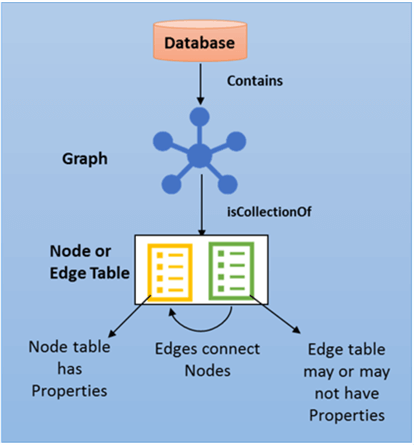
Image source: Microsoft docs
You need Azure Data Studio installed to connect to SQL Server, design nodes, and edge tables. You can download the latest general availability (GA) version 1.37.0 of Azure Data Studio for Windows, Linux, or macOS.
Azure Data Studio Table Designer (Preview) Introduction
Azure Data Studio Table Designer provides a visual editor experience to create and edit database table structures for SQL databases. It also provides the Transact-SQL (T-SQL) in the editor to understand T-SQL statements. You can also design primary and foreign keys, triggers, constraints, and indexes within the table designer.
The table designer has three sections:
- Table definition pane allows the following tasks:
- Define a table name
- Add columns, data types, and choose properties
- Define column properties
- View or copy the equivalent T-SQL script

Create Graph Tables Using Azure Data Studio
In earlier tips, SQL Server 2017 Graph Database Example and Graph processing with SQL Server, we deployed graph database objects using T-SQL statements. In this tip, I will refer to the example from the tip, Graph processing with SQL Server, and show how you can leverage the Azure Data Studio graphical table designer interface.
The image below refers to William's family tree as the father of the family and we will show how this can be represented in graph tables.

Node Table
The node table will create a record for each family member. To create a node table, expand the database and right-click on tables and new tables. In the table, the designer does the following steps.
Step 1: Enter the table name as MyFamily.
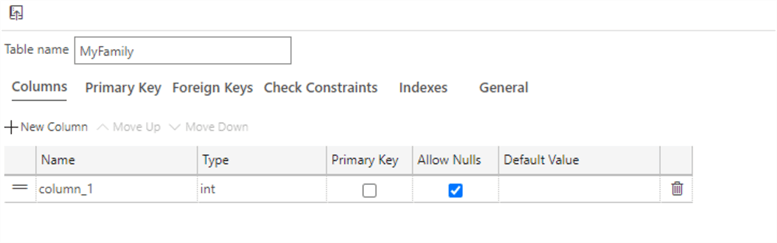
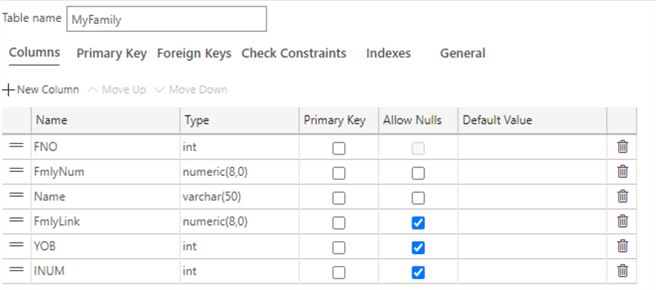
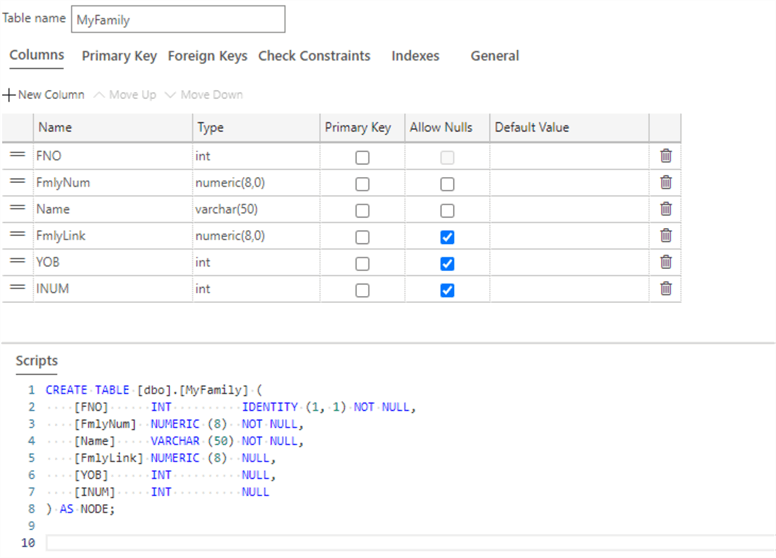
Step 2: Add the following columns to the [MyFamily] table with the corresponding data types:
- FNO – INT – IDENTITY(1,1)
- FmlyNum – NUMERIC (8) – Not NULL
- Name – VARCHAR (50) – NOT NULL
- FmlyLink – NUMERIC (8)
- YOB – INT
- INUM – INT
Step 3: Click on the table name and choose Graph Table Type as Node from the table properties shown below.
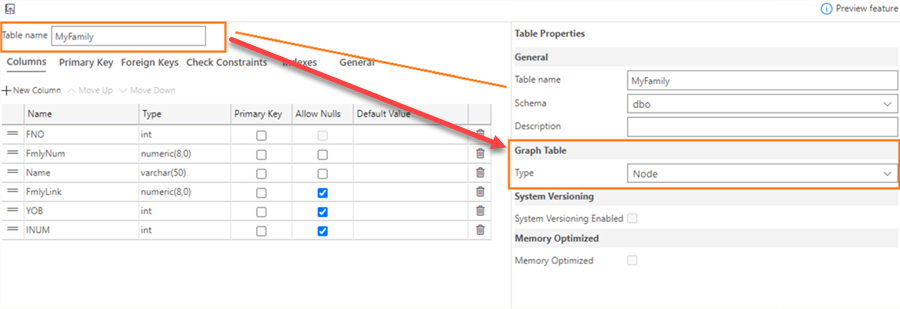
In the table designer bottom pane, you can see the following T-SQL script for the Node table.
Step 4: Click on the publish changes icon at the top, as shown below.

It opens a preview database updates pop-up window. The user action stats show that we are creating a new SQL table [dbo].[MyFamily].
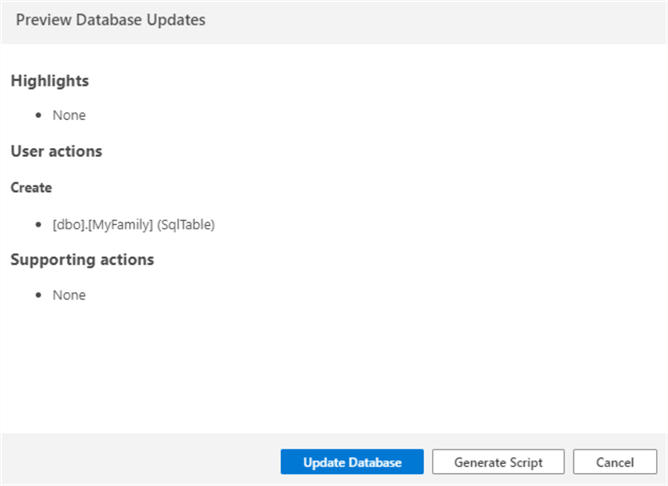
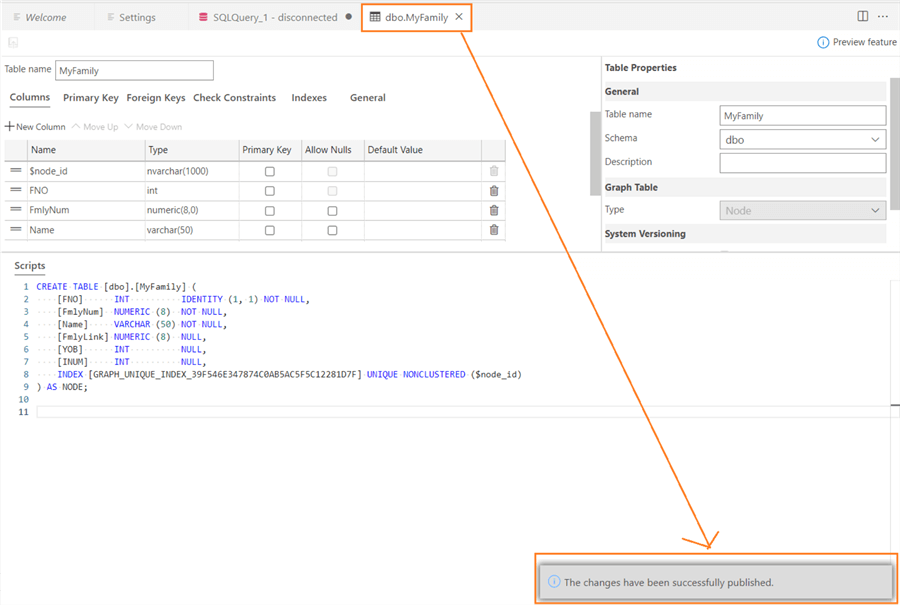
Step 5: Click on Update Database (blue icon) to implement the SQL table. Once the table is deployed, you get a message – "The changes have been successfully published." The table header also reflects the deployed table name.
Note: SQL Server automatically adds a unique identifier column ($Node_id) and has a non-clustered index on the $NODE_ID column.
Edge Table
The edge table defines relationships between two nodes. Launch the table designer and perform the following steps to create an edge table.
Step 1: Enter table name as [MyFmlyEdge]
Step 2: Add the following columns to the [MyFamlyEdge] table
- FmlyNum – Numeric(8) – Not NULL
Step 3: Select the Graph Table Type = Edge from the table properties

Step 4: Publish the changes to deploy the new edge table.
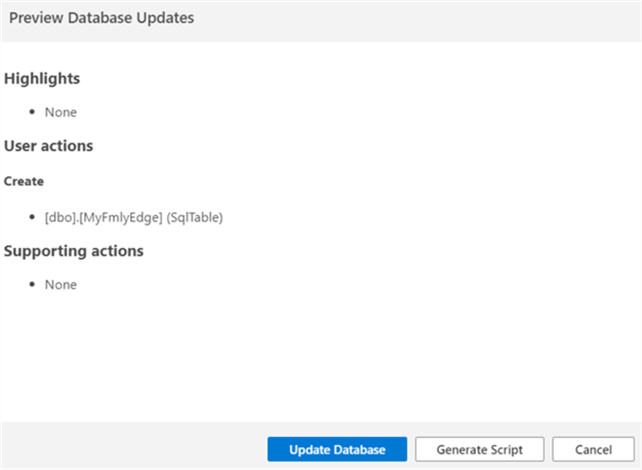
The deployed edge table shows the edge table created a unique non-clustered index automatically.

Step 5: Insert data into node and edge tables with the following T-SQL script
INSERT INTO MyFamily
values
    (10000, 'William', NULL, 1850, 1),
    (140000, 'ALLEN', 10000, 1877, 1),
    (60000, 'ROBINSON', 140000, 1902, 1),
    (70000, 'DAVIS', 140000, 1903, 1),
    (80000, 'ADAM', 140000, 1904, 1),
    (90000, 'SCOTT', 140000, 1905, 1),
    (100000, 'NELSON', 140000, 1906, 1),
    (20000, 'GONZALEZ', 10000, 1876, 1),
    (30000, 'LEWIS', 20000, 1901, 1),
    (31000, 'GRANT', 30000, 1926, 1),
    (40000, 'WALKER', 10000, 1875, 2),
    (120000, 'YOUNG', 40000, 1900, 2),
    (50000, 'HARRIS', 120000, 1925, 2),
    (130000, 'MITCHELL', 120000, 1926, 2),
    (110000, 'CAMPBELL', 130000, 1951, 2),
    (150000, 'BLACK', 130000, 1952, 2),
    (160000, 'WHITE', 150000, 1977, 2),
    (170000, 'JAMES', 160000, 2002, 2);
GO
INSERT INTO MyFmlyEdge
SELECT e.$node_id, m.$node_id , e.fno
FROM dbo.MyFamily e
    INNER JOIN dbo.MyFamily m ON e.FmlyNum = m.FmlyLink;
View Node Table Data
The following screenshot shows that the node table has a unique identifier $node_id to represent each row available in the [MyFamily] table.

The Edge table $from_id and $to_id columns consist of corresponding $node_id column values for mapping two nodes together.

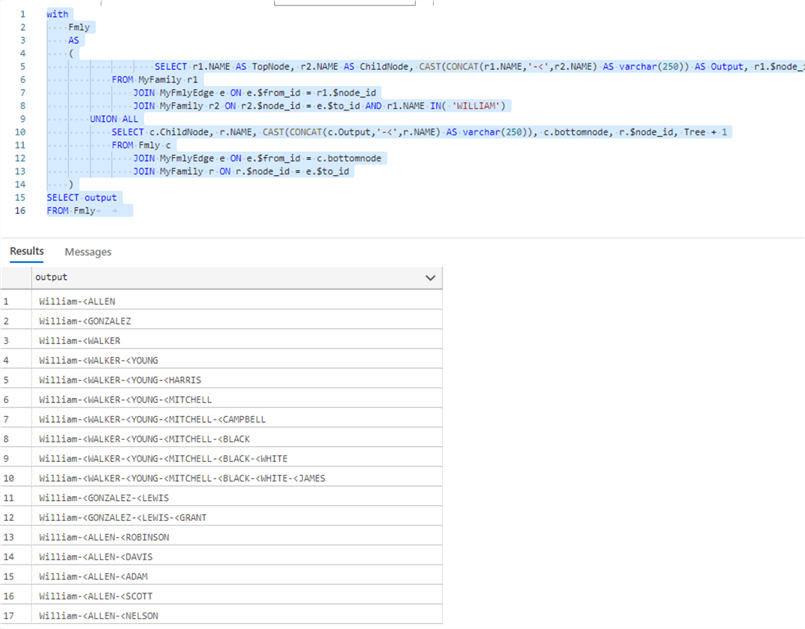
The following script returns all connections from the oldest to the recent generation from the graph tables using node and edge tables.
with
    Fmly
    AS
    (
      SELECT r1.NAME AS TopNode, r2.NAME AS ChildNode, CAST(CONCAT(r1.NAME,'-<',r2.NAME) AS varchar(250)) AS Output, r1.$node_id AS parentid, r2.$node_id as bottomnode, 1 as Tree
      FROM MyFamily r1
        JOIN MyFmlyEdge e ON e.$from_id = r1.$node_id
        JOIN MyFamily r2 ON r2.$node_id = e.$to_id AND r1.NAME IN( 'WILLIAM')
      UNION ALL
      SELECT c.ChildNode, r.NAME, CAST(CONCAT(c.Output,'-<',r.NAME) AS varchar(250)), c.bottomnode, r.$node_id, Tree + 1
      FROM Fmly c
        JOIN MyFmlyEdge e ON e.$from_id = c.bottomnode
        JOIN MyFamily r ON r.$node_id = e.$to_id
    )
SELECT output
FROM Fmly
Next Steps
- Download and configure Azure Data Studio for your SQL Server development.
- Refer to existing tips on Azure Data Studio and Graph databases.

Hi! I am Rajendra Gupta, Database Specialist and Architect, helping organizations implement Microsoft SQL Server, Azure, Couchbase, AWS solutions fast and efficiently, fix related issues, and Performance Tuning with over 14 years of experience.
I am the author of the book “DP-300 Administering Relational Database on Microsoft Azure.” I can be reached at: Rajendra.gupta16@gmail.com for any consulting help.
- MSSQLTips Awards:
- Author of the Year – 2022 | Author Contender – 2021/2023/2024 | Champion Award (100+ tips) – 2020