Overview
A Data Set contains a query that Reporting Services uses to retrieve the data for our report. This query could be a SQL statement like we used in the Design the Query step of the Report Wizard section; it could also be a stored procedure that we execute. In this section, we will define a new Dataset by using the same query that we used earlier in the Report Wizard section.
Explanation
To create a Dataset, right-click on the AdventureWorksLT Shared Data Source that we created in the previous section and select Add Dataset from the menu, as shown below:

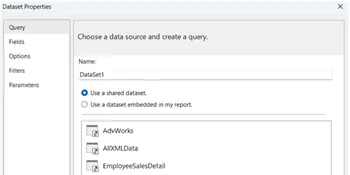
The Dataset Properties dialog will be displayed, as shown below:

The first thing to do is to provide a name; enter Main in the Name textbox. Since we only have one Shared Data Source in our project, it will be selected automatically in the Data source dropdown. To define our query, we could click the Query Designer button and do it graphically or we could type in the query as we did in the Report Wizard section. Instead, click the Import button, which will initially display the familiar Open File dialog; navigate to the report that we created earlier in the Report Wizard section of the tutorial, as shown below:

Click OK to display the Import Query dialog, as shown below:

The above dialog displays the Datasets and their queries from the report. Our earlier report has only one Dataset, so just click the Import button. If the report had multiple Datasets, you could choose the Dataset from the list on the left.
The Report Data area now shows our new Dataset and the list of available fields, as shown below:

We are now ready to continue to the next section to configure a Table for our report layout.

Ray is a Principal Architect at IT Resource Partners focused on SQL Server and Business Intelligence. He is a Microsoft Certified Solutions Expert (MCSE) in Business Intelligence, a MSSQLTips.com BI Expert and Ambassador. He is also a co-author of the book: SharePoint 2010 Business Intelligence Unleashed.
- MSSQLTips Awards: Champion (100+ tips)