Overview
In the prior section, we created a report using the Report Wizard in Business Intelligence Development Studio (BIDS). In this section, we will create a report from scratch using the Report Designer in BIDS. With the Report Designer, you start with an empty canvas; you define every aspect of the report yourself. The Report Designer allows you to create sophisticated reports and dashboards.
Explanation
In this section, we will complete the following steps in the Report Designer to build a simple report:
- Add a new report to our project
- Create a shared data source
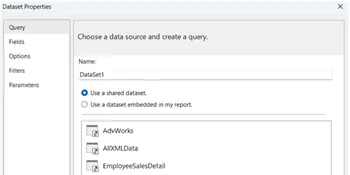
- Create a Dataset
- Configure a Table
The following screenshot shows the report that we will build as rendered in the Report Manager:

The above report is based on the same query that we used in the earlier Report Wizard section. The plus sign icon to the left of the value in the Parent Product Category column allows us to drill down to the Product Category details.
Now let’s continue on to the next section and begin to create our report.

Ray is a Principal Architect at IT Resource Partners focused on SQL Server and Business Intelligence. He is a Microsoft Certified Solutions Expert (MCSE) in Business Intelligence, a MSSQLTips.com BI Expert and Ambassador. He is also a co-author of the book: SharePoint 2010 Business Intelligence Unleashed.
- MSSQLTips Awards: Champion (100+ tips)