Overview
The Design Query step of the Report Wizard allows us to specify what data we want to retrieve from our Data Source and render in our report. In this section, we will walk through the details of defining a query to retrieve the data to render on our report.
Explanation
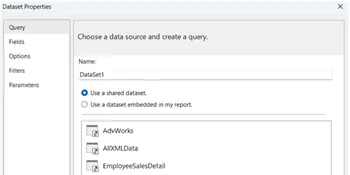
The Design the Query step in the Report Wizard will display the dialog as shown below:

You can click the Query Builder button to graphically build your query, or you can type your query directly into the Query string textbox. The following is an example of a query that you could type in:
SELECT c.ParentProductCategoryName , c.ProductCategoryName , SUM(d.LineTotal) Sales FROM SalesLT.Product p JOIN SalesLT.vGetAllCategories c ON c.ProductCategoryID = p.ProductCategoryID JOIN SalesLT.SalesOrderDetail d ON d.ProductID = p.ProductID GROUP BY c.ParentProductCategoryName , c.ProductCategoryName ORDER BY c.ParentProductCategoryName , c.ProductCategoryName |
The above query will provide us with a sales summary broken down by product category. Copy and paste the query into the Query string textbox in the Design the Query dialog. Alternatively, you could click the Query Builder button and graphically design the same or a similar query. The Query Builder dialog displays the Query designer that you are accustomed to seeing in products like Microsoft Access.
Click Next to move on to the Select the Report Type dialog, which we will discuss in the next section.

Ray is a Principal Architect at IT Resource Partners focused on SQL Server and Business Intelligence. He is a Microsoft Certified Solutions Expert (MCSE) in Business Intelligence, a MSSQLTips.com BI Expert and Ambassador. He is also a co-author of the book: SharePoint 2010 Business Intelligence Unleashed.
- MSSQLTips Awards: Champion (100+ tips)