Problem
The reality is that most companies generate data from multiple data sources. As data grows, one problem is consolidating data into a central repository for meaningful analysis and reporting. What options are available in the AWS ecosystem to achieve this?
Solution
This article will help you build a data lake in AWS in a cost effective and optimized manner.
We will provide a step-by-step approach to create an ETL pipeline using AWS Glue along with the associated best practices.
Create Sample Table and Insert Data
The following will create an Employees table for testing.
-- MSSQLTips.com (T-SQL)
CREATE TABLE dbo.EMPLOYEES
(ID INT PRIMARY KEY,
F_NAME VARCHAR(50),
L_NAME VARCHAR(50),
"AGE" INT
)
Run the below to add some sample records.
-- MSSQLTips.com (T-SQL)
INSERT INTO dbo.EMPLOYEES(ID,F_NAME,L_NAME,"AGE") VALUES
(1,'EMP1_FN','EMP1_LN','30'),
(2,'EMP2_FN','EMP2_LN','31'),
(3,'EMP3_FN','EMP3_LN','32'),
(4,'EMP4_FN','EMP4_LN','33'),
(5,'EMP5_FN','EMP5_LN','34'),
(6,'EMP6_FN','EMP6_LN','35'),
(7,'EMP7_FN','EMP1_LN','36');
Creating an AWS Glue Connection
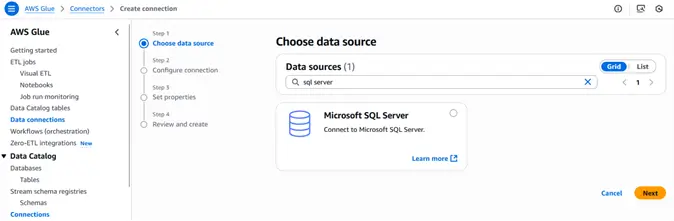
The first step is to create a connection on the data connections tab and select your database.
In this example, we will use SQL Server. After establishing a connection, you can connect to your data source and use in your Glue job.
What is a Glue Data Catalog?
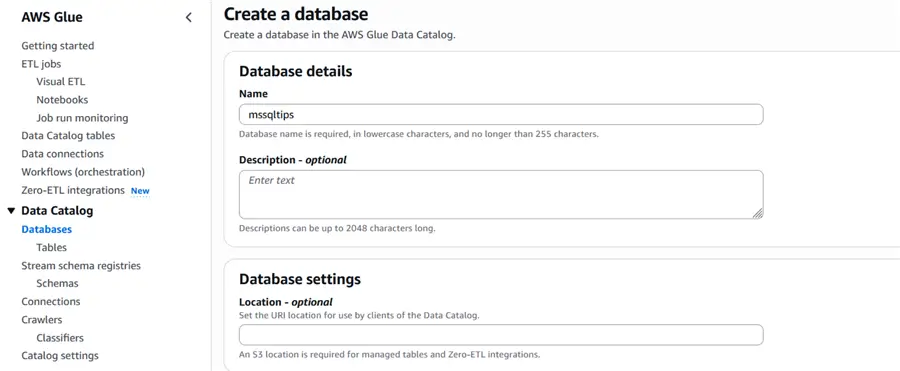
A Glue Data Catalog is a centralized metadata repository that stores the metadata for the ETL pipeline, but not the actual data itself.
The first step is to create a database where your table metadata will be stored as shown in the screenshot below.
Create Crawler
A crawler is used to get the metadata of the table used in the AWS Glue Job.
Setup Glue Crawler
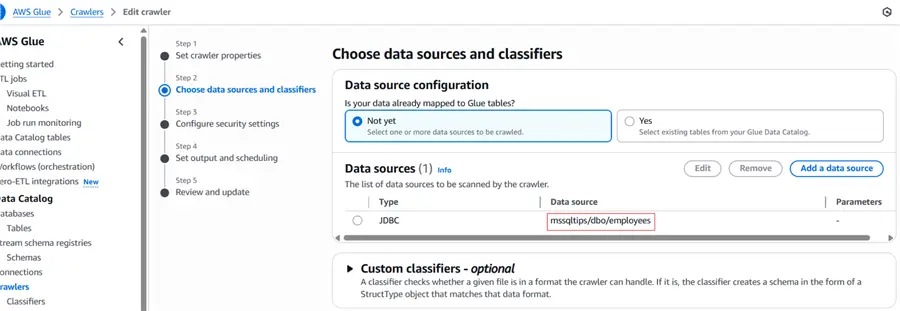
Below is detailed step by step process for setting up glue crawler on the source SQL Server table named employees. The screenshot shows that inside the crawler the data source format is DBNAME/SCHEMA/TABLENAME as outlined in red.
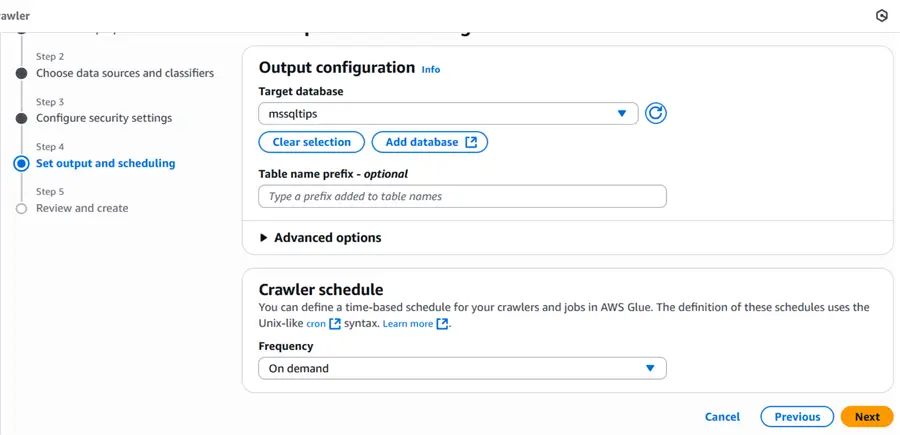
The AWS Glue data catalog database will store the crawler table metadata as shown below.
Once the crawler is created, it will look like the image below. The crawler is named samplecrawler.
The next step is to run crawler.
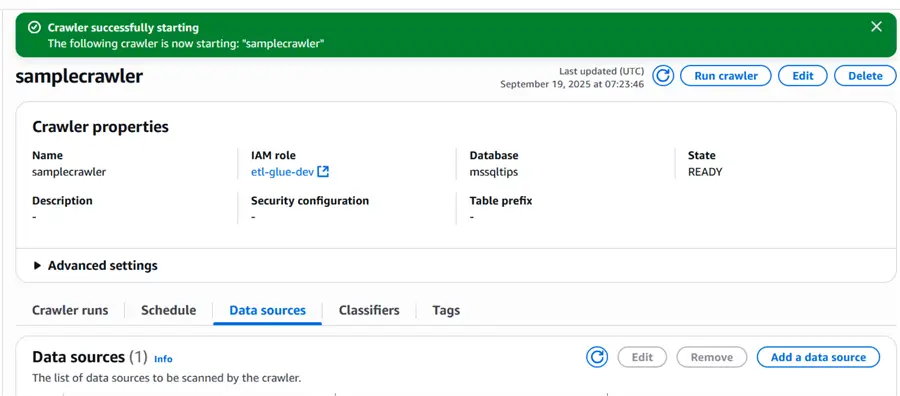
After the crawler has run successfully, the table will be displayed inside the database that you created in the AWS Glue Data Catalog as shown below.

When you click on the table name you will be able to view the schema as shown below.

Create AWS Glue Job
Now let’s create the job.
Here is some information we will use for the job.
- Source: SQL Server
- Destination: Amazon S3
- Components for Glue job:
- Source
- Source is the AWS Data Catalog table named as mssqltips_dbo_employees which is referring to the SQL Server table.
- Transform
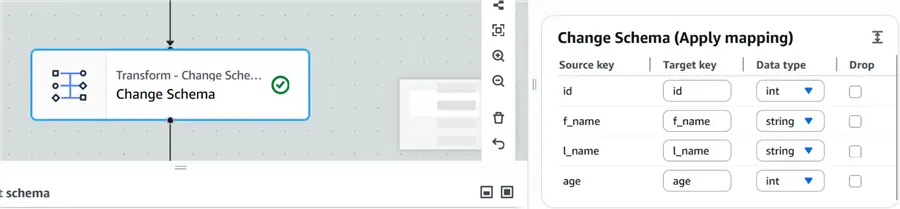
- We are going to use Change Schema (Apply Mapping) in this example.
- We will also use a SQL Query in this example in order to introduce the Process_date column on which we will create partitions in the S3 bucket. This will be explained later in the article.
- Destination
- Destination is AWS S3 Bucket.
These are the steps for the job.

Now we will drill into each of the components in detail.
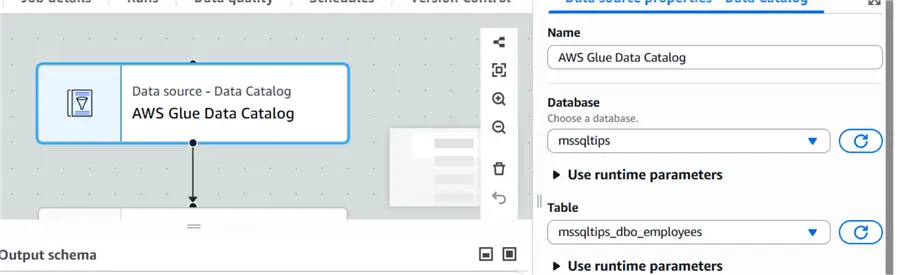
Data source – Data Catalog
The following parameters needs to be set for the data source component:
- Database: mssqltips
- Table: mssqltips_dbo_employees
Transform – Change Schema
The Apply mapping automatically gets the schema from the source table as shown below:
Transform – SQL Query
I used a SQL query in the transformation because I want to add a date column so that I can create S3 file partitions based on this date.
The query inside this transformation is shown below.

Data Target – S3 Bucket
The following parameters needs to be set for the data target component:
- Format: Parquet
- Compression: Snappy
- S3 Target Location: s3://sample-etlbucket

Why use parquet files?
Parquet files are a columnar storage format which helps in reading the required columns instead of a full row scan which improves query performance. It is efficient for large datasets and stores data in a compressed format which helps reduce storage consumption. Parquet files are able to handle schema changes (adding or removing columns) and are more flexible than a CSV or JSON file.
Why to use snappy compression?
Snappy compression is a fast option to compress and decompress files and has low compute cost. It is compatible with Parquet, ORC, Avro and has good integration with AWS Glue jobs.
Data Catalog Update option
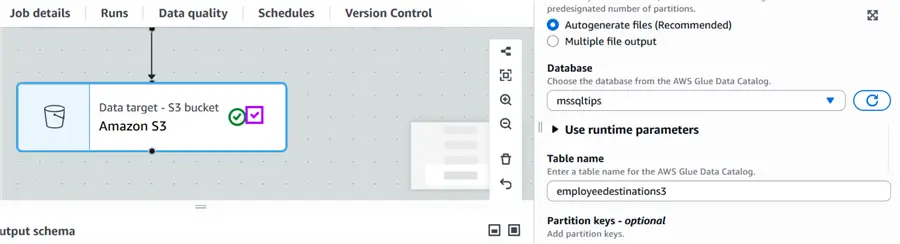
Inside the data target – S3 bucket component, we have an option to update data catalog when a job runs. This option will help automatically create a table which gets metadata from S3 where files are placed and then we can query those S3 files using Athena. Here is the screenshot of this option.
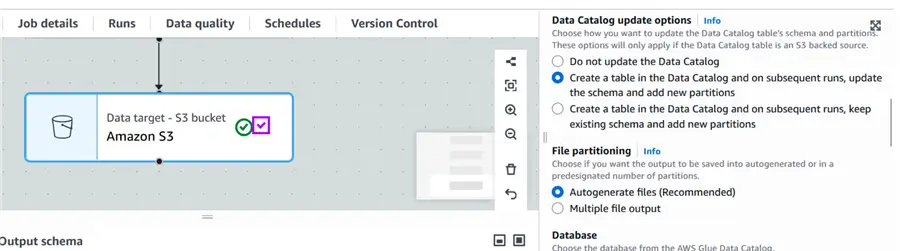
Table Name
The next step is to identify the table name which can be viewed in Athena inside the selected database and also created in the Glue data catalog which is the S3 bucket where the parquet files are created.
Create S3 Partitions
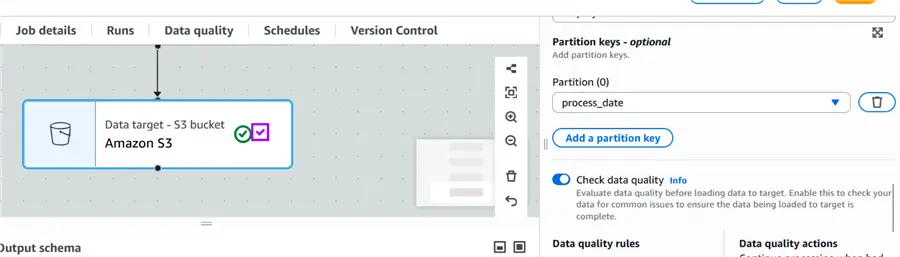
Since we have added the process_date column as the current date, we are going to select that column as the partition key as shown below.
Complete AWS Glue Job Script – Autogenerated Code by AWS Glue
Here is the complete script.
#MSSQLTips.com (Python PySpark)
import sys
from awsglue.transforms import *
from awsglue.utils import getResolvedOptions
from pyspark.context import SparkContext
from awsglue.context import GlueContext
from awsglue.job import Job
from awsgluedq.transforms import EvaluateDataQuality
from awsglue import DynamicFrame

def sparkSqlQuery(glueContext, query, mapping, transformation_ctx) -> DynamicFrame:
    for alias, frame in mapping.items():
        frame.toDF().createOrReplaceTempView(alias)
    result = spark.sql(query)
    return DynamicFrame.fromDF(result, glueContext, transformation_ctx)
args = getResolvedOptions(sys.argv, ['JOB_NAME'])
sc = SparkContext()
glueContext = GlueContext(sc)
spark = glueContext.spark_session
job = Job(glueContext)
job.init(args['JOB_NAME'], args)

# Default ruleset used by all target nodes with data quality enabled
DEFAULT_DATA_QUALITY_RULESET = """
    Rules = [
        ColumnCount > 0
    ]
"""

# Script generated for node AWS Glue Data Catalog
AWSGlueDataCatalog_node1758274270210 = glueContext.create_dynamic_frame.from_catalog(database="mssqltips", table_name="mssqltips_dbo_employees", transformation_ctx="AWSGlueDataCatalog_node1758274270210")

# Script generated for node Change Schema
ChangeSchema_node1758274295757 = ApplyMapping.apply(frame=AWSGlueDataCatalog_node1758274270210, mappings=[("l_name", "string", "l_name", "string"), ("f_name", "string", "f_name", "string"), ("id", "int", "id", "int"), ("age", "int", "age", "int")], transformation_ctx="ChangeSchema_node1758274295757")

# Script generated for node SQL Query
SqlQuery0 = '''
select *,date(now()) as process_date from myDataSource
'''
SQLQuery_node1758275425714 = sparkSqlQuery(glueContext, query = SqlQuery0, mapping = {"myDataSource":ChangeSchema_node1758274295757}, transformation_ctx = "SQLQuery_node1758275425714")

# Script generated for node Amazon S3
EvaluateDataQuality().process_rows(frame=SQLQuery_node1758275425714, ruleset=DEFAULT_DATA_QUALITY_RULESET, publishing_options={"dataQualityEvaluationContext": "EvaluateDataQuality_node1758274200515", "enableDataQualityResultsPublishing": True}, additional_options={"dataQualityResultsPublishing.strategy": "BEST_EFFORT", "observations.scope": "ALL"})
AmazonS3_node1758275449053 = glueContext.getSink(path="s3://sample-etlbucket", connection_type="s3", updateBehavior="UPDATE_IN_DATABASE", partitionKeys=["process_date"], enableUpdateCatalog=True, transformation_ctx="AmazonS3_node1758275449053")
AmazonS3_node1758275449053.setCatalogInfo(catalogDatabase="mssqltips",catalogTableName="employeedestinations3")
AmazonS3_node1758275449053.setFormat("glueparquet", compression="snappy")
AmazonS3_node1758275449053.writeFrame(SQLQuery_node1758275425714)
job.commit()
Final Results
After running we can see the data as follows.
S3 Bucket
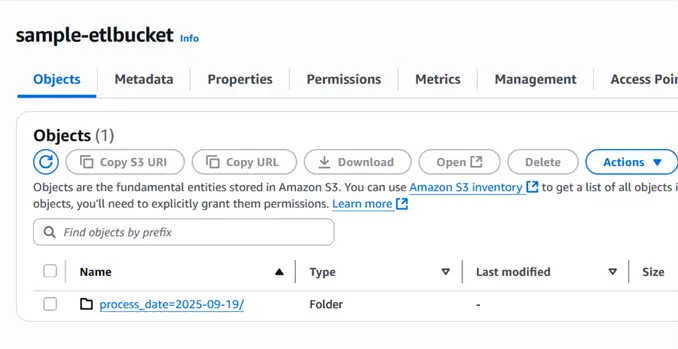
The screenshot below shows the folder name that is created by the Glue job based on the partition parameter that we provided.
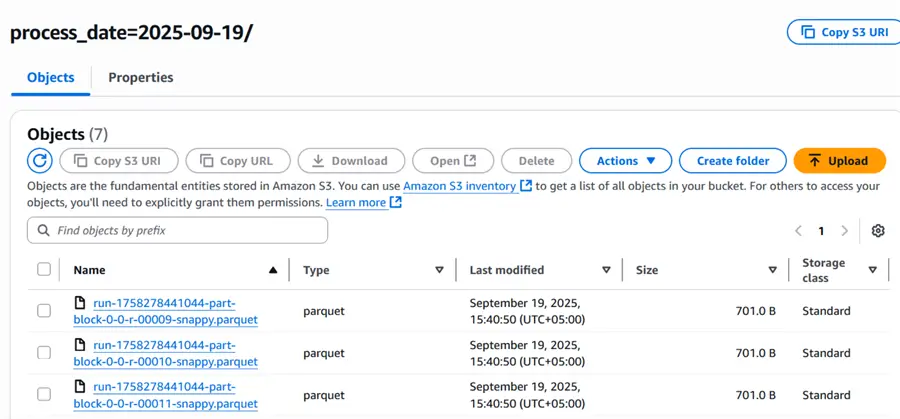
Parquet Files Inside Partitioned Folder
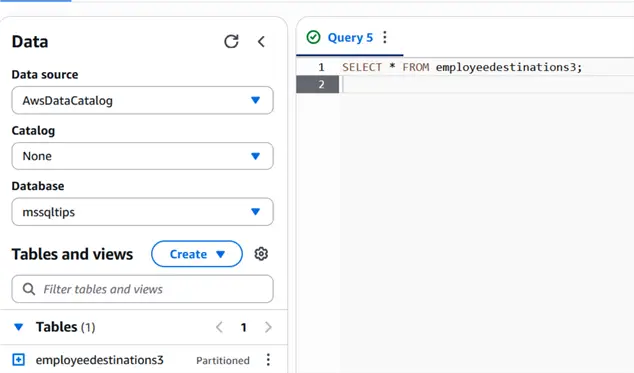
View S3 Files Using AWS Athena
Go to the Athena console and run the following query:
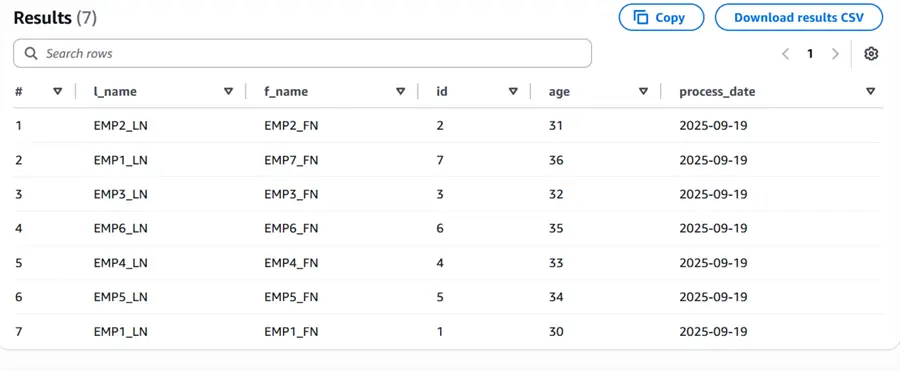
Here are the results from the query.
Next Steps
- Build a simple ETL Pipeline using AWS Glue Studio.
- Try to create partitions and sub partitions in S3.
- Use partitioned column while querying S3 file from Athena and monitor the difference of performance.
- Perform simple data transformations by modifying the glue job script manually.
- Try to understand the job code which Glue has generated.
- Try AWS Glue workflows and triggers for scheduling of jobs.
- Try to get understanding of AWS Glue dynamic frame like what are benefits of using this and compare it with spark dataframe.
- Check out this related article Proactive Data Quality Detection using AWS Glue DataBrew

Muhammad Hassan Arshad currently works as a Principal Data Engineer at Strategic Systems International. He is a data engineering professional with over 7 years of experience in data engineering, data warehousing, and database development. He has a strong track record of building scalable data pipelines, optimizing data workflows, and developing robust database solutions to support analytics and business intelligence. Hassan holds Microsoft certifications and has worked extensively with SQL Server and modern cloud data platforms, bringing deep technical expertise and a results-driven approach to every project.



Very well explained