Problem
You have an Azure Point-to-Site (P2S) VPN configured and can successfully connect to your virtual network over VPN. Your SQL resources – such as Azure SQL Database, SQL Managed Instance, or SQL Virtual Machine – are hosted within the virtual network. Your goal is to eliminate the use of public endpoints and rely solely on private connectivity.
Solution
To achieve private connectivity, you’ll need to configure your database resources to support access over the Point-to-Site VPN. Some resources require additional setup to disable public endpoints and enable secure access through the virtual network. This guide walks you through the necessary configuration steps to ensure users can connect to SQL resources exclusively via Azure VPN.
Prerequisites
Azure Point-to-Site VPN must be already configured, so you can connect to virtual network where database servers are hosted. Resources such as virtual network, VPN gateway, Azure VPN client must all be deployed, installed and correctly configured. For a guide on how to do it, refer to How to Configure Azure Point-to-Site VPN.
The focus of this article will be on database resources configuration and explanation. We will have several Azure SQL resources to configure and demonstrate private connections over VPN:
- Azure SQL Database
- Azure SQL Managed Instance
- SQL Server on Azure Virtual Machine
SQL MI and SQL VM should be deployed to the virtual network where Azure VPN connectivity has been previously configured.
Benefits of Using Internal Endpoints
Switching from public to internal endpoints and requiring users and apps to connect via a Point-to-Site VPN or other secure vNet integrations, offers significant security and operational benefits. Such as:
- Enhanced security posture, by eliminating exposure to the public internet
- Mitigated risks of brute-force or DDoS attacks on public endpoints
- Internal endpoints are accessible only within your Azure virtual network (vNet), reducing the attack surface
- Many compliance frameworks (e.g., HIPAA, FedRAMP, ISO 27001) prefer or require non-public access to sensitive data systems
- Internal-only access helps demonstrate network isolation and data residency controls
Glossary
In this article, we use the following terminology:
- Public endpoints
- Internal endpoints (which include “private endpoints” and “vnet-local” endpoints)
“Public endpoints” allow to connect to SQL resources over the Internet. Out of below resources, following support public endpoints natively:
- Azure SQL Database: It can be enabled easily, however limited to certain networks and IP addresses by firewall rules.
- Azure SQL Managed Instance: If you enable a public endpoint, SQL MI can be connected to from anywhere. No firewall rules are available in MI’s settings. “Network security group” resource can be used to limited access to only certain IP addresses, networks or services.
- Public access to SQL Server on Azure VM, can be opened by configuring the NSG resource in the VM’s network interface card (NIC) settings and opening port 1433 (for example) to the Internet. Also, “public IP address” resource is required.
“Internal endpoints” allow to connect to SQL resources internally within the virtual network, from peered networks, or over the VPN. An internal endpoint can be “private endpoint” or “vnet-local endpoint”.
- Private endpoint: allows to embed private IP address into the virtual network of choice. Both Azure SQL Database and Azure SQL Managed Instance can be configured to use private endpoints. SQL Server on Azure VM, doesn’t have this functionality.
- vNet-local endpoint: it is available in Azure SQL Managed Instance only. It is an endpoint for internal use, in the virtual network where SQL Managed Instance is deployed to. It exists by default and doesn’t need any configuration.
Connect to Azure SQL Database over VPN
Azure SQL Database by default doesn’t have dependency on virtual network. To connect to SQL Database over Azure P2S VPN, we will need to integrate the SQL DB into the virtual network where we configured VPN access. This is done using “private endpoint” functionality. Private endpoint is configured on Azure logical SQL Server level, the one that hosts SQL Databases.
A private endpoint allows Azure SQL Database to get a private IP address in the virtual network of your choice, which allows resources in the virtual network, or peered virtual networks, to access SQL Database securely by connecting to its private IP address.
Follow these steps
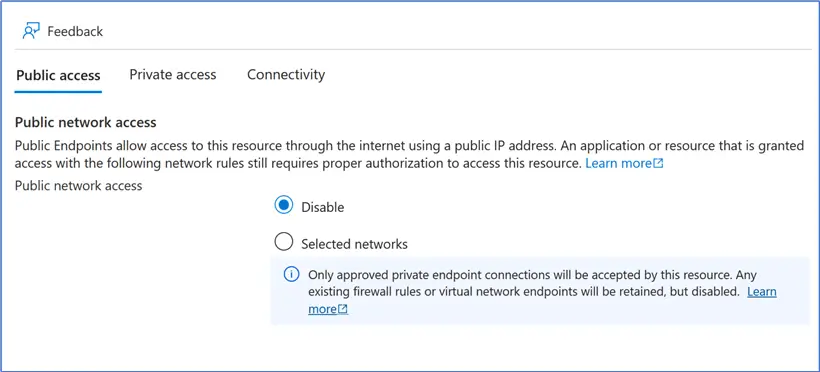
In the logical SQL Server, go to Security > Networking. For the purpose of our exercise, public access of logical SQL Server can be set to “Disable”. Then go to Private access tab, and press “create private endpoint” button.
During endpoint creation, specify its name, resource group, and target virtual network where we will embed private IP address. Specify private IP address as “static”. Since our example virtual network’s address space is 10.188.0.0/16 (yours can be different), we can choose to integrate to its default subnet and the private IP address can be set to 10.188.0.22.

Set the static IP address:

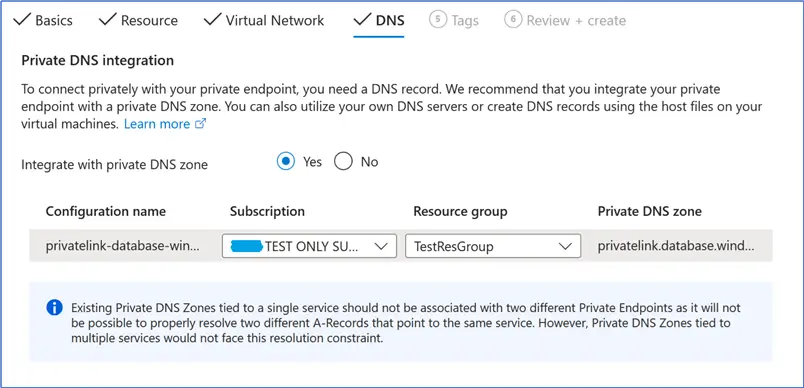
Also, create a private DNS zone during the private endpoint creation. Private DNS zone helps to resolve DNS addresses for resources inside the virtual network. For example, if you have a virtual machine inside the virtual network, it will be able to connect to SQL Database’s address, thanks to private DNS zone.
Add HOSTS record
After private endpoint, private DNS zone, and private IP address are created, we will need to add a record to HOSTS file on a workstation where Azure VPN is configured. This is because private DNS zone doesn’t propagate over VPN to your laptop or PC. Add a record to HOSTS file (edit the name of the database server in the address):
10.188.0.22 [db-server].database.windows.net
And save. This DNS record will be needed to resolve the Azure SQL DB’s address on your workstation, when you are connected to Azure VPN.
When you try to connect to Azure SQL Database’s private IP address directly (and it is the IP address of private endpoint of the logical SQL Server, such as 10.188.0.22) – for example in SSMS or in application – it won’t work and will throw an error. That is why we need to add a DNS record to the HOSTS file and use that record for connections.
Now, having the above configured, you should be able to connect to Azure SQL Database (logical SQL Server) over Azure VPN.
Connect to Azure SQL Managed Instance over VPN
SQL Managed Instance has “vnet-local endpoint” – a built-in connectivity endpoint that MI automatically exposes inside its virtual network. This endpoint is visible only within the virtual network where SQL MI is hosted, and to peered virtual networks. It is not visible publicly. In the Azure portal, when you go to SQL MI resource, on the Overview blade – you can see Host. It should be similar to this:
“sql-mi-db.3a79e05b6c03.database.windows.net” — this is the “vnet-local” (internal) endpoint.

Connecting
You should be able to connect to it without any problems, both from within the virtual network (from a virtual machine, or from application service integrated into this virtual network), and when connecting to virtual network using Azure VPN from your workstation.
Note that same as with Azure SQL Database, you cannot connect to SQL MI directly using its IP address, even if you know it (can be looked up in Connected devices in virtual network’s settings). You need to connect to MI’s DNS name, such as the above example.
A more complicated scenario can be, when you connect over Azure VPN to virtual network 1, and your SQL Managed Instance is in virtual network 2. How can we connect to SQL MI from our workstations in this case? You can use either:
- private endpoint functionality, and make SQL MI embed a private IP address into virtual network 1. In this case, don’t forget to also provision a private DNS zone for vNet 1, since you cannot connect to MI’s private endpoint’s IP directly
- or create a peering between virtual networks and additionally establish connection between VPN gateways in both virtual networks. Second a VPN gateway will be needed, and peering must be configured properly.
After you confirm that private connection to SQL MI’s “vnet-local endpoint” works, you can choose to disable the public endpoint – if it is enabled.
Connect to SQL Server on Azure VM over VPN
When you have a SQL Server on Azure virtual machine, and that VM is hosted in the same virtual network to which we configured point-to-site VPN connections – connecting to SQL Server over VPN will be easy.
By default, no configuration of network security group is required, and DNS records shouldn’t be needed.
Knowing virtual machine’s private IP address will be enough. Go to VMs settings > Networking, and click on the network interface name:

And then in the network interface menu, go Settings > IP configurations. Click on the IP configuration and switch the private IP address allocation to “static”, so it doesn’t change over time. Note the private IP address itself, we will need it for SQL Server connections. In my example, I’ve set it to 10.188.0.33.

When connected to Azure VPN, you can connect to SQL Server on Azure VM in SSMS, just by typing the VM’s private IP address as a server name in SSMS.
Again, you can choose to disable all public ports and public access to SQL VM, after confirming that SQL Server can be connected to over Azure VPN using its private IP address. You can RDP over Azure VPN to the virtual machine, as well.
Summary
In summary, here is what we need for each of the database services, to connect to over Azure Point-to-Site VPN:
Azure SQL Database:
- Create a “private endpoint” and embed it into target virtual network
- Private IP address must be set to static
- Create private DNS zone for DNS resolution within virtual network
- Private endpoint must have a DNS record in a private DNS zone (for resolution within virtual network)
- For connections over VPN, add a DNS record to the HOSTS file on a workstation
- Connect in the SSMS or application using the DNS address, not IP address (IP won’t work)

Microsoft Entra authentication is possible when you configure Entra admin for the SQL logical server.
Azure SQL Managed Instance:
- Use the built-in “vnet-local endpoint” that already exists in a virtual network where SQL MI is hosted
- Connect to “vnet-local endpoint’s” DNS address in SSMS or application (IP won’t work)

(Microsoft Entra authentication is possible when you configure Entra admin for the SQL MI, and grant SQL MI Read permission to read Microsoft Entra’s directory)
SQL Server on Azure VM:
- Find the private IP address in the virtual machine’s settings
- Private IP address must be set to static, so it does not change over time
- Connect to private IP address directly in SSMS or application

Conclusion
In this article, we explored how to configure Azure SQL resources – including Azure SQL Database, SQL Managed Instance, and SQL Server on Azure Virtual Machines – for secure access over Azure VPN. We demonstrated how to connect to these services using internal endpoints, such as private endpoints and vnet-local endpoints, leveraging private IP addresses instead of public connectivity.
Next Steps

Aleksey Vitsko is SQL Server DBA with several years of experience including production database administration, database development, performance tuning, security, high availability and disaster recovery, migrations, and more – both on-premises and in Azure SQL. He has earned these certifications: Microsoft Certified Solutions Associate (MCSA, 2020) and Microsoft Certified: Azure Database Administrator Associate (MCADAA, 2025). He can be reached at voodoosh2@gmail.com for any questions or help.