Problem
In SSMS 22, there is Git integration to manage SQL code versions and repositories. How do you use this functionality? Can you walk through a step-by-step example?
Solution
In this article, we will explain what Git is and how to use it in SSMS 22.
What is Git?
Git is an option in SSMS to integrate your code with Git (a free version control system) and GitHub (an online platform to store and share your code). Optionally, you can connect to Azure DevOps, a Microsoft centralized platform that hosts Git repositories and manages the software lifecycle.
Requirements
- First, we need to have SSMS installed.
- Second, we need a GitHub account.
Getting Started
Open SSMS 22 and go to Git > Create Git Repository.
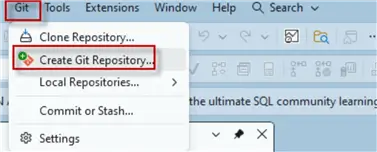
SSMS will detect your active Git repository. It will create a default repository. If you don’t have Git installed, refer to this link.

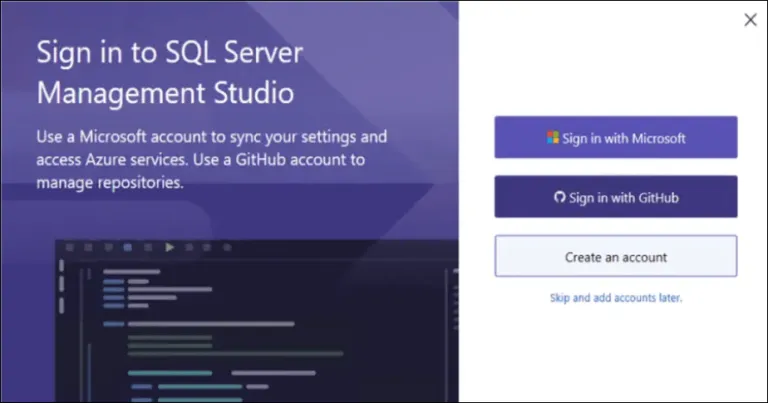
You may also want to have a GitHub account as well. Go to the prerequisites section to create your GitHub Account and login to SSMS with that account.

Once created, you will have a repository in GitHub.

Also, you will have a local repository on your machine using Git.

Working with Git
You can view your solution using the Solution Explorer in SSMS. To open it, go to View > Solution Explorer in the SSMS menu.
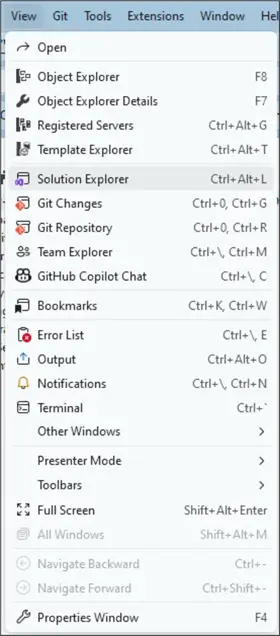
Right-click the Folder view and select the Open option.

Finally, you will be able to see the files of the project.
Adding files to the project
In the Solution Explorer in SSMS, right-click the project and select Add New file.
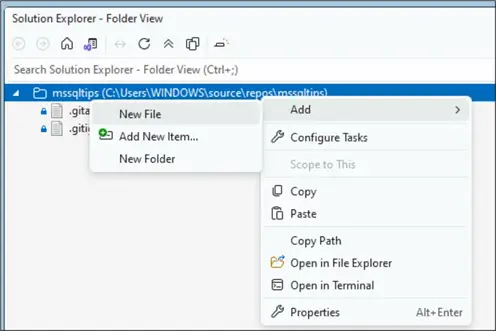
Name it file.sql or any name of your preference.
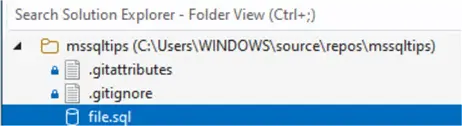
How to add existing files to Git and GitHub
To add existing files, right-click the solution and select Open in File Explorer.

Copy existing files to the folder. In this example, we copied a file named uspGetWhereUsedProduct.sql.

How to commit changes
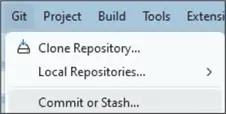
Commit will save the data in the local repository. To commit the files, in the SSMS menu, go to Git > Commit or Stash.
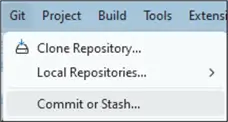
You will notice the letter A in the files added as shown below. A means added.
Add a description for the changes and press Commit All.

Note that after the commit, a lock will be displayed.
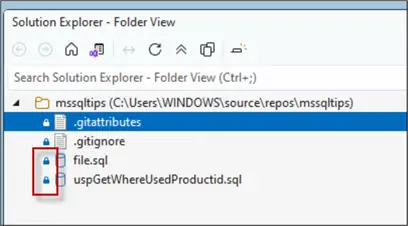
View changes
With Git, you can register different versions of your code on different days. To view the local history, we will go to the Manage Branches option. In SSMS, go to Git > Manage Branches.
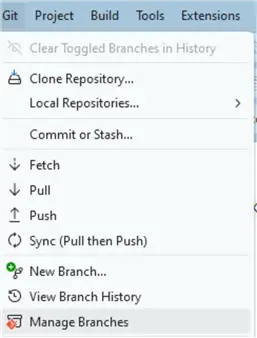
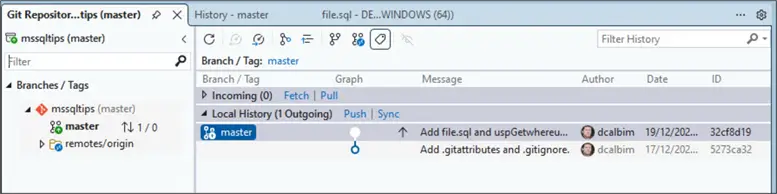
Revert version
If you need to revert to a previous version, you can use the revert option. Just right-click the version that you want to revert and select the revert option.

Save modifications
Now, we will modify the file and see the registered changes. Double-click a file in Solution Explorer.
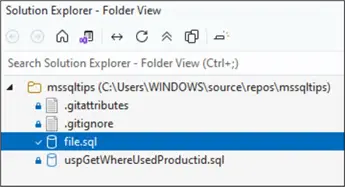
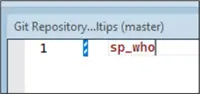
Add some code.
Commit the changes.
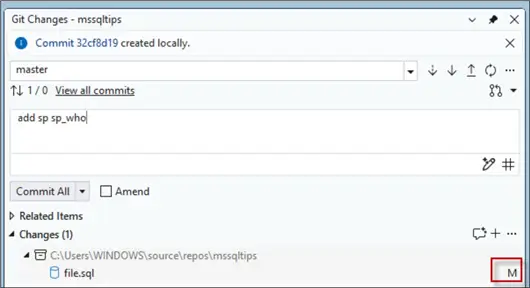
Notice that the letter M for modified is displayed. Add a description to the change and press Commit All.
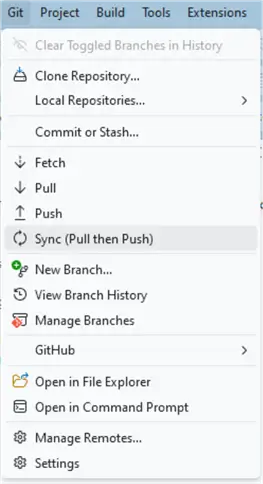
Sync (Pull then Push)
The Sync option will let you upload your local changes to the remote repository (GitHub or Azure DevOps). Pull downloads changes in the remote repository (GitHub) and push uploads of local commits to the remote repository.
If you go to GitHub, you will be able to see the files there.

Create new branches
Finally, we will learn how to create new branches in Git.
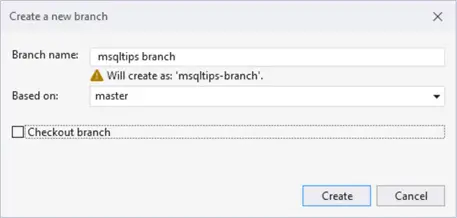
The branch is a copy of the project that you can modify without affecting the original branch. For example, you are working on a new feature, and you are doing some tests first. Here we will show how to create a new branch.
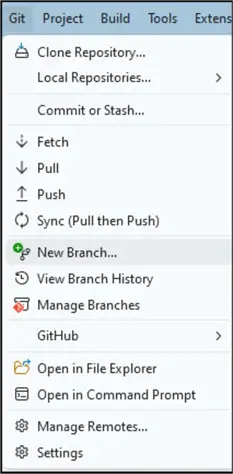
In this example, we will create a branch from the master. In the Git Menu, select New branch.
Write a name for the branch and select the branch it is based on, and press Create.
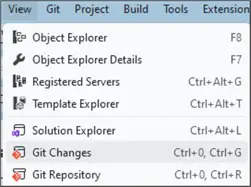
In the SSMS, go to Git > Git Changes.
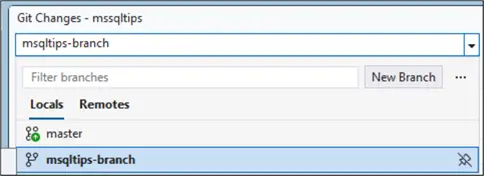
You can select the new branch create.
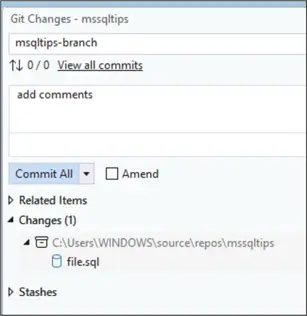
If you change something, you can also commit your changes.
Next Steps
For more information about Git, refer to these links:
- Git Branch with SQL Server Database Project
- Git Branch for New Features in SQL Database Project
- Database Version Control with Git in Azure DevOps
- Branching and Merging Strategy in Git for SSIS Projects
- Basics of Gitflow Workflow for SQL Database Projects
- Gitflow Workflow Hotfix Branching for SQL Database Projects

Daniel Calbimonte is a Microsoft Most Valuable Professional, Microsoft Certified Trainer and Microsoft Certified IT Professional for SQL Server. He is an accomplished SSIS author, teacher at IT Academies and has over 10 years of experience as a QE and developer for SQL Server related software. He has worked for the government, oil companies, web sites, magazines and universities around the world. Daniel also regularly speaks at SQL Servers conferences and blogs.
- MSSQLTips Awards: Author of the Year Contender – 2015-2018, 2022, 2023 | Champion (100+ tips) – 2018