Problem
I have built a pipeline in Azure Data Factory that runs my daily ETL process, which loads data into an Azure SQL Server database. On top of this database, a Power BI model has been created that imports the data. At the end of the pipeline, I’d like to refresh this model so it contains the latest data. However, there’s no built-in functionality in Azure Data Factory to communicate with Power BI. How can I achieve this?
Solution
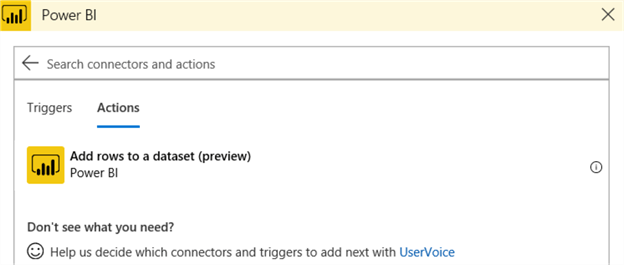
At the moment, there’s no support in Azure Data Factory (ADF) for directly refreshing a Power BI dataset. However, there’s a work around you can use by leveraging Azure Logic Apps. Unfortunately, currently even Logic Apps doesn’t support full integration with Power BI. There’s only a preview feature to add rows to a dataset:
So, we need to go one step further: we’re going to create a Logic Apps custom connector, which will allow Logic Apps to communicate with the Power BI API.
Creating the Logic Apps Custom Connector
Registering a Power BI App
Since we’re going to use the Power BI API, we need to register an app at https://dev.powerbi.com/apps. Normally this is used to embed Power BI content, but we need an application ID and an application secret to be able to connect to the API. First you need to log in with your Power BI credentials (make sure you use an account with sufficient privileges).
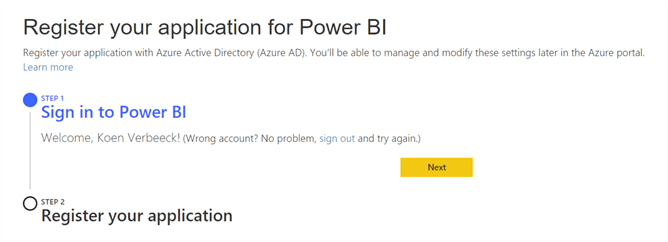
Once you’re registered, fill in the form to register the app:
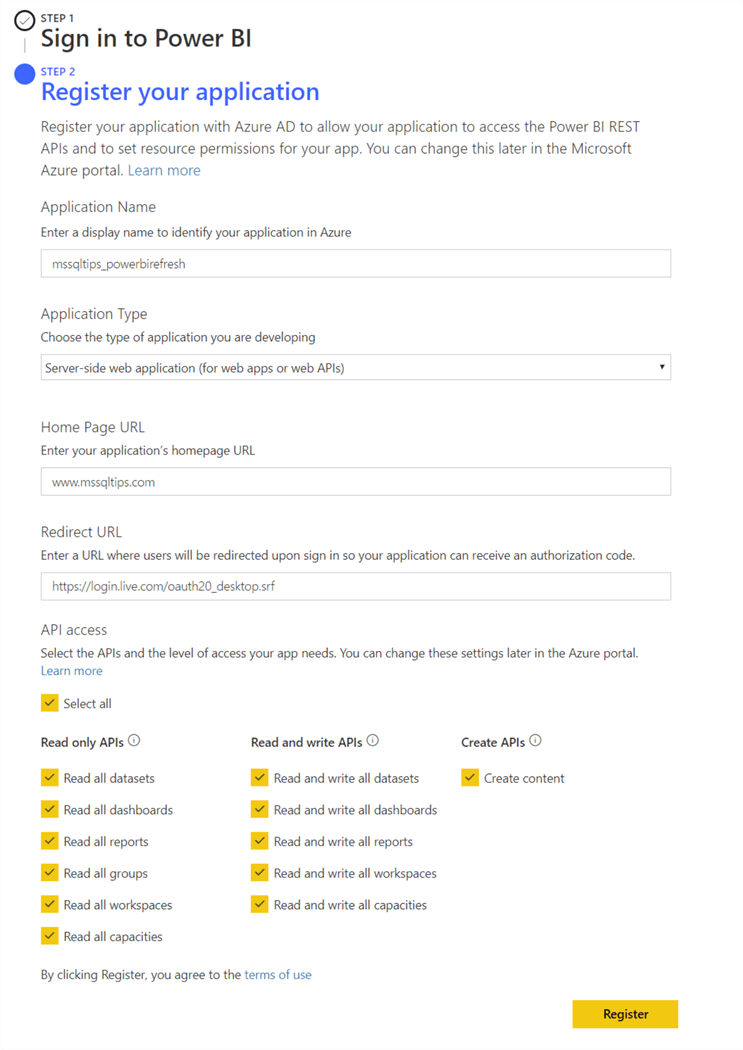
The following information is required:
- Application name
- Application type. Since we’re just using this “app” to refresh a dataset, you can choose the server-side web application.
- As home page URL, you can choose any valid URL.
- For the redirect URL, we will temporarily use https://login.live.com/oauth20_desktop.srf. We’re going to change this later on in the Azure Portal.
- For access permissions, you can only Read and write all datasets, but I’ve checked all options. Maybe you need to Logic App custom connector to do more later on than just refreshing datasets.
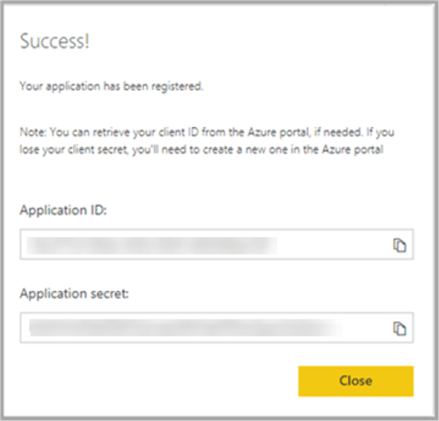
When you hit Register, you’ll receive confirmation and your application ID and secret. Be sure to copy these down to a safe location.
If you don’t have the correct permissions (it’s possible to block the registering of apps by users on the tenant level), you’ll get the following message:

Note you can do the same process from within the Azure Portal, by using app registrations:

More info on using app registrations can be found in the official documentation. Using the Power BI website is a bit more straight forward than using the Azure Portal.
Logic Apps Custom Connector
Now we’re going to create a custom connector. In the Azure Portal, click on Create a resource and search for Logic Apps custom connectors.

To create a new connector, specify a name, subscription, resource group and location:

Once the connector is created, go to the editor:

In the General tab, you can specify how you want to create the custom connector. It is possible to define all the actions for the Power BI connector yourself, but luckily there’s a swagger file available on Github that defines all the possible actions for you (and there are quite a lot of actions!). A swagger file describes a RESTful API. Download the file from Github to your local machine, and then import it in the custom connector editor.

If you want, you can specify an icon and a description for the custom connector:
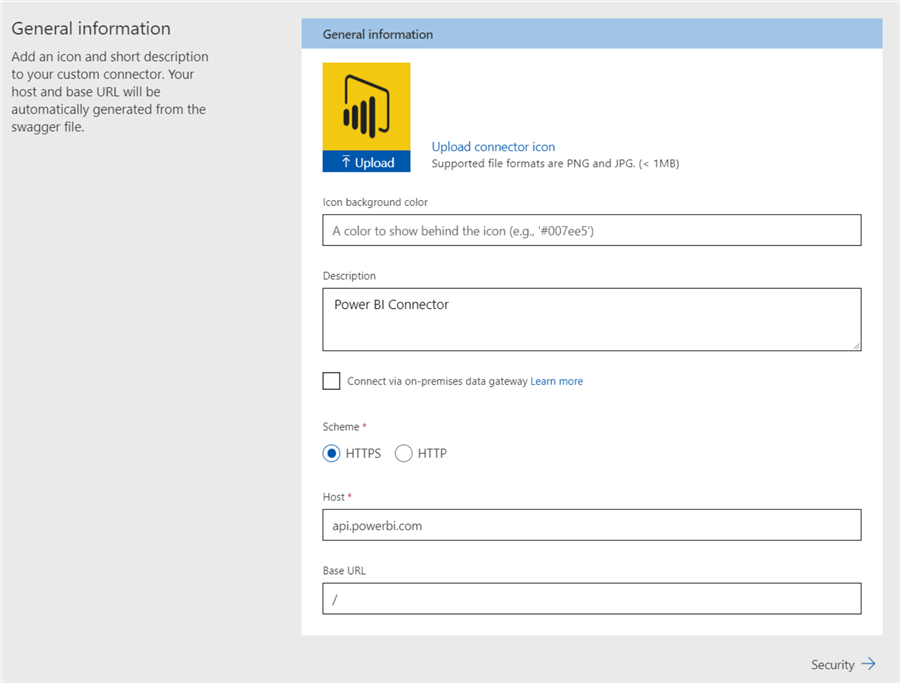
Other settings can be left as-is. In the security tab, we need to configure the authentication type.
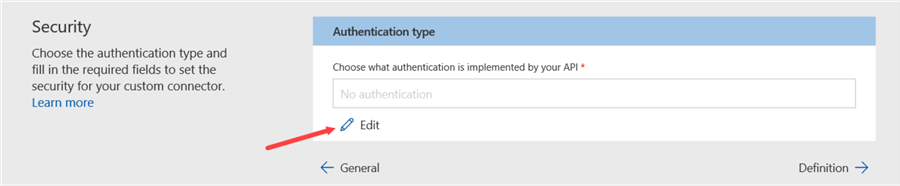
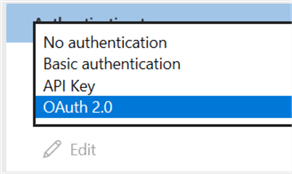
For our custom connector, we’re going to choose OAuth 2.0.
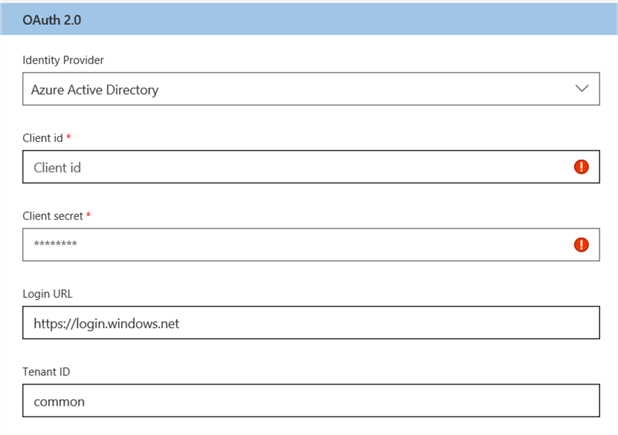
Configure the form with the following information:
- Azure Active Directory as the identity provider.
- The client ID and secret we created earlier by registering the app at the Power BI website.
- The login URL can be kept as-is.
- The tenant ID needs to be common.
- As the resource URL, we need to fill in https://analysis.windows.net/powerbi/api.
- The scope is set to openid.

Once you save the custom connector, the redirect URL will be generated. We need to copy this and replace the original redirect URL (remember, when we registered the app?) in the Azure Portal.

In the Azure Portal, go Azure Active Directory and then App registrations. Find the app with the name you used when registering the app in the Power BI website. Go to Settings and then Reply URLs. There you can replace the original reply URL with the one from the Azure Logic Apps custom connector:

Back to the custom connector. In the third tab, definition, you will see all of the actions and references defined by the swagger file we imported earlier. Most actions will display one or more warnings, most likely because a type or something similar hasn’t been defined. These can be ignored. There’s one problem, however. In the Logic Apps editor, actions that end with a point are not allowed. Unfortunately, almost all actions names and with a period.

It’s still easier to import the swagger file and update the 116 actions than manually defining the actions yourself though. To speed up the process, you can edit only the action we’re actually going to use, which is number 49: “Triggers a refresh for the specified dataset from the specified workspace”.

Make sure you have the action with “dataset from the specified workspace” and not “from My Workspace”. The custom connector is now finished and ready to be used in your Azure Logic Apps.
Conclusion
In this part of the tip, we created a Logic Apps custom connector. We imported the Power BI API definitions using a swagger file and registered an app on the Power BI website for authentication purposes. In the next part of the tip, we’re going to build a Logic App using the custom connector, so we can refresh a dataset in Power BI from Azure Data Factory.
Next Steps
- More tips about Logic Apps:
- You can find more Azure tips in this overview.

Koen Verbeeck is a seasoned business intelligence consultant with over a decade of experience with the Microsoft Data Platform. He holds several certifications, including Azure Data Engineer. He’s a prolific writer, with over 375 articles on technologies such as Microsoft Fabric, SSIS, ADF, SSAS, SSRS, MDS, Power BI, Snowflake and Azure services. He has spoken at various events such as PASS, SQLBits, dataMinds Connect and many others. He frequently delivers educational webinars on MSSQLTips.com. For his efforts, Koen has been awarded the Microsoft MVP data platform award for many years.
- MSSQLTips Awards:
- Leadership Award (200+ Tips) – 2021
- Author of the Year – 2014/2020/2022
- Author Contender – 2024/2025



Hi Venkat,
you only need one. It’s just a method to call the Power BI API from a Logic App.
Another option is to create an Azure Function to call the API directly.
Regards,
Koen
Hi Verbeeck,
How many custom connector we do need if we have around 10 power bi workspaces?
Thanks
Venkat
Hi Mubarek,
you could put the API call into a ForEach loop in ADF and pass along the name/guid of the dataset into the body of the API call. In the Logic App, you read out the body and retrieve the name of the dataset you need to refresh, and pass that as a parameter to the action that does the refresh.
Hello Koen, thanks a lot for your replied, I updated my custom connector then it started working and for few days it has been working (didn’t encounter any token expired issues. In our case we have 10+ datasets to refresh, we use ADF as ETL tool, any suggestions on how to make this process more dynamic. Your help is appreciated. Thank you!
Hi Mubarek,
seems there’s an issue with tokens, which is weird since a client ID and client secret is used to connect.
Not sure how I can assist further. Maybe you can try the Power BI forums, there’s a very active community there.
Regards,
Koen
Hello Koen,
Thank you for this great article.
I have an issue, I was able to create the app registration on Azure Active Directory, created the Azure logic app custom connector to get the last refresh history and everything worked find, the next day the same logic app gave me an error: Status code 403 ,
“message”: “Access token has expired, resubmit with a new access token”
Can you please help me on this. Thank you for your help
Hi Sid,
I haven’t done it myself to be honest (I did it manually since it was a one-time thing).
I would look into ARM templates maybe? https://docs.microsoft.com/en-us/azure/logic-apps/logic-apps-azure-resource-manager-templates-overview
Koen
Hi Koen,
Sorry for late reply. I was able to get the custom connector working after appropriate access was given to the registered api.
Currently, I am facing issue i promoting the Custom connector to different environments. Is there a guide that you can help with promoting this Logic app to different enviornments like from Dev to qa and prod.
Thanks,
Sid
Hi Sid,
are you the admin of the Power BI tenant? When connecting to the Power BI service from the Logic App, this needs to be done by someone with admin permissions (even though you gave the app permissions).
Also keep in mind there’s a preview task in Logic Apps now that can refresh a dataset, so you don’t need the custom connector anymore, unless you need to do other REST API stuff.
Koen
Hi, I am getting 403 Forbidden error in Logic App. Followed all the steps in Registering app and setting up URL.
The swagger file must not exceed 1 MB size when importing in custom connector editor.
Hi Venu,
it seems someone has taken a backup here:
https://github.com/dataxbi/powerbi-api-swagger/blob/master/swaggerV2.json
Not sure if it supports all the latest and greatest of the Power BI API.
Koen
Hi,
Even this link does not have the swagger file. Can you point to the right URL, or file location?
Thanks.