Problem
In a previous tip on Step-by-step Installation of SQL Server 2016 on a Windows Server 2016 Failover Cluster – Part 1, I have seen how to install a SQL Server 2016 on a Windows Server 2016 failover cluster (WSFC). We are migrating to a SQL Server 2019 failover cluster running on Windows Server 2019. How do I go about installing and configuring a SQL Server 2019 failover cluster on Windows Server 2019?
Solution
To continue this series on Step-by-step Installation of SQL Server 2019 on a Windows Server 2019 Failover Cluster, we will look at installing SQL Server 2019 on top of the existing Windows Server 2019 Failover Cluster (WSFC). In Part 2, you have learned how to rename the shared storage and cluster network resources, both using the Failover Cluster Manager console and PowerShell. This tip will walk you through the installation of a SQL Server 2019 failover clustered instance (FCI) on the WSFC.
Table of contents
- Installing a SQL Server 2019 Failover Clustered Instance (FCI)
- Product Key
- License Terms
- Global Rules
- Microsoft Update
- Install Failover Cluster Rules
- Feature Selection
- Feature Rules
- Instance Configuration
- Cluster Resource Group Configuration
- Disk Selection Options
- Network Configuration Settings
- Server Configuration
- Database Engine Configuration
- Feature Configuration Rules
- Ready to Install
- Complete
- Installing a SQL Server 2019 Failover Clustered Instance (FCI) with Slipstreamed Updates
Installing a SQL Server 2019 Failover Clustered Instance (FCI)
The steps outlined below will install a default SQL Server 2019 FCI. Choose a server in the WSFC to initiate the installation process.
- Run setup.exe from the SQL Server 2019 installation media to launch SQL Server Installation Center. Click on the Installation link on the left-hand side.
- Click the New SQL Server failover cluster installation link. This will run the SQL Server 2019 Setup wizard.

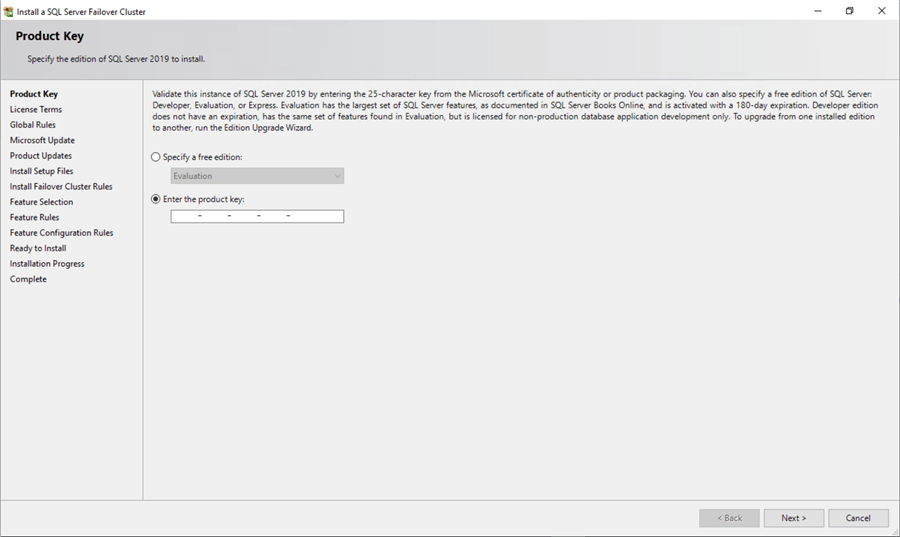
Product Key
- In the Product Key dialog box, enter the product key that came with your installation media and click Next.
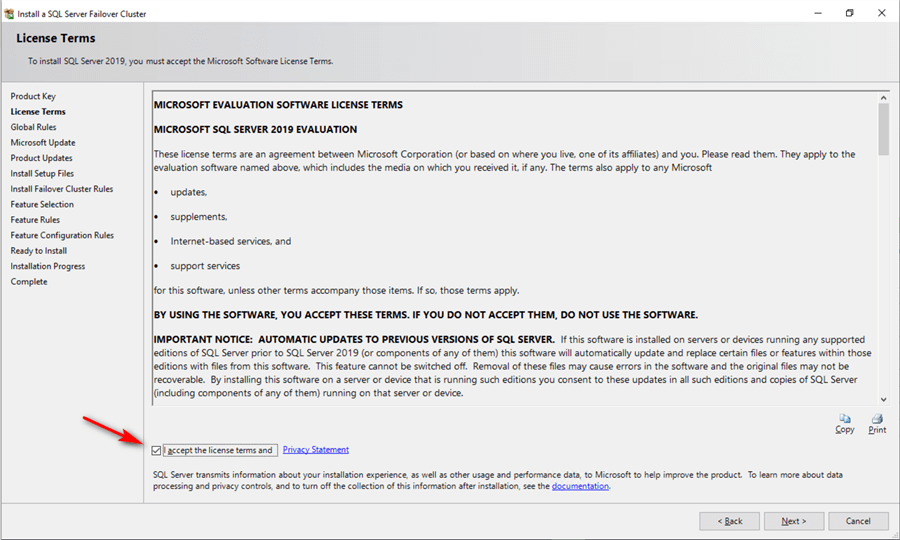
License Terms
- In the License Terms dialog box, click the I accept the license terms check box and click Next.
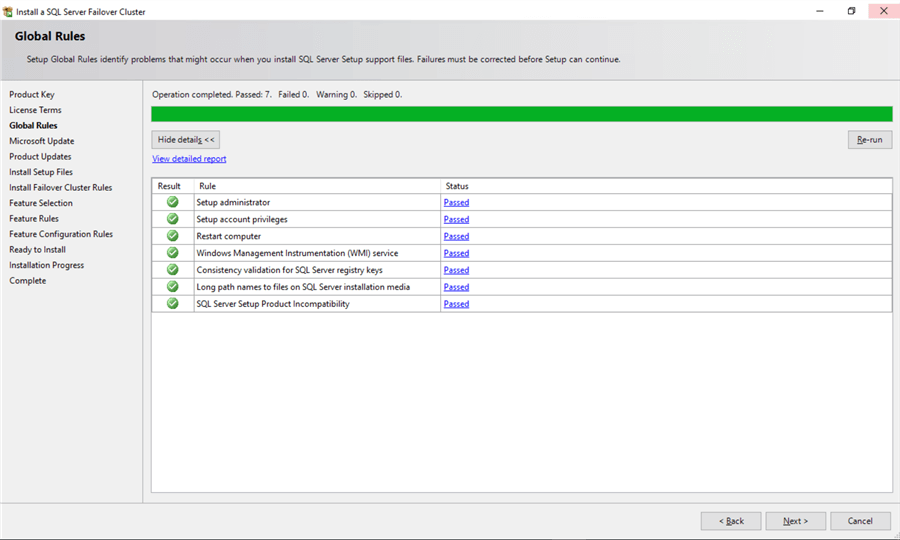
Global Rules
- In the Global Rules dialog box, validate that the checks return successful results and click Next.
Microsoft Update
- In the Microsoft Update dialog box, you have the option to include SQL Server product updates in the installation process. By default, it searches for product updates thru the Microsoft Updates service online, on the assumption that the server has access to the Internet. In cases where your servers do not have access to the internet, you can manually download the updates and store them on a network shared folder. Installing a SQL Server FCI while slipstreaming the latest cumulative update will be covered in the section Installing a SQL Server 2019 Failover Clustered Instance (FCI) with Slipstreamed Updates. Click Next.

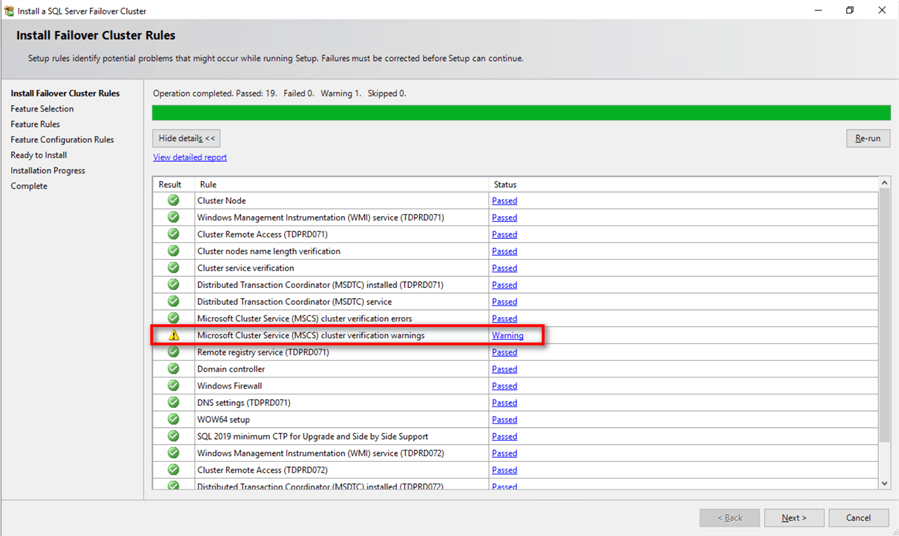
Install Failover Cluster Rules
- In the Install Failover Cluster Rules dialog box, validate that the checks return successful results. If the checks returned a few warnings, make sure you fix them before proceeding with the installation. Click Next. Be aware that you will get a warning result for Microsoft Cluster Service (MSCS) cluster verification warnings as a side effect of the storage spaces direct (S2D) checks described in this tip.
Feature Selection
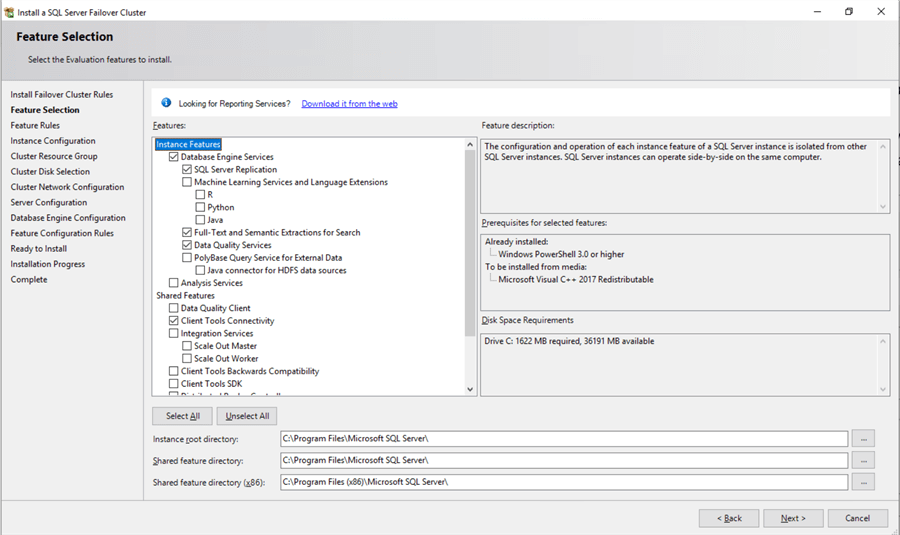
- In the Feature Selection dialog box, select the following components: Database Engine Services and Client Tools Connectivity. Click Next. Note that starting with SQL Server 2016, SQL Server Management Studio is no longer included in the installation media. You will have to download it separately if you want it installed on your servers which I don’t recommend. Only install the database engine on your servers and use a client workstation to manage them remotely.
Feature Rules
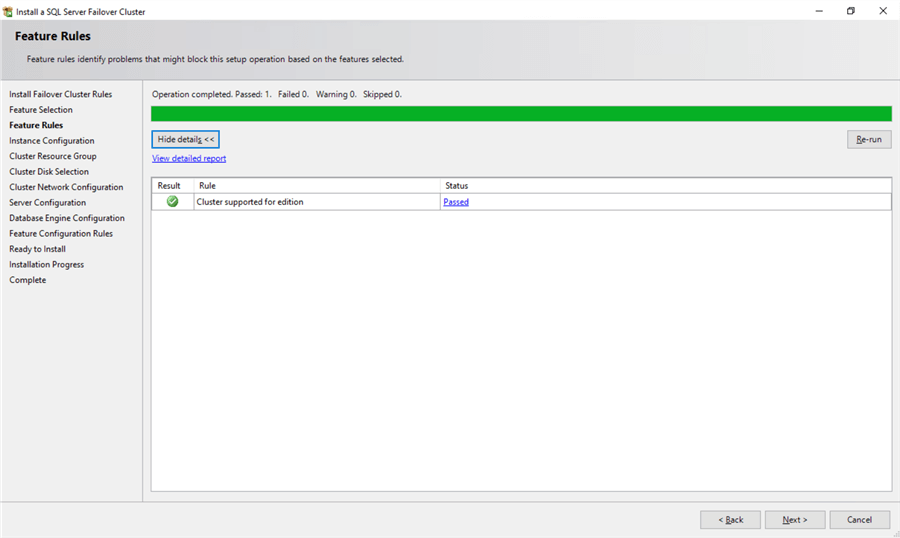
- In the Feature Rules dialog box, verify that all the rules have passed. If the rules returned a few warnings, make sure you fix them before proceeding with the installation. Click Next.
Instance Configuration
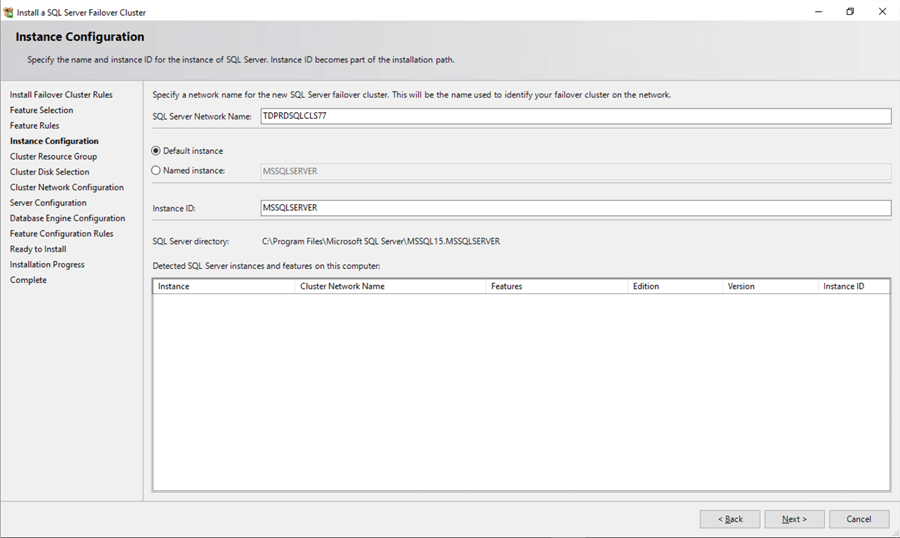
- In the Instance Configuration dialog box, provide a value for the SQL Server Network Name. This is the name that the client applications will use to connect to this server. This name will be created as a virtual computer object (VCO) in Active Directory. Be sure that the appropriate permissions are assigned to the cluster name object (CNO) associated with the WSFC as outlined in this Microsoft article.
A couple of things need highlighting in this section. By default, the instance name is used as the Instance ID. This is used to identify installation directories and registry keys for this specific instance of SQL Server. This is very useful when you want to run multiple instances in a WSFC. It applies to both the default instance and named instances. For a default instance, the instance name and instance ID would be MSSQLSERVER. To use a non-default instance ID, you should specify a value in the Instance ID text box. Click Next.
Cluster Resource Group Configuration
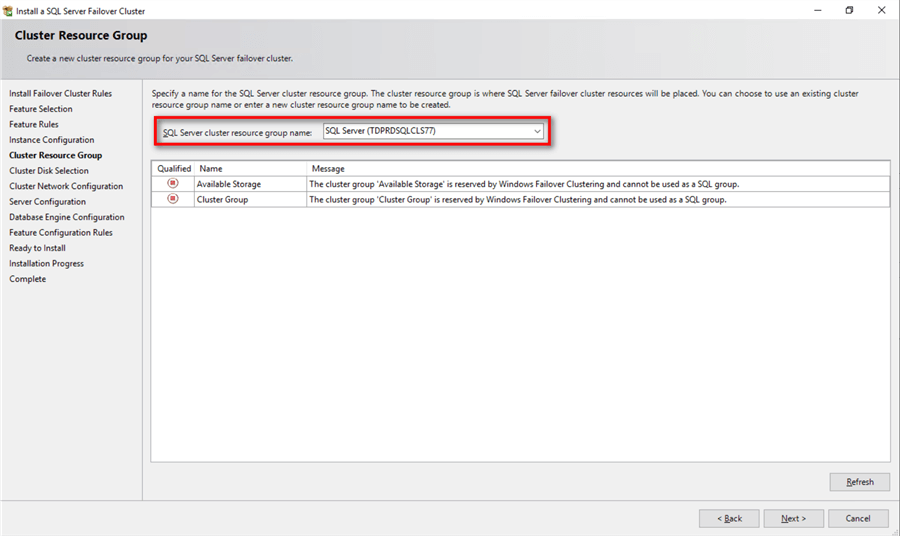
- Check the resources available on your WSFC in the Cluster Resource Group dialog box. This tells you that a new Resource Group will be created on your WSFC for the SQL Server FCI. To specify the SQL Server cluster resource group name, you can either use the drop-down box to specify an existing group to use or type the name of a new group to create it. Click Next.
Disk Selection Options
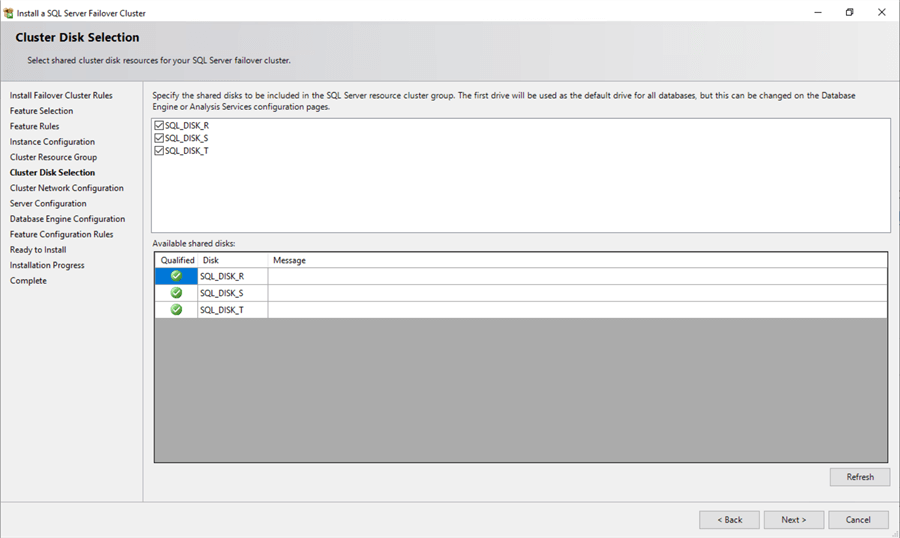
- Select the available disk groups that are on the WSFC for the SQL Server FCI to use in the Cluster Disk Selection dialog box, The list of disks displayed in this dialog box will depend on how you configured shared disk resources in your WSFC. This is where you’ll see the value of renaming the shared disk resources as done in this tip. Click Next to continue
Network Configuration Settings
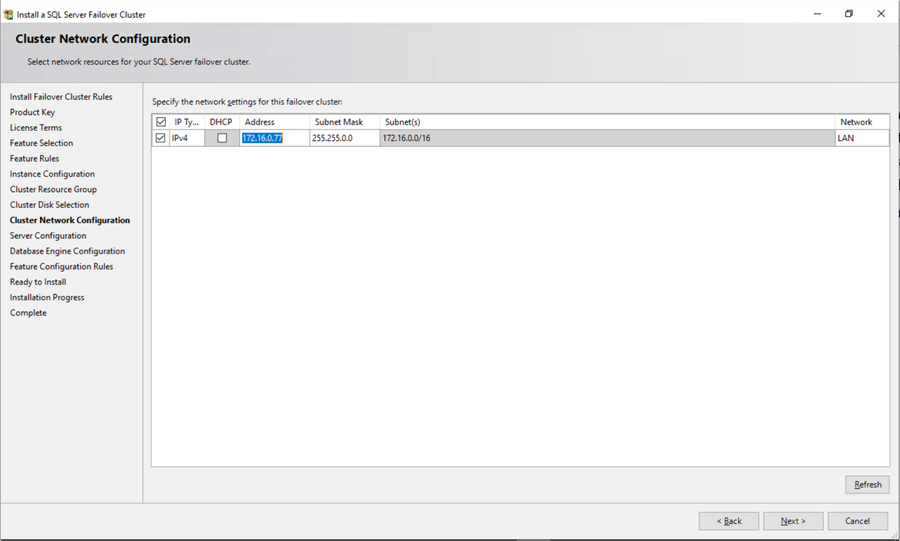
- In the Cluster Network Configuration dialog box, enter the IP address and subnet mask values that your SQL Server FCI will use. Select the IPv4 checkbox under the IP Type column as you will be using a static IP address. Click Next. The SQL Server Network Name with this virtual IP address will be created as an entry in your DNS server. Again, this is where you’ll see the value of renaming the cluster network resources as done in this tip.
Server Configuration
- In the Server Configuration dialog box, provide the credentials for the SQL Server service accounts in the Service Accounts tab. Make sure that both the SQL Server Agent and SQL Server Database Engine services have a Startup Type of Manual. The WSFC will take care of stopping and starting these services. Select the checkbox Grant Perform Volume Maintenance Task privilege to SQL Server Database Engine Service. This enables Instant File Initialization for SQL Server as highlighted in this tip. Because this is a local permission assigned to an account, you need to explicitly do this on all the nodes in the SQL Server FCI. Click Next.

Database Engine Configuration
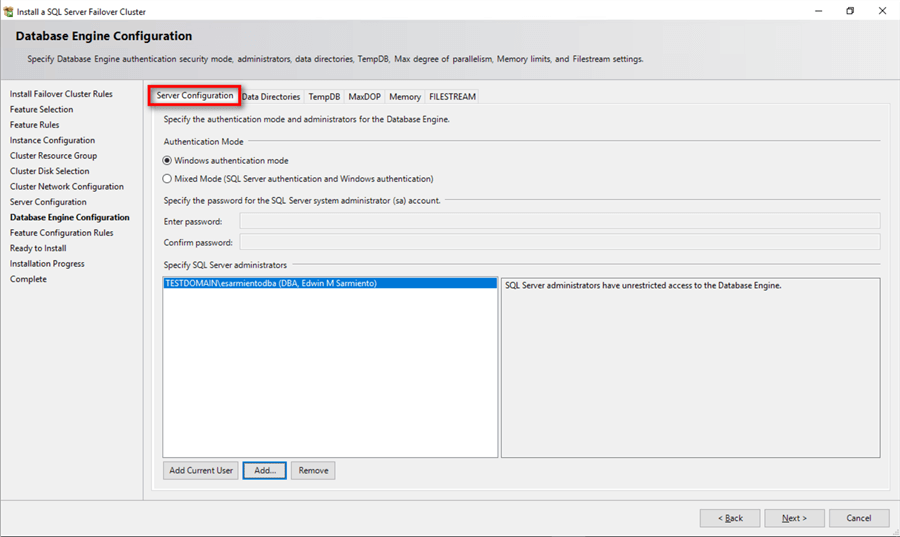
- In the Database Engine Configuration dialog box, under the Server Configuration tab,
- Select Windows authentication mode in the Authentication Mode section. If required, you can change it later after the installation is complete.
- Add the currently logged on user to be a part of the SQL Server administrators group by clicking the Add Current User button in the Specify SQL Server Administrators section. You can also add Active Directory domain accounts or security groups as necessary.
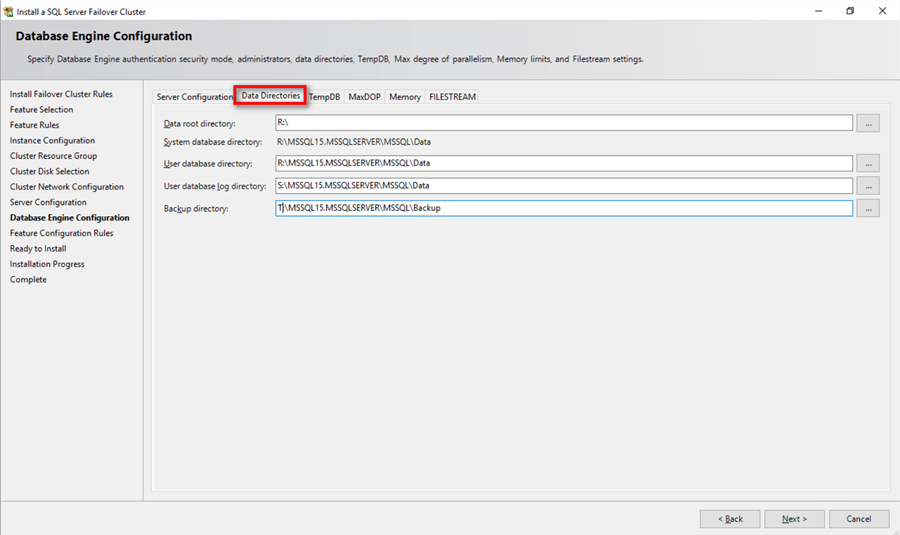
The Data Directories tab is for specifying the location of the data files, the log files, and the backup files.
The TempDB tab is where the number of tempdb data files, initial size and autogrowth settings of both data and log files as well as their corresponding locations are configured.
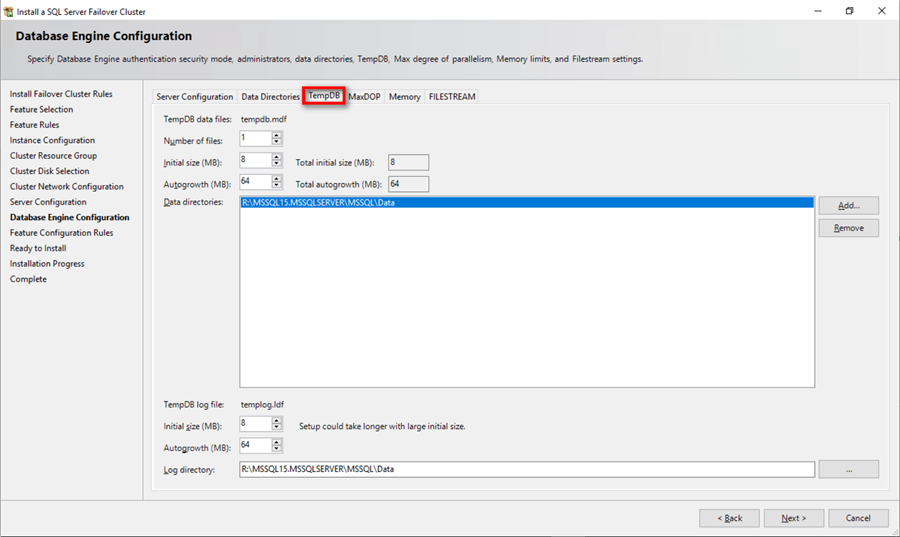
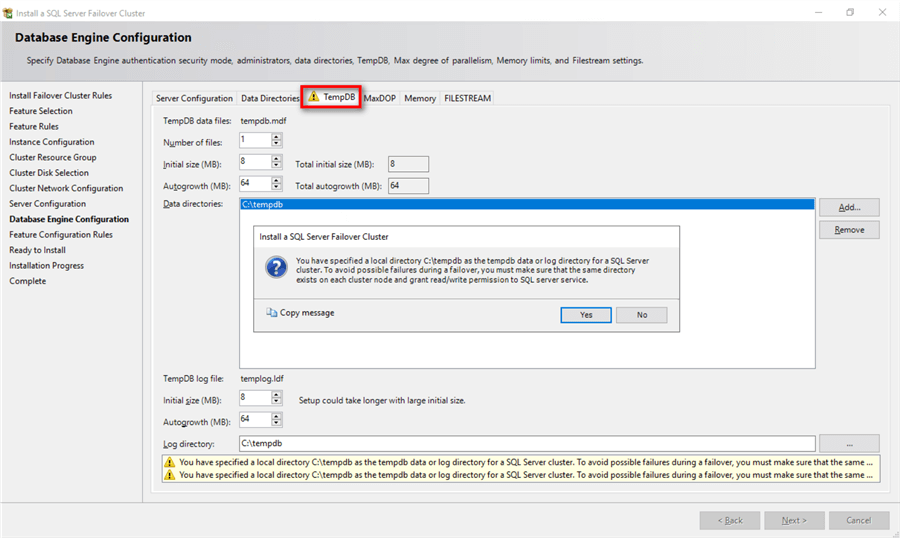
NOTE: You also have the option to store your tempdb database files on a local disk in a WSFC. You can still choose to host the tempdb database on shared storage like the one provided in this example. Should you decide to store tempdb on a local disk, you will get prompted to make sure that all the nodes in the WSFC contain the same directory structure and that the SQL Server service account has read/write permissions on those folders.
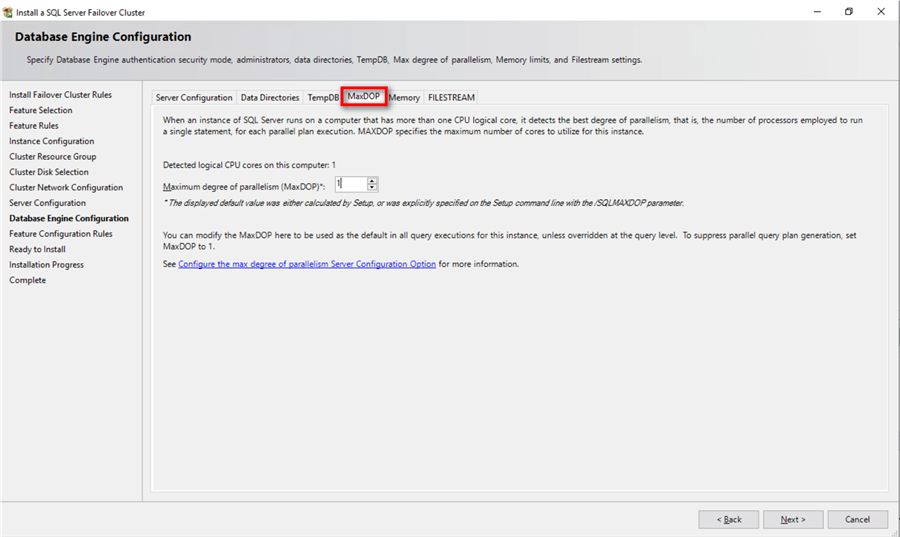
New in SQL Server 2019 is the MaxDOP tab which introduces automatic recommendations for setting the MAXDOP server configuration option during the installation process. The recommended MAXDOP setting is based on the number of logical CPU cores detected on the server. You can accept the default recommendations and make modifications once you run your workload tests.
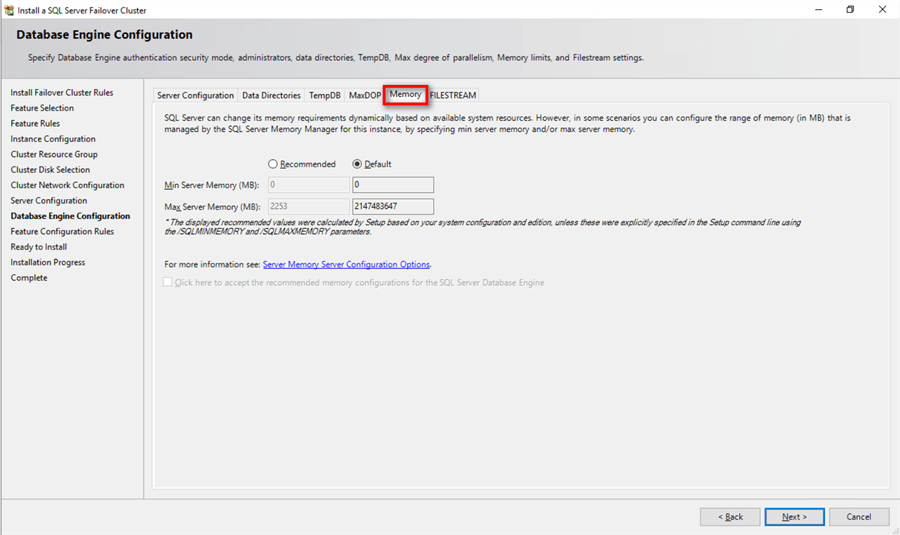
Also new in SQL Server 2019 is the Memory tab which introduces the ability to set the minimum and maximum server memory during installation, just like how you would with sp_configure after installation.
Click Next.
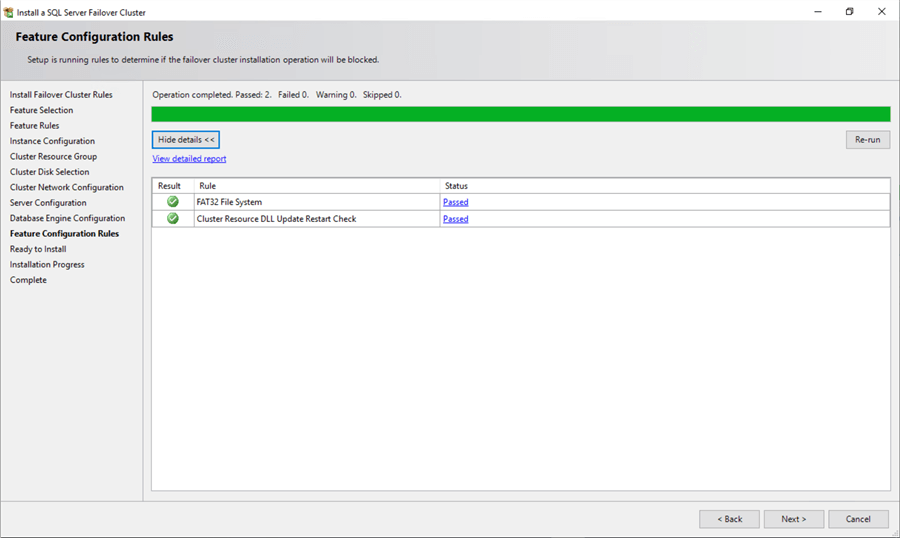
Feature Configuration Rules
- Verify all checks are successful for the Feature Configuration Rules dialog box. Click Next.
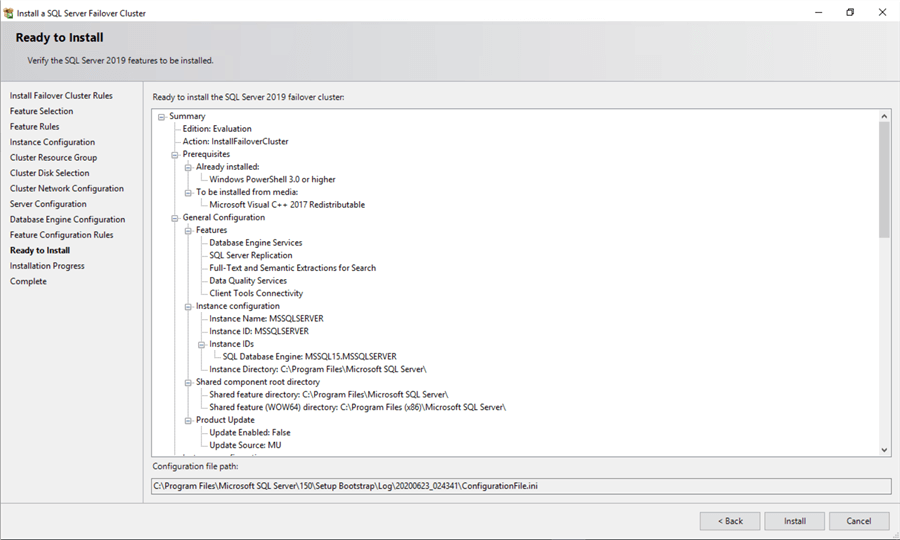
Ready to Install
- Review the Ready to Install dialog box, verify that all configuration settings are correct. Click Install to proceed with the installation.
Complete
- In the Complete dialog box, click Close. This concludes the installation of a SQL Server 2019 FCI.

Installing a SQL Server 2019 Failover Clustered Instance (FCI) with Slipstreamed Updates
You can choose to slipstream updates as part of the SQL Server 2019 FCI installation as described in the tip Slipstream Service Packs or Cumulative Updates on a SQL Server 2016 and higher Installation to reduce deployment time and effort. Similar to the steps outlined in the tip, this requires installing SQL Server from the command line. But unlike installing a standalone instance, a SQL Server FCI requires the /Action=InstallFailoverCluster parameter. The example command below references the \\CentralFileServer\SQLServer2019CUs\CU5 shared folder to look for SQL Server 2019 updates.
setup.exe /Action=InstallFailoverCluster /UpdateEnabled=True /UpdateSource="\\CentralFileServer\SQLServer2019CUs\CU5"
The Product Updates section of the installation process will confirm whether the updates have been detected.
Product Updates
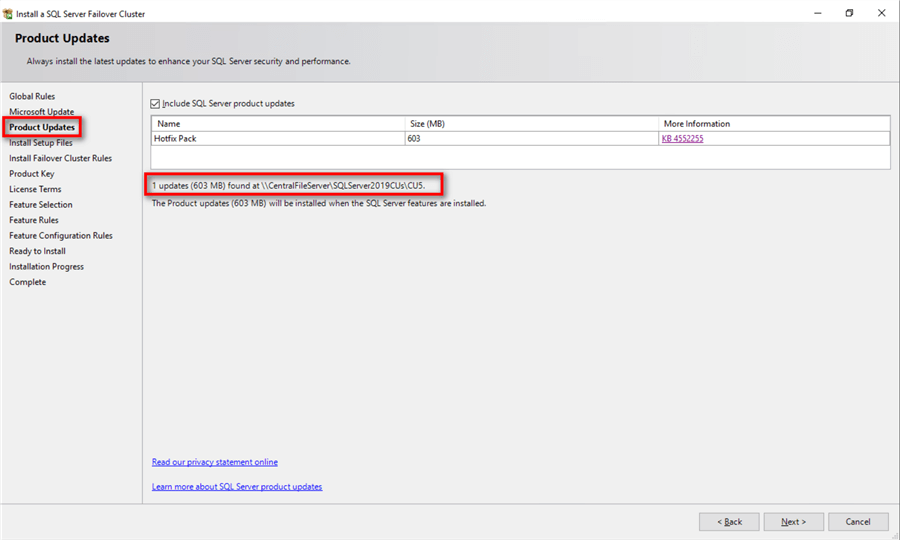
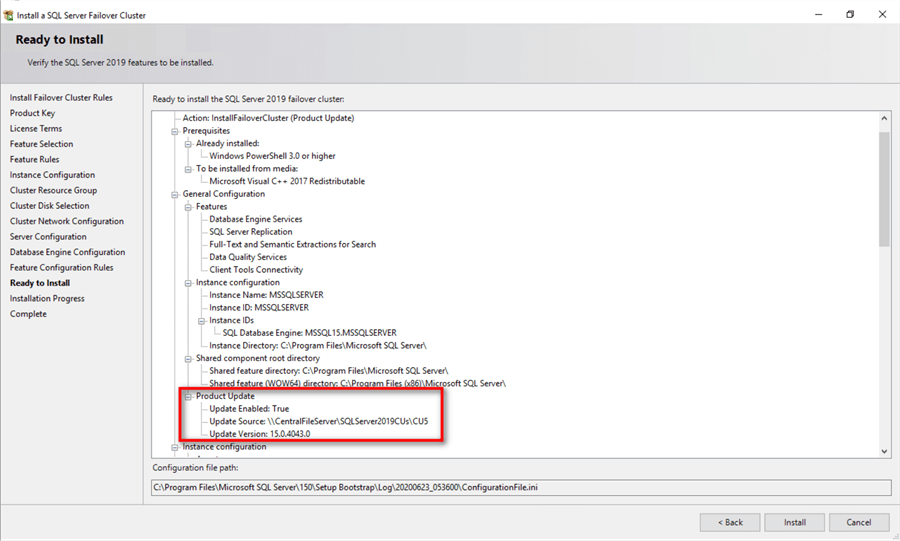
Proceed with the SQL Server installation process as outlined in the previous section Installing a SQL Server 2019 Failover Clustered Instance (FCI). The Ready to Install dialog box of the installation process will also confirm the SQL Server version number after the installation. In this example, the installation media is using the RTM version of SQL Server 2019 (15.00.2000.05) while the update contains SQL Server 2019 CU 5 (15.0.4043.0) as shown in the Update Version: field.
Ready To Install
At the completion of a successful installation and configuration of the node, you now have a fully functional SQL Server 2019 FCI. To validate, open the Failover Cluster Manager console and click on SQL Server (<NAME>) under Roles. Make sure that all dependencies are online.

Although you have a fully functioning SQL Server 2019 FCI, it is not highly availability yet because the SQL Server binaries are only installed on one of the nodes in the WSFC. To make it highly available, you still have to add the second node of the WSFC to the SQL Server FCI.
In the next tip in this series, you will add the second node in the SQL Server FCI and test client application connectivity.
Next Steps
- Review the previous tips on Step-by-step Installation of SQL Server 2016 on a Windows Server 2016 Failover Cluster Part 1, Part 2, Part 3 and Part 4 to see the difference in the setup experience between a SQL Server 2016 Failover Clustered Instance on a Windows Server 2016 and a SQL Server 2019 Failover Clustered Instance on a Windows Server 2019.
- Read Part 1 and Part 2 of the Step-by-step Installation of SQL Server 2019 on a Windows Server 2019 Failover Cluster
- Read more on the following topics:

Edwin M. Sarmiento is the Managing Director of 15C, a consulting and training company that specializes on designing, implementing and supporting SQL Server infrastructures. He is a Microsoft SQL Server MVP and Microsoft Certified Master from Ottawa, Canada specializing in high availability, disaster recovery and system infrastructures running on the Microsoft server technology stack ranging from Active Directory to SharePoint and anything in between. He is very passionate about technology but has interests in music, professional and organizational development, and leadership and management matters when not working with databases. Edwin lives up to his primary mission statement: “To help people and organizations grow and develop their full potential.”
- MSSQLTips Awards: Champion Award (100+ tips) – 2017 | Author of the Year Contender – 2020, 2017

When the installation failed, what did the setup log files report?
Hi Sir,
Indeed, I’ve furnished the correct credentials. All RPC services are functioning properly, and network connectivity, as well as DNS resolution, are configured appropriately. However, the RPC issue persists.
Best regards,
Shanky
Shanky,
A complex system like a SQL Server failover clustered instance is very difficult to troubleshoot without having access to all of the logs.
And I would not recommend posting the contents of the log in a public website due to potential security issues.
Step #14 is about providing credentials for your SQL Server and SQL Server Agent services. Did you provide the correct credentials?
Hi there,
Sir, I’m getting
“[Error Message]
The RPC server is unavailable.
[Details]
Microsoft.SqlServer.Configuration.Agent.InputValidationException: The RPC server is unavailable.”
on the 14th step. I was tried everything but didn’t get luck.
Could you please help me out.
Have you had a chance to look at this?
https://www.mssqltips.com/sqlservertip/2592/fix-sql-server-agent-on-windows-failover-cluster/
I have done the exact steps but facing so many errors while failing over.
1.SQL agent failed to start but it’s running in sql
2.Ethernet adapter partioned can’t connect