Problem
We would like to query data from a Microsoft Fabric workspace from a C# application. The user needs to be able to log in and be presented with some data. Is there a straightforward way to do this?
Solution
In the tip What is the API for GraphQL in Microsoft Fabric?, we introduced the Microsoft Fabric GraphQL API. We explained how you can enable this API on top of your lakehouse or warehouse tables and how you can write a sample query to retrieve data:

This tip will show you how to execute the same query from an external application, introducing new opportunities for data sharing or exposing data through custom code. There are other ways to create this process:
- Code example in the Microsoft documentation using React: Connect applications to Fabric API for GraphQL.
- Link to a GitHub repository containing examples in other languages, such as C# and Python.
We’ll walk through the steps of a C# code example.
Prerequisites
To query a Microsoft GraphQL API, we need a Fabric-enabled workspace where one or more tables (from a lakehouse, warehouse, or mirrored database) are exposed through GraphQL. The tip, What is the API for GraphQL in Microsoft Fabric? explains how to set up this workspace.
Next, we need to create a Microsoft Entra app. In the Azure Portal, go to Entra ID (formerly Azure Active Directory) and navigate to App registrations.
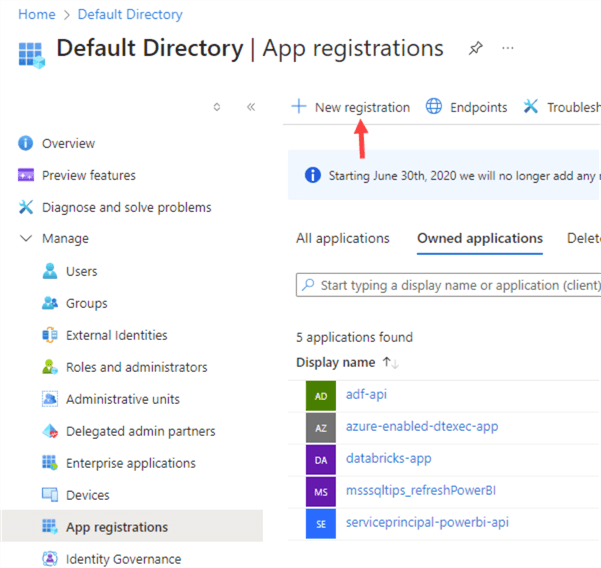
Create a new registration. Specify a name and configure that only accounts of the current organizational directory can use the application. For the redirect URI, use http://localhost:3000 (make sure Single-page application (SPA) is selected).

Once the app is created, go to the API permissions section:

Once the app registration is created, you will be taken to the Overview page, where you can find the client ID and the tenant ID. Both will be needed later in our C# script.
Click Add a permission.
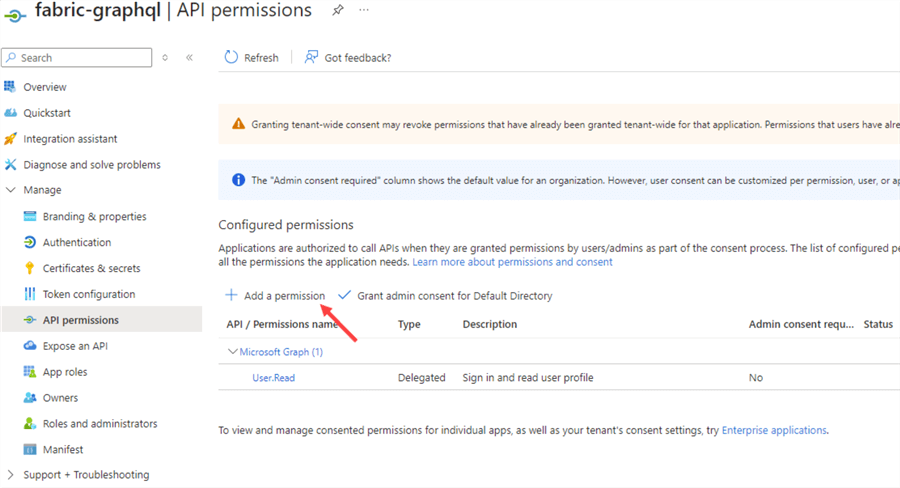
In the Request API permissions section, click Power BI Service.

Next, select Delegated permissions.

From the list, select the Item.Execute.All and Datamart.ReadWrite.All permissions.

You should have the following screen for the API permissions:

In the Manage > Authentication section, verify that the app is enabled for the Authorization Code Flow with PKCE.

In the Advanced Settings, enable mobile and desktop flows.

Creating the C# App
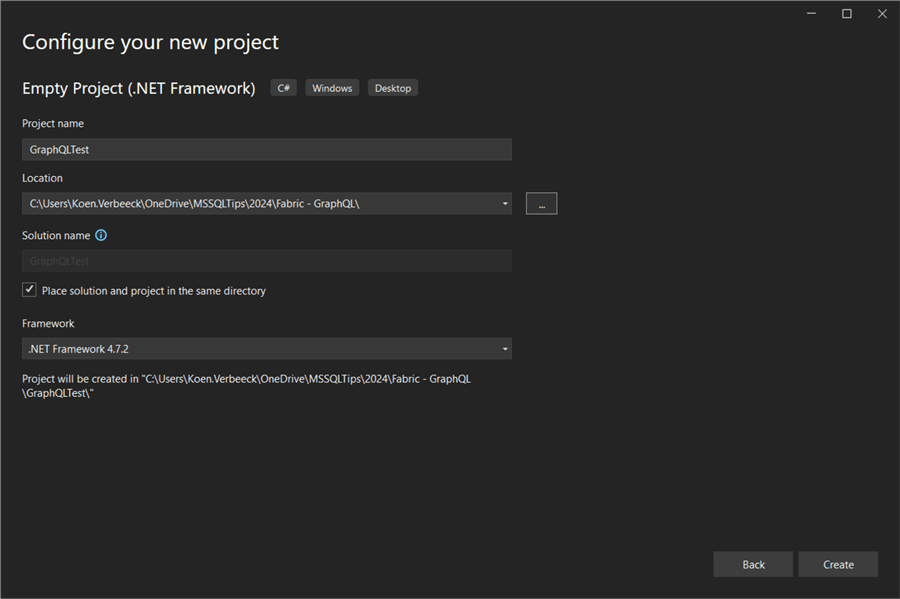
The screenshots in this tip are taken using Visual Studio Community Edition, but you can use Visual Studio Code as well. In Visual Studio, create a new project with the template Empty Project (.NET Framework). Click Next.
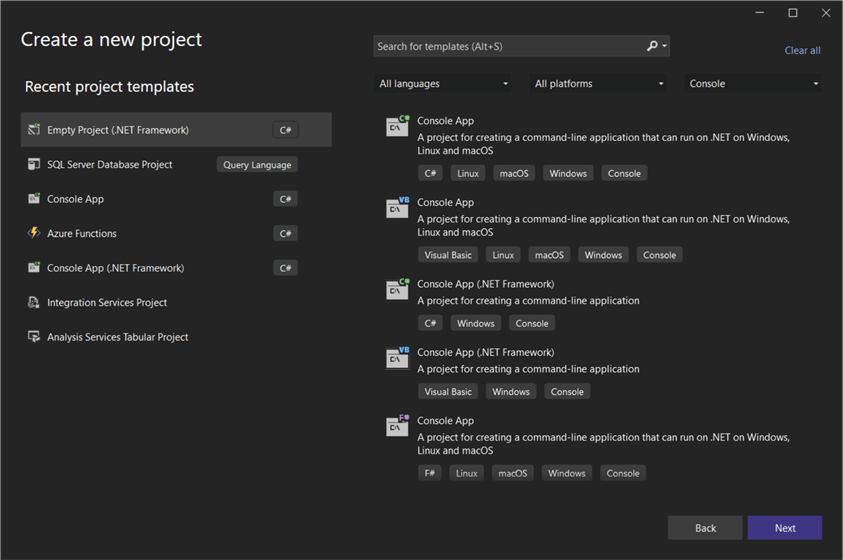
Give the project a name and choose a location to save it. Click Create.
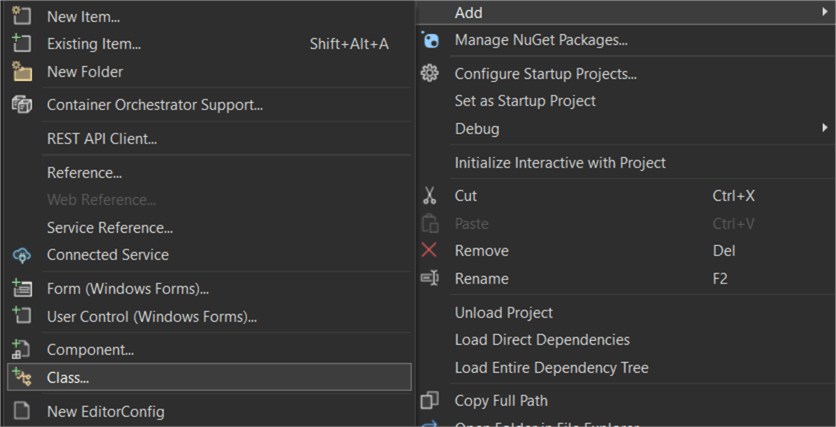
Once the project is created, add a C# class to it:
The backbone of the C# script has the following structure:
using System;
using Microsoft.Identity.Client;
using GraphQL.Client.Http;
using GraphQL.Client.Serializer.Newtonsoft;

namespace AzureADAuthApp
{
    class Program
    {
        private const string ClientId = "myclientID";  // This is your Application ID from Entra App Registration
        private const string TenantId = "mytenantID";  // This is your Tenant ID from Entra App Registration
        private const string Authority = "https://login.microsoftonline.com/" + TenantId;
        private const string GraphQLUri = "https://api.fabric.microsoft.com/v1/workspaces/workspaceID/graphqlapis/someguid/graphql"; // This is your GraphQL API endpoint

        static async System.Threading.Tasks.Task Main(string[] args)
        {
    …
        }
    }
}
There are three inputs needed to make the script work in the end:
- The ClientID of the app registration we created in the previous section.
- The TenantID of the tenant where your app registration and Fabric workspace resides.
- The URL to the GraphQL API in Fabric.
The URL can be found in the Fabric workspace in the GraphQL editor by clicking Copy endpoint.

We need the Microsoft.Identity.Client package to authenticate against Entra ID, and the GraphQL.Client packages to send a query to the Fabric GraphQL API. Right-click on References and select Manage NuGet Packages…

Add the Microsoft.Identity.Client package to the project.
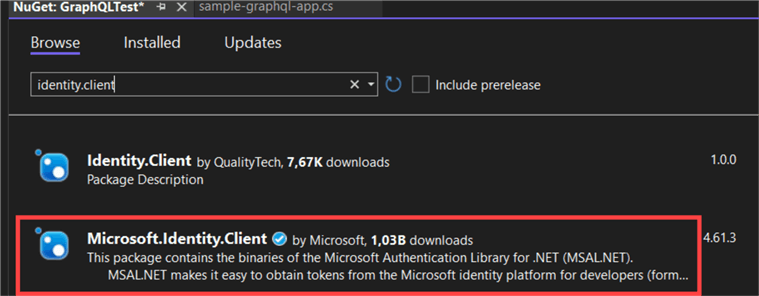
Install the latest available version:

Accept any licenses if necessary:

Next, add the GraphQL.Client package to the project, as well as the GraphQL.Client.Serializer.Newtonsoft package using the same steps:

Inside the Main method, the following code will fetch a token from Azure using an interactive prompt. This means you need to log in with your password every time you run this application and potentially go through MFA authentication as well.
var app = PublicClientApplicationBuilder.Create(ClientId)
   .WithAuthority(Authority)
   .WithRedirectUri("http://localhost:1234")
   .Build();

var scopes = new[] { "https://analysis.windows.net/powerbi/api/.default" };

try
{
   var result = await app.AcquireTokenInteractive(scopes).ExecuteAsync();
   if (result != null)
   {
        Console.WriteLine("Authentication Success");
        // graphql code comes here
   }
}
catch (MsalServiceException ex)
{
   Console.WriteLine(
quot;Authentication Error: {ex.Message}"); }If you run the code, you will be prompted to sign in:

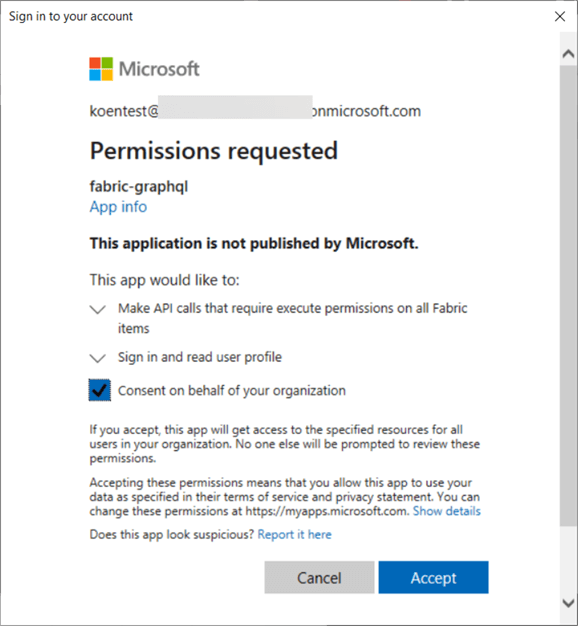
You need to sign in with a user with at least a contributor role to the workspace. The first time running the code with the app registration may require you to grant the app registration permissions:
It’s also possible the app will return an error when trying to log in: “Tokens issued for the ‘Single-Page Application’ client-type may only be redeemed via cross-origin requests.”
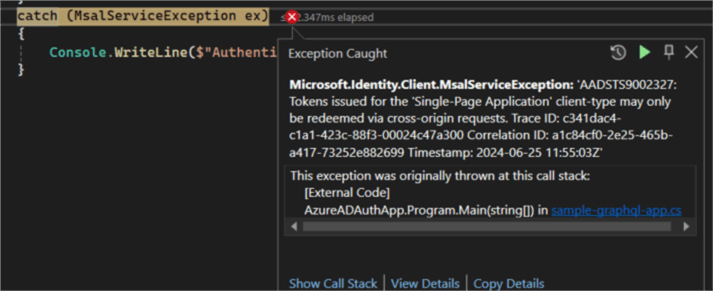
If this is the case, we need to make adjustments to the app registration. In the Authentication pane, click on Add a platform.

From the list, select Mobile and desktop applications.
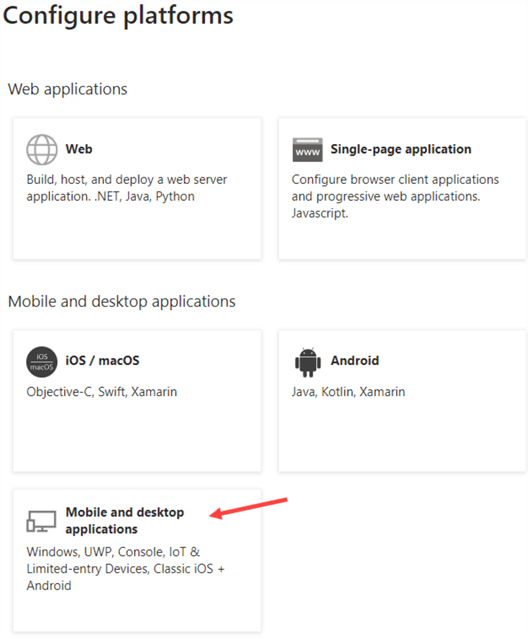
Configure a redirect URI. The documentation suggests using the same URL as the single-page application (as mentioned in step 10).

However, this results in an error:
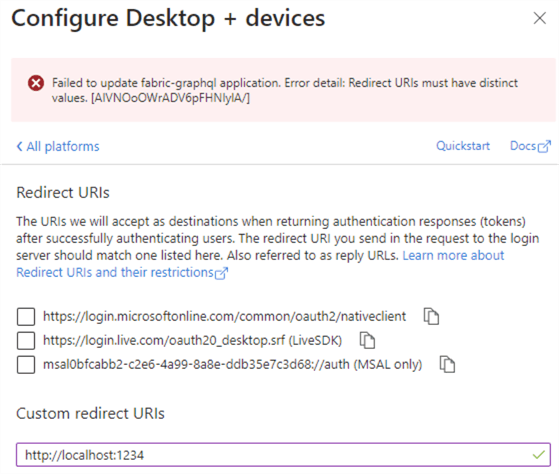
In my case, I opted for the redirect URI http://localhost:1234. Now the authentication process should work, and a message should be printed as output for success:

The code that deals with the GraphQL request looks like this:
var graphQLClient = new GraphQLHttpClient(GraphQLUri, new NewtonsoftJsonSerializer());

graphQLClient.HttpClient.DefaultRequestHeaders.Authorization = new System.Net.Http.Headers.AuthenticationHeaderValue("Bearer", result.AccessToken);

var query = new GraphQLHttpRequest
  {
   Query = @"  query {
               dimension_employees (first: 10) {
                 items {
                   Employee
                  ,IsSalesperson
                 }
               }
              }"
  };

var graphQLResponse = await graphQLClient.SendQueryAsync<dynamic>(query);

Console.WriteLine(graphQLResponse.Data.ToString());
We’re using the same GraphQL query as the one used in the previous tip. Note: Running the code for the first time might take some time to return the result of the GraphQL query, as the warehouse (or lakehouse) needs to “warm up.”
However, at the time of writing, the code will throw an exception.

The HTTP code is OK, which means the GraphQL request itself was successful. But, something went wrong when handling the data returned. The details show that the results from the query are returned in JSON format:

We can wrap the call to the GraphQL API in a try-catch block to investigate further by catching the exception of type GraphQLHttpRequestException.
try
{
   var graphQLResponse = await graphQLClient.SendQueryAsync<dynamic>(query);
}
catch (GraphQLHttpRequestException ex)
{
   Console.WriteLine(ex.Message);
   Console.WriteLine(ex.Content.ToString());
   //Console.WriteLine(graphQLResponse.Data.ToString());
}
By accessing the Content property of the exception, we can get to the actual data:
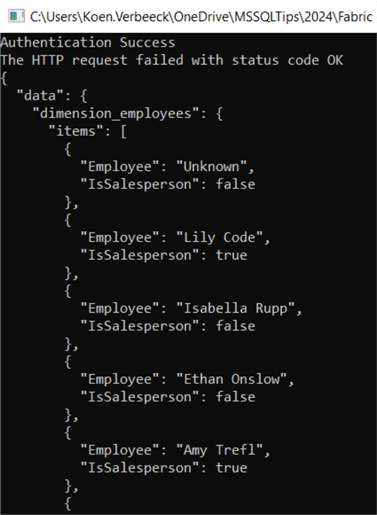
When stepping through all the code with the debugger (including the code from the GraphQL.Client package), we can find the culprit:

The HTTP response from the Fabric GraphQL API has the content type set to text/plain instead of application/json. This content type is not supported by the GraphQL.Client library. It seems to be a bug on the Microsoft side. There are two options to proceed further:
- Change the code to another GraphQL library that doesn’t have a problem with the content type.
- Handle the data in the catch block (not recommended).
This tip serves as proof of concept for accessing Fabric data through GraphQL. The concepts have been demonstrated, but unfortunately, the code is not production-ready at the time of writing.
Next Steps
- If you want to try it out yourself, you can download the C# script here. Make sure to follow the steps outlined in the tip, What is the API for GraphQL in Microsoft Fabric?.
- You can find all Microsoft Fabric tips in this overview.
- There’s a Microsoft Build 2024 recording of a live demo where a React app connects to the Fabric GraphQL API and displays the data in a custom dashboard.

Koen Verbeeck is a seasoned business intelligence consultant with over a decade of experience with the Microsoft Data Platform. He holds several certifications, including Azure Data Engineer. He’s a prolific writer, with over 375 articles on technologies such as Microsoft Fabric, SSIS, ADF, SSAS, SSRS, MDS, Power BI, Snowflake and Azure services. He has spoken at various events such as PASS, SQLBits, dataMinds Connect and many others. He frequently delivers educational webinars on MSSQLTips.com. For his efforts, Koen has been awarded the Microsoft MVP data platform award for many years.
- MSSQLTips Awards:
- Leadership Award (200+ Tips) – 2021
- Author of the Year – 2014/2020/2022
- Author Contender – 2024/2025