Overview
In this chapter we briefly look at the Microsoft Office Add-In for Data Mining, which let’s users work with the Data Mining Model and perform different data mining related tasks.
Explanation
Download and install the Data Mining Add-In for Microsoft Excel from here. Once installed, open Excel and the add-in should look as shown below.
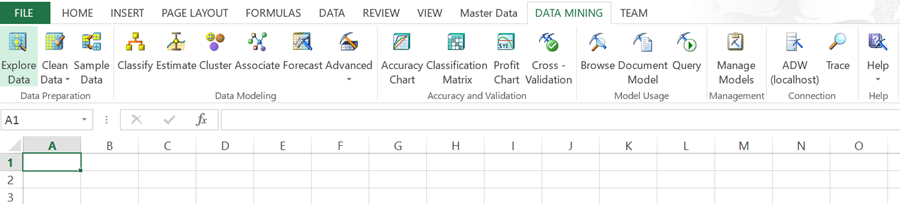
This add-in provides most of the capabilities available in SSDT to work with Data Mining. In order to practice data mining from Excel, the add-in also ships with a sample Excel file that contains test data for use with data mining tasks. This sample file should be located in the following location for a default installation depending upon the version you have installed.
- <drive>:\Program Files\Microsoft SQL Server 2014 DM add-ins\DMAddins_SampleData.xlsx
- <drive>:\Program Files(x86)\Microsoft SQL Server 2014 DM add-ins\DMAddins_SampleData.xlsx
With this we have reached the end of this tutorial. Consider exploring the models we built in previous chapters using this add-in from Excel.
Summary
We started this tutorial with a basic understanding of the need for data mining and typical use-cases. We developed the fundamentals of data mining by understanding the data mining process, different categories of analysis as well as data mining algorithms available in SSAS. We started the implementation of data mining exercise with the development of a data mining structure from a relational source followed by the development of a data mining model. After creating our first data mining model targeted at predicting a probability, we learned about deploying a data mining model and querying from SSMS. As relational sources can pose performance challenges for data mining, we learned about using an OLAP source like a SSAS cube for building a data mining structure and models. We also touched upon the data mining relationship between a fact and a dimension to understand the internal functioning of a cube with a data mining relationship. In the last part of the tutorial we learned about the use of DMX queries for reporting and exploration purposes. We ended the tutorial with the introduction to a powerful data mining Excel add-in that let’s data analysts work with data mining using Microsoft Excel.
I hope this tutorial provides a reasonable foundation for learning data mining, such that you can now start working on your area of interest in data mining and begin to practice data mining.

Siddharth has more than 14 years of experience in the IT Industry, with more than a decade of experience in Business Intelligence and Analytics, for clients banking, logistics, government, Media Entertainment, products, life sciences and other domains. He has been a lead architect for a portfolio of 40+ apps, containing apps in web, mobile, BI, Analytics, data warehousing, reporting, collaboration, CMS, NoSQL and other technologies. He has several certifications and is a published author for online and print-media publications, as well as the MSDN Library.
In his present role, he remains responsible for architecture design, technology stack selection, infrastructure design, 3rd party products evaluation and procurement, and performance engineering. These applications use technologies like Elasticsearch / Lucene, MongoDB, SharePoint 2013 and 2010, jQuery-based framework like Highcharts and GoJS, SQL Server and the Microsoft Business Intelligence stack (SSIS, SSAS, SSRS, MDX, PowerPivot, PowerView), jQueryMobile, Bootstrap, iOS xCode framework, and many others.
- MSSQLTips Awards: Champion (100+ tips) – 2018 | Author of the Year – 2017 | Author Contender – 2016, 2018-2019