Problem
Often we have audio or video files that have valuable information that we would like to convert to text transcripts. In this article, we look at a way that this can be done by taking audio or video files stored in SQL Server and automatically create a transcript from these files.
Solution
In this article, we will use Python and the OpenAI API to convert MP3 sound files into text and store it in SQL Server. The example can also work for .wav, .mp3, .flac, .ogg, and .mp4 files.
Requirements
- SQL Server 2022 installed or any other SQL version.
- SSMS installed.
- Visual Studio Code installed.
- A .mp3 file with English audio. If you do not have an MP3, you can record one.
Install Python Extension in Visual Studio Code
This article will provide steps to work with Visual Studio Code. However, you can use any other IDE you prefer to run the Python code.
In Visual Studio Code, go to Extensions.
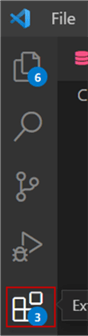
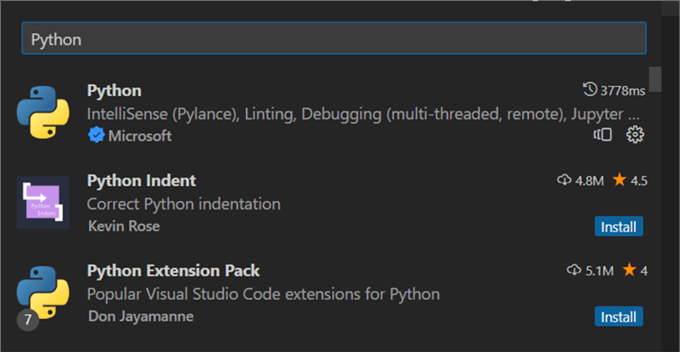
Search for Python and install the Microsoft extension if not already installed.
Open a Python File
In Visual Studio Code, go to File > New Text File.
In the Text file, Select a language.
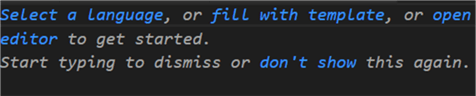
Select Python.

Writing Code to Read an MP3 File
The first example will create code to read the MP3 file and write the text.
The following code will transcribe the contents of the audio.mp3 file stored in the c:\data folder. The audio in this file is “Hello this is a test.”
#MSSQLTips.com
#use the openai API
import Openai
#use the api key
openai.api_key = "sk-Z5KNDHB8hmMd801C90WywthJYIfRaNqj"
#specify the path
audio_file= open("C:\\data\\audio.mp3", "rb")
#store the transcription in a variable
transcript = openai.Audio.transcribe("whisper-1", audio_file)
#print the transcription of the audio
print(transcript)
Install openai library from command line
Note: You need to install the openai library using the command line.
Run the pip install openai in the command line where Python is installed. This library uses AI to read and transcribe information from the audio file. Once installed, we can invoke it using the import openai code.
Register and log into OpenAI
To connect to openai, we need to register there. You can find the API keys here. You will need to register on the OPENAI website. They will ask for a login and a password, and you will receive a message on your cell phone to confirm.
Create secret key
Once you have an account and have logged into the site, Create a new secret key if you do not have any:

Copy the secret key created.
Code
The following line of code will open and read the binary file p2. Note: The path c:\data uses double backslashes.
audio_file= open("C:\\data\\audio.mp3", "rb")
“rb” means to read the binary file (read binary). There are other options for the open function:
- w = write the file.
- a = append the file.
- x = exclusive creation mode.
- t = text mode.
OpenAI supports the following audio extensions .wav, .mp3, .flac, .ogg, and .mp4.
The next line of code is the one that transcribes the audio into text and stores the text in the transcript variable:
transcript = openai.Audio.transcribe("whisper-1", audio_file)
Whisper-1 is used for a quiet, whispered speech. Other options include:
- phone_call = phone calls.
- serene-2 = a quiet speech
- focus-group-1 = a group forum or discussion.
- interview-3 = transcribing interviews.
- lecture-1 = academic lectures.
- Default = generic one for general purposes.
And finally, we print the transcription.
print(transcript)
This line of code will show the text:
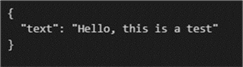
Note: It returns the data in brackets. This is because we are invoking the Openai REST API, and the REST API is returning a JSON response.
How to store the transcript into SQL Server
We have an mp3 file and we want to store the transcription into SQL Server.
The code to generate a table is the following:
CREATE TABLE transcript
(
    id INT IDENTITY(1,1) PRIMARY KEY,
    filename VARCHAR(255),
    transcription VARCHAR(MAX)
);
The table transcript will contain the file name in the filename column and the transcription of the mp3 audio in the transcription column. The code to do that is the following:
#mssqltips.com
import pyodbc
import openai

# Set up the connection to the SQL Server database using Windows Authentication
server = '.'
database = 'adventureworks2019'
conn = pyodbc.connect('DRIVER={SQL Server};SERVER=' + server + ';DATABASE=' + database + ';Trusted_Connection=yes;')

# use the openai API
openai.api_key = "sk-Z5KNDHB8hmMd801C90WywthJYIfRaNqj"

# specify the path
audio_file_path = "C:\\data\\audio.mp3"

#open(audio_file_path, "rb")

# store the transcription in a variable
transcript = openai.Audio.transcribe("whisper-1", audio_file)

# print the transcription of the audio
print(transcript)

# Insert the transcription and filename into the transcript table
cursor = conn.cursor()
query = "INSERT INTO transcript (filename, transcription) VALUES (?, ?)"
cursor.execute(query, ("audio.mp3", transcript))
conn.commit()

# Close the connection
conn.close()
Note that the audio files supported are the following:
- mp3
- mp4
- mpeg
- mpga
- m4a
- wav
- webm
How to Read Sound Data Files Stored in SQL Server using Python and AI
Previously, we learned how to read an MP3 file. In this new example, we will read the file stored in SQL Server.
First, we must install pyodbc, a library used to connect with ODBC in Python.
Run this command where Python is installed in order to install the pyodbc library:
Pip install pyodbc
Also, we need a database with MP3 files. The code below creates a table named AudioFiles. With the ID as the primary key, the filename will contain the name of the file and AudioData will contain the MP3 files.
--MSSQLTips.com

CREATE TABLE [dbo].[AudioFiles](
   [ID] [int] IDENTITY(1,1) NOT NULL,
   [FileName] [varchar](100) NULL,
   [AudioData] [varbinary](max) NULL,
PRIMARY KEY CLUSTERED
(
   [ID] ASC
)WITH (PAD_INDEX = OFF, STATISTICS_NORECOMPUTE = OFF, IGNORE_DUP_KEY = OFF, ALLOW_ROW_LOCKS = ON, ALLOW_PAGE_LOCKS = ON, OPTIMIZE_FOR_SEQUENTIAL_KEY = OFF) ON [PRIMARY]
) ON [PRIMARY] TEXTIMAGE_ON [PRIMARY]
GO
To insert an audio file in the AudioFiles table, you can use the following T-SQL statement:
INSERT INTO [dbo].[AudioFiles] ([FileName], [AudioData])
SELECT 'audio.mp3', BulkColumn
FROM OPENROWSET(BULK N'C:\data\audio.mp3', SINGLE_BLOB) AS FileData
We are inserting the MP3 file from the c:\data path into the table.
Next, in Visual Studio Code, write this code:
#MSSQLTips.com
import pyodbc
from io import BytesIO
import openai

# Connect to SQL Server
conn = pyodbc.connect('Driver={SQL Server};'
                      'Server=.;'
                      'Database=Adventureworks2019;'
                      'Trusted_Connection=yes;')

# Get the audio data from the AudioFiles table
cursor = conn.cursor()
cursor.execute('SELECT AudioData FROM AudioFiles WHERE FileName = ?', 'test1.m4a')
audio_data = cursor.fetchone()[0]

# Transcribe the audio data
openai.api_key = "sk-Z50WywthJYIfRaNqj"
audio_file = BytesIO(audio_data)
audio_file.name = "test1.m4a"
transcript = openai.Audio.transcribe("whisper-1", audio_file)

# Print the transcription
print(transcript)

# Close the connection
conn.close()
First, we import the libraries: pyodbc to connect to SQL Server using ODBC, BytesIO to handle the files, and openai to transcribe the audio.
import pyodbc
from io import BytesIO
import openai
Next, we need to connect to SQL Server using the SQL Server driver, where the “.” means to use the local SQL Server. You can specify the SQL Server name instead. The database is the name of the SQL Server database where the AudioFiles table is stored. You can use any database. Finally, Trusted_connection is used to show the connection to SQL Server is through the Windows Account. Ensure that your current Windows Account has access to the database with the AudioFiles table.
# Connect to SQL Server
conn = pyodbc.connect('Driver={SQL Server};'
                      'Server=.;'
                      'Database=Adventureworks2019;'
                      'Trusted_Connection=yes;')
Also, create a cursor, and store the information from the cursor in the audio_data variable. The test1.m4a is the file with the audio. The cursor will read the data of the column where the filename is equal to test1.m4a.
# Get the audio data from the AudioFiles table
cursor = conn.cursor()
cursor.execute('SELECT AudioData FROM AudioFiles WHERE FileName = ?', 'test1.m4a')
audio_data = cursor.fetchone()[0]
We then use the openai libraries to read the audio_file and transcribe the audio in the transcript variable.
# Transcribe the audio data
openai.api_key = "sk-Z50WywthJYIfRaNqj"
audio_file = BytesIO(audio_data)
audio_file.name = "test1.m4a"
transcript = openai.Audio.transcribe("whisper-1", audio_file)
Finally, we print the transcription and close the connection.
# Print the transcription
print(transcript)

# Close the connection
conn.close()
Conclusion
In this article, we learned how to transcribe audio files using AI and then how to transcribe audio files stored in a SQL Server database.
Next Steps
To learn more about Python and handling binary files in SQL Server, refer to these links:
- How to Query SQL Data with Python pyodbc
- Read and Write Binary Files with the SQL Server CLR
- Simple Image Import and Export Using T-SQL for SQL Server

Daniel Calbimonte is a Microsoft Most Valuable Professional, Microsoft Certified Trainer and Microsoft Certified IT Professional for SQL Server. He is an accomplished SSIS author, teacher at IT Academies and has over 10 years of experience as a QE and developer for SQL Server related software. He has worked for the government, oil companies, web sites, magazines and universities around the world. Daniel also regularly speaks at SQL Servers conferences and blogs.
- MSSQLTips Awards: Author of the Year Contender – 2015-2018, 2022, 2023 | Champion (100+ tips) – 2018